AutoPostUser guide
Connecting Pinterest to AutoPost
The complete guide: from Pinterest permission and choosing a board to your first Pin, plus the administrator steps for opening the connection
Save this guide
PDF version to read offline or print · 7.3 MB · 59 pages
Contents
1. Overview
Who does what
This guide has two kinds of readers. Chapters 1–11 are for AutoPost users. Chapters 12–19 are for the AutoPost administrator.
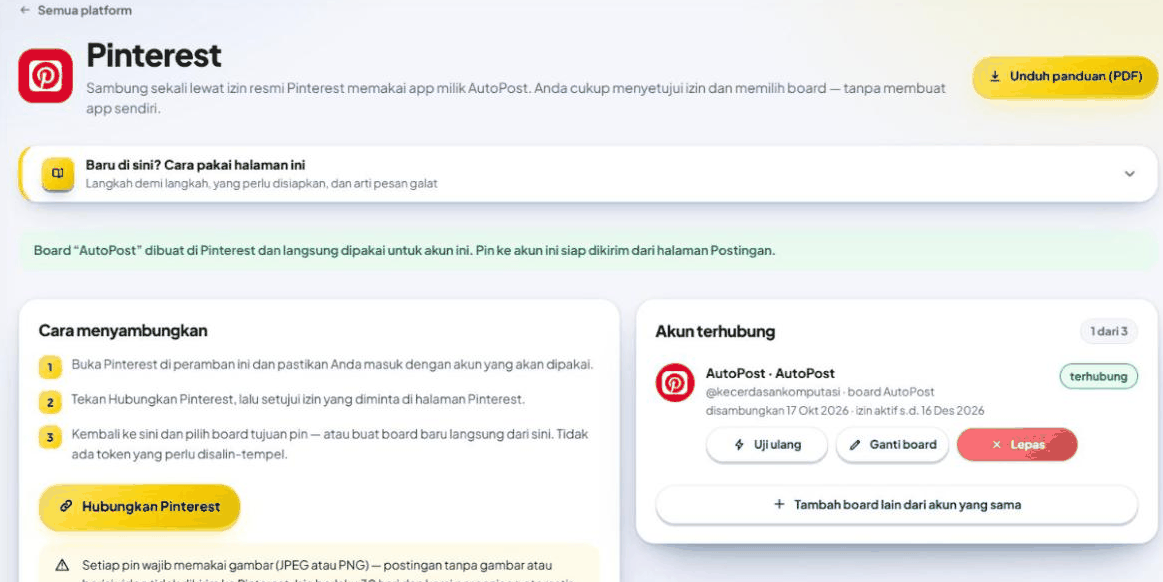
The AutoPost screenshots in chapters 1–11 use a sample account (Rina Kusuma, @rina_kusuma, with the board Coffee Shop Promo); your screen shows your own account and board names. Screenshots marked real test, 17 Oct 2026 were taken from AutoPost's own Pinterest account (display name AutoPost, @kecerdasankomputasi) when the first Pin was sent to the real Pinterest; the AutoPost interface in those screenshots is in Indonesian.
| You are | What you do | Create a Pinterest app? |
|---|---|---|
| An AutoPost user | Press Connect Pinterest, give permission on Pinterest, choose or create a board, then send Pins. | No. The app belongs to AutoPost. |
| The AutoPost administrator (server owner) | Creates the Pinterest app once, waits for Pinterest's approval, then pastes its keys on the server. | Yes, once for all users. |
Unlike Instagram and Facebook Page, for Pinterest you don't copy any ID, secret, or token. You also never give your Pinterest password to AutoPost.
Current status: fully active (since 22 October 2026)
As of 22 October 2026, Pinterest has approved Standard access for the AutoPost app. The Connect Pinterest button is active, and the Pins you send through AutoPost are published publicly, visible to everyone on the board you choose.
The Pinterest connection was opened in three stages. All three are complete.
| Stage | What AutoPost shows | What you can do | What you can't do yet |
|---|---|---|---|
| 1. Waiting for review (29 Sep – 16 Oct 2026, finished) | The box The Pinterest connection isn't open yet. The Connect Pinterest button is grey. | Read this guide. Send via Telegram, Facebook Page, or Instagram. | Connect Pinterest and send Pins. |
| 2. Trial (testing) (17 – 21 Oct 2026, finished) | The box Pinterest is still in testing. The button is active. | Connect, create boards from AutoPost, and send Pins. Pins are published in the sandbox: visible only to the owner of that Pinterest account. | Use boards created on the regular Pinterest site or app. Pins that other people can see. |
| 3. Standard (since 22 Oct 2026, now) | No warning box. | Everything. Pins are published publicly, visible to everyone. | — |
- 1Press Connect Pinterest in AutoPost
- 2Allow AutoPost on the Pinterest page
- 3Choose a board (or create a new one)
- 4Write a post with a JPEG/PNG image
- 5The Pin goes live on your board
Estimated time
Once the button is active, connecting Pinterest takes only about 5 minutes. You do it once. The permission is renewed automatically.
What to prepare
| Item | Notes |
|---|---|
| AutoPost account | You're already signed in to the AutoPost app. |
| Pinterest account | The account that will receive the Pins. You don't need a board beforehand — you can create one from AutoPost. |
| Browser | Use the same browser for AutoPost and Pinterest. |
| Image | Every Pin must have an image (JPEG or PNG). |
What AutoPost sends to Pinterest
| Post content in AutoPost | Result on Pinterest |
|---|---|
| The first line of the text | The Pin title (max. 100 characters). |
| The text after the first line | The Pin description (max. 800 characters). |
| The Link (optional) field | The Pin's destination link (clickable). |
| The image's Alt text | The image alt text (cut to 500 characters). Empty → the title is used as alt text. |
| One JPEG or PNG photo | The Pin image. |
| Video | Refused. AutoPost doesn't support video Pins yet. |
| Text only (no image) | Refused. The composer holds it before sending. |
One post = one single-image Pin. AutoPost doesn't support carousel Pins yet: if a post contains more than one media item and a Pinterest account is selected, Send now and Schedule are held — use one image or deselect the Pinterest account.
2. Understanding the terms
| Term | Meaning |
|---|---|
| Board | A board or folder on Pinterest where Pins are collected. In AutoPost, each board counts as one account. |
| Pin | One post on Pinterest: an image, a title, a description, and a link. |
| Permission (OAuth) | Pinterest's official way of giving AutoPost limited access to your account. You approve it on Pinterest's own site. |
| Token | The access key Pinterest issues after you give permission. AutoPost stores it encrypted and renews it by itself. |
| Trial access | Pinterest's testing-stage access for the AutoPost app. Pins are visible only to their creator. |
| Standard access | Full access from Pinterest. Pins are visible publicly. |
| Sandbox | Pinterest's test environment. Boards and Pins there are separate from your regular boards and visible only to you. |
| Pin approval | The AutoPost page where you approve Pins from Auto post one by one before they're published. |
3. When the Connect Pinterest button is active
Open the Social accounts menu, then on the Pinterest card press Connect (it says Manage once a board is connected). The Pinterest page opens.
Look at the top of that page. Since 22 October 2026 (Standard access) you see the last row of this table: no warning box. The first two rows are kept as history; they only appear again if the administrator closes the connection or switches testing mode back on.
| What you see | What it means | What to do |
|---|---|---|
| The box The Pinterest connection isn't open yet and a grey Connect Pinterest button | Stage 1 (history: before 17 Oct 2026): AutoPost is still waiting for Pinterest's approval. | Nothing. In the meantime, send via Telegram, Facebook Page, or Instagram. |
| The box Pinterest is still in testing | Stage 2 (Trial, sandbox; 17–21 Oct 2026, now over). The button is active. | You may connect. Pins are visible only to you. |
| No warning box | Stage 3 (Standard). | Connect as usual. Pins are published publicly. |
During Trial (now over) there was one exception: if the administrator opened the connection without the sandbox, the page also showed no warning box, but Pinterest rejected Pins with the message "Pinterest rejected this request: …" (section 9.3). Report it to the AutoPost administrator if that happens.
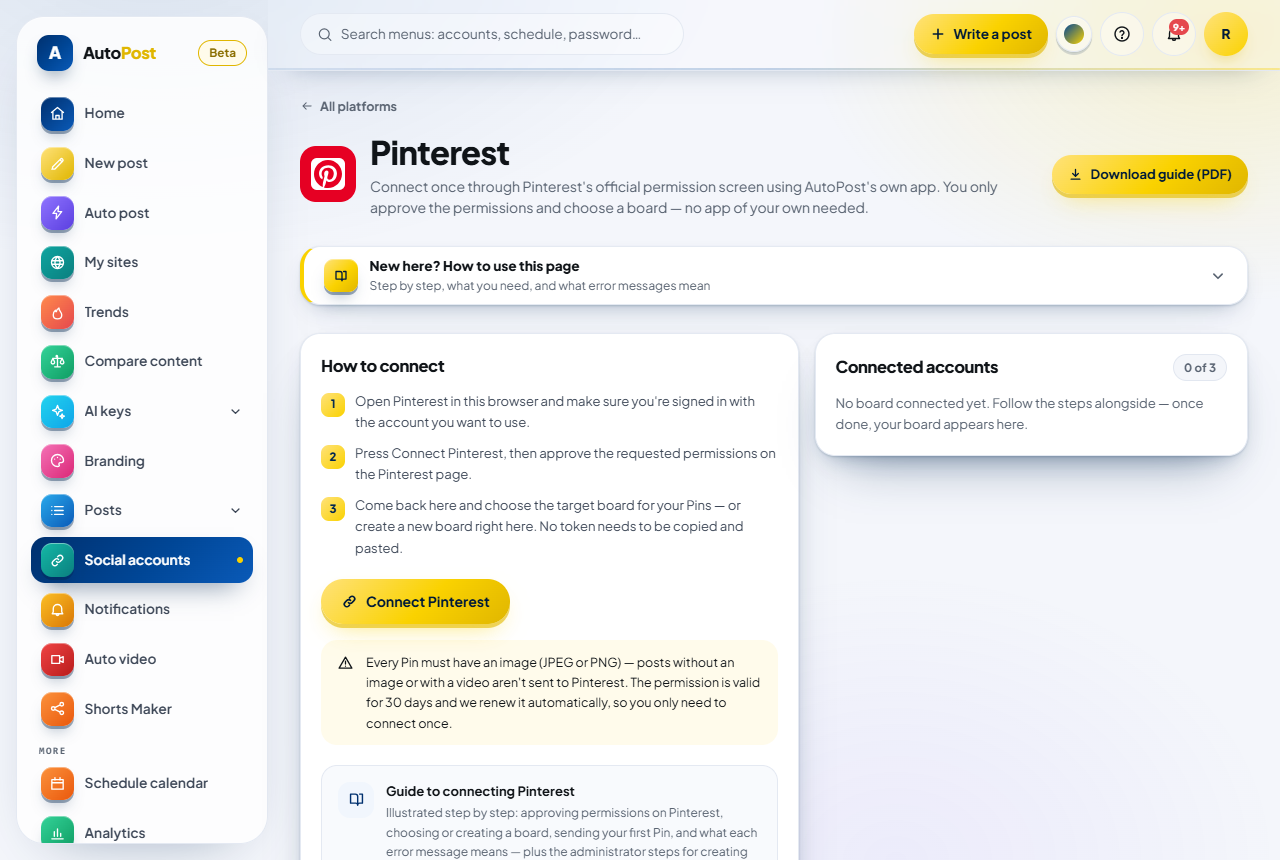
Once the connection is open, the Pinterest page looks roughly like this: the How to connect card with a gold Connect Pinterest button you can press, and an empty Connected accounts card (0 of 3).
The stage 1 box (history: before 17 Oct 2026) read exactly:
AutoPost is still waiting for Pinterest to approve its access, so the Connect Pinterest button can't be pressed. You don't need to set anything up — the button turns on by itself once the connection is open. In the meantime, send your posts via Telegram, Facebook Page, or Instagram.
Below it is a Note for the AutoPost administrator fold. It contains the names of the server settings that aren't filled in yet. That's for the administrator, not for you.
The stage 2 box (testing, 17–21 Oct 2026, now over):
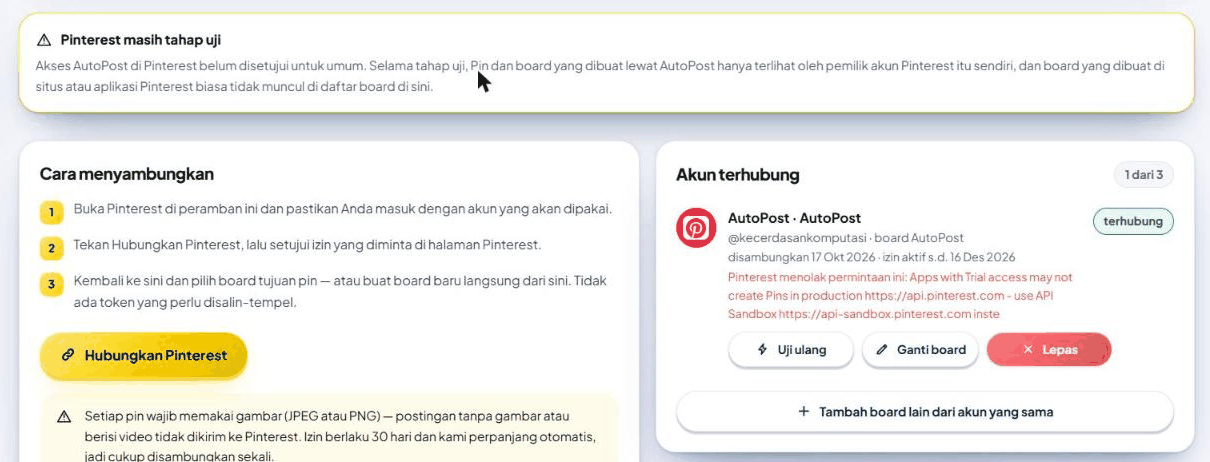
AutoPost's Pinterest access hasn't been approved for the public yet. During testing, Pins and boards created through AutoPost are visible only to the owner of that Pinterest account, and boards created on the regular Pinterest site or app don't appear in the board list here.
The button is also grey in three other situations:
There's a box Permission storage on the server isn't ready. That's a server problem. Report it to the AutoPost administrator if it lasts a long time.
Next to the button it says Full: disconnect one board first to add another. You already have 3 boards (section 8.6).
A red banner The account list couldn't be read: …: reload; if it stays, tell the administrator.
4. Step 1 — Giving permission on Pinterest
4.1 Before you press the button
Open pinterest.com in the same browser as AutoPost.
Make sure you're signed in with the Pinterest account that should receive the Pins.
If you have several Pinterest accounts, this step matters. Pinterest grants permission for the account that is currently signed in in the browser.
4.2 Pressing Connect Pinterest
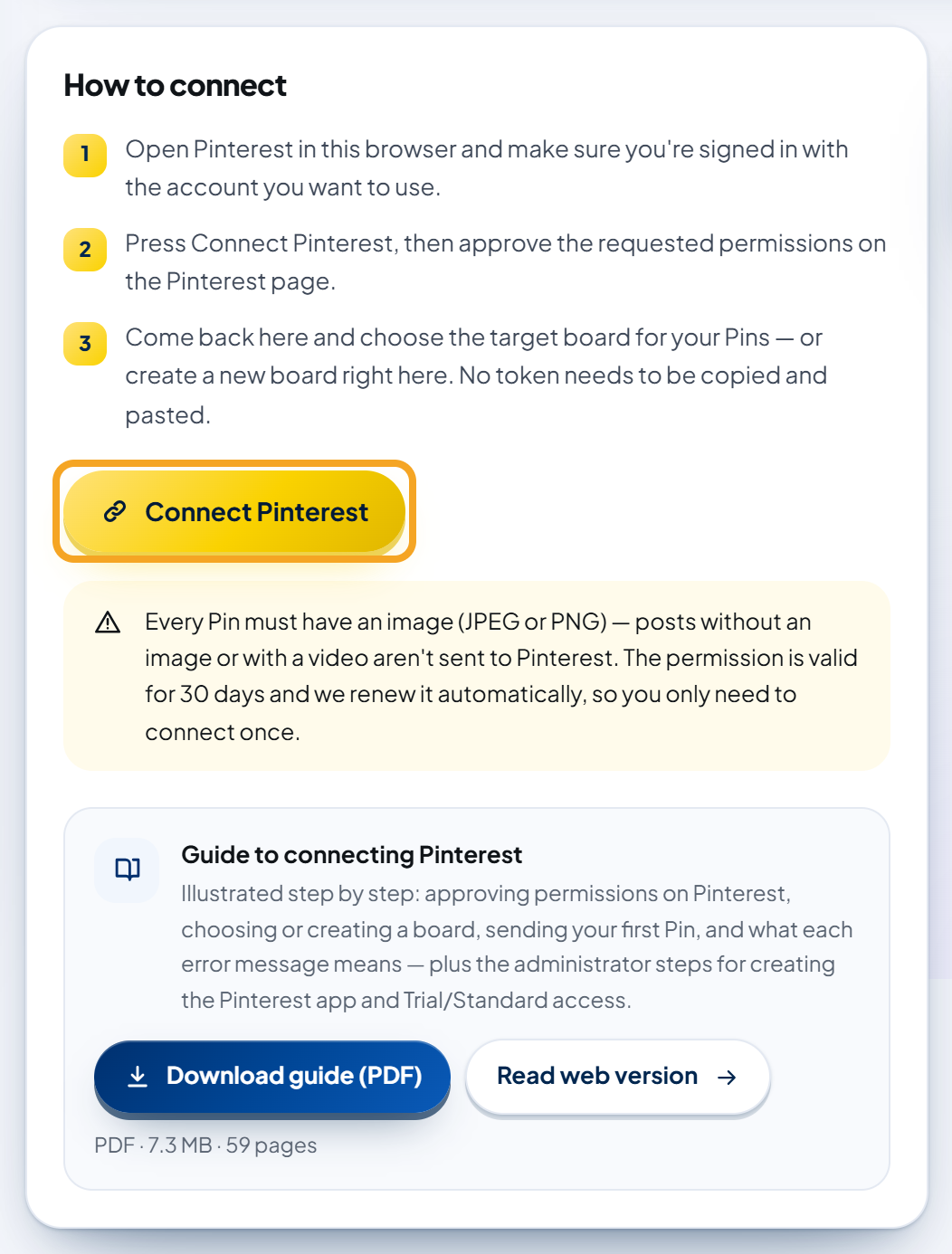
On the AutoPost Pinterest page, in the How to connect card, press the gold Connect Pinterest button.
AutoPost takes you to the permission page on www.pinterest.com titled Authorize app. The app name shown is AutoPost PT SKK, made by PT Solusi Kecerdasan Komputasi.
Check the list of requested permissions and the account name under Logged in as …. If it isn't the account you meant, press Log out and sign in with the right account.
Press the red Give access button.
Pinterest sends you back to AutoPost.
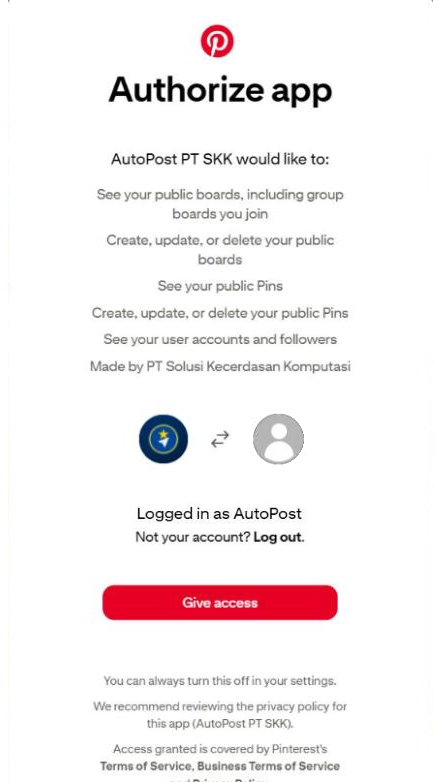
If the browser isn't signed in to Pinterest yet, Pinterest shows its sign-in page first. Sign in there. AutoPost never sees the password you type on Pinterest's site.
4.3 The permissions AutoPost requests
| Permission | What it means for you |
|---|---|
boards:read | Read your list of public boards, so you can choose the target board. |
boards:write | Create a new board (the Create & use board button). |
pins:read | Read public Pins. Requested together with pins:write because Pinterest's API documentation lists it for creating Pins. |
pins:write | Create new Pins on the board you choose. |
user_accounts:read | Read your username and account type, so the account shows with the right name. |
AutoPost does not request permission for secret boards or Pins (boards:read_secret, pins:write_secret, and the like), and doesn't request advertising permissions.
4.4 What AutoPost does behind the scenes
When you press Connect Pinterest, AutoPost creates a random security code (state). It's kept in a browser cookie for 10 minutes, together with a marker of your AutoPost account.
After you give permission, Pinterest sends you back to AutoPost. AutoPost checks that the security code matches and that you're still signed in with the same AutoPost account.
AutoPost exchanges the permission code for a token. The access token is valid for 30 days. The backup (refresh) token is valid for 60 days and moves forward every time it's renewed.
AutoPost reads your Pinterest account name.
The token is stored encrypted (AES-256-GCM) in the database. The temporary cookie is deleted.
The token is renewed automatically. The AutoPost worker checks it once an hour. You don't need to reconnect every 30 days.
The permission active until date on the Connected accounts card is the expiry of the backup token (about 60 days after the permission or the last renewal). That date moves forward every time the token is renewed.
4.5 Signs of success
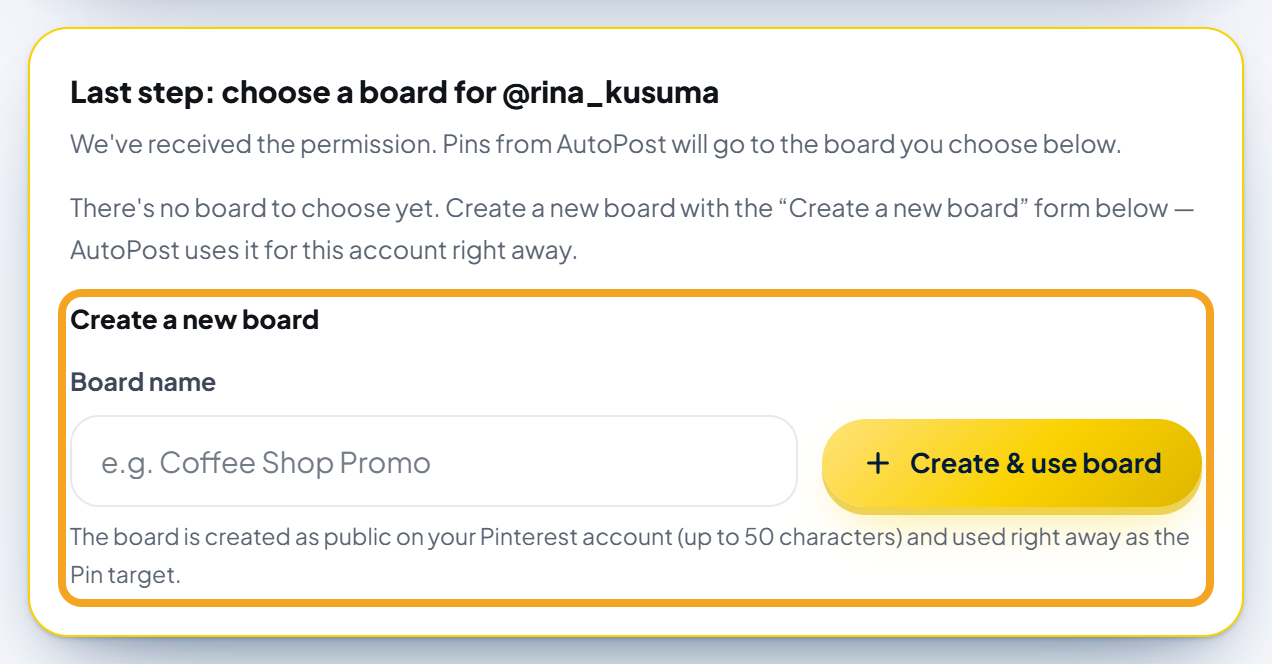
You're back on the AutoPost Pinterest page. Below, a gold-highlighted card appears: Last step: choose a board for @your_account, with the description:
We've received the permission. Pins from AutoPost will go to the board you choose below.
On the Connected accounts card, your account shows as … · no board chosen yet with the label choose board. Below it there are only the Retest and Disconnect buttons. Continue with Step 2.
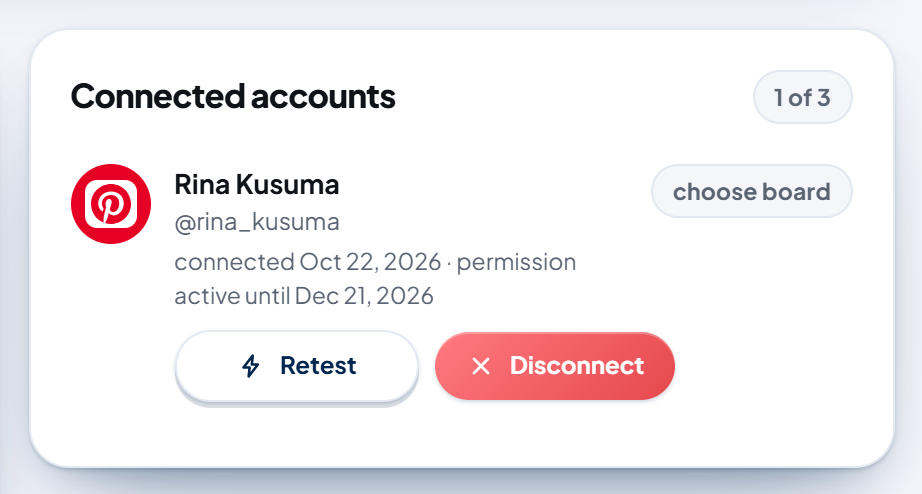
This is how it looks with a real Pinterest account:
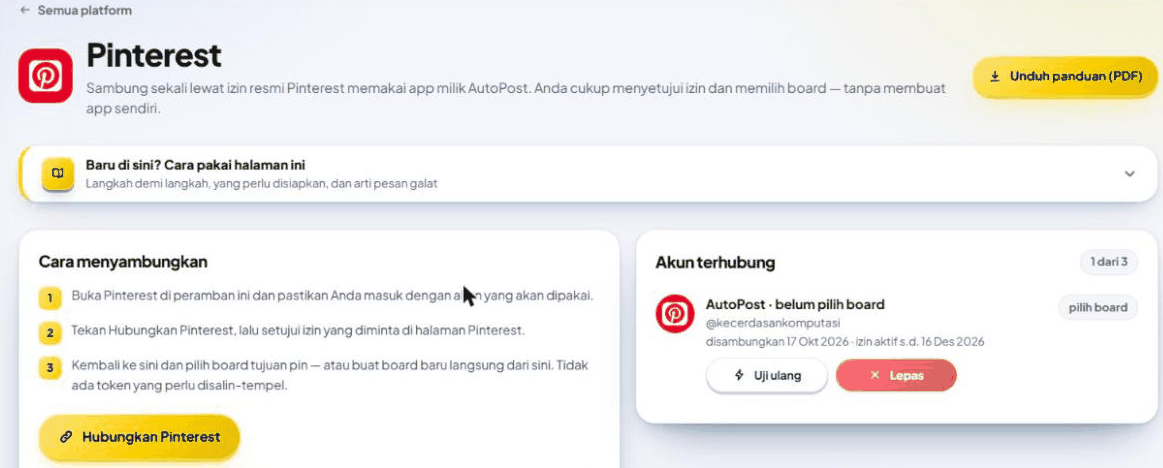
5. Step 2 — Choosing or creating a board
Pins from AutoPost always go to one board that you set. Until a board is chosen, that account can't be sent to.
5.1 Choosing an existing board
In the Last step: choose a board for … card, open the Target board box.
Choose one of the boards in the list (Choose a board…).
Press Save board.
A green message appears:
Board “Coffee Shop Promo” saved. Pins to this account are ready to send from the Posts page.
The account label changes to connected, and its name becomes account name · board name. The small line below it shows the board name, for example @your_account · board Coffee Shop Promo, and the permission period, for example connected Oct 22, 2026 · permission active until Dec 21, 2026. The screenshot is at the end of 5.2.
5.2 Creating a new board from AutoPost
Don't have a board yet, or your board isn't in the list? Just create one from AutoPost:
In the same card, find the Or create a new board section (it says Create a new board if the board list is empty).
Fill in Board name, for example Coffee Shop Promo. It can be 1–50 characters long.
Press Create & use board.
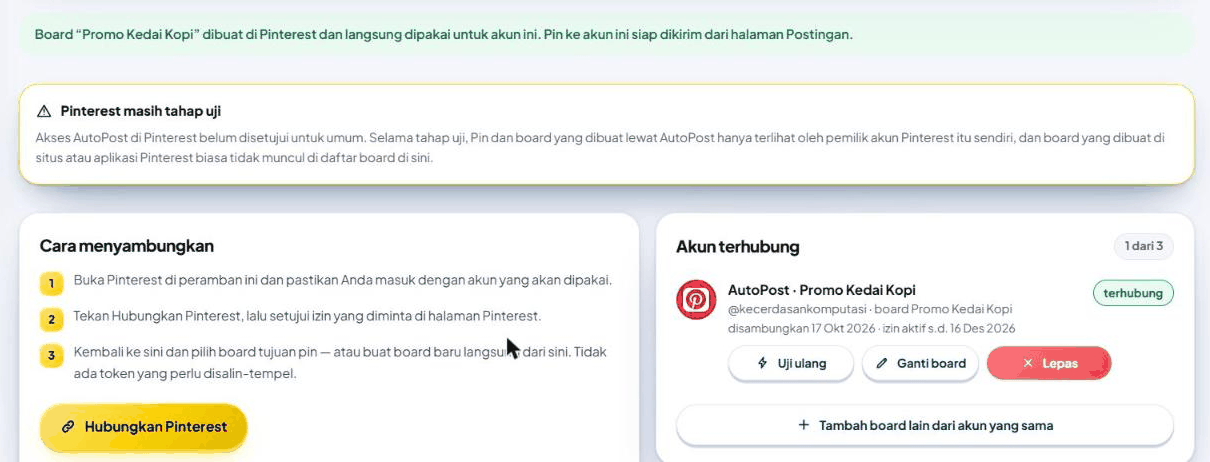
A public board is created on your Pinterest account and used right away. A green message appears:
Board “Coffee Shop Promo” was created on Pinterest and is now used for this account. Pins to this account are ready to send from the Posts page.

On the Connected accounts card, the account now has the green label connected, and it has more buttons: Change board and Add another board from the same account.
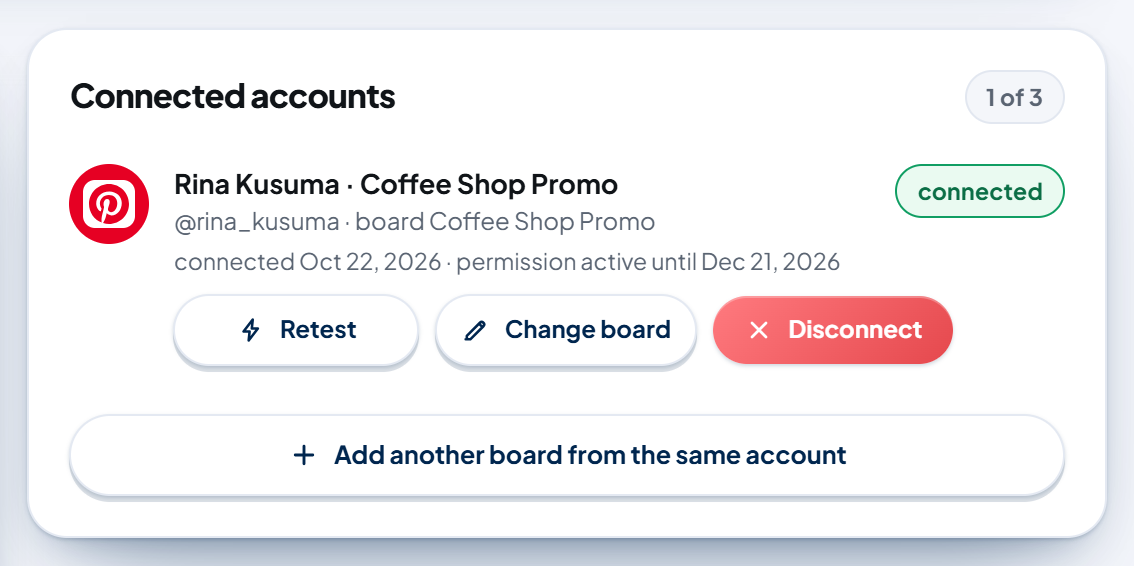
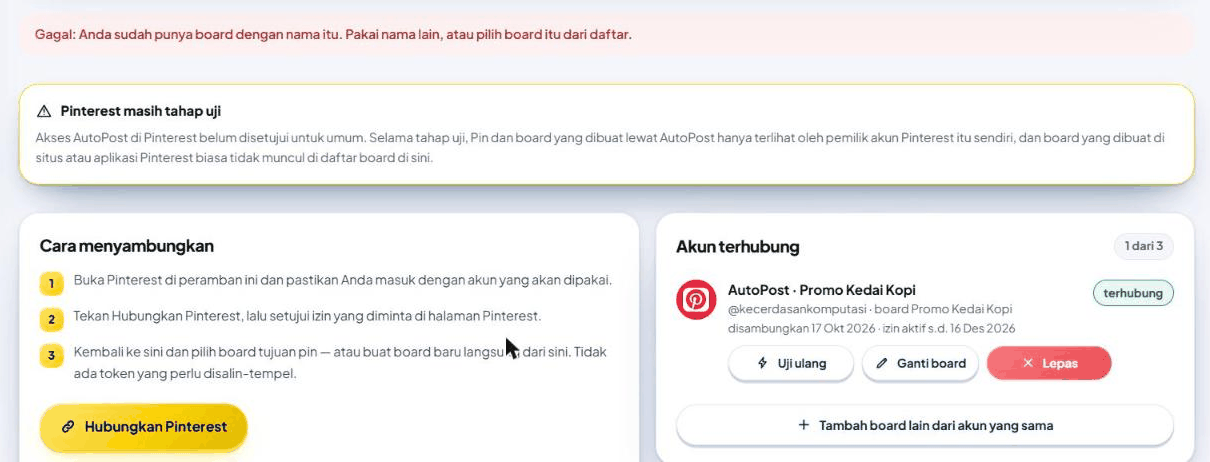
This is the result with the real Pinterest, when the first board was created (before testing mode was switched on):
5.3 If the board list is empty
This message appears in the card:
There's no board to choose yet. Create a new board with the “Create a new board” form below — AutoPost uses it for this account right away.
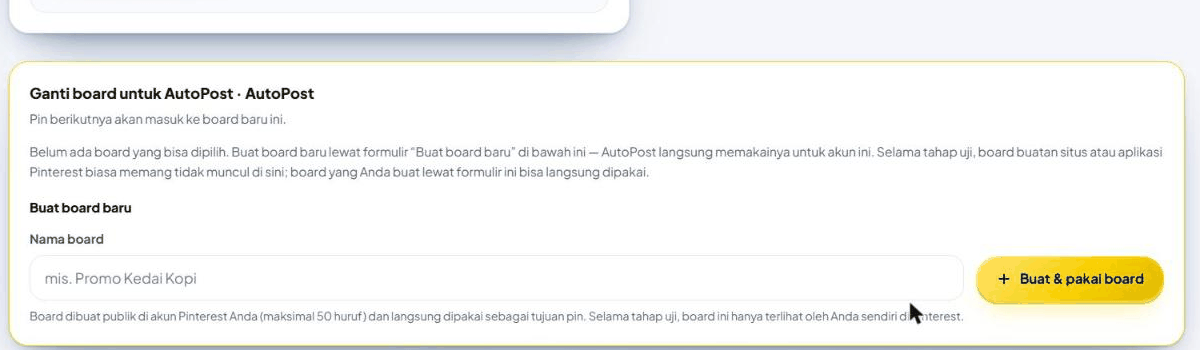
The Target board box isn't shown. Instead you go straight to the Create a new board form. Fill in Board name, then press Create & use board (the button is now gold). During testing (17–21 Oct 2026, now over), that message continued with a sentence saying that boards made on the regular Pinterest site indeed don't appear.
During testing (now over), the card looked like this (here opened with the Change board button, so its title is Change the board for …):
6. Step 3 — Your first Pin
6.1 Quick rules before sending
Every Pin must have an image. Use JPEG or PNG.
Video is refused.
The first line of the text = the Pin title, max. 100 characters.
The text after the first line = the Pin description, max. 800 characters.
Link (optional) must start with
http://orhttps://.A 2:3 portrait image fits best. Images taller than 2:3 may be cropped in the Pinterest feed.
6.2 Writing a Pin in New post
Open New post.
In the text box, write the title on the first line. Press Enter, then write the description from the second line on.
Fill in Link (optional) if the Pin should lead to your website.
Press Upload from gallery and choose a .jpg or .png photo. Or make an image in Image studio (for example a Design card).
Press Alt text on the image card and fill in a short description of the image for screen readers. The button only appears once an image has been added.
Under Send to, choose your Pinterest account. Its label has the form account name · board name, for example Rina Kusuma · Coffee Shop Promo.
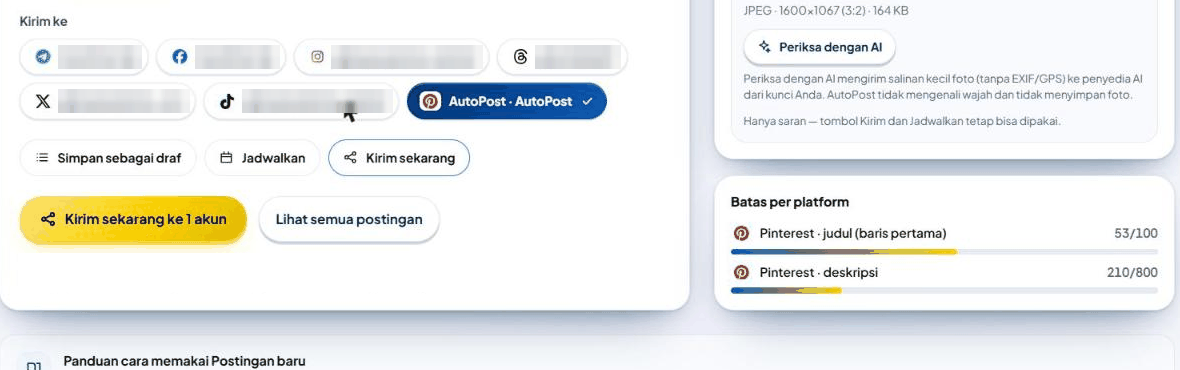
Press Send now, then the gold Send now to 1 account button (the number follows how many accounts are selected).
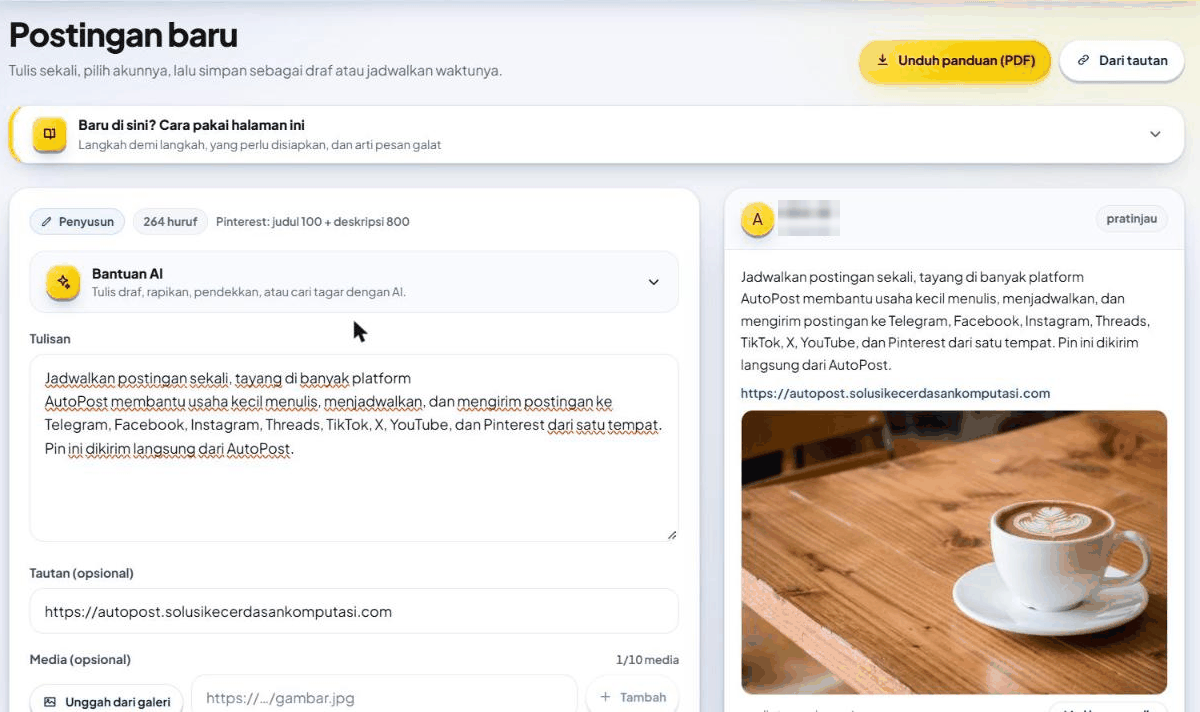
On the Limits per platform card, Pinterest has two counters: Pinterest · title (first line) (x/100) and Pinterest · description (x/800).
This is how our first Pin looked while it was being written. The first line (an Indonesian sentence meaning "Schedule posts once, publish on many platforms") became the title (53/100), and the two sentences below it became the description (210/800):
6.3 If you forget to add an image
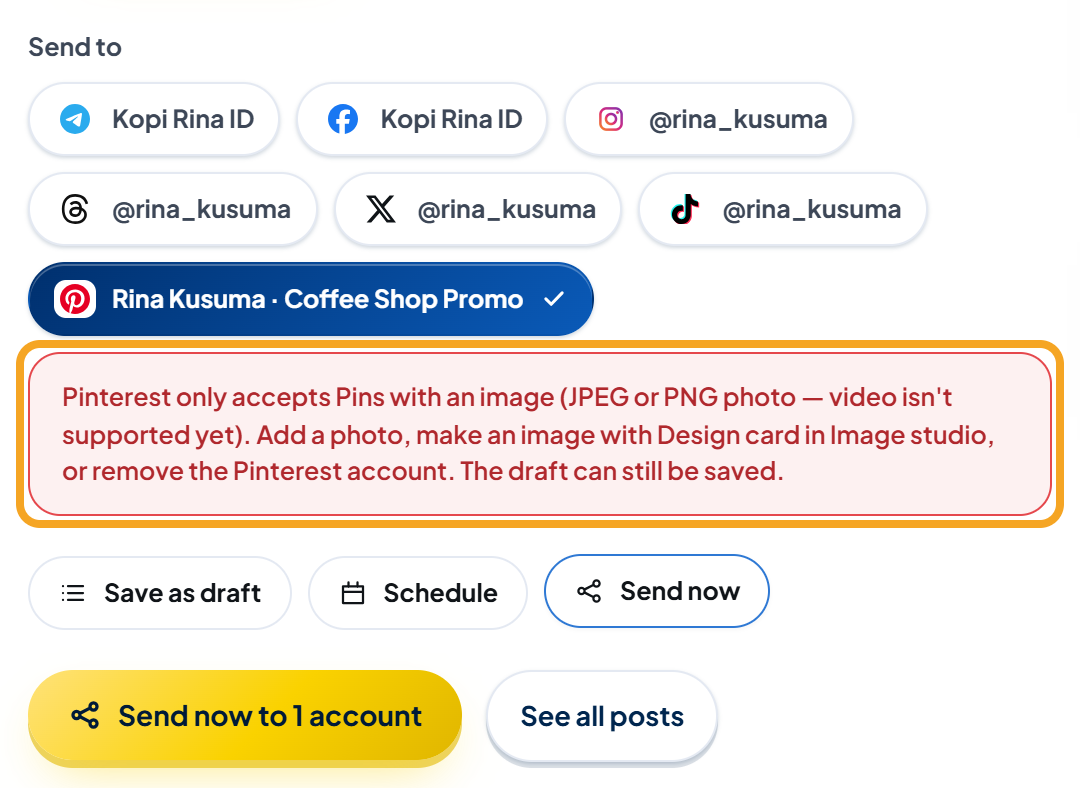
Choose a Pinterest account without an image, and the composer immediately shows a red box:
Pinterest only accepts Pins with an image (JPEG or PNG photo — video isn't supported yet). Add a photo, make an image with Design card in Image studio, or remove the Pinterest account. The draft can still be saved.
If the media is a video, the red box says:
Pinterest only accepts Pins with an image (JPEG or PNG photo) — AutoPost doesn't support video yet. Replace the video with a photo or remove the Pinterest account. The draft can still be saved.
If Instagram and Pinterest are both selected without an image, there's just one red box:
Instagram and Pinterest only accept posts with an image. Add a JPEG photo (accepted by both), make an image with Design card in Image studio, or remove the Instagram and Pinterest accounts. The draft can still be saved.
While that red box is there, Send now and Schedule are held. Pressing the gold button only brings up the same message. Save as draft still works.
6.4 A Pinterest account with a dashed outline
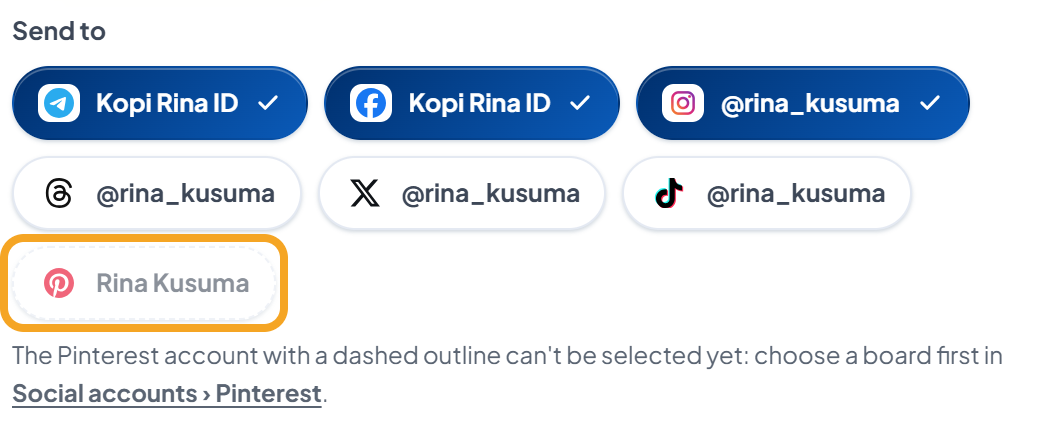
An account whose board hasn't been chosen yet appears with a dashed outline under Send to and can't be selected. Below it you see:
The Pinterest account with a dashed outline can't be selected yet: choose a board first in Social accounts › Pinterest.
If there are two or more such accounts, the sentence starts with the number, for example "2 Pinterest accounts with a dashed outline can't be selected yet: …". Open the Social accounts › Pinterest link, then do Step 2.
6.5 Checking the result
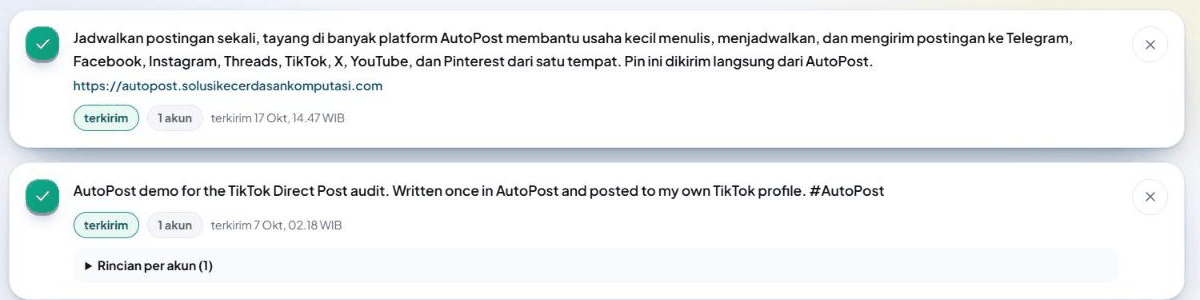
In AutoPost, open the Posts menu. A successful send has the status sent. A failed send has the status failed; the reason is under Details per account, and the Resend failed button is available.
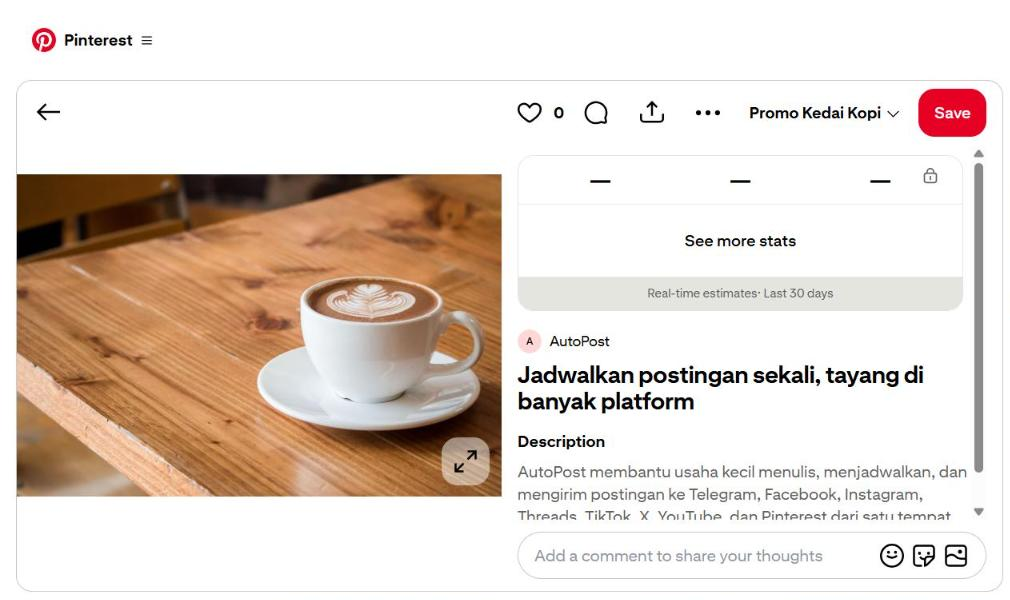
On Pinterest, open your profile, then open the target board. The new Pin is there.
Standard (since 22 Oct 2026): the Pin is visible to everyone.
Testing (sandbox, 17–21 Oct 2026, now over): the Pin was visible only when signed in with that Pinterest account itself. Other people didn't see it.
Our first Pin in the Posts menu, after it was sent:
And the same Pin on Pinterest, opened by the account owner:
6.6 Scheduling and Auto post
Schedule: the same rules apply. The AutoPost worker sends the Pin at the right time.
Auto post: Pinterest can be a target (if there's no suitable image → a design card is made); the Pin waits for approval (chapter 7).
7. Pin approval
7.1 What it is and when it appears
Pinterest's Developer Guidelines require users to choose every Pin themselves before it's published. That's why:
Pins you write yourself in New post are sent right away. No approval is needed.
Pins from Auto post (AI, website, or repurposed) wait in the Posts › Pin approval menu until you approve them.
Sends to other accounts in the same post (for example Telegram) still go out on schedule. Only the Pinterest Pin waits.
The header of the Pin approval page says:
Pinterest requires you to choose every Pin yourself before it's published. Pins from auto posts wait here until you approve them — posts to other accounts still go out on schedule.
You're also told in the Notifications menu, with a title saying how many Pins are waiting for approval. The number on the Pin approval menu shows how many Pins are waiting.
7.2 Approving one Pin
Each card shows the image, Pin title, Description, Link, Alt text, Board, and its publishing schedule — exactly as it will be sent to Pinterest.
Check the card's content.
Press Approve & publish.
A green message appears:
Pin approved. It's published on its post's schedule — or in about 1 minute if the schedule has passed or another account in this post has already been sent.
Approving is always one at a time. There's no "approve all" button. That's deliberate, in line with Pinterest's guidelines.
7.3 Rejecting or editing
Reject… → choose a reason (optional) → Reject this Pin. Message: "Pin rejected and won't be published. Posts to other accounts aren't affected." A rejected Pin can't be approved again.
Edit first → press and hold until the red sweep fills (about 1.8 seconds). The original Pin is rejected, then its content is opened in New post so you can fix it and send it yourself.
Reject selected → press and hold until it fills. It appears when there are 2 or more Pins. Tick the Pins you don't want published, then reject them all at once (max. 50).
7.4 Time limit and queue limit
| Rule | Value |
|---|---|
| A Pin not approved within 7 days | Skipped automatically. In the Recently decided (7 days) section, that Pin is labeled Expired. |
| 30 Pins already waiting | Auto post skips Pinterest in that round until the queue gets shorter. |
| Approving or rejecting too quickly | At most 60 presses of Approve or Reject per 10 minutes. Beyond that you see "Too many attempts. Wait about …, then try again." |
If the queue is full and Pinterest is the only target, the Auto post note reads, for example: "Skipped: 30 Pins are still awaiting your approval (limit 30). Approve or reject them first in Posts › Pin approval." If there are other targets, the post is still created for the other accounts, and the note contains "Pinterest skipped: 30 Pins are still awaiting your approval (limit 30)".
7.5 The Approve button can't be pressed
The card tells you why with a warning box:
| Warning | What to do |
|---|---|
| This Pinterest account hasn't chosen a board yet. Choose a board in Social accounts first, then approve — a Pin approved now will fail to publish. | Do Step 2 (chapter 5), then come back here. |
| This Pinterest account needs reconnecting. Reconnect it in Social accounts, then approve — a Pin approved now will fail to publish. | Reconnect (section 8.3), then come back here. |
| This Pinterest account has a problem (for example, its board was deleted). Open Social accounts › Pinterest, press Change board or Retest, then approve — a Pin approved now will fail to publish. | The target board was deleted: Change board (section 8.2) — reconnecting alone doesn't fix it. Then come back here. |
| This Pin's image file is no longer in storage. Reject this Pin, or use “Edit first” to attach another image. | Press and hold Edit first until the red sweep fills, then attach another image — or Reject…. |
| This Pin's image file isn't yours, so it can't be sent. | Reject this Pin, or Edit first with your own image. |
| A Pin rule message, for example "Pinterest requires an image on every Pin. Add an image and resend." or "AutoPost doesn't support video Pins yet. Use an image for posts to Pinterest." | The Pin content doesn't meet the rules in section 6.1. Press Edit first, fix it, then send it from New post. |
8. Managing connected boards
All the buttons are on the Connected accounts card on the Pinterest page (see the screenshot at the end of 5.2). One row = one board.
8.1 Retest
The Retest button checks your permission: the token is opened, renewed if it's nearly expired, the account name is read again, and the target board is checked to still exist. If everything is healthy, a yellow banner appears:
Test complete — the Pinterest permission is still valid.
If the target board has been deleted on Pinterest, the account label becomes has a problem with the message "The target board no longer exists on Pinterest. Choose another board." The Change board card opens right away. Choose or create a board there; reconnecting alone doesn't clear this has a problem label.
While the Pinterest connection isn't open yet (chapter 3), the Retest button is grey too.
8.2 Change board
Press Change board on that row. The Change the board for … card opens with the description "The next Pins will go to this new board." Choose a board in Target board and press Save board — or fill in Board name and press Create & use board.
Pins already published don't move.
8.3 Reconnect
If the account label is needs reconnecting, the gold Reconnect button appears on that row. Press it, then give permission again on Pinterest with the same Pinterest account. A green message appears:
Pinterest permission for @your_account renewed for every connected board.
All boards from the same Pinterest account recover too — except a board that has been deleted on Pinterest. That board still needs to be replaced with Change board.
If on the permission page you're signed in with a different Pinterest account, AutoPost treats it as a new account: a new row appears labeled choose board (it counts toward the limit of 3), while the old account stays needs reconnecting.
8.4 Add another board from the same account
Press Add another board from the same account.
The Add a board from @your_account card opens: "Additional boards use the same permission, so there's no need to approve again on Pinterest. Each board counts as one account."
Choose a board and press Add board — or fill in Board name and press Create & add board.
8.5 Disconnect
The Disconnect button removes that board from AutoPost together with its token. Press and hold the button until the red sweep fills (about 1.8 seconds); if you only tap it, you get the reminder "Disconnect this board? Its token is deleted too." A green message appears:
Board disconnected — its row and encrypted token have been deleted from the database.
Disconnect does not delete the board or Pins on Pinterest. Disconnect also doesn't revoke the permission on Pinterest's side. To revoke it, remove AutoPost from the list of connected apps in your Pinterest account settings.
8.6 The limit of 3 boards
Each AutoPost account can have at most 3 Pinterest boards. Rows labeled choose board count too. Example: one Pinterest account with three boards, or three Pinterest accounts with one board each. The limit is enforced in the database.
The Connected accounts card shows the count, for example 2 of 3.
9. Troubleshooting
All the messages below are written exactly as they appear on screen. On the Pinterest page, error messages appear as a red banner starting with "Failed:". Under Details per account, messages that will be retried end with "(retrying automatically, attempt N of 4)". Parts that vary are marked "…".
9.1 While connecting
| Message | Cause & fix |
|---|---|
| The connection session doesn't match or is more than 10 minutes old. Press Connect Pinterest once more. | More than 10 minutes passed, cookies are blocked, two attempts ran at once, or you switched AutoPost accounts midway. Start again from the AutoPost Pinterest page, in the same browser. |
| The permission on Pinterest was canceled, so no account has been connected. | You declined the permission on Pinterest. Press Connect Pinterest again and approve. |
| Pinterest returned an error: … | Pinterest sent another error. Try once more. If it keeps appearing, report the code to the AutoPost administrator. |
| Pinterest didn't send a permission code. Try connecting again. | A problem on Pinterest's side. Try again. |
| Pinterest rejected AutoPost's app credentials on the server (PINTEREST_CLIENT_ID/SECRET). The administrator needs to check them; your own account permission hasn't changed. | A server problem, not your account. Report it to the AutoPost administrator. |
| Pinterest didn't return an access token. / Pinterest didn't send the account identity. | A problem on Pinterest's side. Try again in a moment. |
| There are already 3 Pinterest accounts. Disconnect one first if you want to add a new one. | The limit of 3 boards. Disconnect one board first (8.5). |
| The limit of 3 Pinterest accounts has been reached. Disconnect one first. | The same: the limit of 3, enforced by the database. |
| This Pinterest account is already waiting for a board choice. | This account is already connected and waiting for a board. Choose a board in the Last step card. |
| The Pinterest connection isn't set up on the server yet (missing env: …). / Pinterest env is incomplete: …. | Stage 1: the connection isn't open yet. Wait. (This message only appears if the button's address is opened directly.) |
| KUNCI_ENKRIPSI_AI isn't set on the server, so the token can't be stored encrypted yet. / KUNCI_ENKRIPSI_AI isn't set on the server, so the token can't be saved. | The server isn't ready to store permissions. Report it to the AutoPost administrator. |
| The token_terenkripsi column doesn't exist yet — run the migration database/0005_rahasia_platform.sql. / Couldn't save the account. / The account list couldn't be read: … | An AutoPost database problem. Report it to the AutoPost administrator. |
| Other messages that also appear in table 9.3, for example "Pinterest no longer accepts the saved permission. Reconnect this account." or "Pinterest is having trouble (HTTP …). We'll try again later." | They appear when Pinterest refuses or fails while AutoPost exchanges the permission code. Press Connect Pinterest once more. If they keep appearing, report it to the AutoPost administrator. |
9.2 While choosing or creating a board
| Message | Cause & fix |
|---|---|
| There's no board to choose yet. Create a new board with the “Create a new board” form below — AutoPost uses it for this account right away. | There's no public board that can be used (or, during testing, now over, regular boards were filtered out by the sandbox). Create a board with the form below it (5.2). |
| The board list hasn't loaded. | Reload the page. |
| Choose a board first. | You pressed Save board without choosing. Choose one in Target board first. |
| That board isn't on your Pinterest account (or you aren't a collaborator on it). | The board was deleted or you were removed from a group board. Reload the page, then choose another board. |
| That board is already connected. | That board is already in your list. Choose another board. |
| Enter a board name first (1–50 characters). | The Board name field is empty. |
| The board name is too long (… characters). Maximum 50 characters. | Shorten the name. |
| The board name contains characters that can't be used. | Remove odd characters (for example ones pasted from another app). |
| You already have a board with that name. Use another name, or choose that board from the list. | Use another name, or choose that board in Target board. |
| Pinterest rejected that board name: … Try another name. / Pinterest rejected creating the board: … | Pinterest doesn't accept the name. Try another name. |
| The permission given to AutoPost isn't enough to create boards. Reconnect and approve all permissions. | The permission is incomplete. Reconnect (8.3). |
| Pinterest is rate-limiting requests. Try creating the board again in about … seconds. | Wait as long as the message says. |
| … Reload this page and check the board list first — the board may already have been created — before trying again. | Pinterest didn't answer clearly. Reload; if the board already exists, just choose it. |
| Pinterest didn't send the new board's number. Reload this page — if the board already exists, choose it from the list. | The same: reload and check the list first. |
| … Board “…” has already been created on Pinterest; choose it from the list. | The board was created, but AutoPost couldn't record it. Choose that board from the list. |
| Choose or create a board for this account first, then add another board. | Finish the Last step card first. |
| Too many attempts. Wait about …, then try again. | The limit is 5 board creations per 10 minutes. Wait. |
| The token can't be opened. Reconnect Pinterest. / The token can't be opened (the server encryption key changed). Reconnect Pinterest. | The server key changed. Reconnect (8.3); if it stays, Disconnect and connect again. |
| Pinterest account not recognized. / Pinterest account not found. | The page is out of date. Reload the Pinterest page. |
| There are already 3 Pinterest accounts. Disconnect one first. / The limit of 3 Pinterest accounts has been reached. Disconnect one first. | Appears on Add board or Create & add board: there are already 3 boards. Disconnect one first (8.5). |
| KUNCI_ENKRIPSI_AI isn't set on the server, so the token can't be opened. | The server isn't ready to open permissions. Report it to the AutoPost administrator. |
| AutoPost's Pinterest permission is no longer valid (revoked or expired). Reconnect this account. / The Pinterest permission expired or was revoked. Reconnect this account. / The Pinterest token has expired and can't be renewed. Reconnect this account. | The permission is dead. The account label changes to needs reconnecting. Reconnect (8.3). |
Example of the red banner when a board name is already taken:

9.3 While sending or after scheduling
The reason for a failure shows in the Posts menu, under Details per account.
| Message | Cause & fix |
|---|---|
| Pinterest requires an image on every Pin. Add an image and resend. | A post without an image (for example an old schedule). Create a new post with an image. |
| AutoPost doesn't support video Pins yet. Use an image for posts to Pinterest. | The media is a video. Replace it with a photo. |
| Invalid image address. Pinterest needs a publicly accessible http(s) address. | The image address is broken. Upload it again via Upload from gallery. |
| No Pinterest board has been chosen for this account. Open Social accounts › Pinterest and choose a board. | The account is still choose board. Choose a board (chapter 5), then Resend failed. |
| Pinterest couldn't fetch the image. Make sure the image address is publicly accessible over https and is JPG or PNG. | A problem with the image format or address. Save it again as .jpg/.png and resend. |
| Pinterest rejected this post's link. Check the link address (it must be http/https and publicly accessible). | Fix the Link field, then send again. |
| The target board wasn't found on Pinterest (it may have been deleted). Choose the board again on Social accounts › Pinterest. | The board was deleted. Change board (8.2), then resend. |
| AutoPost's Pinterest permission is no longer valid (revoked or expired). Reconnect this account. | The permission was revoked or is dead. Reconnect (8.3). |
| Pinterest no longer accepts the saved permission. Reconnect this account. / The Pinterest permission expired or was revoked. Reconnect this account. | The same: reconnect. |
| The Pinterest token has expired and can't be renewed. Reconnect this account. / No refresh token is stored. Reconnect this Pinterest account. / The Pinterest token can't be read. Reconnect this account. | The token can't be used anymore. Reconnect. |
| The permission given to AutoPost isn't enough to create Pins. Reconnect and approve all permissions. | The permission is incomplete. Reconnect and approve all permissions. |
| Pinterest rejected this request: … | Pinterest refused for another reason. If the sentence is "Apps with Trial access may not create Pins in production …", the cause is the Trial restriction (we ran into it ourselves on 17 Oct 2026, section 15.4). That's for the administrator (chapter 16); report it to the AutoPost administrator. |
| Pinterest is rate-limiting requests. We'll try again in about … seconds. | Temporary. AutoPost retries by itself. |
| Pinterest is having trouble (HTTP …). We'll try again later. / Couldn't reach Pinterest from the server. We'll try again later. / Pinterest didn't answer within 20 seconds. We'll try again later. / Pinterest's response couldn't be read (HTTP …). / Pinterest didn't return a new access token. | A problem at Pinterest or on the network. AutoPost retries by itself. |
| Pinterest …, so the result is uncertain. Check the Pinterest board before resending so it isn't posted twice. | The connection dropped in the middle of publishing. Open the board on Pinterest first. If the Pin is already there, don't resend. |
| Pinterest rejected it: … / Pinterest rejected the request (HTTP …). | Another error from Pinterest. Read the rest of the message, fix the post, then resend. |
| Pinterest rejected AutoPost's app credentials on the server (PINTEREST_CLIENT_ID/SECRET). … | A server problem. AutoPost tries again about an hour later. Report it to the administrator. |
| The Pinterest token has expired and the server can't renew it yet (SUPABASE_SERVICE_ROLE_KEY is empty). | A server problem. Report it to the AutoPost administrator. |
On the Connected accounts card, a small red message under the account name can also read "Token renewal failed: …". It means the permission is still valid, but the last renewal failed. Press Retest; if it stays, reconnect.
10. Security and privacy
10.1 What AutoPost stores
The token is stored encrypted (AES-256-GCM) in the database. It's only opened on the AutoPost server: when choosing or creating a board, on Retest, when renewing, and when sending a Pin.
AutoPost pages never show your token. Only the permission's validity date is shown.
Also stored: your Pinterest username, display name, account type, and the ID and name of the target board.
The security code (state) in the cookie is valid for 10 minutes and deleted on every response.
10.2 What never happens
AutoPost does not ask for your Pinterest password. Permission is given on Pinterest's own site.
AutoPost does not ask for permission to read secret boards or Pins, and doesn't ask for advertising permissions.
AutoPost does not publish Pins from Auto post without your approval (chapter 7).
AutoPost's app credentials (App ID and App secret) are never sent to your browser.
10.3 Stopping using Pinterest in AutoPost
Press and hold Disconnect on every board until the red sweep fills (8.5).
Revoke AutoPost's permission in your Pinterest account settings (the list of connected apps).
11. User checklist
12. Administrator A — Pinterest business account
Chapters 12–19 are only for the AutoPost administrator: the person who holds the Pinterest developer account and the server settings (Vercel). Regular users can skip them.
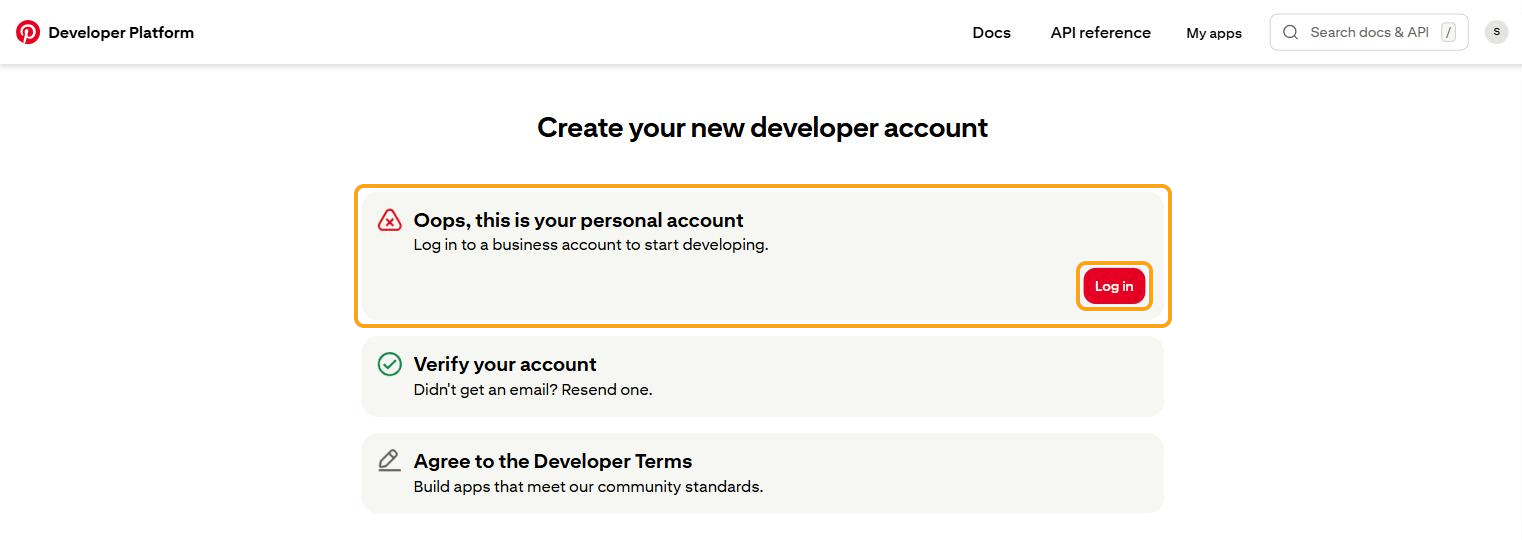
12.1 A personal account is refused
A Pinterest app can only be managed from a business account. In the 29 September session, the company account was still a personal account. The page developers.pinterest.com/account-setup refused it.
12.2 Converting to a business account
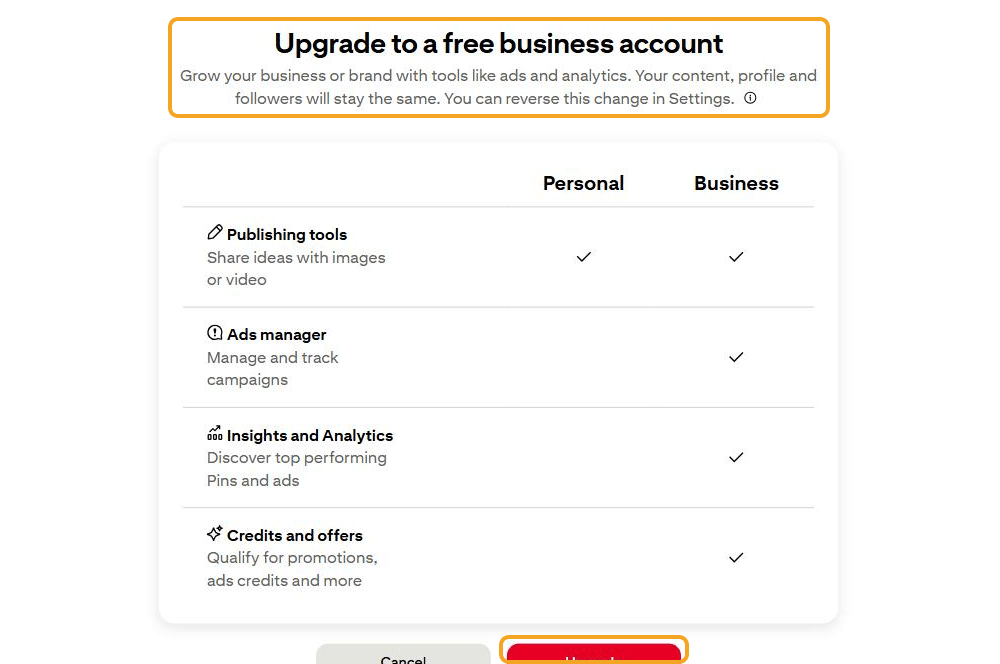
It's free. Your content, profile, and followers stay the same. It can be reversed in Settings.
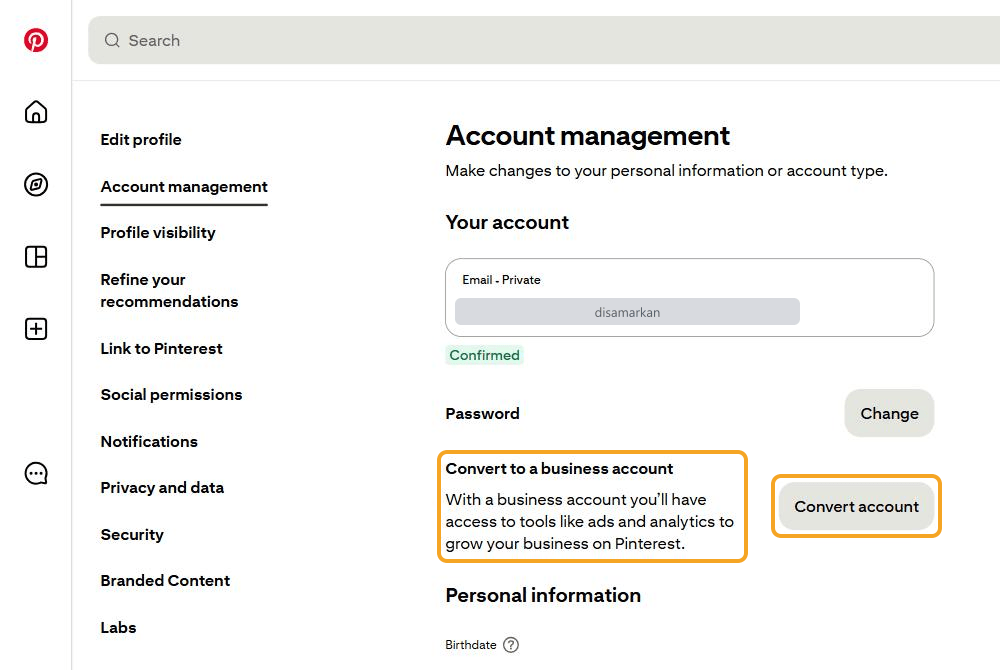
Sign in to pinterest.com with the account that will manage the app.
Open Settings → Account management.
In the Convert to a business account section, press Convert account.
The Upgrade to a free business account page opens. It holds a Personal vs Business table and a sentence saying your content, profile, and followers stay the same. Press the red Upgrade button below the table.
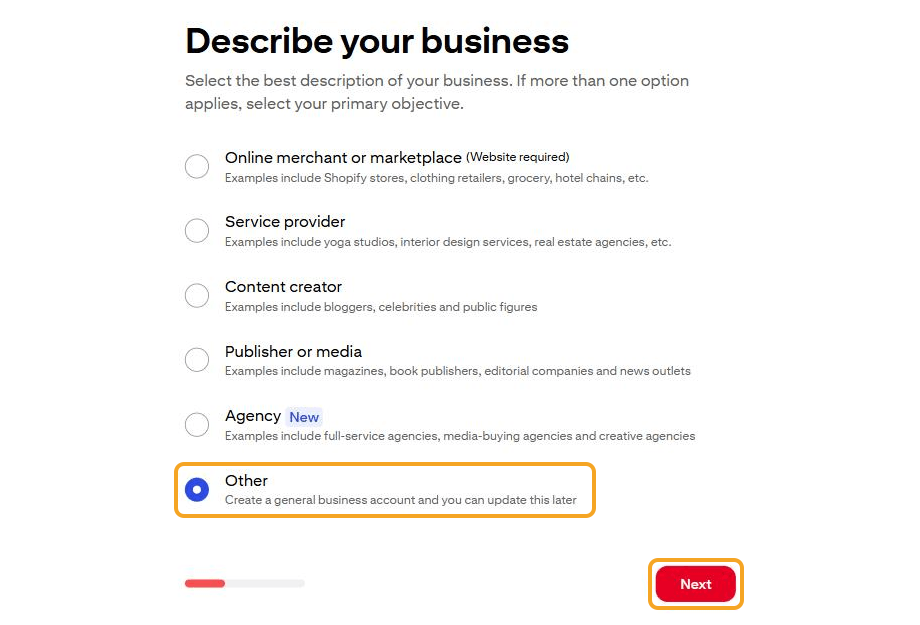
Describe your business: choose Other, then Next.
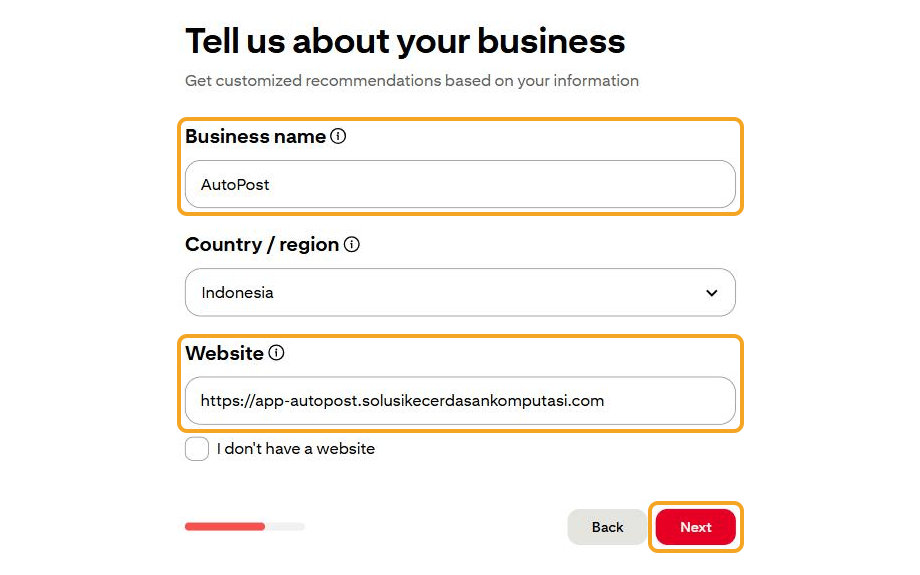
Tell us about your business:
Business name:
AutoPostCountry / region:
IndonesiaWebsite:
https://app-autopost.solusikecerdasankomputasi.com
Press Next.
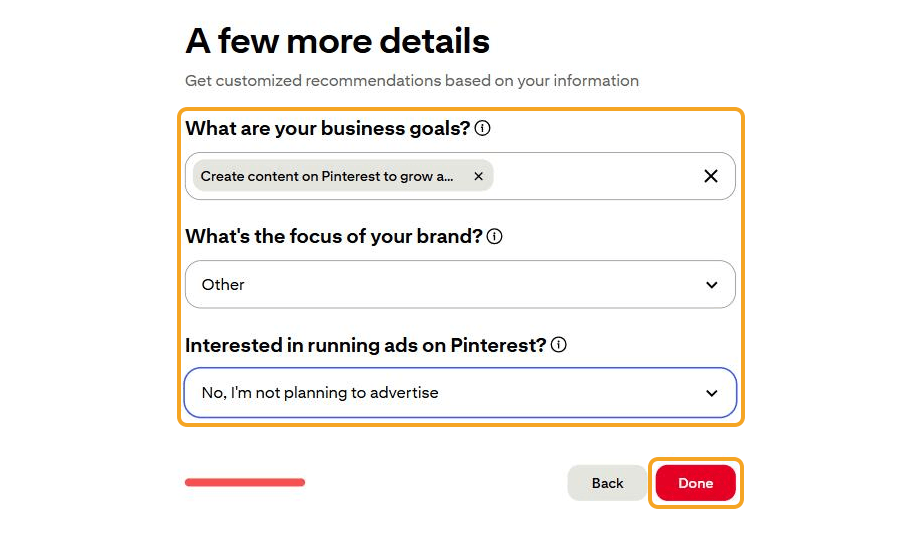
A few more details:
What are your business goals?: Create content on Pinterest to grow an audience
What's the focus of your brand?: Other
Interested in running ads on Pinterest?: No, I'm not planning to advertise
Press Done.
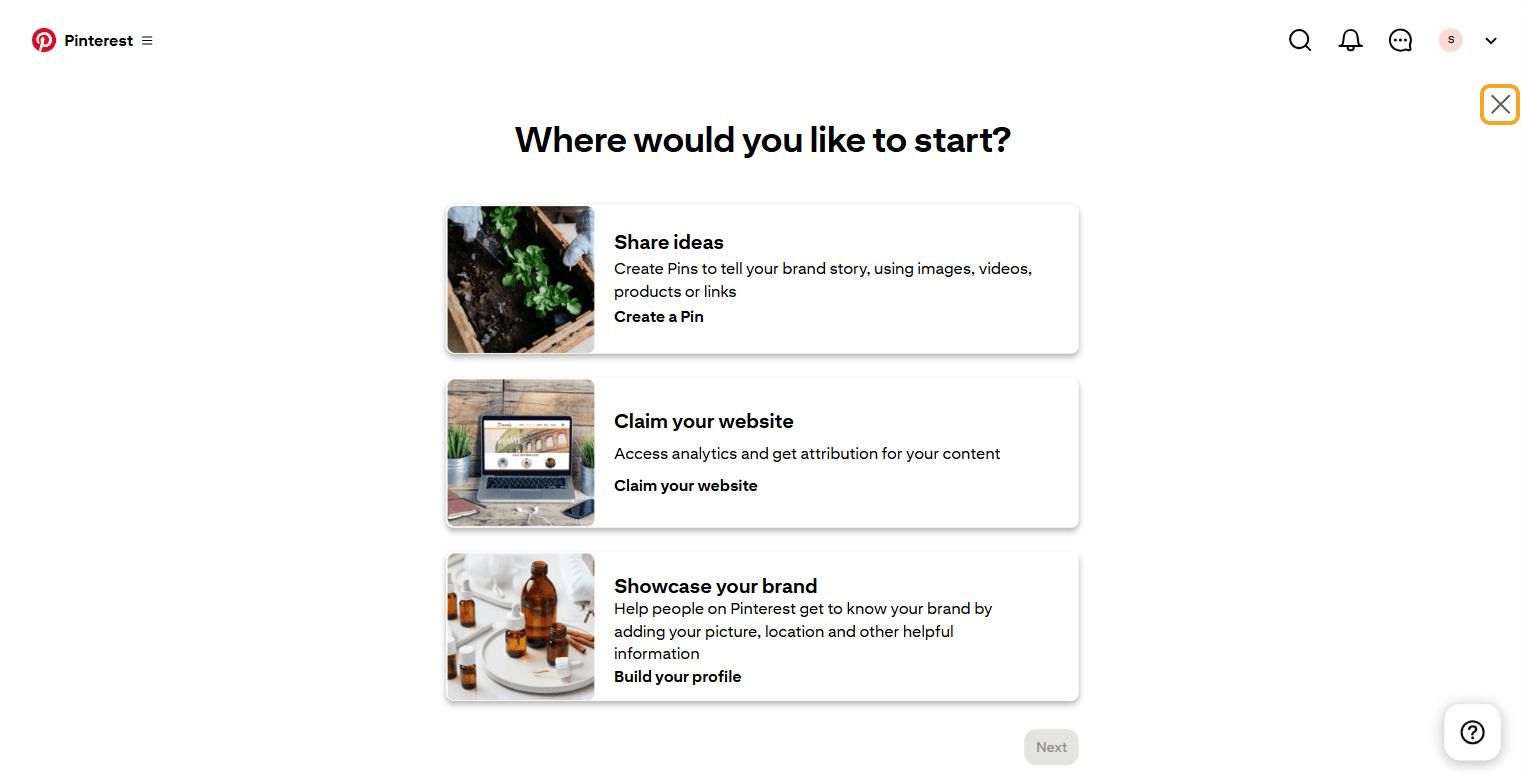
The Where would you like to start? page appears. Close it with the X at the top right. The account is now a business account.
13. Administrator B — Registering the app
13.1 My apps
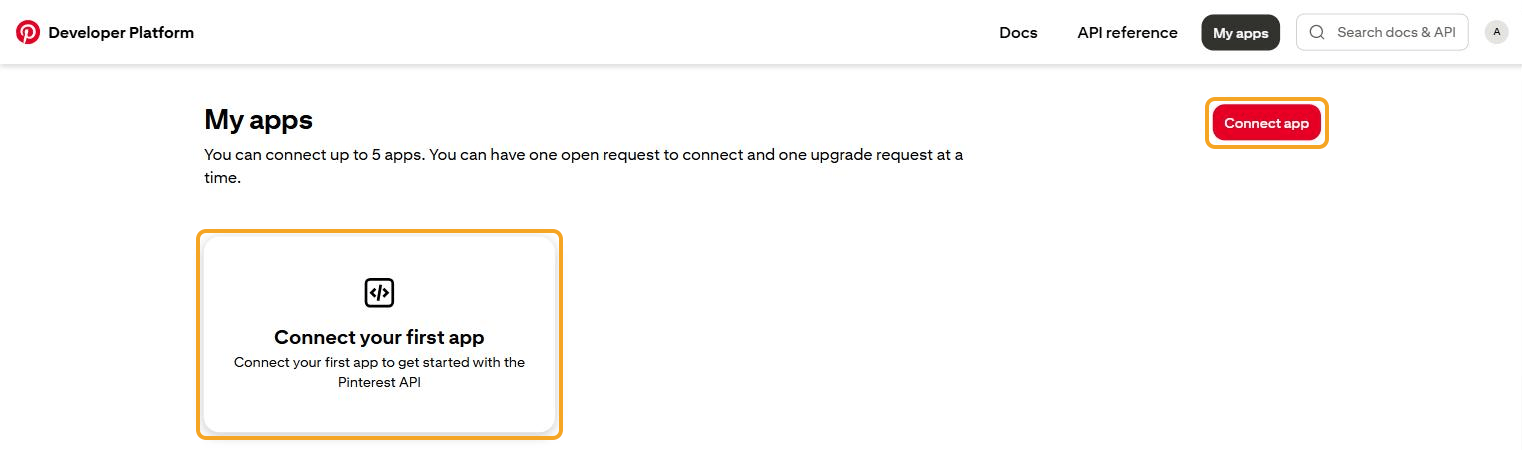
Open developers.pinterest.com with that business account. If the Create your new developer account page still shows unticked steps (for example Agree to the Developer Terms), finish them first.
Open My apps. It says: "You can connect up to 5 apps. You can have one open request to connect and one upgrade request at a time."
Press Connect app (or the Connect your first app card).
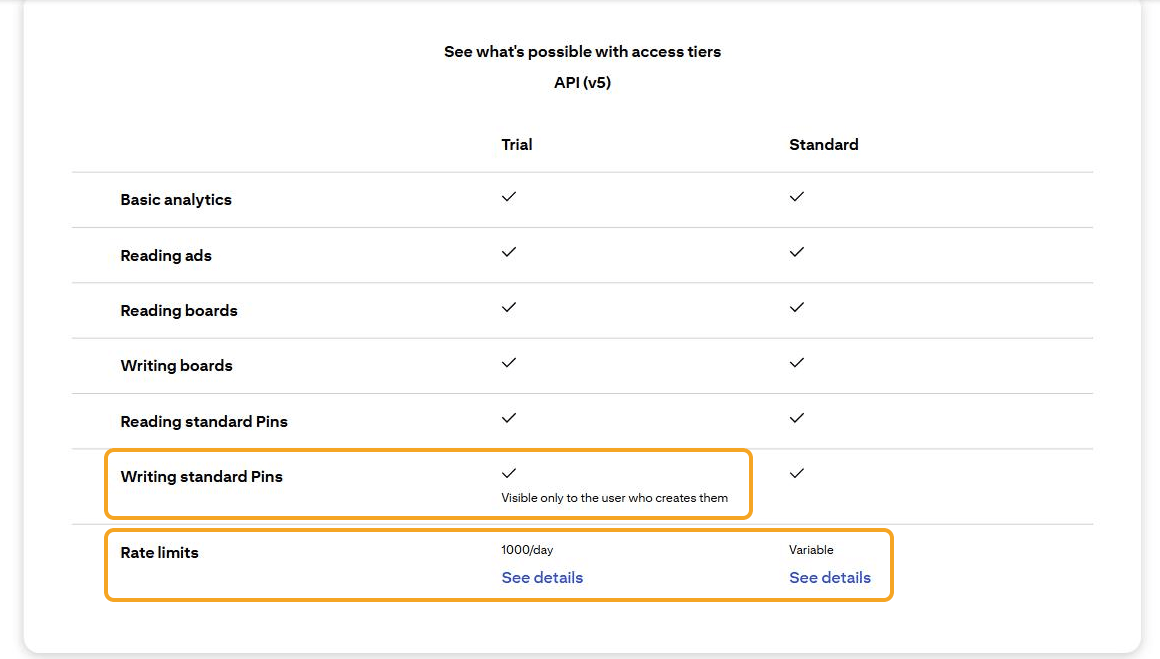
That page also has an Access tiers table. Note two rows:
| Row | Trial | Standard |
|---|---|---|
| Writing standard Pins | Yes, but "Visible only to the user who creates them" | Yes |
| Rate limits | 1000/day | Variable |
13.2 Filling in the Connect App form
All fields marked * are required.
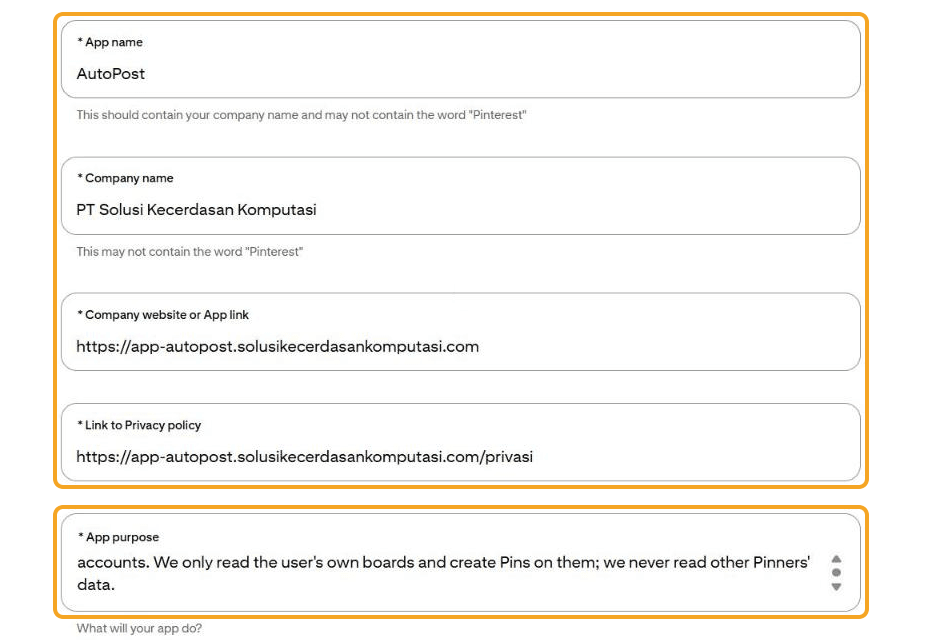
| Field | Value |
|---|---|
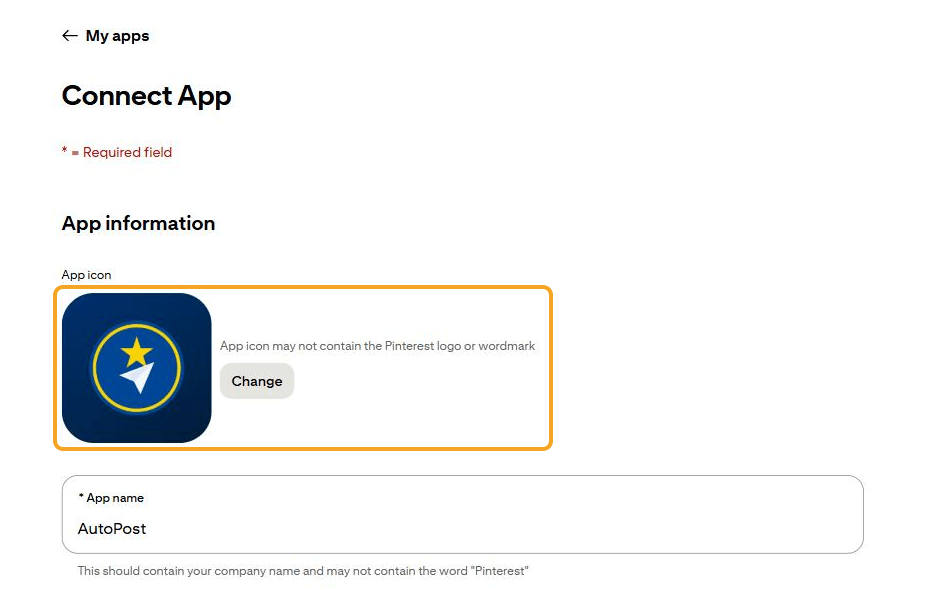
| App icon | The AutoPost icon, 512 px. Required (confirmed in the 29 September session). It may not contain the Pinterest logo or wordmark. |
| App name | AutoPost PT SKK. Pinterest asks that this name contain the company name ("should contain your company name") and it may not contain the word "Pinterest". |
| Company name | PT Solusi Kecerdasan Komputasi |
| Company website or App link | https://app-autopost.solusikecerdasankomputasi.com |
| Link to Privacy policy | https://app-autopost.solusikecerdasankomputasi.com/privasi |
| App purpose | A short explanation in English (see the example below). |
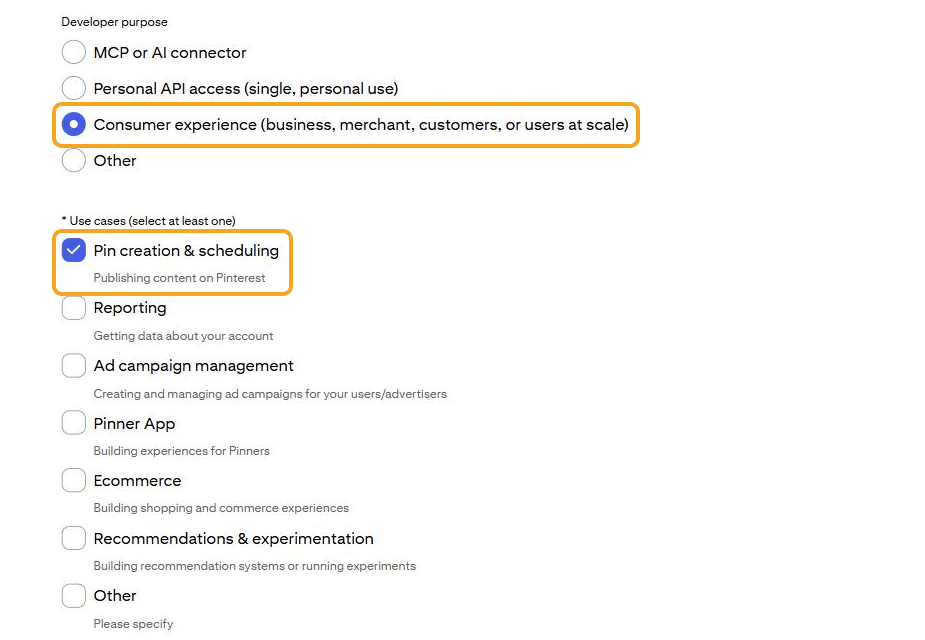
| Developer purpose | Consumer experience (business, merchant, customers, or users at scale) |
| Use cases | Pin creation & scheduling |
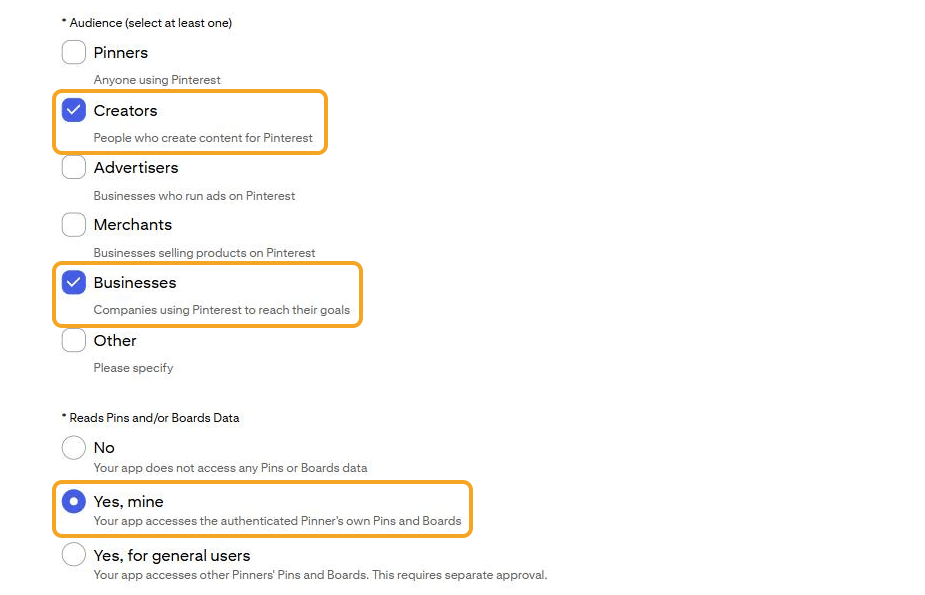
| Audience | Creators and Businesses |
| Reads Pins and/or Boards Data | Yes, mine — AutoPost only reads the boards of the user who gave permission. |
Example App purpose (adjust it):
AutoPost is a social media scheduler by PT Solusi Kecerdasan Komputasi. Users connect their own Pinterest account with OAuth, choose one of their boards, and publish image Pins they write or approve one by one. We only read the user's own boards and create Pins on them; we never read other Pinners' data.
13.3 The app name must be unique
The name AutoPost was refused on Submit, with a red message:
There is already an app with that name.
App names are unique across Pinterest. That's why AutoPost PT SKK is used: it still contains the company name, and not the word "Pinterest".
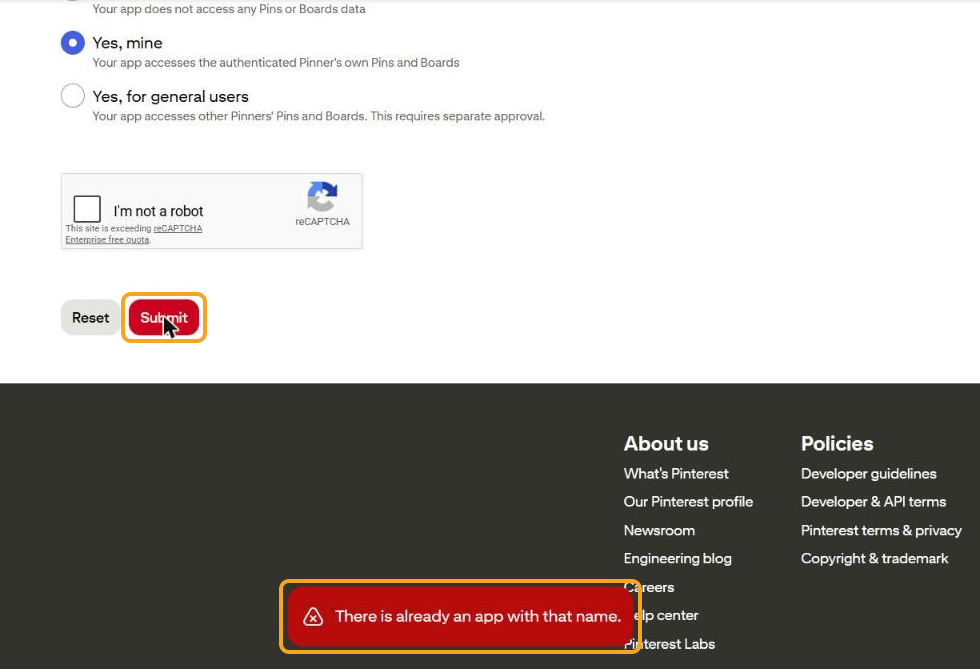
13.4 reCAPTCHA and Submit
Tick I'm not a robot.
Press Submit right away.
Once it succeeds, the app card appears in My apps with the status Trial access pending.
14. Administrator C — Waiting for review
14.1 The app while pending
In My apps, the AutoPost PT SKK card has the status Trial access pending. The Connect app button is grey, because only one open request is allowed.
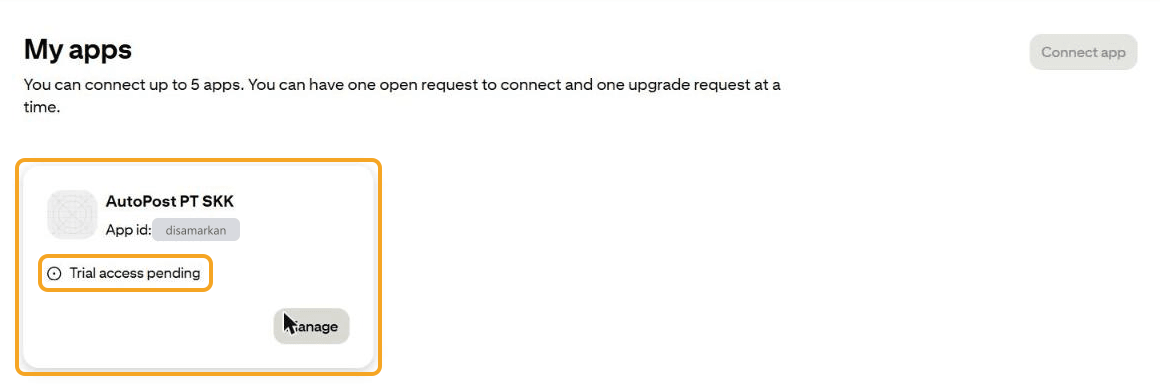
Press Manage to open the app page (tabs Configure, Collaborators, Details). In the API keys section:
The App id is already visible.
App secret key says "Unavailable while trial access pending". The secret can only be seen after Trial is approved.
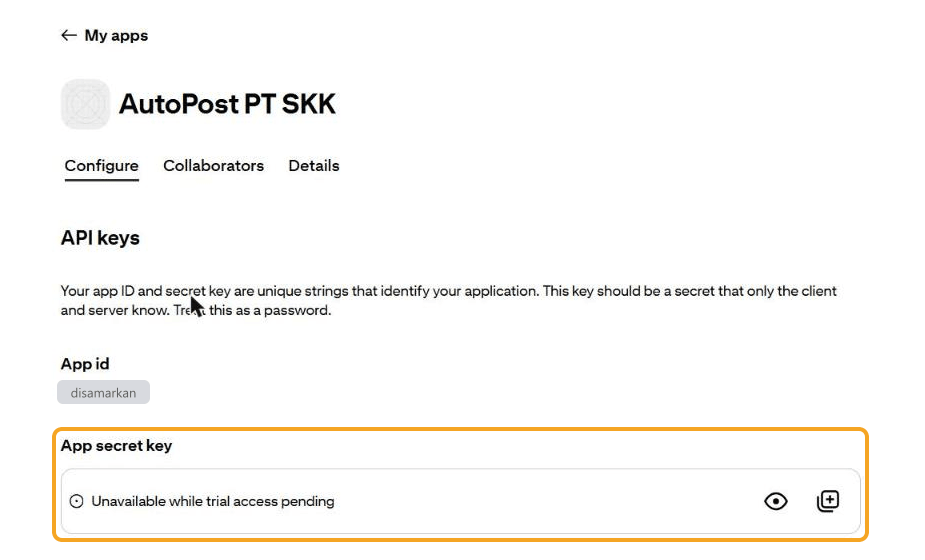
14.2 Registering the return address (Redirect URI)
Still on the Configure tab, in the Redirect URIs section:
Paste this address into the Redirect link field:
https://app-autopost.solusikecerdasankomputasi.com/api/sosial/pinterest/kembaliPress Add.
Reload the page, and make sure the address is still in the list.
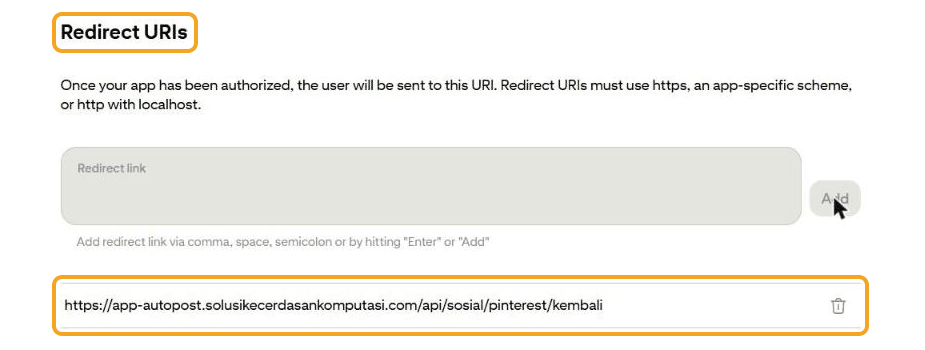
In the 29 September session, this address could be added even though the app was still pending, and it was still there after reloading the page.
The API scopes section also says Current access: Trial access pending.
14.3 The email from Pinterest
Shortly after Submit, an email arrives at that Pinterest account's address:
From: Pinterest <pinbot@account.pinterest.com>
Subject: Thanks for submitting your request
Body: "Your request is under review. We'll send you another note once there's a change to its status."
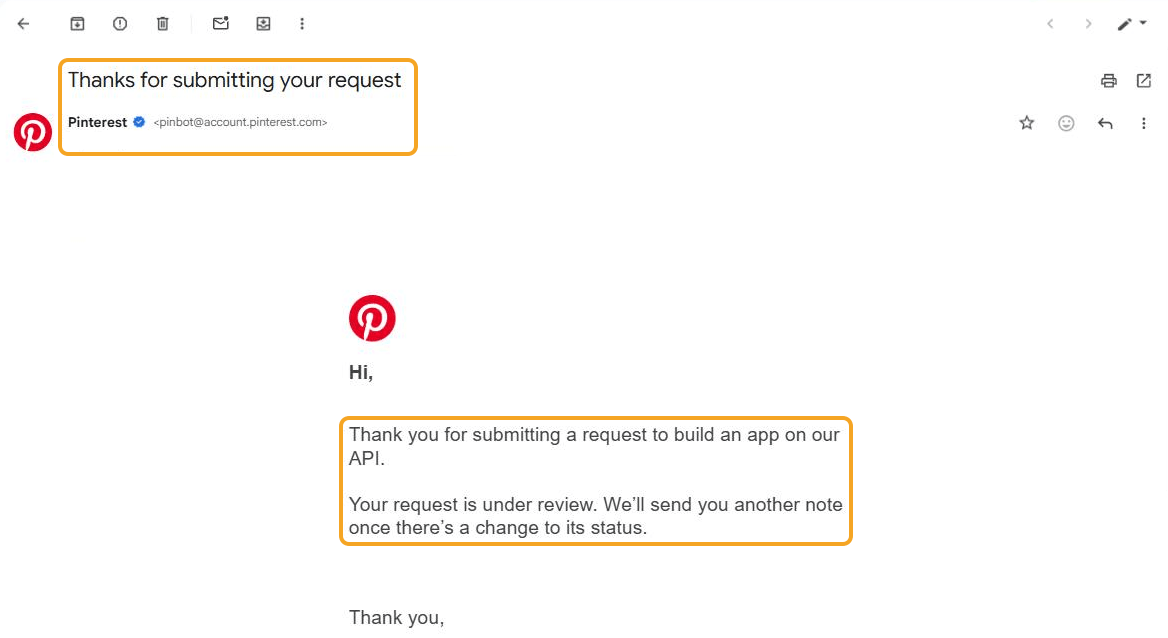
This email is not an approval. It only confirms the request was received.
14.4 How long does it take?
There's no fixed figure.
Official documentation: requests are "reviewed each business day", and approvals "typically take one to three business days".
In practice, since August–September 2026 Pinterest moderators have acknowledged a long queue for Trial and Standard. Other developers reported waiting more than a week, even more than a month.
Forum moderators can't speed it up. If several business days pass with no news, the official route is a Help Center ticket: help.pinterest.com → Pinterest API and Developer Tools → Developer site → API access. Write the App ID and email only in the ticket, never on the public forum.
15. Administrator D — After Trial is approved
15.1 Signs that Trial is active
Pinterest sends the decision email to the email address of the Pinterest account that owns the app. Check that account's inbox, not the administrator's personal email. In My apps, the app card's status changes to Trial active. Under Manage → Configure → API keys, the App secret key field can now be viewed and copied.
15.2 Pasting the keys into Vercel (administrator only)
The App secret is the master key of the AutoPost app on Pinterest. Treat it like a password.
Copy the App id and App secret key from Manage → Configure → API keys.
Open the Vercel project autopost-web → Settings → Environment Variables (the Production environment).
Fill in:
| Setting (env) | Value | Notes |
|---|---|---|
PINTEREST_CLIENT_ID | App id | Required. |
PINTEREST_CLIENT_SECRET | App secret key | Required. Mark it Sensitive. |
APP_URL_PUBLIK | https://app-autopost.solusikecerdasankomputasi.com | Already there. Just check it, with no trailing slash. |
PINTEREST_API_BASE | https://api-sandbox.pinterest.com/v5 | Optional, only during Trial (chapter 16). |
Press Save, then redeploy so the new settings are picked up.
Only the administrator pastes the app secret here — never send it by chat or email.
15.3 Checking the result
Open /akun/pinterest in AutoPost (while signed in):
The The Pinterest connection isn't open yet box is gone, and the Connect Pinterest button is active.
If
PINTEREST_API_BASEis set to the sandbox, the Pinterest is still in testing box appears.If the old box is still there, open the Note for the AutoPost administrator fold. It lists the names of the env variables that are still empty (without their values).
Then test the user flow yourself (chapters 4–6) with the company's Pinterest account.
15.4 What happens if a Pin is sent without the sandbox
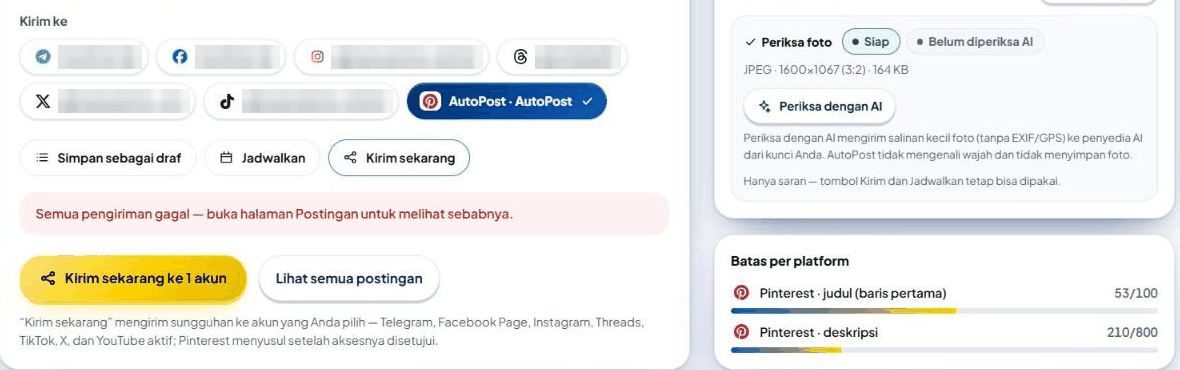
We tried it ourselves on 17 October 2026, with PINTEREST_CLIENT_ID and PINTEREST_CLIENT_SECRET in place but PINTEREST_API_BASE not set yet. Connecting the account and creating a board worked. The first Pin was rejected:
In New post, a red banner: All sends failed — open the Posts page to see why.
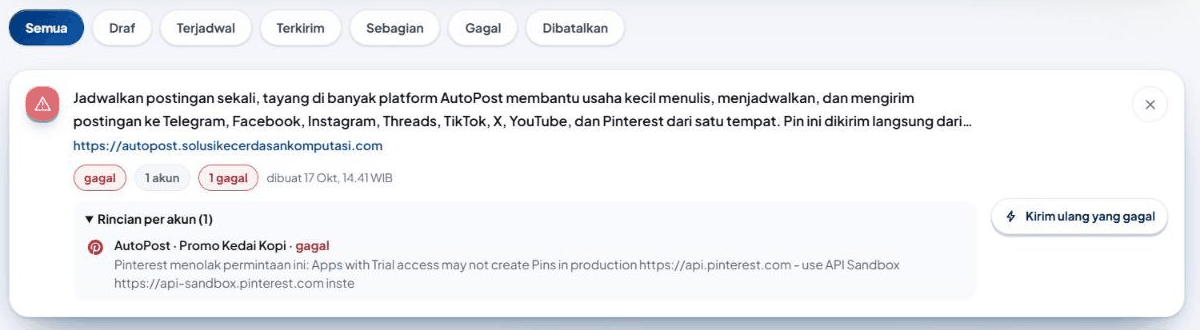
In Posts, the post card is labeled failed, and Details per account holds Pinterest's original sentence: Pinterest rejected this request: Apps with Trial access may not create Pins in production https://api.pinterest.com - use API Sandbox https://api-sandbox.pinterest.com inste… (AutoPost cuts error messages at 140 characters).
On the Pinterest page, the account card shows the same red sentence (pin-57).
This send is not retried automatically. Once the sandbox is on (chapter 16), the same post just needs to be resent with the Resend failed button.
16. Administrator E — Sandbox mode
16.1 Why it's needed
During Trial, Pinterest refuses to create Pins on the production service (HTTP 403). In AutoPost, that send fails permanently with the message "Pinterest rejected this request: Apps with Trial access may not create Pins in production …" (section 15.4). So that Pins can be tried out, point AutoPost at the Pinterest sandbox.
16.2 How to switch it on
In Vercel autopost-web (Production), set
PINTEREST_API_BASE=https://api-sandbox.pinterest.com/v5.Redeploy.
Open
/akun/pinterest. The Pinterest is still in testing box must appear (pin-57).
There's no other switch. This setting points all of AutoPost's Pinterest calls — including the permission code exchange — at the sandbox. The permission page stays on www.pinterest.com.
16.3 Accounts connected before the sandbox
Tokens and boards created before the sandbox aren't valid in the sandbox. The account doesn't need to be disconnected. These three steps are enough; we carried them out ourselves on 17 October 2026:
Press Connect Pinterest again, then Give access on the Pinterest permission page. Pinterest still shows the permission page even though permission was given before. AutoPost recognizes the same Pinterest account, replaces its token with a sandbox token, and shows the green banner Pinterest permission for @… renewed for every connected board.
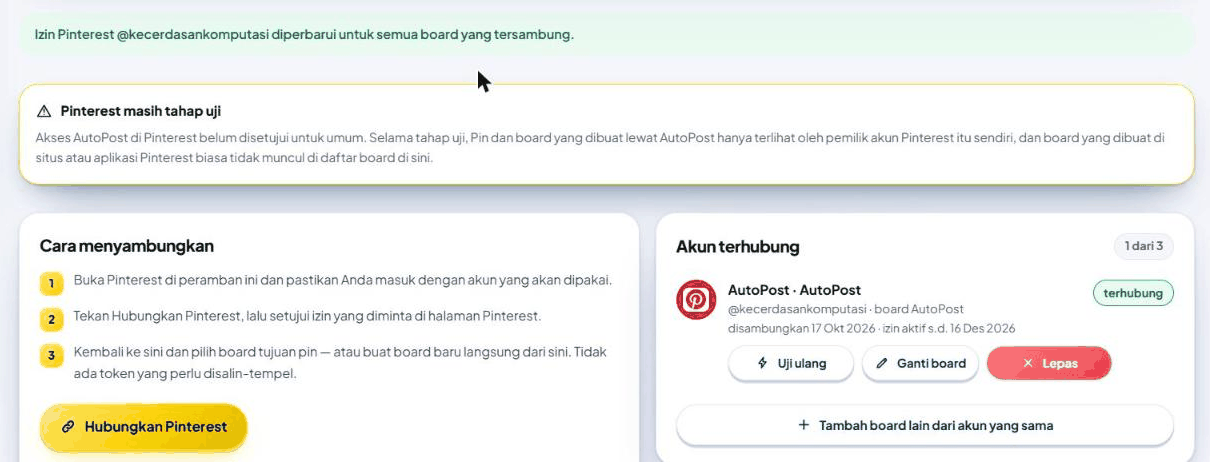
Press Change board on that account. The board list is empty, because the old boards are production boards (pin-59).
Create a new board with a name never used before on that Pinterest account. Production board names are still taken (pin-60). The new board is used right away (pin-61).
After that, the post that failed earlier can be resent with Resend failed in the Posts menu. Our Pin was sent and showed on Pinterest for the account owner (pin-62, pin-63).
16.4 What it means for all users
| Effect | Notes |
|---|---|
| Applies to all AutoPost users | Anyone who connects Pinterest while the sandbox is on gets a sandbox token. |
| Pins and boards are visible only to their owner | Nobody else sees those Pins. |
| Regular boards don't appear | The sandbox filters out production boards. Users create boards with Create & use board, using a name never used before on that account (production board names stay taken). |
| The Trial quota is shared | 1,000 requests and 300 writes per day for the whole app. |
| The sandbox doesn't support video Pins | The same as AutoPost: video is refused anyway. |
The real impact is small: before the sandbox, nobody could use Pinterest at all.
17. Administrator F — Applying for Standard access
17.1 Requirements
The app already has Trial.
It complies with Pinterest's Developer Guidelines.
You have a video recording of AutoPost performing actions through the Pinterest API.
Reviewers check two things: users are sent through a proper OAuth flow, and the app doesn't store sensitive data.
17.2 What the demo video shows
The video must show a live integration, not a mock-up. Suggested order (about 3 minutes, with on-screen text in English if the AutoPost interface is in Indonesian):
Sign in to AutoPost.
Social accounts → Pinterest, press Connect Pinterest.
The Pinterest permission page shown in full: the app name and the permission list readable, then the permission approved. The address bar is visible.
Back in AutoPost, choose or create a board.
New post: title, description, link, image, alt text → Send now.
The Pin appears on the board in the Pinterest profile.
A quick look at the Posts › Pin approval page: Pins from Auto post aren't published without approval.
Parts 2–3 are the core of the assessment. Don't cut or speed them up. Never show the Vercel page, the App secret, or a token.
17.3 Applying
My apps → the Upgrade button on the app card (it only appears when the app is eligible).
Check the usage description and the privacy policy link again.
Upload the video file.
Submit. The status is reported to change to Upgrade to Standard access pending.
Submitting this form is an action on behalf of the company. The administrator presses Submit personally.
17.3a AutoPost's application (17 Oct 2026)
The following materials were prepared and then submitted through the steps in 17.3 on 17 October 2026.
| Material | Content |
|---|---|
| App icon | Replaced under My apps → AutoPost PT SKK → Details → App icon with the 512 px AutoPost icon (aset/pinterest-standard/ikon-autopost-512.png). The Authorize app screen now shows the AutoPost icon instead of the default robot. |
| Video | An MP4 file (kept by the administrator, not in the repository): H.264 1920×1080, 2 minutes 6 seconds, 6.6 MB, English captions. |
| Usage description | Ready-to-paste English text in docs/riset/panduan-pinterest/03-pengajuan-standard.md section 5. |
What the video shows, recorded in the production app with the English interface:
Home.
Social accounts → Pinterest.
The Pinterest is still in testing box.
Connect Pinterest.
The Authorize app screen at
www.pinterest.com/oauth/(Logged in as AutoPost).Give access.
Back to Last step: choose a board for @kecerdasankomputasi.
The board AutoPost Demo Pins is created.
New post: title, description, link, a 2:3 image, and alt text.
Send to: Pinterest only.
Send now to 1 account.
The Pin opens on Pinterest.
Pin approval.
Submitted on 17 Oct 2026 (about 18.30 WIB) by the administrator. The app card in My apps then showed Trial access active and Upgrade to Standard access pending (confirmed from a screenshot of the page after Submit). The Upgrade form as seen first-hand: a Video demo section (file upload, "Upload successful!"), then Review information: App name, Company name, Company website or App link, Link to Privacy policy, App purpose, Use cases (Pin creation & scheduling selected), Audience (Creators and Businesses selected), reCAPTCHA, Reset/Submit. The reCAPTCHA expires in about 2 minutes: tick it, then submit straight away.
The address bar in the video is drawn from each page's real URL. The state value is shortened. Other people's Pin recommendations are blurred. OCR of every frame (original and inverted): 0 personal names. A positive control with an inserted name was caught.
17.4 Recorded reasons for refusal
| Stage | Reason |
|---|---|
| Trial | The privacy policy is inaccurate, can't be opened, or isn't on a domain clearly owned by the company. The app description is vague. |
| Standard | The video doesn't show the permission (OAuth) flow. The permission isn't OAuth (it collects passwords). The video doesn't show a live Pinterest integration. |
Refusal emails usually contain only a standard reason, without pointing to what's missing. If refused, record again with clearer parts 2–3, then apply again.
17.5 How long does it take?
The official documentation only says "reviewed regularly". Reports from other developers (unofficial) range from about 2 weeks to almost 4 weeks. If more than 3 weeks pass with no news, open a Help Center ticket (14.4).
18. Administrator G — After Standard is approved
Carried out for real on 22 October 2026, a day after the app card in My apps changed to Standard access active:
In Vercel, delete
PINTEREST_API_BASE. Redeploy (vercel redeploy <production-url> --target production).Open
/akun/pinterest. The Pinterest is still in testing box is gone.Tokens from the sandbox period aren't valid in production. The account doesn't need to be disconnected: press Connect Pinterest again and give permission (Give access). AutoPost recognizes the same Pinterest account and replaces its token, with the green banner Pinterest permission for @… renewed for every connected board.
Press Change board. On the production service, the board list holds the regular boards and the boards created during testing (in our test: AutoPost, AutoPost Demo Pins, Promo Kedai Kopi). Choose the target board, then Save board.
Send one test Pin, then open that Pin's page without signing in to Pinterest. Our Pin (1151725304742205554) opened from outside the account with HTTP 200: public.
Update the status texts in the app (the send button note, the guide boxes) and this guide.
19. Administrator checklist
Need help? Open the Help menu in AutoPost, or the New here? How to use this page box on the Pinterest page.