AutoPostUser guide
Connecting YouTube Shorts to AutoPost
Full guide: from Google's official permission to Shorts videos uploaded to your channel — plus the YouTube panel, the daily quota, the beta status, what each message means, and the steps for the administrator of the AutoPost Google project
Save this guide
PDF version to read offline or print · 5.7 MB · 44 pages
Contents
1. At a glance
What you'll achieve
After following this guide, your YouTube channel is connected to AutoPost, and every video you choose can be uploaded to that channel straight from New post — right now or at a time you schedule. Short vertical videos are usually shown as YouTube Shorts.
You don't need to create a Google project, enter keys, or give AutoPost your Google password. AutoPost uses a single Google app owned by PT Solusi Kecerdasan Komputasi for all users; you only approve the permission on Google's page.
Who does what
| Task | You (the user) | AutoPost administrator |
|---|---|---|
| Have a Google account with a YouTube channel | ✔ | — |
| Create the Google project, OAuth app, and keys | — | ✔ (once for all users, appendix in chapter 15) |
| Press Connect YouTube and approve the permission on Google | ✔ | — |
| Write the title, choose visibility, made for kids, AI content, and consent to every upload | ✔ | — |
| Apply for Google verification and the YouTube audit | — | ✔ |
- 1Make sure your Google account has a YouTube channel
- 2Press Connect YouTube in AutoPost
- 3Choose the account, tick the permissions on the Google page
- 4Tick the YouTube channel and complete the YouTube panel in New post
- 5The video is uploaded to your channel (during beta it may be locked as Private)
Status of AutoPost & YouTube (3 October 2026)
The YouTube Shorts feature in AutoPost is still in beta. Three things to know from the start:
Videos may be locked as Private. Until AutoPost passes the YouTube API audit, YouTube may lock videos uploaded through AutoPost as Private, whatever visibility you choose — that's what the beta banner in the app warns about. In the 3 October 2026 test, a video requested as Public stayed Public; AutoPost is still watching this (chapter 8).
Google testing stage. The AutoPost Google app is still in testing (Testing) at Google. While it is, only Google accounts that the administrator has registered as testers (test users) can grant the permission, and the permission lasts 7 days before it needs reconnecting. If you'd like to try it, contact the AutoPost administrator (chapter 15.6).
What has been proven. On 3 October 2026 a YouTube channel was connected to AutoPost in the production app through Google's permission page (Google showed a channel picker, including brand channels). At 21.04 WIB (UTC+7) the first upload to the real YouTube was sent (Private, one attempt) — that 21-second vertical video is shown as a Short. At 22.12 WIB a second upload was requested as Public, and about 2 hours later YouTube Studio showed it as Public. Before that, uploads were tested thoroughly against a mock YouTube server (resumable uploads, quota, errors, no duplicate videos). Not yet tried for real: scheduling and Resend.
Estimated time
| Stage | Time |
|---|---|
| Connecting a channel (once) | about 2 minutes; finish the permission on Google within 10 minutes |
| Filling in the YouTube panel per post | about 1–2 minutes |
| Uploading the video | depends on size; videos up to 50 MB are sent in parts of 8 MB |
What you need
A Google account that already has a YouTube channel (a personal channel or a brand channel / Brand Account).
For now: that Google account is registered as a tester of the AutoPost app (see Status above).
An AutoPost account and the same browser for the whole connection process.
One video for each YouTube post: MP4 or MOV, uploaded to AutoPost (up to 50 MB). Short vertical videos suit Shorts best.
What AutoPost sends to YouTube
For each channel you tick, AutoPost uploads one video with:
| Data | Comes from |
|---|---|
| Title | the Video title field in the YouTube panel, exactly as you wrote it |
| Description | the post's Text field as is; the Link field is included only if you tick Add the link to the description |
| Visibility | your choice: Public, Unlisted, or Private |
| Made for kids | your answer: Yes or No |
| Realistic content altered or generated by AI | your answer: Yes or No |
| Notify subscribers | your tick (YouTube's default: ticked) |
AutoPost never shortens the title or description and never adds any text, tags, category, or thumbnail.
2. Understanding the terms
| Term | What it means in this guide |
|---|---|
| Channel | Where your videos live on YouTube. One connected channel = one row in the Connected accounts card. |
| Brand channel (Brand Account) | A channel owned by a brand account under your Google account. It can be chosen on Google's page when connecting (proven 3 Oct 2026). |
| Shorts | Short vertical videos. Under AutoPost's rules, vertical videos up to 3 minutes are usually shown by YouTube as Shorts; horizontal or longer videos become regular videos. |
| Permission (scope) | The access you give AutoPost on Google's page. AutoPost asks for two: youtube.upload and youtube.readonly. |
| YouTube audit | YouTube's review of how AutoPost asks for consent and shows upload options, before videos from AutoPost may appear publicly. |
| Testing mode | The status of the AutoPost Google app before Google verifies it: only registered testers can grant the permission. |
| Quota day | A day in Pacific Time (YouTube's rule). The upload quota resets every day at 14.00 WIB (UTC+7), or 15.00 WIB after US daylight saving time ends. |
| Public / Unlisted / Private | Anyone can find and watch it / only people who have the link / only you and people you invite. |
| Made for kids | YouTube's required declaration for every video (COPPA rules). |
| Altered or synthetic content | Realistic content — real-looking people, places, or events — made or meaningfully altered by AI. |
3. Step A — Preparing your Google account and channel
In the browser you'll use, sign in to youtube.com with the Google account that owns the target channel.
Make sure that account already has a channel. If not, create one first: tap your profile photo › Create a channel.
If your Google account has several channels (for example a personal channel and a brand channel), remember which one to connect — you choose it on Google's page in Step B.
4. Step B — Connecting in AutoPost
4.1 Opening the YouTube page
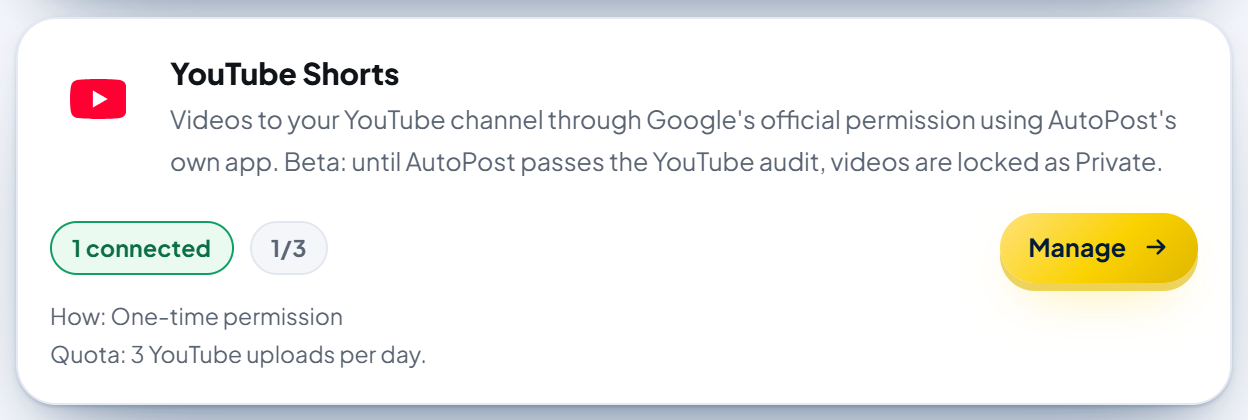
Open the Social accounts menu. The YouTube Shorts card explains how it works, how many channels are connected, and the daily quota. Press Manage.
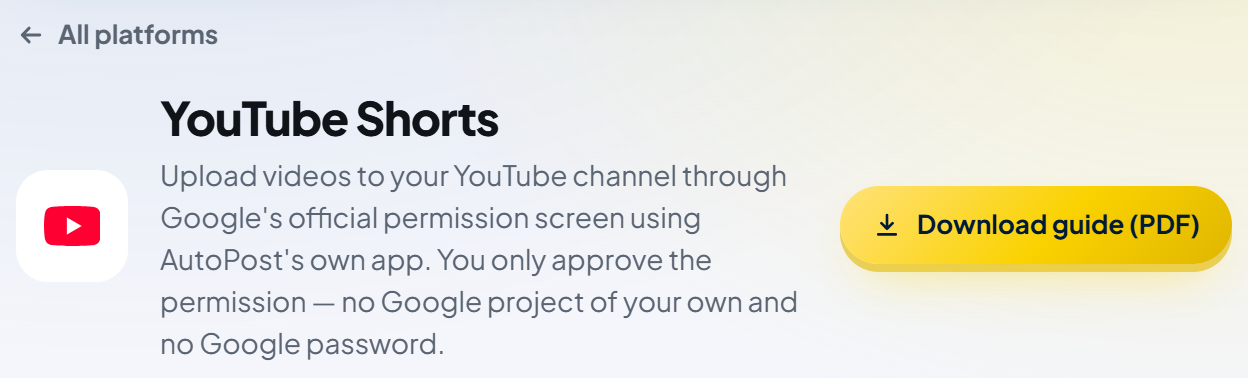
The YouTube Shorts page opens. The page header has a Download guide (PDF) button — this guide.
If the box The YouTube connection isn't open yet (or Permission storage on the server isn't ready) appears and the Connect YouTube button is grayed out, the AutoPost administrator hasn't prepared the server yet. You don't need to set anything up; the button turns on by itself once the server is ready.
4.2 Pressing Connect YouTube
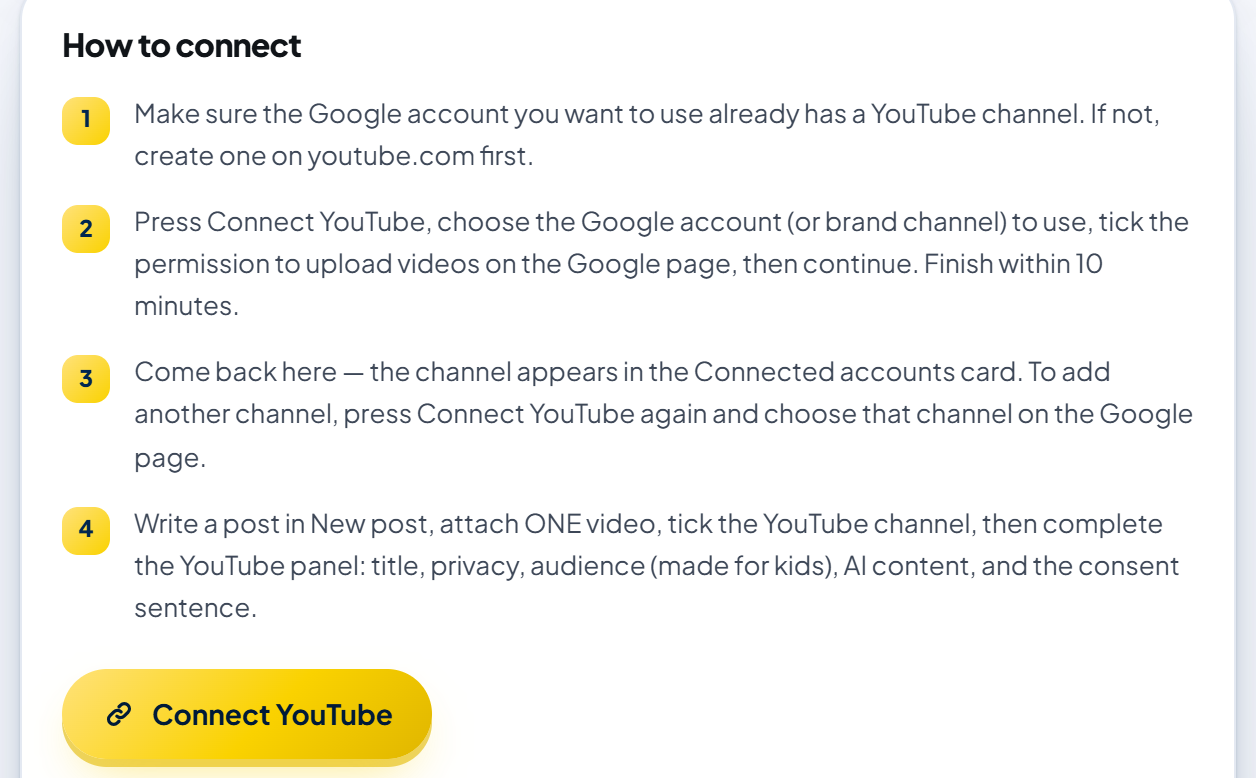
The How to connect card sums up four steps. Press the gold Connect YouTube button, then finish the permission on Google's page within 10 minutes, in the same browser.
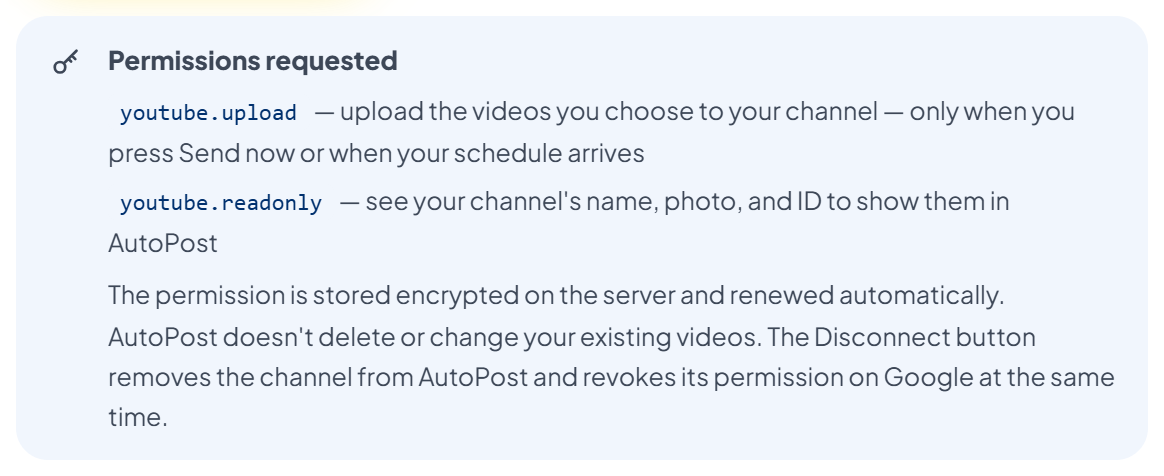
The blue Permissions requested box explains the two permissions:
4.3 Approving the permission on Google's page
Your browser moves to Google's permission page. The order is roughly as follows:
- Choose the Google account — or brand channel — that owns the channel
- If Google warns that the app isn't verified yet, continue only if the app name is AutoPost
- Tick BOTH YouTube permissions (manage your videos & view your YouTube account)
- Press the button to continue — Google sends you back to AutoPost
The Google screen hasn't been captured yet — this order is a summary; the exact labels may differ.
Choose the Google account that owns the channel. If your account has several channels (for example brand channels), Google shows a picker — choose the channel you want to connect.
While the AutoPost app hasn't been verified by Google, Google may show a warning that this app isn't verified. Continue only if the app name shown is AutoPost.
Google may show a checkbox for each permission. If so, tick both YouTube permissions. Without the permission to upload videos, AutoPost rejects the connection; without the permission to view the channel, AutoPost can't identify your channel.
Press the button to continue. Google sends you back to AutoPost.
If you cancel on Google's page, AutoPost shows: "You canceled the permission on Google. Press Connect YouTube again and choose Allow if you want to continue."
4.4 What AutoPost does behind the scenes
Back from Google, AutoPost:
matches the security code from Google with the one created when you pressed Connect YouTube;
exchanges the permission code for a token on the server, then checks that the permission to upload videos was really granted;
reads one channel of that account (ID, name, handle, and channel photo);
stores the token encrypted and shows the channel in the Connected accounts card.
If any check fails after the token was received, AutoPost revokes that new token at Google, then shows the message (chapter 11.1).
4.5 Signs of success
You're back on the YouTube Shorts page with a green banner:

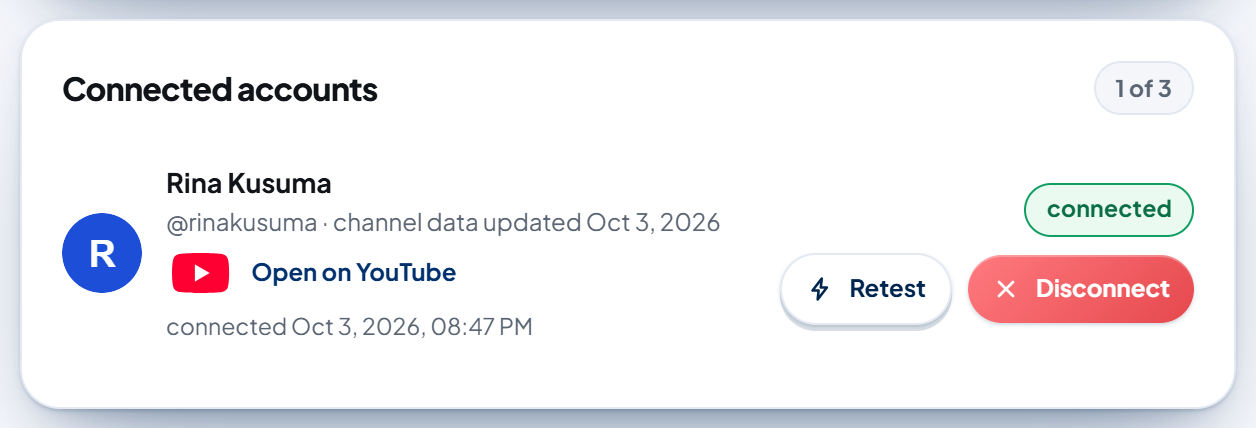
The channel appears in the Connected accounts card with its photo, name, handle, the date the channel data was updated, the green connected label, an Open on YouTube link, and the Retest and Disconnect buttons.
4.6 Reconnecting and adding channels
The same channel connected again (for example after the permission expired): its row is updated, not added. The banner says "… was already connected — we refreshed its token after testing it with YouTube."
Another channel: press Connect YouTube again and choose that channel on Google's page.
One channel may be connected to more than one AutoPost account.
4.7 What "1 of 3" means
Each AutoPost account can connect at most 3 YouTube channels. Once you have 3, the Connect YouTube button can only reconnect the same channel: "Already 3 channels: this button can only reconnect the same channel. Disconnect one channel to add a new one."
5. Step C — Writing a post for YouTube
5.1 Quick rules before writing
The YouTube Shorts page has a YouTube rules box:
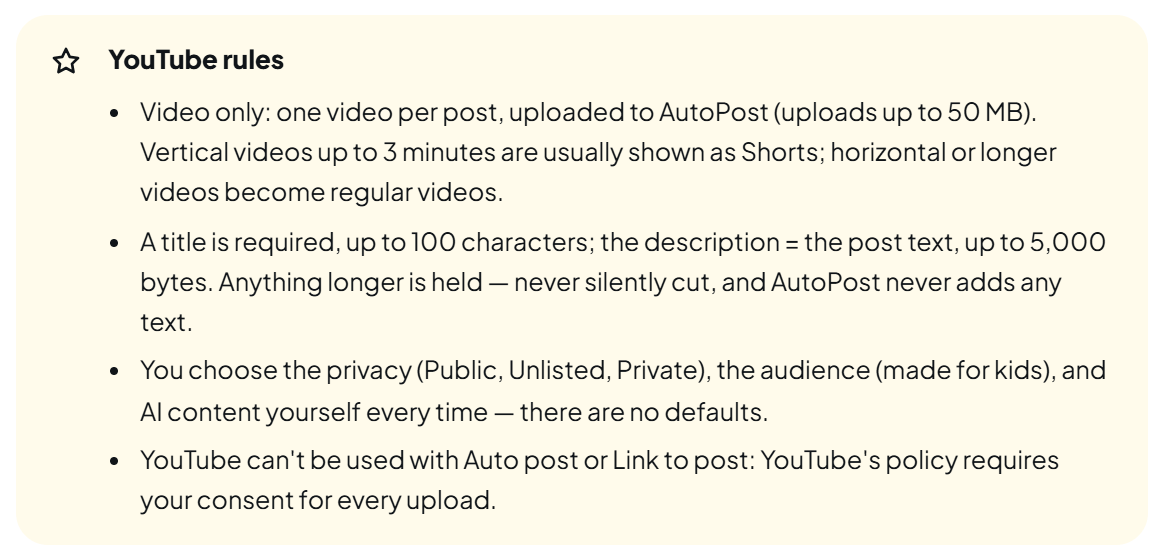
Video only: one video per post, uploaded to AutoPost (up to 50 MB).
A title is required, up to 100 characters; the description = the post text, up to 5,000 bytes. Anything longer is held — never silently cut.
Visibility, made for kids, and AI content are chosen by you every time — there are no defaults.
YouTube can't be used with Auto post or Link to post: YouTube's policy requires your consent for every upload.
5.2 Ticking the YouTube channel
Open New post and write your text. In the Send to section, the YouTube channel is not ticked by default — tap the channel until it turns dark blue with a ✓.
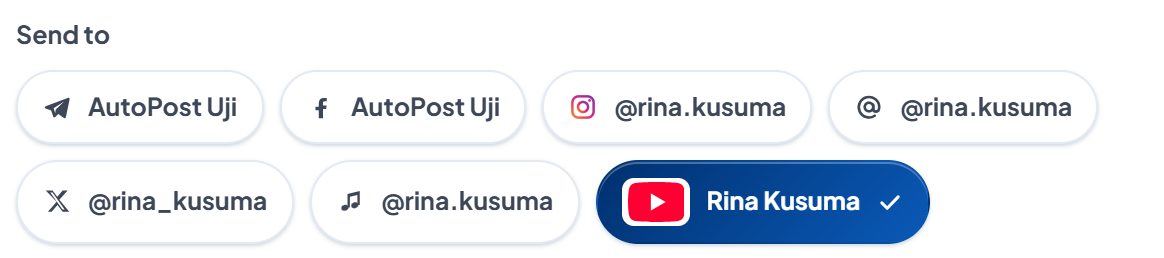
Once the channel is ticked, the YouTube panel appears below — one panel for each ticked YouTube channel. Ticking several channels means several uploads (one per channel), and each one uses quota.
5.3 Attaching one video
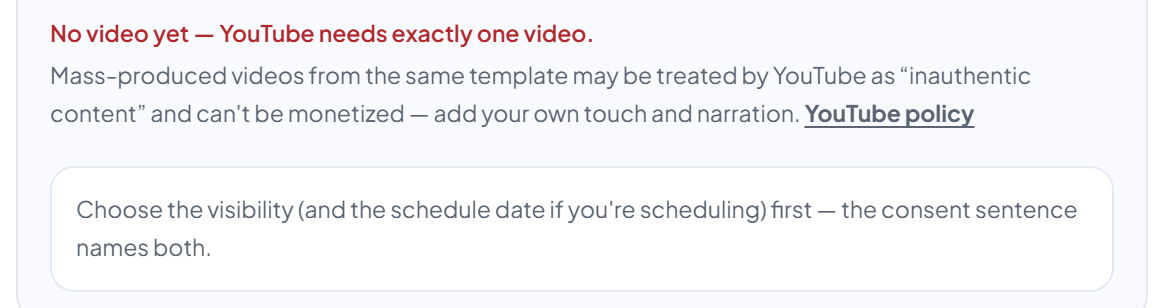
Add one video via Upload from gallery (or use a video from Auto video / Shorts Maker). Until there's a video, the panel says "No video yet — YouTube needs exactly one video." and if the first media item is a photo: "The first media item is a photo — YouTube only accepts video."
If your video is horizontal or longer than 3 minutes (and AutoPost knows its size and duration), the panel says: "This video is landscape or longer than 3 minutes, so YouTube will show it as a regular video, not a Short." This is only information — the upload isn't held.
5.4 The video title and "Suggest a title"
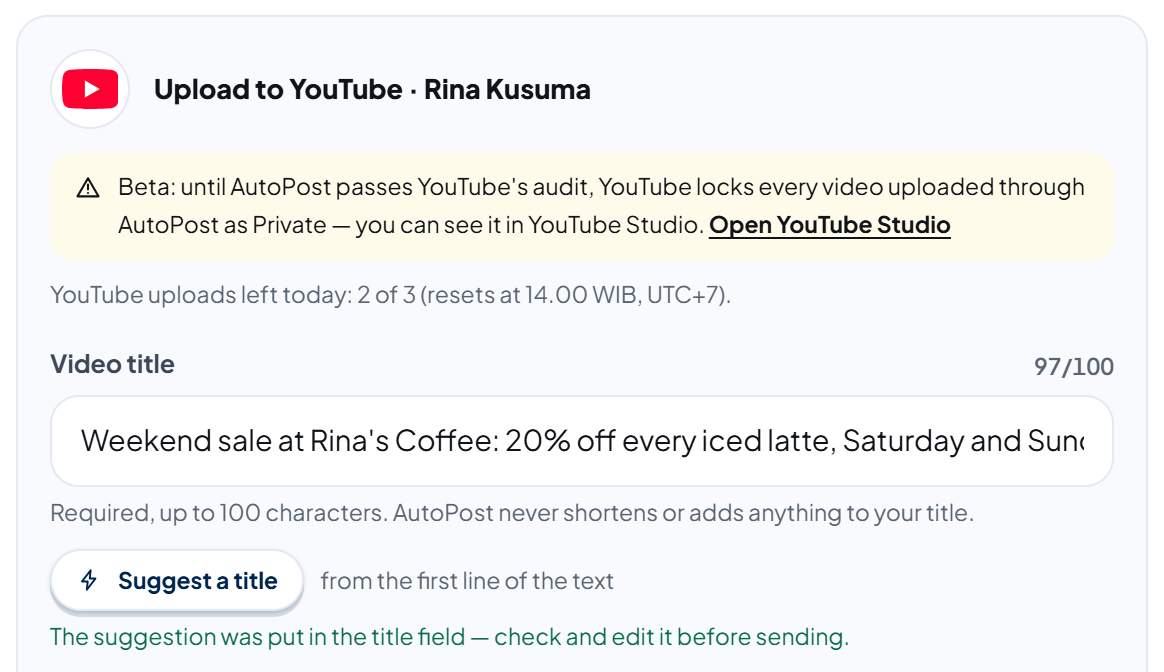
The panel starts with the target channel, the beta banner, and today's remaining quota. Fill in the Video title (required). The counter on the right shows the number of characters out of 100. A title over 100 characters is marked red and sending is held until you shorten it yourself.
The Suggest a title button fills the title field from your own material — the hook or caption of a video from Auto video/Shorts Maker, or, if there's none, the first line of your text (shortened — usually at a word boundary — if it's over 100 characters). The suggestion is put in the visible field: "The suggestion was put in the title field — check and edit it before sending." This suggestion is not AI-generated (even though the button has a lightning icon) and is never sent without you seeing it.
The title and description can't contain < or > (rejected by YouTube).
5.5 Description and link
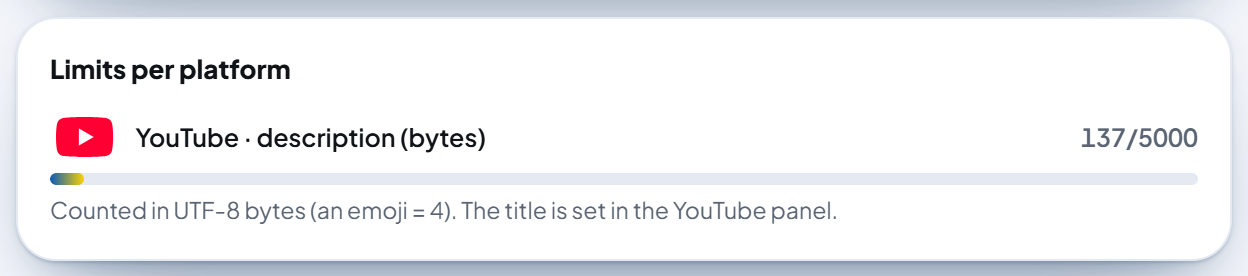
The description is the Text field as is, counted in UTF-8 bytes (an emoji = 4 bytes), up to 5,000. The Description that will be sent box shows the final text.
If you fill in Link and the link isn't already in the text, the checkbox Add the link to the description appears (unticked). Unticked, the link isn't sent to YouTube; ticked, the link is added on a new line at the end of the description.
The Limits per platform card in the right column also shows the YouTube description count:
5.6 Visibility, made for kids, AI content, and subscribers
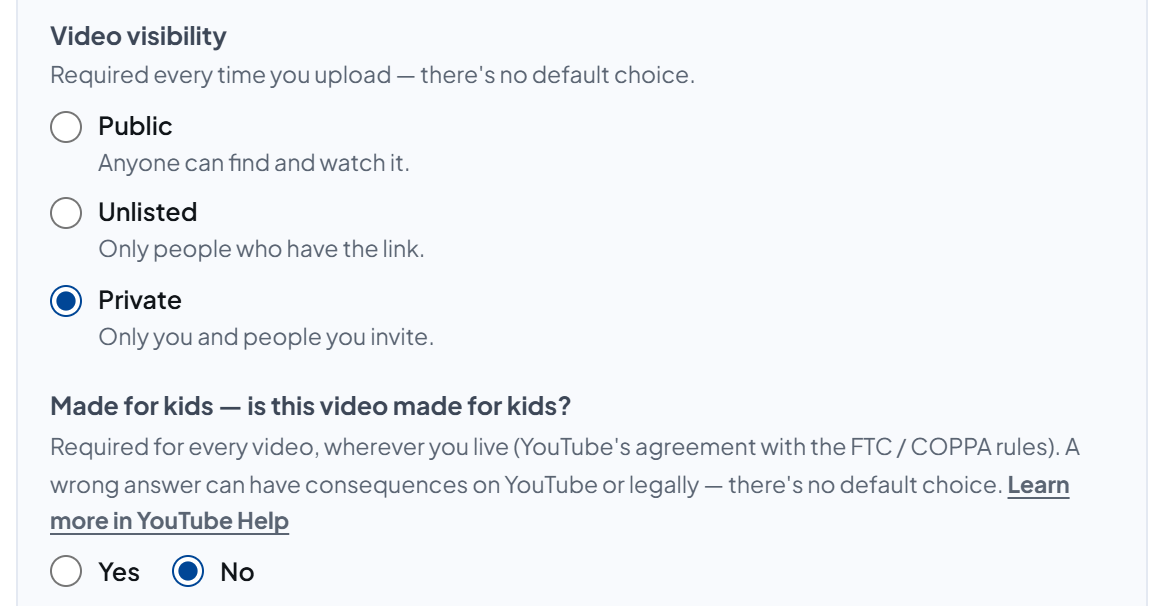
The lower part of the panel has four choices. The first three must be answered every time and have no default:
| Choice | What you need to know |
|---|---|
| Video visibility | Public (anyone can find and watch it), Unlisted (only people who have the link), or Private (only you and people you invite). During beta, YouTube may lock it as Private (chapter 8). |
| Made for kids | Required for every video, wherever you live (YouTube's agreement with the FTC / COPPA rules). A wrong answer can have consequences on YouTube or legally. |
| Altered or synthetic content | Must be disclosed when real-looking people, places, or events were made or meaningfully altered by AI. Not needed for clearly unrealistic animation, color filters, or help with scripts and titles. For a video from Auto video (AI voice narration) the panel says "Probably Yes…" — the decision is yours; nothing is ticked automatically. |
| Notify subscribers | Ticked (YouTube's default): channel subscribers get a new-video notification. Untick it if you don't need it. |
Below that is a reminder: mass-produced videos from the same template may be treated by YouTube as "inauthentic content" and can't be monetized — add your own touch and narration.
5.7 The consent sentence
The last box in the panel is the consent sentence. Before the visibility is chosen (and the schedule date if you're scheduling), the box says: "Choose the visibility (and the schedule date if you're scheduling) first — the consent sentence names both."
After that, tick the sentence that names the channel, the visibility, and the send time, for example:
I agree that AutoPost uploads this video to the YouTube channel «Rina Kusuma» as «Private» now.
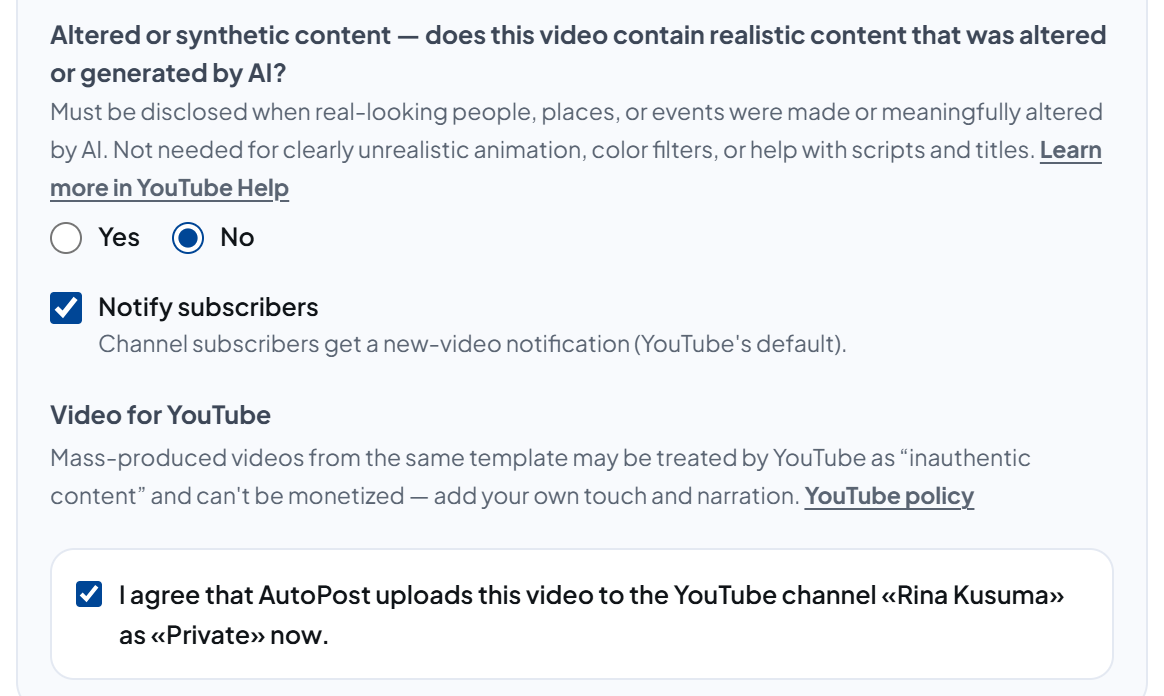
For a schedule, "now" is replaced by "on … WIB (UTC+7)" with your schedule; in Save draft mode the sentence ends "… when this post is sent." If the channel, visibility, or send time changes, the tick is removed by itself: "The channel, visibility, or send time changed — tick the consent sentence again."
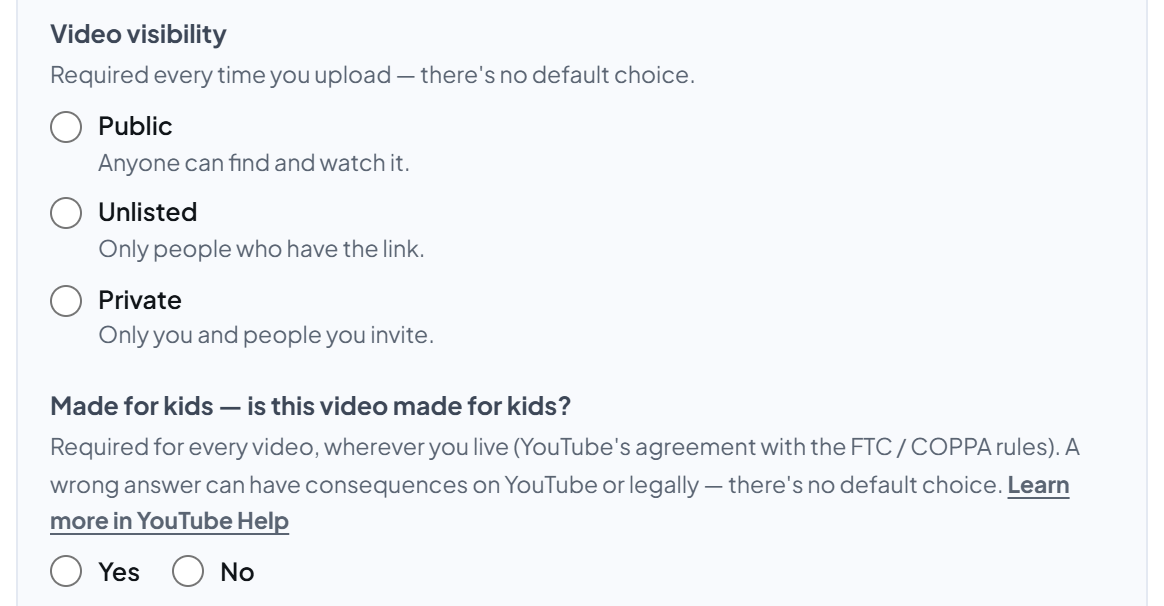
An empty panel (before the video, visibility, and answers are filled in) looks like this — nothing is selected:
5.8 When sending is held
While the panel is incomplete, Send now or Schedule mode is held with a red box giving the first reason, for example:

Possible reasons:
| Reason | What to do |
|---|---|
| A YouTube video title is required. | Fill in the title (or press Suggest a title, then check it). |
| The YouTube title is … characters — YouTube accepts at most 100. | Shorten the title yourself. |
| The YouTube description is … bytes — YouTube accepts at most 5,000 bytes. | Shorten the text. |
| A YouTube title/description can't contain < or >. | Remove those characters. |
| Choose the YouTube video privacy: Public, Unlisted, or Private. | Choose a visibility. |
| Answer first: is this video made for kids? (required by YouTube) | Answer Yes/No. |
| Answer first: does this video contain realistic altered or synthetic content? | Answer Yes/No. |
| Consent to upload to YouTube hasn't been given. Tick the consent sentence in the YouTube panel. | Tick the consent sentence. |
| Your YouTube upload quota for today (3 videos) is used up — it resets at 14.00 WIB (UTC+7). … (Send now mode only) | Schedule it for another day or save it as a draft (chapter 7). |
Media problems are shown in a separate red box, not in the "… is on hold" box: "YouTube only accepts video. Add one video (MP4, MOV, or WebM) via Upload from gallery, Auto video, or Shorts, or remove the YouTube account. The draft can still be saved." Even though that message mentions WebM, AutoPost uploads only accept MP4 and MOV.
Save draft is always allowed, even when the YouTube panel is incomplete; the panel's entries are saved too and restored when the draft is opened again (except the consent tick — every upload is consented to again).
6. Step D — Sending, scheduling, and checking the result
6.1 Send now
Choose Send now mode, complete the panel, tick the consent sentence, then press the send button. Consent for Send now is valid for 15 minutes. If it's older, AutoPost asks you to tick it again: "Your YouTube consent is more than 15 minutes old — tick the consent sentence in the YouTube panel again, then press Send now." Nothing is sent to any platform until the consent is fresh.
The video is sent in parts. If the upload doesn't finish in one round, AutoPost usually continues it automatically from the part already sent, without using quota again. If YouTube's upload session expires before the last part of the video is sent (or it's delayed for more than 60 minutes), the upload restarts and uses one more quota — no video has been created yet, so there's no duplicate.
6.2 Scheduling
Choose Schedule and the date and time. The consent sentence changes to "… on <date and time> WIB (UTC+7)." AutoPost uploads the video exactly at your scheduled time — YouTube doesn't receive a publishing schedule from AutoPost.
A schedule counts toward the quota on the quota day of that schedule. If that day's quota is already full, the schedule is rejected when saved:
"Your YouTube upload quota on that scheduled day (3 videos; the quota day changes at 14.00 WIB) is full. Choose another time." — or, if the schedule falls on the current quota day, "Your YouTube upload quota for today (3 videos) is used up — it resets at 14.00 WIB."
"AutoPost's YouTube upload quota on that scheduled day is full (the quota day changes at 14.00 WIB). Choose another time." — the quota shared by all users.
6.3 Save draft
Drafts don't use quota and can be saved even when the YouTube panel is incomplete.
6.4 Checking the result
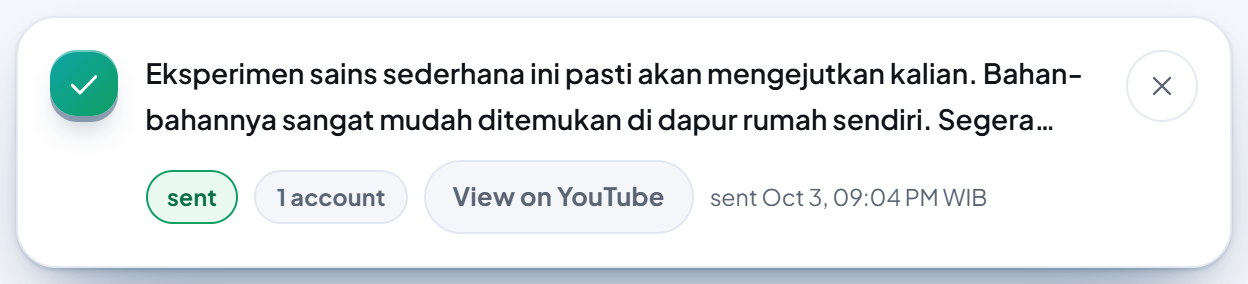
The send status shows on the Posts page like other platforms. For a sent YouTube upload there's a View on YouTube link to the video (a Private video can only be opened by the channel owner). During beta, a successful send may carry the note: "YouTube locked this video as Private because AutoPost hasn't passed the YouTube audit yet. You can see it in YouTube Studio."
The card of the first real YouTube upload (3 October 2026, Private) on the Posts page — the post text is the user's own and stays in Indonesian:
Open YouTube Studio (studio.youtube.com) › Content to see your video and its visibility.
6.5 Resending a failed upload
A failed send can be resent from the Posts page. For YouTube, AutoPost asks you to tick the consent sentence again. If the earlier upload result was uncertain (for example the connection dropped right as the last part of the video was sent), AutoPost warns: "Check YouTube Studio first — the video may already have been uploaded; sending again can create a duplicate video and use up quota." You must tick "I've checked YouTube Studio and still want to send to YouTube again." before you can resend.
If the earlier upload had started, a resend asks YouTube about the old upload session first: if the video turns out to be finished already, the send is simply marked done without a new upload.
On the Posts page, consent is valid for one button press and is cleared afterwards. The visibility named in the sentence is the saved one and can't be changed from there — to change it, open the post in the composer. If the draft's YouTube panel is incomplete, there's no consent box; instead you see the warning "The YouTube options for «…» are incomplete — open this draft in the composer to complete them; otherwise the YouTube upload fails."
7. Daily upload quota
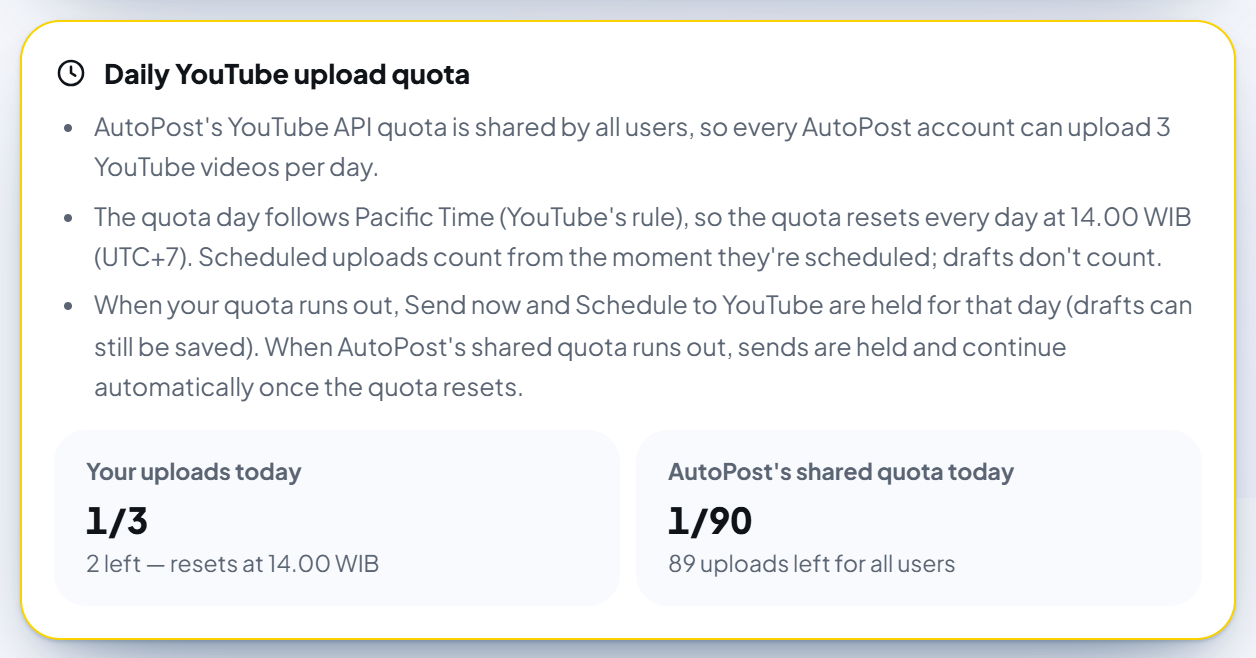
AutoPost's YouTube API quota is shared by all users, so there's a daily limit:
| Limit | When it runs out | |
|---|---|---|
| Your quota | 3 uploads per AutoPost account per quota day | Send now is held in New post; a new schedule on a quota day that's already full is rejected when saved (choose another time). Drafts can still be saved. Queued sends fail with a message telling you to reschedule. |
| AutoPost's shared quota | 90 uploads per day for all users | Queued sends are held and continue automatically once the quota resets — no need to press Resend. A new schedule on a quota day that's already full is rejected (choose another time). |
The quota day follows Pacific Time, so the quota resets every day at 14.00 WIB (15.00 WIB after US daylight saving time ends).
What counts: uploads already started and scheduled uploads on the same quota day. Drafts don't count.
Each ticked channel = one upload.
If AutoPost's quota at Google runs out outside AutoPost's own count, sends are postponed until the quota resets ("AutoPost's YouTube upload quota at Google is used up for today — it continues automatically at 14.00 WIB."), at most 3 times for each target channel; after that, sending to that channel stops.
YouTube itself also has a daily upload limit per channel: "This channel's daily upload limit has been reached (a YouTube rule). Reschedule for tomorrow."
8. Beta status: videos may be locked as Private
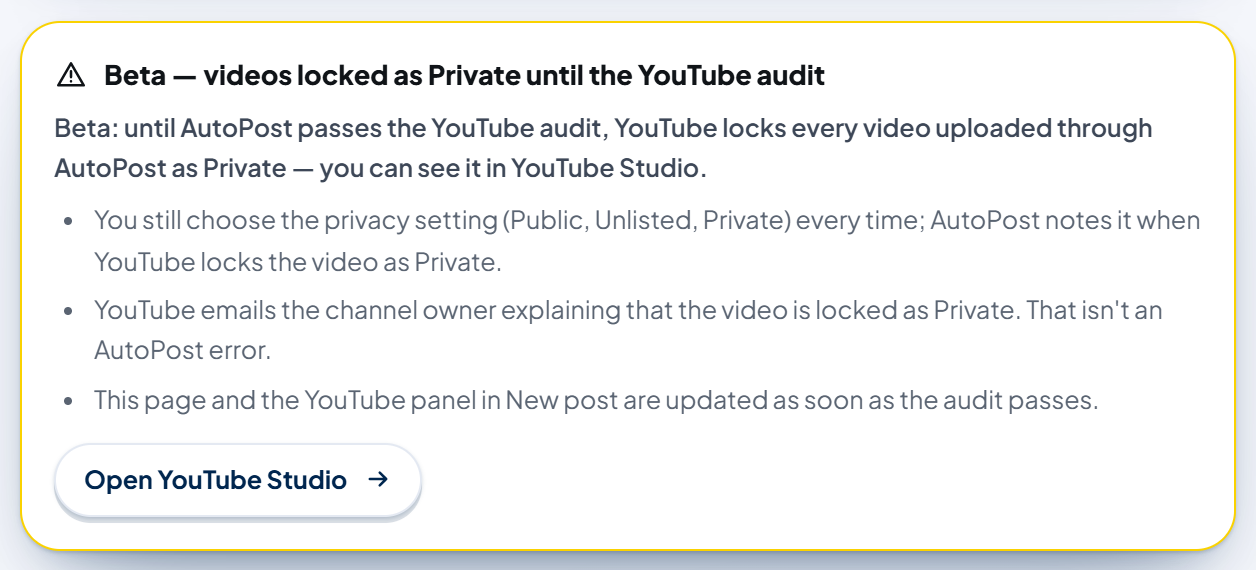
Under YouTube's rules, videos uploaded through an app that hasn't passed the YouTube API audit may be locked as Private. The beta banner in the app warns about this. In the 3 October 2026 test, a video requested as Public stayed Public (about 2 hours later in YouTube Studio, with no email from YouTube); AutoPost is still watching before the banner changes. During beta this means:
You still choose the visibility every time; if YouTube locks it as Private, AutoPost notes it on that send when YouTube says so right away — a lock may also only show after the video has been processed.
If a video is locked, YouTube emails the channel owner explaining it. That isn't an AutoPost error.
The video stays on the channel and can be seen in YouTube Studio — check its visibility there.
Don't promise your audience public viewing before you've checked the video in YouTube Studio.
9. What you can't do with YouTube yet
AutoPost currently only uploads new videos to YouTube. Not yet possible:
scheduled publishing by YouTube (AutoPost uploads the video exactly at your scheduled time);
custom thumbnails;
playlists, tags, and categories;
editing or deleting YouTube videos from AutoPost;
YouTube video statistics.
YouTube is also not available in Auto post ("YouTube can't be used for auto posts") and Link to post, because YouTube API policy requires your consent for every upload.
10. Managing connected channels
10.1 Retest
Press Retest on the channel card to check that its permission is still valid. AutoPost refreshes the token if needed, re-reads the channel data, then shows "Retest finished — the account is still healthy and ready to send." Retest does not use upload quota. If the channel Google authorized differs from the saved one, you're told to reconnect and choose the right channel.
10.2 Reconnecting
The channel label changes to needing reconnection when the Google permission was revoked, expired, or a different channel was chosen on Google's page. Press Connect YouTube and choose the same channel — the old row is updated, not added.
While the AutoPost app is in Google's testing mode, a tester's permission expires 7 days after it was granted. That isn't an AutoPost fault — just reconnect.
10.3 Disconnect
Press Disconnect, then Yes, disconnect on the question "Disconnect this channel? AutoPost's permission on your Google Account is revoked and its token deleted. Videos already on YouTube aren't deleted."
The channel row and its token are deleted from AutoPost. All targets for that channel are deleted too — pending sends are canceled, and on older posts the send details for that channel (including the View on YouTube link) disappear from the Posts page.
AutoPost's permission on your Google Account is revoked automatically. If revoking fails, AutoPost shows how to revoke it yourself.
If the same channel is still connected in another AutoPost account, the permission on Google is deliberately not revoked (revoking it would cut that connection too). Revoke it yourself once the channel isn't used in any AutoPost account.
Videos already on YouTube are not deleted.
10.4 Revoking the permission from your Google Account
You can revoke AutoPost's permission at any time on the Google Account permissions page (myaccount.google.com/permissions): choose AutoPost, then remove its access. After that, sends to that channel fail with a message telling you to reconnect it.
The 30-day rule. If the channel's permission can't be renewed for more than 30 days, all of the channel's data in AutoPost (ID, name, handle, picture, and tokens) is deleted. The channel stays listed as "YouTube channel (data deleted — disconnect, then reconnect)" and can't be selected in New post until you press Disconnect and connect it again.
11. Troubleshooting
Error messages on the YouTube Shorts page start with Failed: (red banner). Send messages show on the Posts page; sends that are retried automatically get the suffix "(retrying automatically, attempt N of M)".
11.1 When pressing "Connect YouTube" or coming back from Google

| Message | What it means & what to do |
|---|---|
| The permission to upload videos to YouTube wasn't granted (its checkbox was left empty on the Google page). … | Press Connect YouTube again and tick the permission to upload videos. |
| The permission to view your YouTube channel wasn't granted (its checkbox was left empty on the Google page), so AutoPost can't identify your channel. … | Press Connect YouTube again and tick both permissions. |
| This Google account doesn't have a YouTube channel yet. Create one on youtube.com first (tap your profile photo › Create a channel), then press Connect YouTube again. | Create a channel, or choose another Google account that already has one. |
| You canceled the permission on Google. … | Press Connect YouTube again and approve the permission. |
| The YouTube connection session has expired (more than 10 minutes) or the browser blocked the cookie. … | Try again and finish within 10 minutes in the same browser; don't block cookies. |
| The security code (state) doesn't match — this request was rejected. … | Start again from the YouTube page in AutoPost (don't use an old tab or a copied link). |
| Your AutoPost session differs from when you started. … | Sign in again to the same AutoPost account, then connect again. |
| Google rejected the permission request. … / Google didn't send a permission code. … / The Google authorization code has expired or was already used. … | Press Connect YouTube once more. |
| There are already 3 YouTube channels. Disconnect one first if you want to replace it. | Disconnect one of the channels (chapter 10.3). |
| The YouTube connection isn't open on the AutoPost server yet. Try again later. | The administrator hasn't prepared the connection; send via other platforms for now. |
| The return address doesn't match the Redirect URI of the AutoPost Google app. The administrator needs to check it. | Report it to the AutoPost administrator (chapter 15.8). |
| Google rejected the AutoPost app on the server (YOUTUBE_CLIENT_ID/SECRET, or the YouTube Data API isn't enabled). … | An administrator-side problem; your channel permission hasn't changed. Report it to the administrator. |
11.2 On Retest, Disconnect, or the channel status
| Message | What it means & what to do |
|---|---|
| The YouTube permission has expired or was revoked. Reconnect this channel. / AutoPost's YouTube permission is no longer valid (revoked or expired). Reconnect this channel. | Press Connect YouTube and choose the same channel. In Google's testing mode this happens every 7 days. |
| The channel Google authorized differs from the channel saved in AutoPost. … | Reconnect and choose the right channel on Google's page. |
| The YouTube channel data was deleted because its permission couldn't be renewed for more than 30 days. Disconnect this channel, then connect it again. | Disconnect, then reconnect (chapter 10.4). |
| AutoPost's permission on your Google Account couldn't be revoked automatically. … | Revoke it yourself via Open the Google Account permissions page. The channel data in AutoPost is already deleted. |
| AutoPost's permission on your Google Account was deliberately NOT revoked because the same channel is still connected in another AutoPost account … | Normal. Revoke it yourself only once the channel isn't used in any AutoPost account. |
11.3 In New post and when saving
| Message | What it means & what to do |
|---|---|
| … is on hold: … Complete the YouTube panel, or deselect the YouTube account. The draft can still be saved. | See the table in chapter 5.8. |
| Only N YouTube uploads are left in your quota today, but M YouTube channels are selected (one upload per channel). … | Deselect some channels, schedule it for another day, or wait until the quota resets. |
| Your YouTube consent is more than 15 minutes old — tick the consent sentence in the YouTube panel again, then press Send now. (on the Posts page: "… tick the consent sentence again, then send."; from the server: "Consent to upload to YouTube hasn't been given or is more than 15 minutes old. Tick the YouTube consent sentence again, then send.") | Tick it again, then send. |
| A YouTube channel whose data was deleted can't be selected: … | Disconnect that channel, then reconnect it in Social accounts › YouTube. |
| YouTube only accepts videos uploaded to AutoPost (Upload from gallery, Auto video, or Shorts). A video linked from another site can't be sent … | Upload the video to AutoPost, or deselect the YouTube channel. |
| The YouTube upload quota can't be checked right now. Please try again shortly. | Wait a moment, then save again. |
11.4 When sending or after a schedule
| Message | What it means & what to do |
|---|---|
| YouTube …, so the upload result is uncertain. Check YouTube Studio before sending again so the video isn't duplicated. | Open YouTube Studio. If the video is already there, don't resend. |
| Your YouTube upload quota for today (3 videos) is used up — it resets at 14.00 WIB. Reschedule this post for after that. | The send failed; reschedule after the quota resets. |
| AutoPost's YouTube upload quota for today is used up — it continues automatically at 14.00 WIB. | Nothing to do; the send continues automatically. |
| Another YouTube upload is using today's remaining quota. We'll check again in 1–2 minutes. | Nothing to do. |
| This channel's daily upload limit has been reached (a YouTube rule). Reschedule for tomorrow. | Reschedule for tomorrow. |
| YouTube rejected this video title (…). Change the title and send again. / … description … / … details … | Fix the title/text according to YouTube's note in brackets, then resend. |
| YouTube doesn't allow this privacy setting for that channel. Choose another privacy setting and send again. | Choose another visibility. |
| Permission to upload videos to YouTube wasn't granted to AutoPost. Reconnect this channel and allow managing videos. | Reconnect and tick the upload permission. |
| YouTube only accepts video. Add one video (MP4, MOV, or WebM) to this post. | Attach one MP4 or MOV video (WebM isn't accepted by AutoPost uploads yet — chapter 5.8). |
| YouTube is rate-limiting AutoPost's requests. … / YouTube is having trouble (HTTP …). … / Couldn't reach YouTube from the server. … | A temporary problem; AutoPost retries automatically. |
| The YouTube upload session expired before the video finished sending. We'll restart the upload automatically. | Nothing to do (the last part was never sent, so restarting is safe; it uses one more quota). |
| AutoPost's YouTube upload quota at Google ran out N times for this post — sending has stopped. Reschedule it or send it again later. | Reschedule or send it again on another day. |
| YouTube set this video as …, not … as chosen. Check it in YouTube Studio. | A note on a successful send; check its visibility in YouTube Studio. |
| The YouTube upload status can't be read yet (HTTP …). We'll ask again automatically — if it keeps failing, check YouTube Studio before sending again. | Wait; if it finally fails, check YouTube Studio before resending. |
| The YouTube upload isn't progressing. We'll try again later (continuing from the part already sent). | Nothing to do. |
| The post's video can't be read from AutoPost storage yet (HTTP …). We'll try again later. | Nothing to do; if it repeats, upload the video again. |
| YouTube only accepts videos uploaded to AutoPost (Upload from gallery), not links from other sites. | Upload the video to AutoPost. |
| The YouTube options (title, privacy, made for kids, altered or synthetic content, consent) aren't filled in yet. … | A draft was sent without a complete panel; open the post and complete the YouTube panel. |
11.5 Problems that don't show an AutoPost message
| Symptom | Cause & fix |
|---|---|
| The Connect YouTube button is grayed out and the box The YouTube connection isn't open yet or Permission storage on the server isn't ready appears. | The administrator hasn't prepared the server. Send via other platforms for now; report it if it lasts long. |
| The YouTube channel doesn't appear in Send to. | The channel isn't connected, or it's shown disabled because its data was deleted (30-day rule). |
| The YouTube panel doesn't appear. | The YouTube channel isn't ticked in Send to (not ticked by default). |
| There's no Suggest a title button. | The text is empty and the video doesn't come from Auto video/Shorts Maker — there's nothing to suggest from. |
| The video on YouTube is Private although you chose Public or Unlisted. | The beta rule: YouTube may lock videos from an app that hasn't passed the audit (chapter 8). |
| Google refuses to grant the permission for your account. | During testing mode, only registered testers can grant the permission (chapter 1). |
12. Questions and answers
Do I need to create my own Google Cloud project?No. YouTube API policy requires one project per service and forbids sharing credentials, so AutoPost uses one Google app owned by PT SKK for all users.
Can AutoPost see or delete my other videos?AutoPost doesn't delete or change your existing videos — the upload permission isn't used for that. The view permission youtube.readonly — shown by Google as "View your YouTube account" — allows reading YouTube account data; AutoPost only uses it for the channel name, photo, and ID.
Why is my video Private although I chose Public?Until AutoPost passes the YouTube API audit, YouTube may lock it as Private (chapter 8). Check it in YouTube Studio.
Why is there no default visibility?YouTube API rules require you to choose it yourself every time; the same goes for made for kids and AI content.
Will my video definitely become a Short?Vertical videos up to 3 minutes are usually shown as Shorts. The final decision is YouTube's.
Can one post go to YouTube and other platforms at once?Yes, as long as the media is one video accepted by all ticked platforms. Remember: the YouTube panel still has to be filled in.
Can I use Auto post for YouTube?No — you must consent to every upload yourself.
Does deleting my AutoPost account delete my videos on YouTube?No. Deleting AutoPost data doesn't delete videos already on YouTube.
Why do I have to reconnect every week?While the AutoPost app is in Google's testing mode, a tester's permission expires after 7 days. Once the AutoPost app leaves testing mode (In production), the permission no longer expires every 7 days.
13. Security and privacy
13.1 What AutoPost stores
| Data | Stored | When it's deleted |
|---|---|---|
| Channel ID, name, handle, and photo | yes, for display | on Disconnect, AutoPost account deletion, or if the permission can't be renewed for > 30 days |
| Google access & refresh tokens | yes, encrypted on the server | on Disconnect, account deletion, or the 30-day rule |
| Daily quota usage records | yes, without video content | after about 3 days at most |
| Google password | never | — |
13.2 What you should look after
Don't press Connect YouTube from a link someone sent you; always start from the Social accounts › YouTube Shorts menu in AutoPost.
Continue on Google's page only if the app asking for permission is named AutoPost.
Check which apps have access to your Google account at myaccount.google.com/permissions.
By connecting a channel, you agree to be bound by the YouTube Terms of Service; your Google data is processed under the Google Privacy Policy and the AutoPost Privacy Policy.
14. User checklist
15. Appendix — For the AutoPost administrator
This part is for the AutoPost administrator at PT SKK, not for users. Users don't need to do anything in Google Cloud. The full details, including Google verification and the YouTube audit form, are in the administrator's internal document (steps A–K and the audit materials).
15.1 Why one Google project owned by PT SKK
The YouTube API Services policy asks for one API project per client and forbids sharing credentials, so AutoPost uses one Google Cloud project owned by PT SKK for all users. The "project owned by the user" model (like the user's own Meta app for Instagram and Threads) must not be used for YouTube. All steps below use the company Google account, because the project owner = the app owner in Google's eyes.
15.2 Creating the project and enabling the YouTube Data API v3
Open console.cloud.google.com with the company Google account › project picker › New Project.
Project name:
AutoPost PT SKK; Project ID:autopost-pt-skk(can't be changed later); Parent resource: No organization › Create.
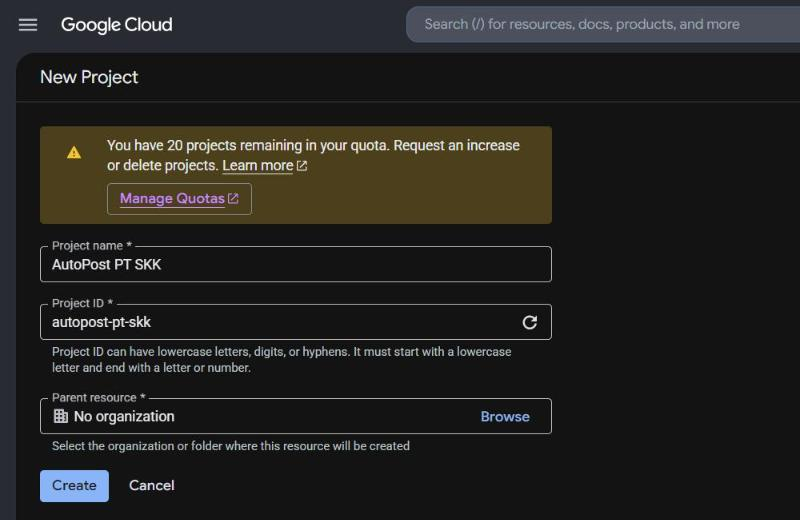
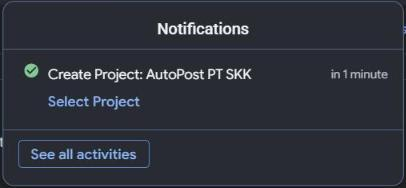
Wait for the notification Create Project: AutoPost PT SKK, then press Select Project.
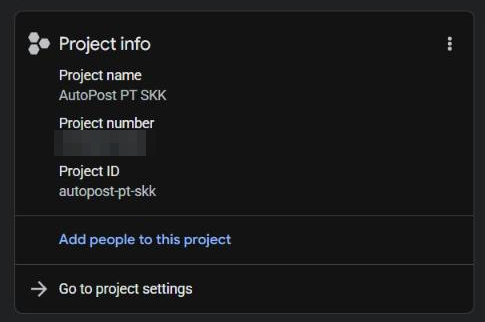
On the Dashboard, the Project info card shows the Project number — used in the YouTube audit form.
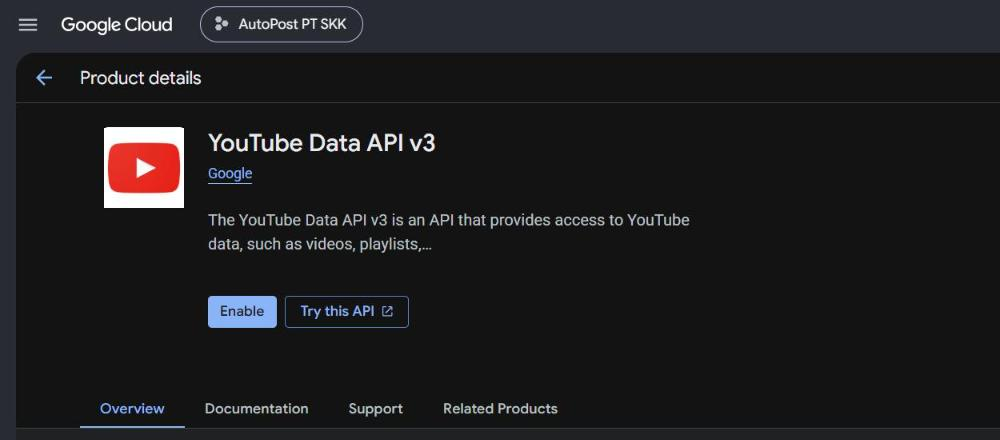
APIs & Services › Library › search YouTube Data API v3 › Enable.
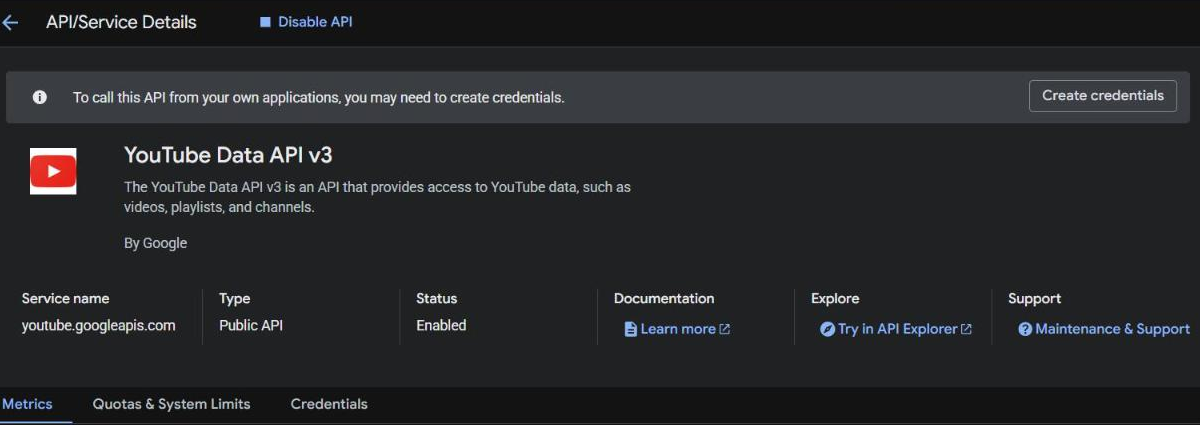
Once enabled, the page changes to API/Service Details with Status Enabled and a Disable API button. Don't create an API key or service account — AutoPost uses OAuth.
Quotas & System Limits tab: the Video Uploads per day row is 100. This number is the basis of AutoPost's shared quota (90 = 100 minus a reserve of 10).
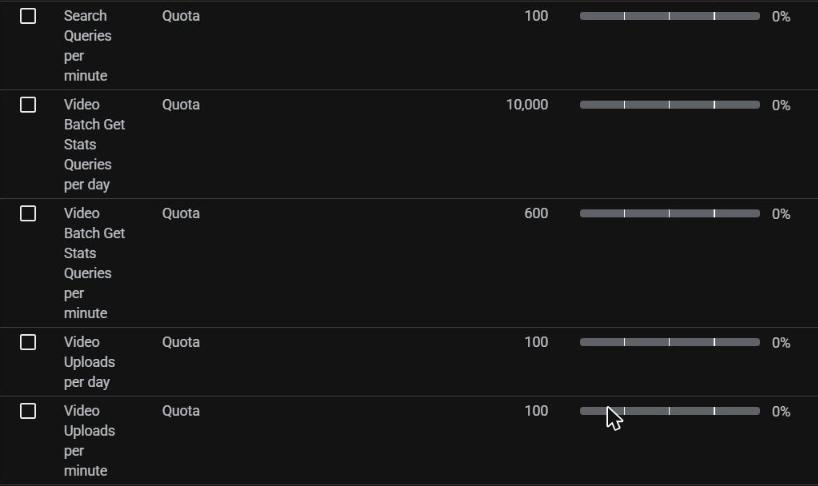
If the console asks for a billing account or a card, stop and check first — enabling this API doesn't need billing.
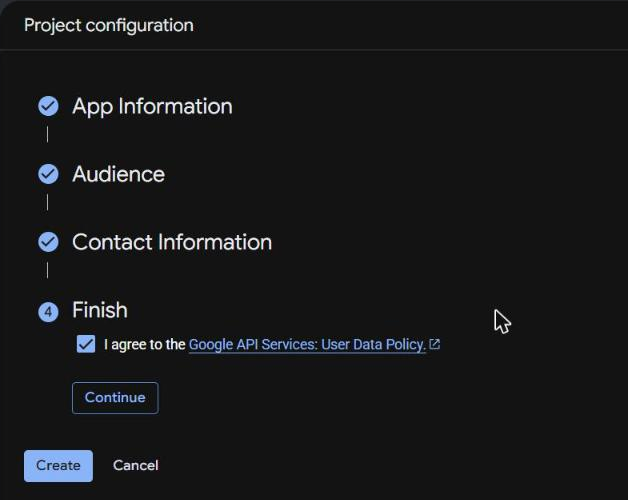
15.3 Google Auth Platform: initial setup
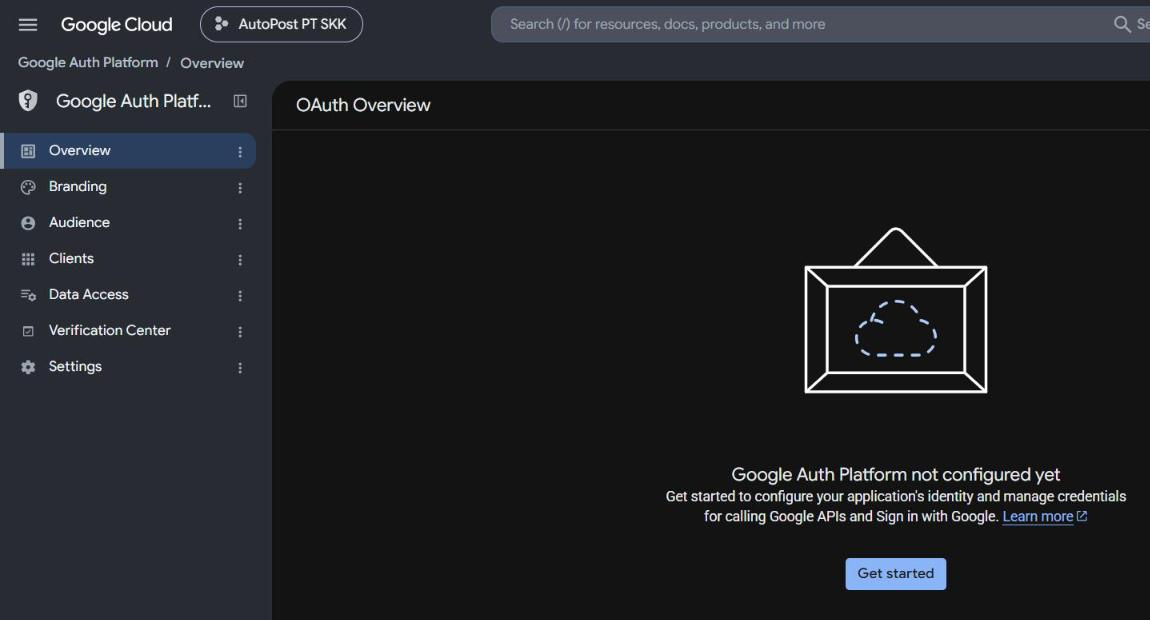
APIs & Services › OAuth consent screen (Google Auth Platform) › Get started.
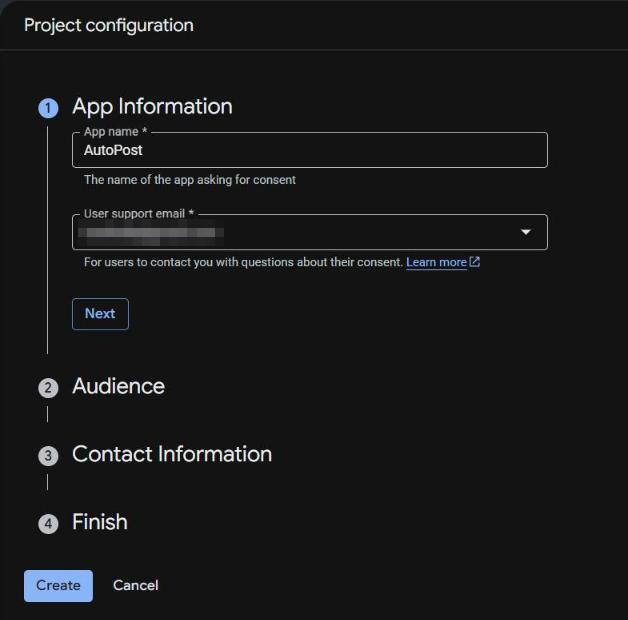
App Information: App name
AutoPost(without the word "YouTube"); User support email: the email of the signed-in account (this email is shown to users on the consent screen). › Next.
Audience: External. › Next.
Contact Information: PT SKK's official contact email (for Google's notices about the project). › Next.
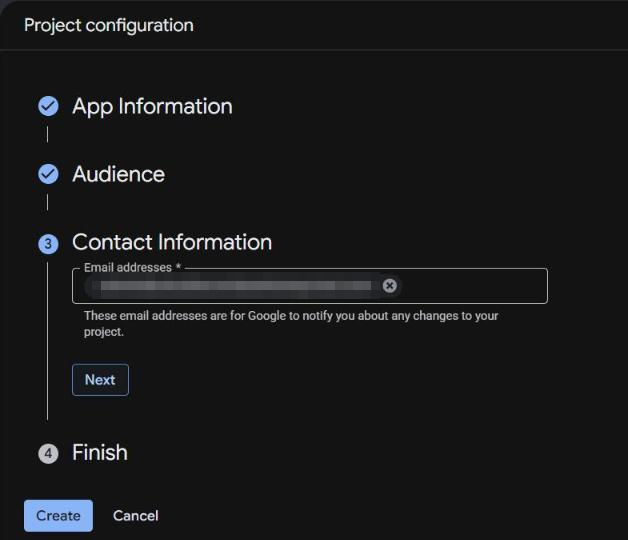
Finish: tick I agree to the Google API Services: User Data Policy › Continue › Create.
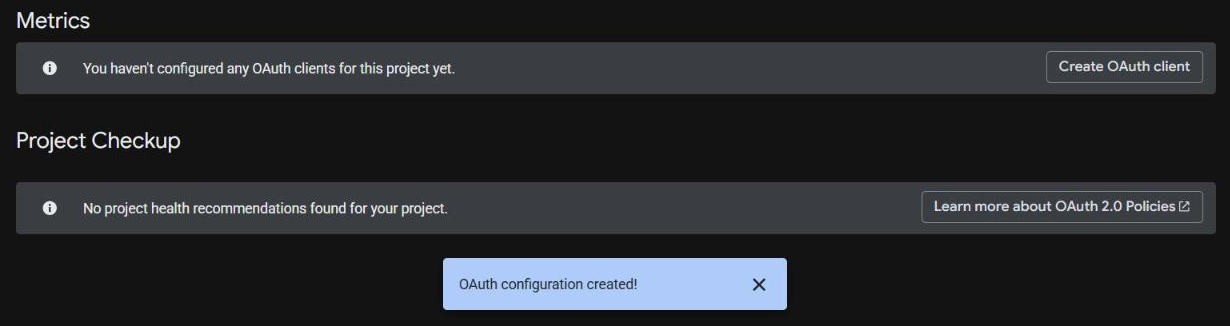
The banner OAuth configuration created! appears at the bottom of the page.
15.4 Branding
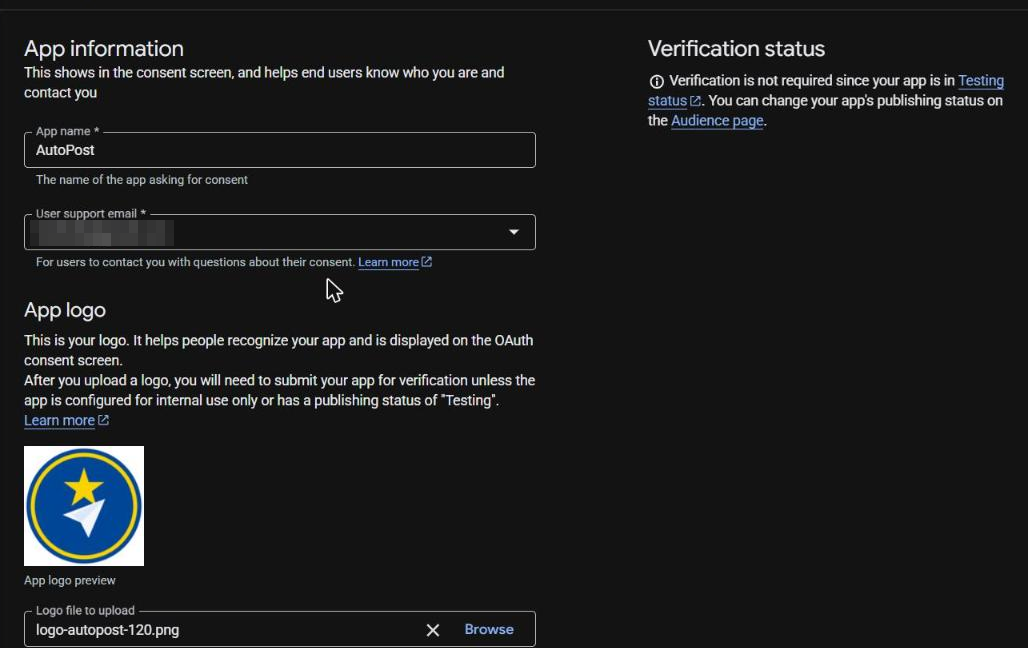
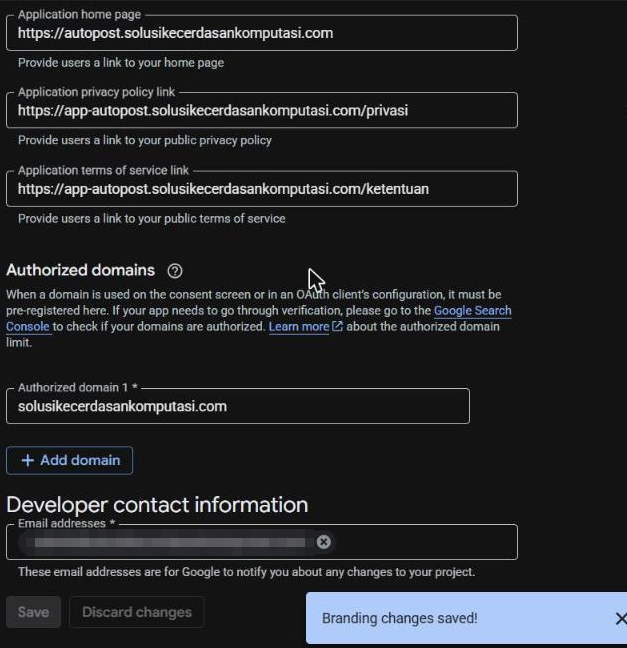
The Branding menu — fill in and Save:
| Field | Value |
|---|---|
| App name | AutoPost |
| User support email | the company Google account's email |
| App logo | square AutoPost logo, 120×120 px, PNG, ≤ 1 MB, without any YouTube element |
| Application home page | https://autopost.solusikecerdasankomputasi.com |
| Application privacy policy link | https://app-autopost.solusikecerdasankomputasi.com/privasi |
| Application terms of service link | https://app-autopost.solusikecerdasankomputasi.com/ketentuan |
| Authorized domain 1 | solusikecerdasankomputasi.com |
| Developer contact information | PT SKK's official contact email |
15.5 Search Console: verified domain
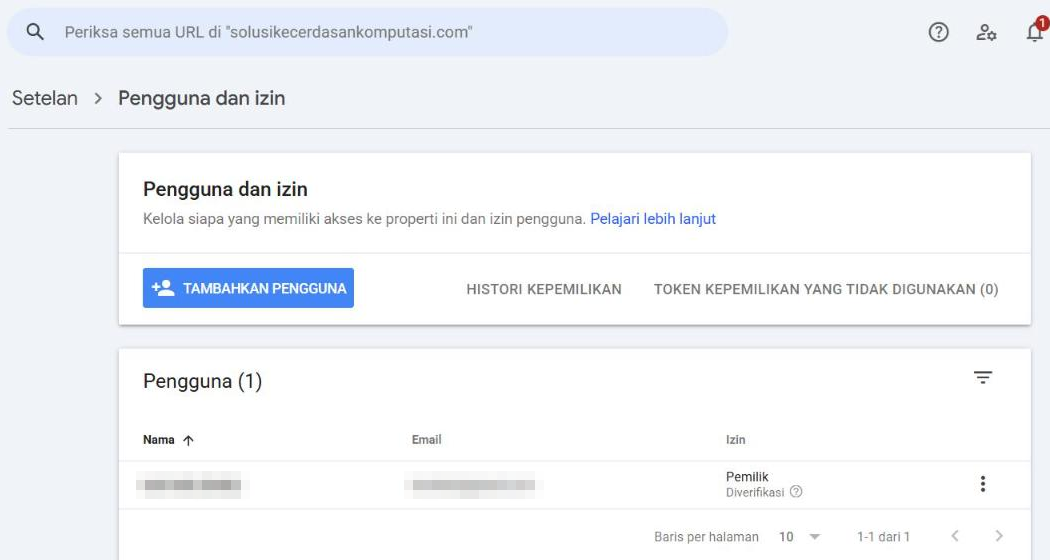
The domain registered in Branding must be verified in Google Search Console by an owner/editor account of the project. Under Setelan › Pengguna dan izin (Settings › Users and permissions, Indonesian interface) of the solusikecerdasankomputasi.com property, the company Google account has the status Pemilik · Diverifikasi (Owner · Verified).
15.6 Audience and testers (test users)
The Audience menu: Publishing status Testing, User type External. During Testing, only testers can grant the permission, at most 100 users before verification (counted over the app's lifetime), and a tester's permission expires after 7 days.
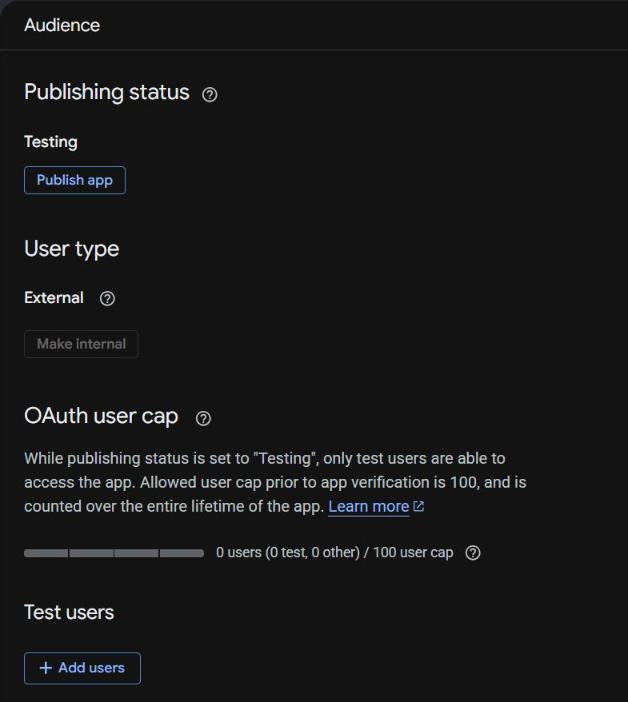
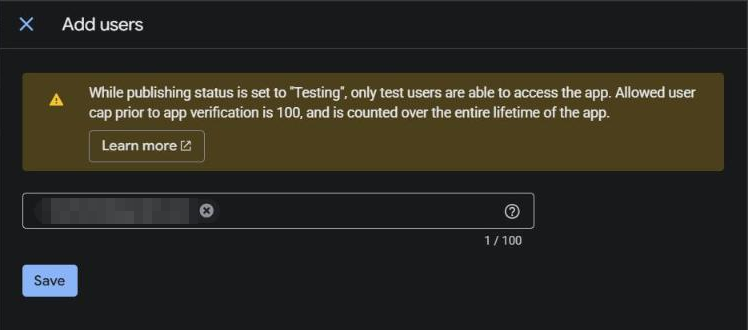
To add a tester: Test users › + Add users › type the email of the channel owner's Google account › Save.
15.7 Data Access: two sensitive permissions
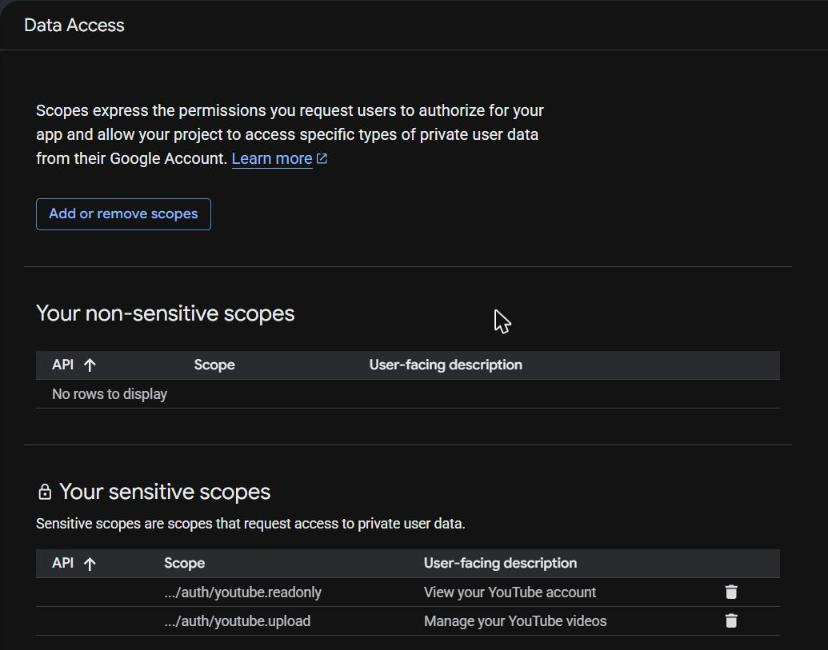
The Data Access › Add or remove scopes menu › tick (or paste into Manually add scopes):
https://www.googleapis.com/auth/youtube.upload
https://www.googleapis.com/auth/youtube.readonly
After Update and Save, both show under Your sensitive scopes (not restricted, so no paid security assessment is needed). Don't add openid, email, profile, or other YouTube scopes.
15.8 Clients: the "Web application" OAuth client and env
Clients › + Create client menu › Application type: Web application; Name:
AutoPost web(not shown to users).Authorized JavaScript origins: leave empty.
Authorized redirect URIs — exactly, without a trailing slash:
https://app-autopost.solusikecerdasankomputasi.com/api/sosial/youtube/kembalihttp://localhost:3000/api/sosial/youtube/kembali
Create.
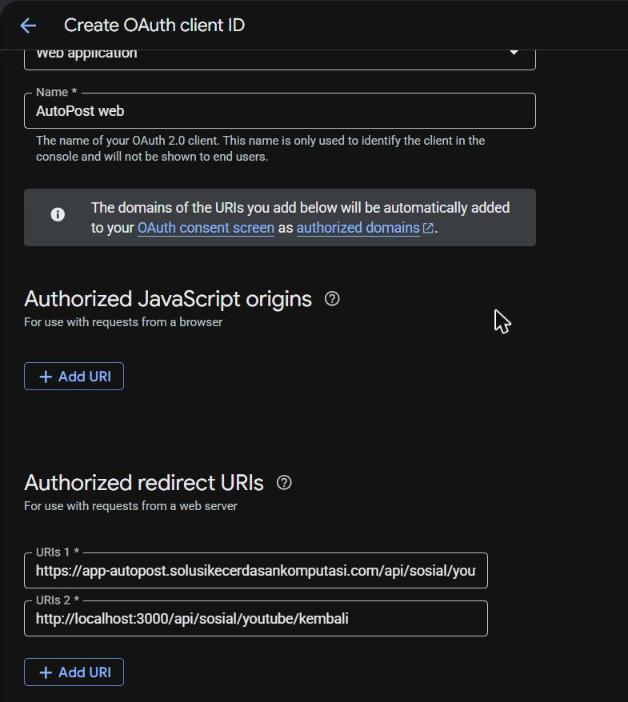
The next window shows the Client ID and Client secret. That window is deliberately not captured — the picture below is only an illustration. Copy both values straight into Vercel; never paste them into chat, screenshots, or files in the repository.
Secret — not captured. Paste it straight into Vercel; never share it by chat or screenshot.
Vercel › autopost-web › Settings › Environment Variables, Production environment:
| Env | Value | Note |
|---|---|---|
YOUTUBE_CLIENT_ID | Client ID | required |
YOUTUBE_CLIENT_SECRET | Client secret | required, secret |
YOUTUBE_SUDAH_DIAUDIT | empty | set 1 only after the YouTube audit passes — empty = beta banner |
YOUTUBE_KUOTA_HARIAN_PENGGUNA | optional, default 3 | uploads per user per quota day |
YOUTUBE_KUOTA_HARIAN_PROYEK | optional, default 90 | uploads by all users per quota day |
YOUTUBE_TANPA_READONLY | optional | 1 = ask for youtube.upload only |
Redeploy production. The box The YouTube connection isn't open yet under Social accounts › YouTube Shorts disappears and the Connect YouTube button turns on.
15.9 Afterwards: verification, audit, and quota
| Stage | Status on 3 Oct 2026 | Document |
|---|---|---|
| Alpha test with a tester channel | first channel connected in production | — |
| Upload test to the real YouTube | two uploads on 3 Oct 2026: 21.04 WIB (Private, became a Short) and 22.12 WIB (Public, stayed Public); other test items not yet | internal document, steps G–H |
| Demo video, Publish app, sensitive-scope & brand verification | not yet | internal document, step I + audit materials |
| YouTube API audit form | not yet | internal document, step J + audit materials |
After the audit passes: YOUTUBE_SUDAH_DIAUDIT=1, new quota | not yet | internal document, step K |
Every upload attempt — even a failed one — uses 1 of the project's 100 daily upload quota.