AutoPostUser guide
Connecting X (Twitter) to AutoPost
Full guide: from X's official permission to your first text, photo, and video posts going live — plus the monthly quota, what each message means, and the steps for the administrator of the AutoPost X app
Save this guide
PDF version to read offline or print · 4.7 MB · 49 pages
Contents
1. At a glance
What you will achieve
After following this guide, AutoPost can publish posts to your X (formerly Twitter) account — text only, or text with one photo, GIF, or video — right when you press Send now, or automatically at the time you schedule.
It works through X's official permission with AutoPost's own X app (named AutoPost PT SKK). You don't create an app, you don't enter any keys, you don't buy X API credits, and you never give your X password to AutoPost. You just approve the permission once on X's page.
Who does what
This guide is written for two readers.
| Reader | What they do | Chapters |
|---|---|---|
| AutoPost user (you, if you want to post to X) | Sign in to x.com, press Connect X, approve the permission, then write posts in New post. No apps, keys, or credits to deal with. | 1–13 |
| AutoPost administrator (PT SKK) | Registers the AutoPost X app on console.x.com, sets up its authentication, puts the app keys on the server, buys X API credits, and sets a spending limit. | 14 (appendix) |
Users only need chapters 1–13. The appendix in chapter 14 explains the behind-the-scenes work that makes the Connect X button usable.
- 1Sign in to x.com with the right account
- 2Press Connect X in AutoPost
- 3Check I trust this app, then Authorize app
- 4Check ONE X account in New post and review the X preview
- 5The post goes live on your X profile
Status of AutoPost & X (30 September 2026)
We state this plainly so there are no surprises.
The AutoPost X app (AutoPost PT SKK) is registered in PT SKK's X console and is active for all AutoPost users. Unlike TikTok, there is no test mode and no list of accounts that has to be registered first.
On 30 September 2026 the full flow was tried for real on production AutoPost: an X account was connected, then one text + photo post went live at 19:45 WIB (UTC+7) and one text + video post went live at 19:52 WIB.
The X API is paid for every post, and AutoPost covers the cost. That's why there is a monthly quota: each AutoPost account may send 60 X posts per month, up to 10 of them with a link. Details are in chapter 7.
Time estimate
| Situation | Estimate |
|---|---|
| User: sign in to x.com + connect | About 3 minutes |
| User: first post until it goes live | About 5 minutes (text and photos usually go live right away; X processes videos first) |
| Administrator: developer account, app, authentication, keys, credits, spending limit | About 1 hour |
What you need
| What to prepare | Details |
|---|---|
| An X account | Your own personal or business account. One X account can be connected to only one AutoPost account. |
| A browser on a laptop or computer | Where you open AutoPost. Sign in to x.com in the same browser before connecting. |
| A photo, GIF, or video (optional) | X accepts text-only posts. If you use media: a JPEG, PNG, or WebP photo up to 5 MB, a GIF up to 15 MB, or an MP4/MOV video (AutoPost uploads up to 50 MB). One media item per post. |
| An AutoPost account | Already signed in to the AutoPost app. |
What AutoPost sends to X
| Post content in AutoPost | Result on X |
|---|---|
| Text only | A text post. |
| Text + one JPEG/PNG/WebP photo | A post with an image. Alt text (if filled in) is attached to the photo. |
| Text + one GIF | A post with an animated GIF. |
| Text + one MP4 or MOV video | A video post. X processes the video first, then the post goes live. |
| The Link field | Added on a new line at the end of the text (unless that address is already in the text) and counted — as 23 characters. |
| Text longer than 280 characters (as X counts them) | Rejected, never silently cut. Shorten the text. |
| Several X accounts in one post | Not possible. One post goes to only one X account. |
| A video other than MP4/MOV (WebM, MKV, AVI, …) | Rejected. Convert it to MP4 first. |
What goes live on X is exactly the same as what the X preview card in New post shows (5.4). AutoPost doesn't add any hashtags, watermarks, or promotional text.
2. Understanding the terms
| Term | Meaning |
|---|---|
| X | The new name of Twitter. In AutoPost it appears as X (Twitter). What used to be a Twitter message is now simply called a "post". |
| AutoPost X app | The app PT SKK registered on console.x.com under the name AutoPost PT SKK. This app is what asks your X account for permission. One app for all AutoPost users — X forbids services from asking each of their users to create their own app. |
| Permission | The rights AutoPost asks of your X account. There are five: tweet.read, tweet.write, users.read, offline.access, and media.write (their meaning is in 4.3). |
| Token | The access key from X after you grant permission. The access token is valid for 2 hours and AutoPost renews it automatically; you don't need to reconnect every day. |
| X counting (weighted characters) | How X measures text length: ordinary Latin letters (accented ones too) = 1, every link = 23 however long it is, emoji and characters such as Japanese, Chinese, or Korean = 2. Arabic, Cyrillic, and Thai letters still count as 1. The limit is 280. |
| Post with a link | A post that contains a web address — in the text or in the Link field. X charges much more for posts with a link, so their quota is smaller (chapter 7). |
| Monthly X quota | The X post allowance per AutoPost account per month: 60 posts, up to 10 of them with a link. Counted by the WIB calendar and reset on the 1st of every month. |
| AutoPost X budget | The monthly X API cost limit for all AutoPost users together. If it runs out, X posting stops until the 1st (7.5). |
| X preview | The card in New post that shows the final text exactly as it will be published on X, together with the n/280 count. |
3. Step A — Signing in to x.com with the right account
AutoPost connects the X account that is signed in to your browser. So check the account before you press any button.
In the same browser as AutoPost, open x.com.
If you aren't signed in yet, sign in with the X account you want to connect.
If a different account is signed in (for example, your personal account when you want the business one), sign out first or switch accounts on x.com.
4. Step B — Connecting in AutoPost
4.1 Opening the X page
In AutoPost, open the Social accounts menu.
On the X (Twitter) card, press Connect (it says Manage if an X account is already connected). The X (Twitter) page opens.
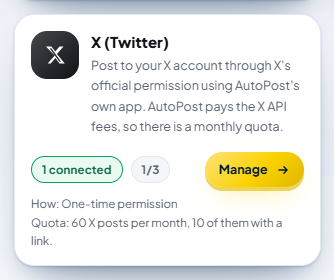
The X (Twitter) page opens with a black X tile in the title and a short description:

Below it is a yellow-bordered box Monthly X quota — API costs covered by AutoPost with this month's usage (chapter 7), then the How to connect card with four numbered steps and the Connect X button, and the Connected accounts card on the right. Before any account is connected, that card says 0 of 3 and "Nothing connected yet."
4.2 Pressing Connect X
Make sure the right X account is signed in on x.com (Step A).
Press the gold Connect X button in the How to connect card.
The browser moves to X's permission screen. Finish within 10 minutes.
4.3 Approving the permission on X's screen
X shows its permission screen: "AutoPost PT SKK wants to access permissions on your account".
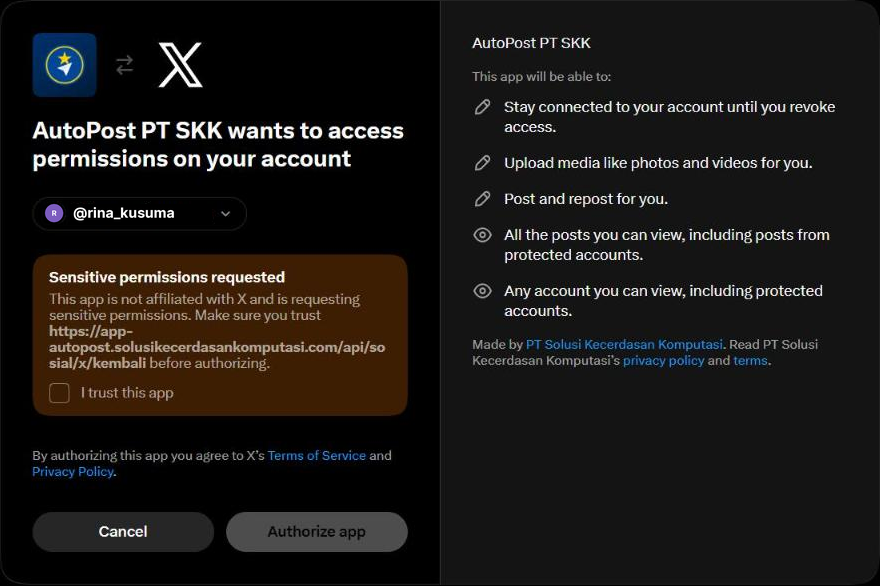
Read the screen from top to bottom:
| Part of the screen | What to do |
|---|---|
| @account name (with a down arrow) | Make sure it's the account you want to connect. If it's wrong, press the arrow and choose another account. |
| Sensitive permissions requested | X's standard warning for every third-party app ("This app is not affiliated with X…"). Check that the address it names is app-autopost.solusikecerdasankomputasi.com — AutoPost's official address. |
| The I trust this app checkbox | Check it if the address is correct. In our test the Authorize app button still looked faded before this box was checked. |
| Authorize app | Press it to grant permission. |
| Cancel | Cancels. You return to AutoPost with the message "You canceled the permission on X…". |
| The right column This app will be able to: | The list of permissions in X's own words (see the table below). Below it, it says Made by PT Solusi Kecerdasan Komputasi with links to AutoPost's privacy policy and terms. |
The permission sentences in the right column and what they mean for AutoPost:
| Sentence on X's screen | Permission | What AutoPost actually does |
|---|---|---|
| Stay connected to your account until you revoke access. | offline.access | Keeps the permission valid without you signing in again; the token is renewed automatically until you revoke it. |
| Upload media like photos and videos for you. | media.write | Uploads the photo, GIF, or video you attach to the post. |
| Post and repost for you. | tweet.write | Posts on your behalf — only when you press Send now or when your schedule arrives. AutoPost doesn't repost. |
| All the posts you can view, including posts from protected accounts. | tweet.read | Required by X together with the posting permission. AutoPost doesn't read your timeline or other people's posts. |
| Any account you can view, including protected accounts. | users.read | AutoPost only reads your own profile: name, @username, and profile photo. |
The sentences on that screen are X's standard wording for each permission; X doesn't offer narrower permissions.
4.4 What AutoPost does behind the scenes
When Connect X is pressed, AutoPost creates a random security code (state) and a PKCE code pair, then stores them encrypted in a browser cookie that is valid for 10 minutes.
After you press Authorize app, X sends you back to AutoPost's return address. AutoPost checks that the security code matches and that you are still signed in with the same AutoPost account.
X's authorization code lives for only 30 seconds, so AutoPost immediately exchanges it for an access token (2 hours) and a refresh token.
AutoPost checks that the posting permission was really granted, then reads your X profile (name, @username, profile photo).
AutoPost makes sure that X account isn't already connected to another AutoPost account.
The tokens are stored encrypted (AES-256-GCM) in the database. The temporary cookie is deleted.
If any of the steps above fails, the token just received is revoked right away on X, so no permission is left behind without an account in AutoPost.
4.5 Signs of success
You return to the X (Twitter) page in AutoPost. A green message appears at the top:
“@your_x_name” was connected after testing it with X. Its token is stored encrypted.
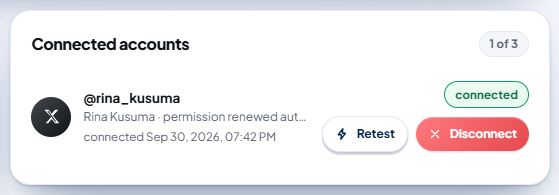
On the right side of the page, your account appears in the Connected accounts card (counter "1 of 3") with the green label connected, the display name and the note permission renewed automatically, the time it was connected, the Retest button, and the red Disconnect button.
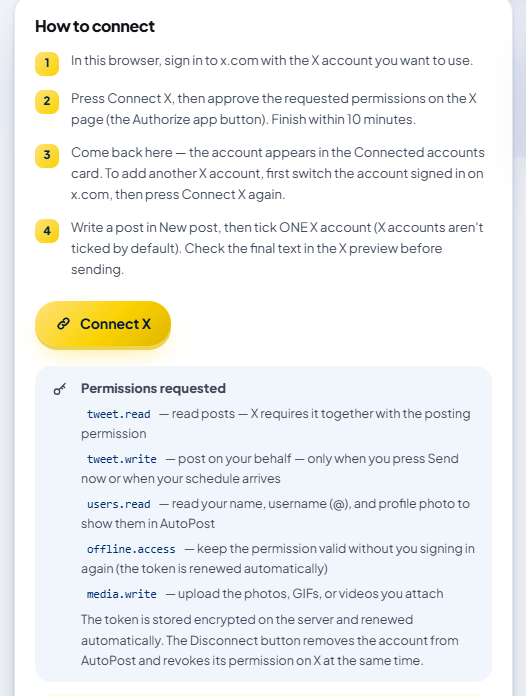
The How to connect card on the left stays visible. Below the Connect X button is a blue Permissions requested box that explains all five permissions — the same as the table in 4.3.
4.6 Reconnecting the same account
If the same X account is connected again, AutoPost doesn't record it twice; only its token is replaced. A green banner reads:
“@your_x_name” was already connected — we refreshed its token after testing it with X.
4.7 What "1 of 3" means
Each AutoPost account can connect at most 3 X accounts. This limit is enforced in the database. Once there are 3, the text next to the button reads "Already 3 accounts: this button can only reconnect the same account. Disconnect one account to add a new one." A fourth account is rejected with the message "There are already 3 X accounts. Disconnect one first if you want to replace it."
The monthly quota (chapter 7) applies per AutoPost account, not per X account — three X accounts share the same 60 posts.
4.8 Adding a 2nd and 3rd X account
On x.com, sign out of the first X account and sign in with the next one (or choose another account with the arrow on the permission screen).
In AutoPost, press Connect X again and approve the permission (the flow is the same as for the first account; we haven't tried it with a second account yet).
5. Step C — Writing a post for X
5.1 Quick rules before you write
The same rules are written in the X rules box on the Social accounts › X page:
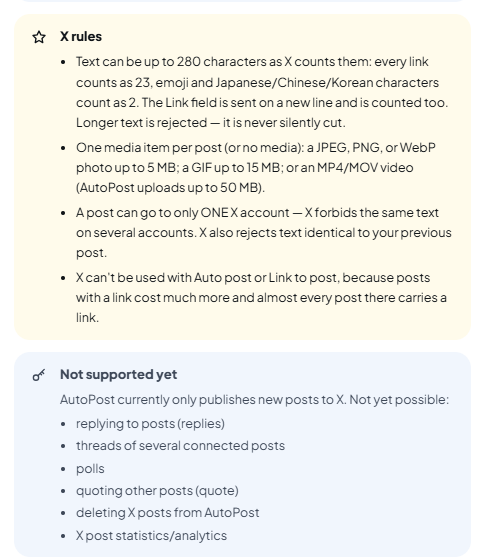
Text can be at most 280 characters as X counts them: every link counts as 23, emoji and Japanese/Chinese/Korean characters count as 2. The Link field is sent on a new line and is counted too. Longer text is rejected — it's never silently cut.
One media item per post (or no media): a JPEG, PNG, or WebP photo up to 5 MB; a GIF up to 15 MB; or an MP4/MOV video (AutoPost uploads up to 50 MB).
A post can go to only ONE X account — X forbids the same text on several accounts. X also rejects text that is exactly the same as your previous post.
X can't be used with Auto post or Link to post (chapter 8).
5.2 Ticking ONE X account
Open New post and write your text.
If needed, add a photo, GIF, or video with Upload from gallery.
In the Send to section, tap the X account until it is ticked (dark blue with a ✓ mark).
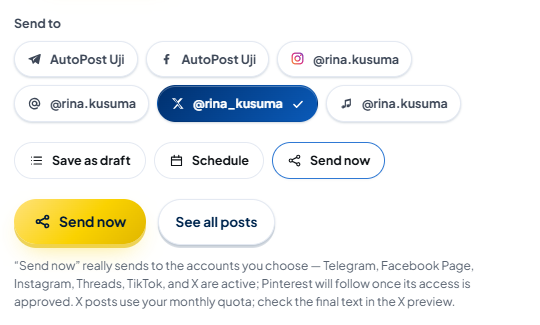
If you have more than one X account, only one can be ticked. Tapping a second X account replaces the first, with this note:
A post can only be sent to one X account — X prohibits the same text on multiple accounts. The X selection was changed from @first_account to @second_account.
Want to post to two X accounts? Create two separate posts with different text.
5.3 The 280 count in Limits per platform
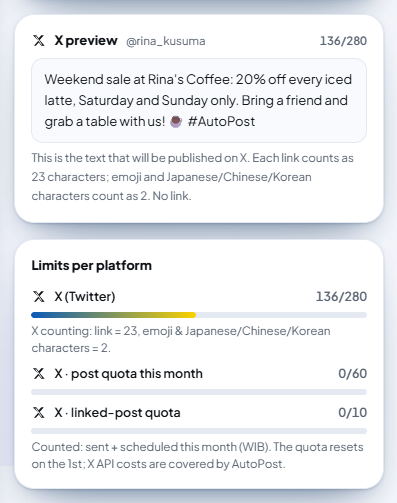
The Limits per platform card on the right counts your text for X the way X does:
| Row | Meaning |
|---|---|
| X (Twitter) — n/280 | Text length as X counts it. If the Link field is filled in, the label becomes X · text + link. |
| X · post quota this month — n/60 | X posts already sent + scheduled this month. |
| X · linked-post quota — n/10 | How many of those have a link. |
The small note below the X row can say:
"The Link field is added on a new line and counts as 23 characters."
"X counting: link = 23, emoji & Japanese/Chinese/Korean characters = 2."
"More than 280 is rejected by X — shorten it or deselect the X account."
"Counted: sent + scheduled this month (WIB). The quota resets on the 1st; X API costs are covered by AutoPost."
Counting examples:
| Text | X count |
|---|---|
Hello everyone | 14 |
20% off today 🎉 | 16 (emoji = 2) |
Catalog: https://example.com/full-catalog-this-season | 32 (9 + link 23, however long the address is) |
5.4 X preview
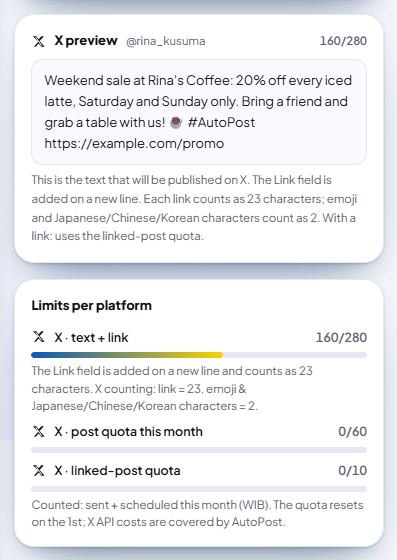
As soon as an X account is ticked, the X preview card appears in the right column. It shows:
the selected X account name and the n/280 count (red if it's over);
the final text exactly as it will be published — including the Link field added on a new line;
the note: "This is the text that will be published on X" (plus "with one image" or "with one video" if there is media), the counting rule, then "With a link: uses the linked-post quota." or "No link."
5.5 Links and the link quota
X posts that contain a link cost much more (chapter 7), so they have a separate quota: 10 posts with a link per month.
As soon as your post counts as having a link, a yellow box appears below Send to:
X posts with a link use the link quota: 10 of 10 left this month. The Link field is sent to X too. X posts without a link don't use this quota — remove the link (and clear the Link field) if you don't need it.
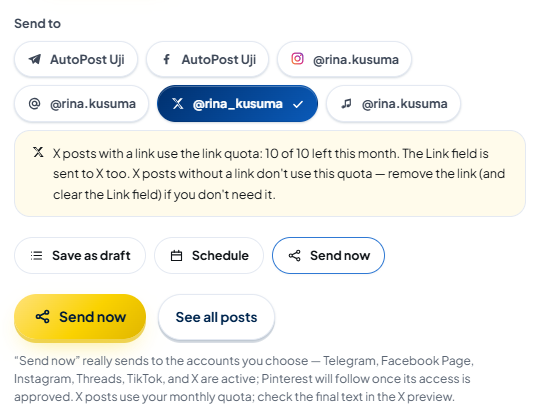
The X preview also shows the link on the last line, and the count goes up by 23 (plus 1 for the new line):
A post counts as having a link if:
the Link field is filled in; or
the text contains an address starting with
http://orhttps://; orthe text contains a word.suffix pattern such as
example.comormyshop.com— anywhere in it.
5.6 Media for X
| Media | Accepted | What happens if it doesn't fit |
|---|---|---|
| Photo | JPEG, PNG, WebP — up to 5 MB | Other formats are held; larger files are held with a size message (10.3). |
| GIF | Up to 15 MB | Held with a size message. |
| Video | MP4 or MOV; AutoPost uploads up to 50 MB | WebM, MKV, AVI, and similar are rejected — even a draft with an X account is rejected for that video. |
| No media | Allowed | — |
The size limits for photos and GIFs are checked in New post for files uploaded from your device. Media given as an address on another site is checked when sending.
Alt text (if you fill it in) is attached to photos and GIFs on X (at most 1,000 characters). If X rejects it, the post still goes live with the note "Alt text wasn't set on X."
For video, X recommends H.264 + AAC, at most 1280×1024, at most 60 fps. Videos outside that may be rejected while X processes them.
5.7 When the buttons are held
The send buttons can be held, with a red box above them. For X, the reasons are:
| Situation | What is held | Message (beginning) |
|---|---|---|
| Text longer than 280 | Everything (drafts too) | "The text is too long for: X (Twitter)." |
| Photo isn't JPEG/PNG/WebP/GIF | Send now & Schedule | "X only accepts JPEG, PNG, WebP, or GIF photos. …" |
| Photo > 5 MB or GIF > 15 MB | Send now & Schedule | "The N MB file exceeds X's limit (…). …" |
| Video isn't MP4/MOV | Everything (drafts too) | "For X, AutoPost only sends MP4 or MOV videos. …" |
| This month's X quota is used up | Send now & Schedule for this month | "Send now is on hold: The X quota for this month is used up (…). …" |
| AutoPost's X budget is used up | Send now & Schedule for this month | "Send now is on hold: AutoPost's X budget for this month has run out for all users — …" |
Drafts can still be saved when the quota or budget is used up, because drafts cost nothing. Scheduling for next month is still allowed too.
6. Step D — Sending, scheduling, and checking the result
6.1 Send now
Choose Send now (next to Save as draft and Schedule).
Check the X preview once more, then press the gold Send now button.
If it works, a green message appears:
Sent to 1 account.
(The number goes up if the same post is also sent to other platforms.)
For a video, X needs to process the file first. If processing takes longer than about 25 seconds, the message becomes:
Not sent yet — 1 will be retried automatically. No need to press Send again; follow the result on the Posts page.
That is not a failure. AutoPost checks the video status in the next worker round without uploading it again, then publishes it as soon as X has finished processing. Don't send the same post again.
6.2 Scheduling
Choose Schedule, then fill in the date and time (WIB).
Press Schedule post. "Post scheduled." appears.
The AutoPost worker sends it by itself at the right time. When you save a schedule, AutoPost immediately checks the quota for the month of that schedule — scheduled posts count from the moment they're scheduled, so your schedules don't quietly go over the quota. If that month's quota is already full, the schedule is rejected with a message that states the remaining quota, for example:
The X quota for this month is used up (60/60 posts). The quota resets on the 1st. Quota left: 0 posts, 10 with links.
Before sending, the worker checks the quota once more and renews the token if needed. We haven't tested scheduling to X for real yet; it uses the same path as scheduling to other platforms.
6.3 Save draft
Drafts don't use the quota and aren't sent to X. A draft with an X account must still pass the 280 limit and the video format rule. In the Posts menu, that draft has a Send now button; when you press it, the quota is checked as usual.
6.4 Checking the result
Open the Posts menu. A successful post card has the green label sent, 1 account, and the time it was sent.
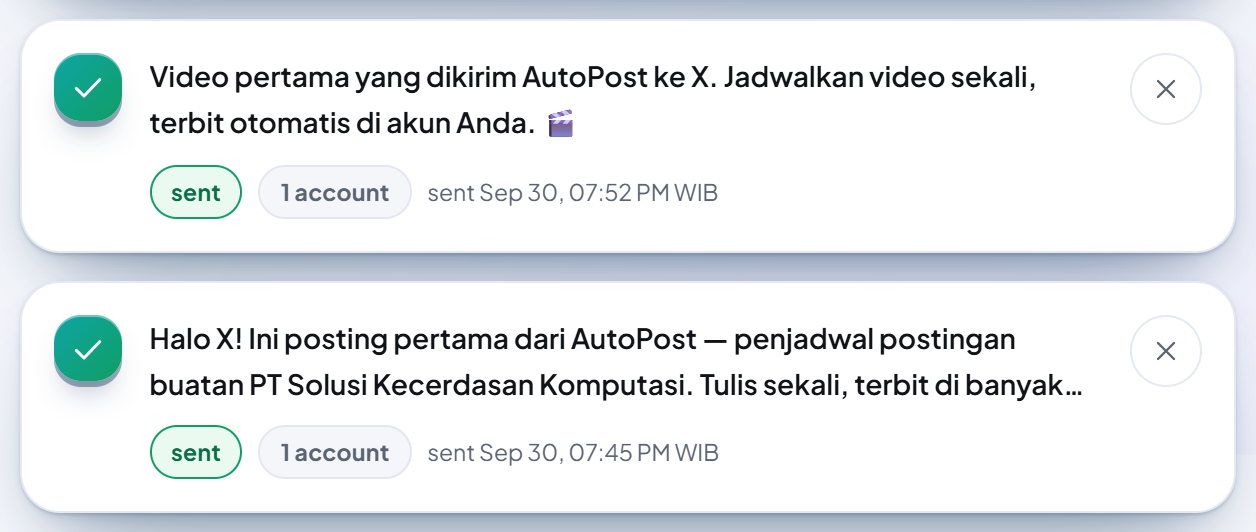
Then open your X profile. Posts from AutoPost look like ordinary posts.

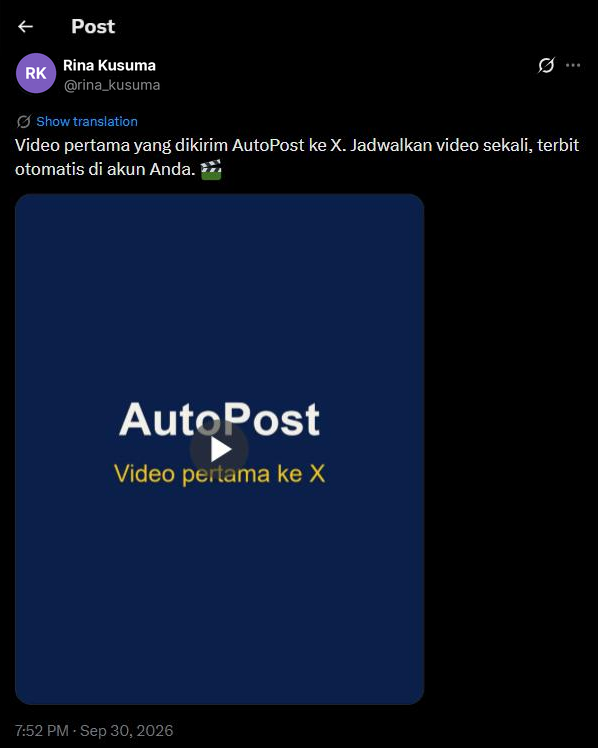
The time on x.com follows your language and time zone settings; in the example above "7:45 PM" equals 19:45 WIB.
6.5 Resending failed posts
A failed post has a Resend failed button in the Posts menu. Before pressing it, open Details per account and read the reason (chapter 10.4), then fix the cause first.
7. X quota and costs
7.1 Why there is a quota
X charges for every post sent through its API, and AutoPost covers the cost — you don't need to buy X credits. As of 30 September 2026, X's rates are:
| Call to X | X rate (USD) |
|---|---|
| Post without a link | $0.015 |
| Post with a link | $0.20 — more than 13 times as much |
| Adding alt text to media | $0.005 |
| Reading the profile (when connecting and on Retest) | $0.010 |
To be fair to all users, every AutoPost account gets a monthly quota. X can change its rates at any time; the latest figures are always in the X console.
7.2 What is counted
| Quota | Amount per AutoPost account per month |
|---|---|
| X posts | 60 |
| Of which posts with a link | 10 |
Counted: posts sent this month, plus X posts that are scheduled and will be sent this month.
Not counted: drafts, canceled posts, and sends that X definitely rejected (for example, rejected because the text was too long).
Sends with an uncertain result (X didn't answer, 6.5) are still counted, because X may already have charged for them.
Deleting a post in AutoPost, or disconnecting and then reconnecting the X account, doesn't restore the quota. Usage records are kept separately precisely so the cost history isn't lost.
The quota is also tied to the X account: if the same X account is moved to another AutoPost account in the same month, that month's usage moves with it.
Your usage figures appear in the Monthly X quota box on the Social accounts › X page and in Limits per platform in New post.
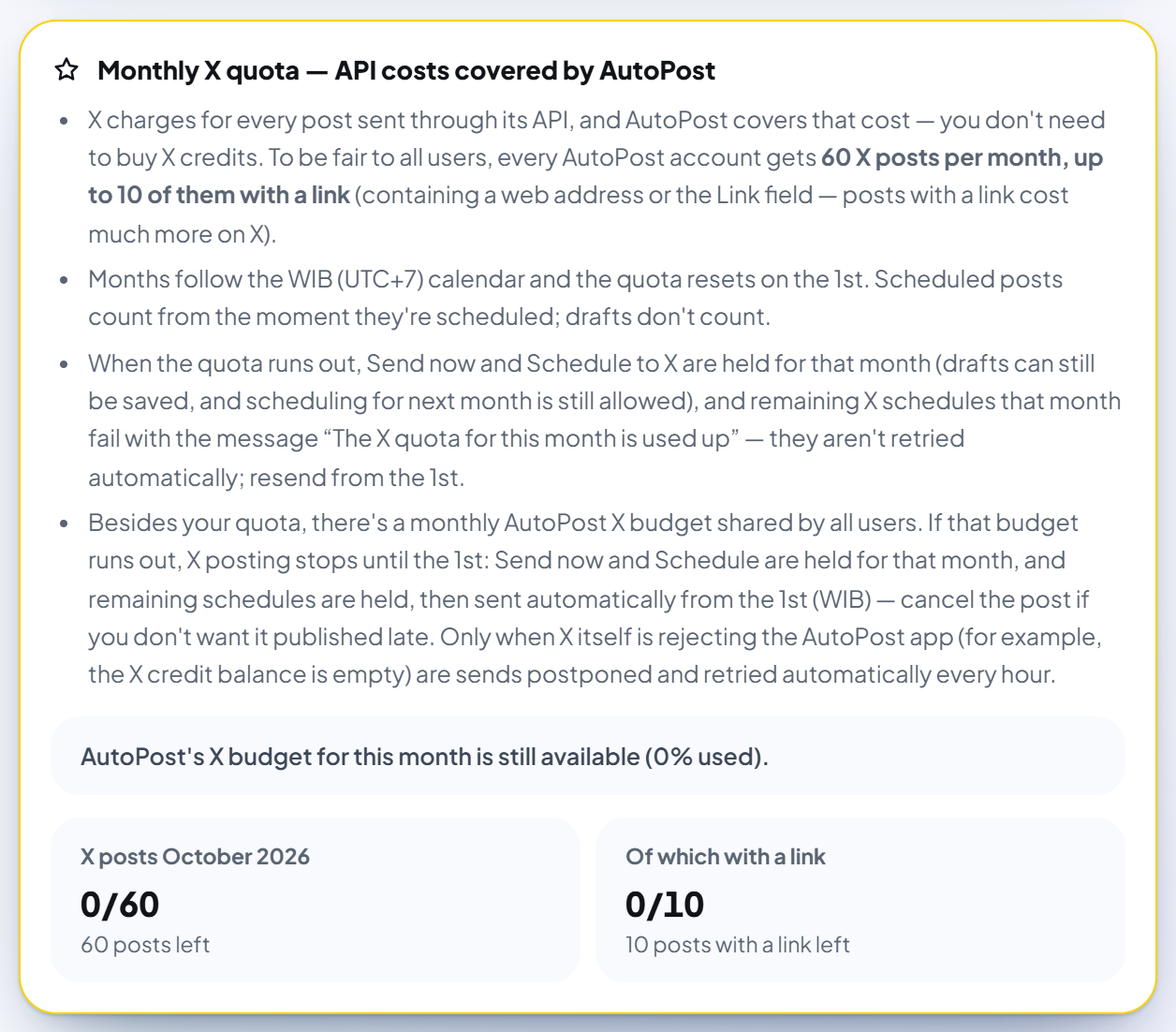
The Monthly X quota — API costs covered by AutoPost box on the Social accounts › X page has four items. The first three read:
"X charges for every post sent through its API, and AutoPost covers that cost — you don't need to buy X credits. To be fair to all users, every AutoPost account gets 60 X posts per month, up to 10 of them with a link (containing a web address or the Link field — posts with a link cost much more on X)."
"Months follow the WIB (UTC+7) calendar and the quota resets on the 1st. Scheduled posts count from the moment they're scheduled; drafts don't count."
"When the quota runs out, Send now and Schedule to X are held for that month (drafts can still be saved, and scheduling for next month is still allowed), and remaining X schedules that month fail with the message “The X quota for this month is used up” — they aren't retried automatically; resend from the 1st."
The fourth item covers the shared AutoPost X budget — explained in 7.5. Below the items you see this month's budget status and two figures, for example X posts October 2026 — 0/60 (60 posts left) and Of which with a link — 0/10 (10 posts with a link left).
7.3 When the quota resets
Months follow the WIB calendar, and the quota resets on the 1st of every month at 00:00 WIB. Unused quota doesn't carry over to the next month.
7.4 When your quota runs out
In New post, Send now and Schedule to X for this month are held, with a red box such as:
Send now is on hold: The X quota for this month is used up (60/60 posts). The quota resets on the 1st. Deselect the X account to send to other accounts, or schedule it for next month; the draft can still be saved.
In addition:
If only the link quota is used up, the message is: "The X quota for this month is used up (10/10 posts with a link — posts with a link cost much more on X). Remove the link, or wait for the quota to reset on the 1st." Posts without a link can still be sent.
Any X schedules left that month fail with the message "The X quota for this month is used up (…). The quota resets on the 1st." and are not retried automatically. From the 1st, you can press Resend failed.
Drafts can still be saved, and scheduling for next month is still allowed.
7.5 The shared AutoPost X budget
Besides your quota, there is a monthly AutoPost X budget shared by all users. This budget covers all paid calls (posts, alt text, and profile reads) from every user. The Social accounts › X page shows its status, for example "AutoPost's X budget for this month is still available (0% used)."
If that budget runs out:
Send now and Schedule to X for that month are held with the message "AutoPost's X budget for this month has run out for all users — X posts can be sent again from the 1st."
Existing X schedules are held — not discarded — and then sent automatically from the 1st. Details per account says: "AutoPost's X budget for this month is used up — this post is held and will be sent automatically from the 1st (WIB, UTC+7). Cancel the post if you don't want it published late."
Drafts can still be saved.
Only when X itself is rejecting the AutoPost app (for example, AutoPost's credit balance on X is empty) are sends postponed and retried automatically every hour, with the message "AutoPost's X credit has run out — the administrator is topping it up; we'll retry automatically."
7.6 Why Retest also uses the budget
Every Retest (9.1) and every connection reads your profile from X — and X charges $0.010 for that, from the shared budget. Your post quota doesn't go down, but press Retest only when you need to.
8. What you can't do with X yet
| Feature | Why |
|---|---|
| Auto post | AutoPost covers the X API costs, and X posts that contain a link cost much more — while almost every auto post carries a source link. The Auto post form shows the note "X can't be used for auto posts". |
| Link to post (New post › From a link) | Same reason. The page says "X isn't available here." and points you to New post. |
| Sending to several X accounts at once | Forbidden by X's rules (identical text on several accounts). Create separate posts. |
| Replying to posts, threads, polls, quoting other posts | Not built yet. |
| Deleting X posts from AutoPost | Not built yet. Delete them directly on x.com. Deleting a post in AutoPost's Posts menu doesn't delete it on X. |
| X post statistics or analytics | Not built yet. |
| Connecting an X account from the AutoPost Android app | Connecting is web-only. Once connected, the X account can be chosen when writing on your phone, with the same 280 count and one-X-account rule. |
9. Managing connected accounts
9.1 Retest
The Retest button in the Connected accounts card opens the token, renews it if less than 5 minutes remain, then reads your profile on X again. If the account is healthy, a yellow banner shows one of:
"Retest finished — the account is still healthy and ready to send."
"Retest finished — the account is healthy and we extended its token too."
If X is busy (rate limit, network, a brief outage), the account status is not changed; the message ends with "We didn't change the account status — try testing again shortly." If the permission has expired or was revoked, the account is labeled needs reconnecting. Other errors give the label has a problem. The cause appears in red text below the account name.
Retest also updates your name, @username, and profile photo if you changed them on X. Remember: every Retest uses a little of the shared budget (7.6).
9.2 Reconnecting
Press Connect X again and approve the permission with the same X account. AutoPost renews its token (it doesn't create a new account), and scheduled posts keep running (4.6).
Reconnect if:
the account is labeled needs reconnecting;
you revoked AutoPost's permission on x.com and want to use it again;
Details per account says the X permission "is no longer valid" or "expired or was revoked".
9.3 Disconnect
The Disconnect button removes the account from AutoPost and revokes AutoPost's permission on X. AutoPost asks "Disconnect this account? AutoPost's permission on X is revoked and its token deleted."; press Yes, disconnect to continue. The result: "Account disconnected — its row and token are gone from the database."
If X won't revoke the permission (for example, the network dropped or the token is already dead), an extra yellow box appears:
AutoPost's permission on X couldn't be revoked automatically. Revoke it yourself on x.com: open Settings and privacy › Security and account access › Apps and sessions › Connected apps, then revoke AutoPost's access.
Disconnecting also removes that account from scheduled posts aimed at it, and the old send records for that account in Details per account disappear too. This month's quota isn't restored (7.2). If you only want to renew the token, don't disconnect — reconnect instead (9.2).
We haven't actually disconnected an X account yet; the order and messages above follow AutoPost's code.
9.4 Revoking the permission on x.com
You can also revoke AutoPost's access directly on X: open x.com › Settings and privacy › Security and account access › Apps and sessions › Connected apps (the direct address is x.com/settings/connected_apps), choose AutoPost PT SKK, then revoke its access.
After that, the next send fails with the message "AutoPost's X permission is no longer valid (revoked or expired). Reconnect this account." and the account is labeled needs reconnecting. Disconnect that account in AutoPost if you don't want to use it any more.
10. Troubleshooting
All AutoPost messages below are copied exactly from AutoPost. On the X (Twitter) page, messages start with "Failed:"; in Details per account, messages that will be retried get the suffix "(retrying automatically, attempt N of 4)". Parts that vary are marked "…" or "N".
As of 30 September 2026 we have seen only the success path ourselves (connecting, a text + photo post, a text + video post, the quota box, the X preview). We haven't triggered the error messages in this chapter for real; their causes and fixes are written from AutoPost's code and X's documentation.
10.1 When pressing "Connect X" or returning from X
| Message | Cause & fix |
|---|---|
| The X connection isn't open on the AutoPost server yet. Try again later. | The X app keys aren't on the server yet. There's nothing you need to do; wait for the administrator (14.5). |
| KUNCI_ENKRIPSI_AI isn't set on the server, so the token can't be stored encrypted yet. / KUNCI_ENKRIPSI_AI isn't set on the server, so the token can't be saved. | The server setup is incomplete. Report it to the AutoPost administrator. |
| APP_URL_PUBLIK isn't set on the server. | The server setup is incomplete. Report it to the AutoPost administrator. |
| The X connection session has expired (more than 10 minutes) or the browser blocked the cookie. Press Connect X once more. | More than 10 minutes passed since the button was pressed, or the browser blocks cookies. Repeat 4.2 in the same browser. |
| The security code (state) doesn't match — this request was rejected. Start again from the X page in AutoPost. | You opened two attempts at once, or came back through another tab. Start again from the X page in AutoPost. |
| You canceled the permission on X. Press Connect X again and choose Authorize app if you want to continue. | You pressed Cancel on the permission screen. Try again, check I trust this app, then press Authorize app. |
| X rejected the permission request. Try connecting once more. | X sent another error from the permission screen. Try again; if it keeps happening, report it to the administrator. |
| Your AutoPost session differs from when you started. Sign in again, then connect again. | You switched AutoPost accounts midway. Sign in with the right AutoPost account, then try again. |
| X didn't send a permission code. Try connecting again. | The return page opened without a code from X. Repeat from 4.2. |
| The X authorization code has expired (it's valid for only 30 seconds) or was already used. Press Connect X once more. | The return page was reloaded, or the network was too slow. Repeat from 4.2. |
| The posting permissions (writing posts and uploading media) weren't granted. Press Connect X again and approve all permissions. | The posting permission wasn't granted. Try again and approve all permissions. |
| X rejected AutoPost's app credentials on the server (X_CLIENT_ID/SECRET). The AutoPost administrator needs to check them; your own account permission hasn't changed. | The app keys on the server are wrong. Not your fault — report it to the administrator (14.5). |
| The return address doesn't match the Callback URI of AutoPost's X app. The administrator needs to check it. | The return address in the X console doesn't exactly match the server yet (14.4). Report it to the administrator. |
| X didn't provide a token. Try connecting once more. | X's response was incomplete. Try once more. |
| X didn't return a valid account identity. / X didn't return a valid username (@…). / The X account identity is invalid. | X's response was incomplete. Try again; if it keeps happening, report it to the administrator. |
| AutoPost's X permission is no longer valid (revoked or expired). Reconnect this account. | The new token was rejected right away when reading the profile. Repeat from 4.2. |
| The AutoPost server isn't ready to check X account ownership yet. Try again later. / X account ownership can't be checked right now. Try connecting again shortly. | A brief problem on the AutoPost server. Try again later; report it if it lasts. |
| X account @… is already connected to another AutoPost account. Disconnect it from that AutoPost account first, then connect it here. | One X account can belong to only one AutoPost account (so its quota and costs are clear). Sign in to that other AutoPost account and disconnect the X account there first (9.3). |
| There are already 3 X accounts. Disconnect one first if you want to replace it. / This platform's limit of 3 accounts has been reached. Disconnect one account first. | The 3-account limit. Disconnect one account first (9.3). |
| This account is already connected. | The same account was recorded from two attempts at the same time. Reload the page; the account is already in Connected accounts. |
| X is rate-limiting this account's posts. We'll try again in about N minutes. / X is having trouble (HTTP N). We'll try again later. / Couldn't reach X from the server. We'll try again later. | A brief problem at X or on the network. Wait a moment, then connect again. |
10.2 On Retest, Disconnect, or in the account status
| Message | Cause & fix |
|---|---|
| The account to test wasn't recognized. / The account to disconnect wasn't recognized. | The page has been open a long time. Reload the page, then try again. |
| Account not found. / Account not found or already disconnected. | The account was already disconnected in another tab. Reload the page. |
| KUNCI_ENKRIPSI_AI isn't set on the server, so the token can't be opened. | The server setup is incomplete. Report it to the administrator. |
| The AutoPost server is having trouble opening account tokens. We didn't change the account status — try again later. | A server key problem, not your account. Try again later; report it if it lasts a long time. |
| The token can't be opened (the server encryption key differs from when it was saved). Reconnect. / The X token can't be opened (the server encryption key changed). Reconnect. | The old token can no longer be read. Reconnect (9.2). |
| The X permission expired or was revoked. Reconnect this account. | The permission was revoked on x.com, or X rejected the refresh token. Reconnect (9.2). |
| The X permission has no refresh token (offline.access). Reconnect this account. | The "stay connected" permission wasn't stored. Reconnect and approve all permissions. |
| X didn't return a new access token. | X's response was incomplete while renewing the token. Try Retest again shortly. |
| X token refresh postponed: … | The AutoPost worker hasn't managed to renew the token yet; it will try again. If it persists, press Retest. |
| … We didn't change the account status — try testing again shortly. | A brief problem (rate limit, network, X server). Try again shortly. |
| … The account hasn't been disconnected and its permission hasn't been revoked — try again. | The database refused the deletion. Press Disconnect again. |
| … The account hasn't been deleted yet, but it's marked as needing reconnection and its permission was revoked. Try disconnecting again. | The permission was revoked, but the row hasn't been deleted yet. Press Disconnect again. |
| The account is being disconnected: AutoPost's permission was revoked from X. Disconnect again to remove it. | A red note on the account card left by the case above. Press Disconnect once more. |
| AutoPost's permission on X couldn't be revoked automatically. Revoke it yourself on x.com: … | The account is disconnected from AutoPost, but the permission on X is still there. Revoke it yourself (9.4). |
10.3 In New post and when saving
The red "… is on hold:" box above the send button (and the message when the button is pressed):
| Message | Cause & fix |
|---|---|
| The text is too long for: X (Twitter). | Over 280 as X counts it. Check the number in the X preview, then shorten it (5.3). |
| X only accepts JPEG, PNG, WebP, or GIF photos. Convert the photo to JPEG, or remove the X account. The draft can still be saved. | Another photo format (HEIC, BMP, TIFF, and similar). Save it again as JPEG. |
| The N MB file exceeds X's limit (5 MB for photos). Compress or shrink the photo, or remove the X account. The draft can still be saved. | The photo is larger than 5 MB. Make it smaller. |
| The N MB file exceeds X's limit (15 MB for GIFs). Compress or shrink the GIF, or remove the X account. The draft can still be saved. | The GIF is larger than 15 MB. |
| For X, AutoPost only sends MP4 or MOV videos. Convert the video to MP4, or remove the X account — even a draft with an X account is rejected for this video. | A WebM/MKV/AVI or similar video. Export it again as MP4. |
| Send now is on hold: The X quota for this month is used up (N/60 posts). The quota resets on the 1st. Deselect the X account … | The post quota is used up (7.4). Save it as a draft, or schedule it for next month. |
| … The X quota for this month is used up (N/10 posts with a link — posts with a link cost much more on X). Remove the link, or wait for the quota to reset on the 1st. … | The link quota is used up. Remove the web address from the text and clear the Link field (5.5). |
| … The X quota for this month for this X account is used up (shared with another AutoPost account). The quota resets on the 1st. | This X account has already used its quota this month in another AutoPost account (7.2). |
| AutoPost's X budget for this month has run out for all users — X posts can be sent again from the 1st. | The shared budget is used up (7.5). Save it as a draft. |
| …: larger than 50 MB — choose a smaller file. | AutoPost's upload limit is 50 MB. Make the video smaller. |
Server messages when saving (rare, because New post already holds these first):
| Message | Cause & fix |
|---|---|
| X doesn't allow the same text to be posted to several X accounts. Choose only one X account for this post. | Two X accounts were selected (for example, from an old page). Choose one. |
| A post may be sent to only one X account (X forbids the same text on several accounts). | The database guard rejects two X accounts — e.g. from the Android app. Choose one X account. |
| The text is too long for X: N of max. 280 (links count as 23, emoji & CJK characters count as 2, the Link field is appended). Shorten the text or remove the X account. | Over 280. Shorten it. |
| X via AutoPost only accepts MP4 or MOV videos. Change the format or remove the X account. | The video isn't MP4/MOV. |
| The X quota … is used up (…). … Quota left: N posts, M with links. | The schedule exceeds the quota for that schedule's month (6.2). |
| AutoPost's X budget … is used up (for all users). Resend from the 1st. Quota left: N posts, M with links. | The shared budget for that schedule's month is used up (7.5). |
| The X quota can't be checked right now. Please try again shortly. | A brief database problem. Try again. |
10.4 When sending or after scheduling
These messages appear in Details per account on the post card in the Posts menu.
Being processed — not an error:
| Message | Meaning |
|---|---|
| X is still processing the video. We'll check again shortly (without uploading again). | The video has been uploaded and X is processing it. Wait (6.1). |
| The X media status can't be read yet: … | The status response isn't clear yet. AutoPost checks again without uploading again. |
| AutoPost's X budget for this month is used up — this post is held and will be sent automatically from the 1st (WIB, UTC+7). Cancel the post if you don't want it published late. | The shared budget is used up; the post is waiting for the 1st (7.5). |
Needs your action:
| Message | Cause & fix |
|---|---|
| The X quota for this month is used up (N/60 posts). The quota resets on the 1st. | Your quota is used up. It isn't retried automatically; press Resend failed from the 1st (7.4). |
| The X quota for this month is used up (N/10 posts with a link — …). Remove the link, or wait for the quota to reset on the 1st. | The link quota is used up. Create a new post without a link, or wait for the 1st. |
| The X quota for this month for this X account is used up (shared with another AutoPost account). The quota resets on the 1st. | See 7.2. |
| X rejects text that's exactly the same as a previous post. Change the text slightly and resend. | X rejects duplicate posts. Create a new post with slightly different text. |
| AutoPost's X permission is no longer valid (revoked or expired). Reconnect this account. / The X permission expired or was revoked. Reconnect this account. | Reconnect (9.2), then Resend failed. |
| The X token is empty or damaged. Reconnect this account. / The X account identity is incomplete. Reconnect this account. | Reconnect (9.2). |
| X didn't answer within 20 seconds, so the result is uncertain. Check the X profile before resending so it isn't posted twice. (also: "dropped the connection mid-send", "answered with a server error (HTTP N)", "sent a response that couldn't be read", "didn't return a post number") | The post may already be live. AutoPost deliberately doesn't retry automatically. Check your X profile first (6.5). |
| X rejected this post for that account (HTTP 403). Check whether your X account is restricted, then try again. | X is restricting your account. Check the notifications on x.com. |
| The video is too long for this X account (regular accounts max. 20 minutes). Shorten the video and resend. | The video exceeds your X account's limit. |
| X failed to process this media (…). Check its format (H.264 + AAC video, max. 1280×1024, 60 fps) and resend. | Export the video again with H.264 + AAC, 1280×720, 30 fps. |
| The media on X expired before it could be published. Press Resend to upload it again. | The video waited too long. Resend failed uploads it again. |
| X via AutoPost only accepts MP4 or MOV videos. Convert the format and resend. / X only accepts JPEG, PNG, WebP, or GIF images. Save the image again and resend. | The media format isn't accepted (5.6). |
| The image is too large for X (N MB, max. 5 MB). Shrink the image and resend. / The GIF is too large for X (N MB, max. 15 MB). | Media from another site's address is too large. Make it smaller and upload it with Upload from gallery. |
| The AutoPost server couldn't fetch the post's media: … / The post's media file is empty — upload the media again. | The media address can't be opened. Upload the file with Upload from gallery. |
| The text is too long for X (N of max. 280; links count as 23, emoji & CJK characters count as 2). Shorten it and resend — AutoPost doesn't cut it silently. / The text is too long for X (max. 280 weighted characters). Shorten it and resend. | Shorten the text in a new post. |
| The post for X is empty — write some text or add media. | Both the text and the media are empty. |
| X rejected this request (HTTP N, …). | X rejected the content for another reason. Check the text and media. |
Retried automatically — just wait:
| Message | Meaning |
|---|---|
| X is rate-limiting this account's posts. We'll try again in about N minutes. | Too many posts in a short time (according to X's documentation, about 100 posts per 15 minutes per account). |
| X is having trouble (HTTP N). We'll try again later. / Couldn't reach X from the server. We'll try again later. / X's response couldn't be read (HTTP N). | A brief problem. |
| X didn't return a media number. We'll try again later. | The media upload didn't finish. AutoPost retries. |
Messages for the administrator (not a problem with your post — report them to the administrator):
| Message | What it means for the administrator |
|---|---|
| AutoPost's X credit has run out — the administrator is topping it up; we'll retry automatically. | The credit balance in the X console is empty or the Spend Cap was reached (14.8, 14.9). Retried every hour. |
| X is currently denying the AutoPost app access — the administrator is checking; we'll retry automatically. | The app isn't allowed to call the endpoint (e.g. it isn't linked to a Pay Per Use project). |
| X rejected AutoPost's app credentials on the server (X_CLIENT_ID/SECRET). … | The Client ID/Secret in Vercel is wrong (14.5). |
| The AutoPost server can't record X usage yet (SUPABASE_SERVICE_ROLE_KEY is empty). We'll try again later. / X usage couldn't be recorded in the database, so it hasn't been sent. We'll try again later. / The X quota usage couldn't be read from the database. We'll try again later. | The X usage ledger can't be written or read. |
| The X token has expired and the server can't refresh it yet (SUPABASE_SERVICE_ROLE_KEY is empty). | The Supabase service-role key is empty on the server. |
10.5 Problems that don't show an AutoPost message
| Symptom | What to check |
|---|---|
| The Connect X button is gray | The The X connection isn't open yet or Permission storage on the server isn't ready box above it. Wait for the administrator. |
| The Authorize app button on X's screen can't be pressed | Check I trust this app first (4.3). |
| The wrong X account got connected | Disconnect that account (9.3), sign in to x.com with the right account (Step A), then connect again. |
| The X account doesn't appear in Send to | The account isn't connected yet, or you opened Auto post / Link to post (X isn't available there). |
| Only one X account can be ticked | That's the rule (5.2). |
| The X preview doesn't appear | The X account isn't ticked in Send to yet. |
| The yellow link quota box appears although there's no link | The text contains a pattern like word.suffix without a space (5.5). |
| An older post card is labeled processing ("retrying automatically") | X is still processing the video, or the post is held by the budget. Reload the Posts page; don't send it again. |
11. Questions and answers
Do I have to create my own X app or buy X API credits?No. The X app belongs to AutoPost, and AutoPost covers the API costs. You just press Connect X, check I trust this app, then press Authorize app. X itself forbids services like AutoPost from requiring their users to create their own apps.
Why only 60 posts per month?Because X charges AutoPost for every post. The quota keeps costs fair for all users. 60 posts is enough for about two posts a day.
Why are posts with a link limited to 10?X charges more than 13 times as much for a post with a link as for a regular post ($0.20 versus $0.015). Tip: put the link in your X profile bio, then write "link in bio" in the post.
When does my quota reset?On the 1st of every month at 00:00 WIB.
Do drafts use the quota?No. Only posts that are sent and those scheduled for that month.
Can one post be sent to two of my X accounts at once?No. X forbids the same text on several accounts. Create two posts with different text.
Can I send the same text twice to the same X account?X rejects text that is exactly the same as a previous post. Change the text slightly.
Why is the X count different from a normal character count?Because X counts every link as 23 characters and emoji as 2. Always look at the number in the X preview.
Can I write more than 280 characters, for example on an X Premium account?Not yet. AutoPost uses the 280 limit for all accounts.
Can AutoPost read my direct messages (DMs) or my timeline?No. The permissions requested don't include direct messages, and AutoPost only reads your own profile.
Do I need to reconnect regularly?No. The access token (2 hours) is renewed automatically, and the AutoPost worker refreshes the permission of accounts that haven't been used for a while so it stays alive. You only need to reconnect if the permission was revoked.
Can I do this from the AutoPost Android app?Connecting an X account is web-only. Once connected, the X account can be chosen when writing on your phone, with the same 280 count.
How do I delete a post that has already gone live?On x.com. Deleting it in AutoPost only deletes AutoPost's record and doesn't restore the quota.
12. Security and privacy
12.1 What AutoPost stores
| Data | Details |
|---|---|
| X account ID | Your account's identifier on X. |
| Display name, @username, profile photo address | To show them in AutoPost. |
| Access token and refresh token | Encrypted (AES-256-GCM), opened only on the server when sending or renewing the token. Never shown on the page. |
| Permissions granted | To check that the posting permission is still there. |
| X usage records (call type, cost, month) | To count the quota and budget. You can only read your own records. |
12.2 What never happens
AutoPost never asks for or sees your X password.
AutoPost doesn't post anything unless you press Send now, Schedule post, or Resend failed.
AutoPost doesn't read your timeline, followers, or direct messages, and doesn't repost, like, or follow other accounts.
What goes live is always exactly what the X preview shows — no extra hashtags or text.
12.3 Stopping X in AutoPost
Press Disconnect on the X account (9.3). AutoPost's permission on X is revoked and its token deleted.
If the box "AutoPost's permission on X couldn't be revoked automatically" appears, revoke it yourself on x.com (9.4).
13. User checklist
14. Appendix — For the AutoPost administrator
This chapter is only for the AutoPost administrator (PT SKK). Regular users don't need to do any of it. All X console screens below are in English; labels are written exactly as shown.
14.1 Why one global app owned by PT SKK
X's policy (Restricted Uses → Multiple applications) states that requiring end users to register their own app in order to use a service can lead to sanctions against that service, its app, its customers, and its customers' X accounts. That's why AutoPost uses one X app owned by PT SKK for all users, and PT SKK buys the X API credits. The "user's own app" model (as AutoPost uses for Instagram and Threads) must not be used for X.
14.2 Signing up for the X Developer Console
Open console.x.com and sign in with the company's X account.
The Developer Program — "Tap Into What's Happening" form asks for:
Account Name — the developer account name.
Describe all of your use cases of X's data and API — write it honestly: AutoPost publishes posts composed by users to their own X accounts, with each user's OAuth 2.0 permission; it doesn't read timelines and doesn't sell data. According to X's policy, this description is binding; major changes must be reported to X.
Three checkboxes: you won't resell anything received from the X API; you accept the Developer Agreement, Incorporated Developer Terms, and X Developer Policy; you understand the developer account can be terminated for violations.
Submit the form.
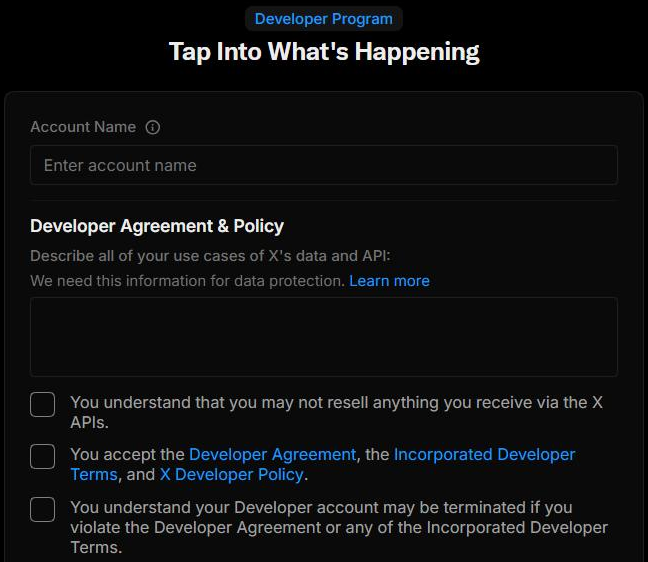
Signing up and accepting the agreements is done by the administrator personally.
14.3 Dashboard and app list
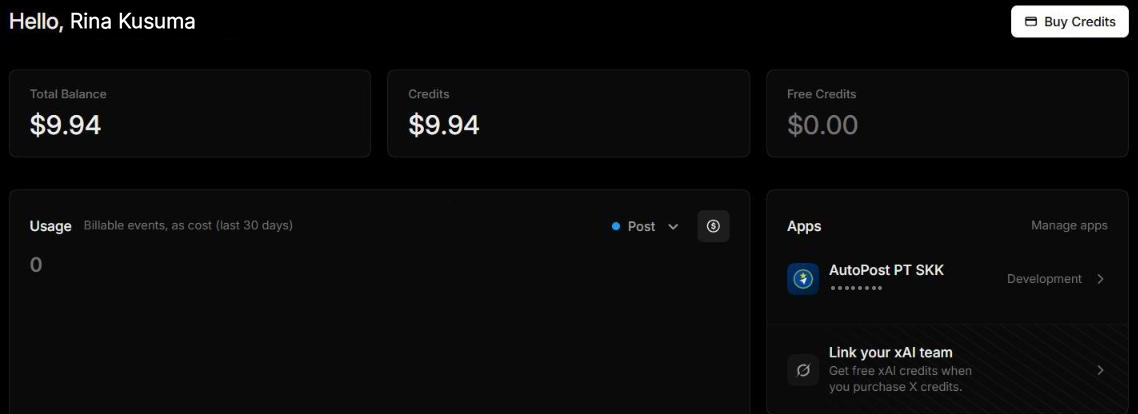
After signing up, the Dashboard shows a greeting, three balance figures (Total Balance, Credits, Free Credits — all $0.00 at first), a Usage chart (costs over the last 30 days), and the Apps card. The left menu has Projects, Apps, Usage, and a Billing section (Credits, Payments, Billing information). At the top there's a suggestion to turn on auto-recharge and a Buy Credits button.
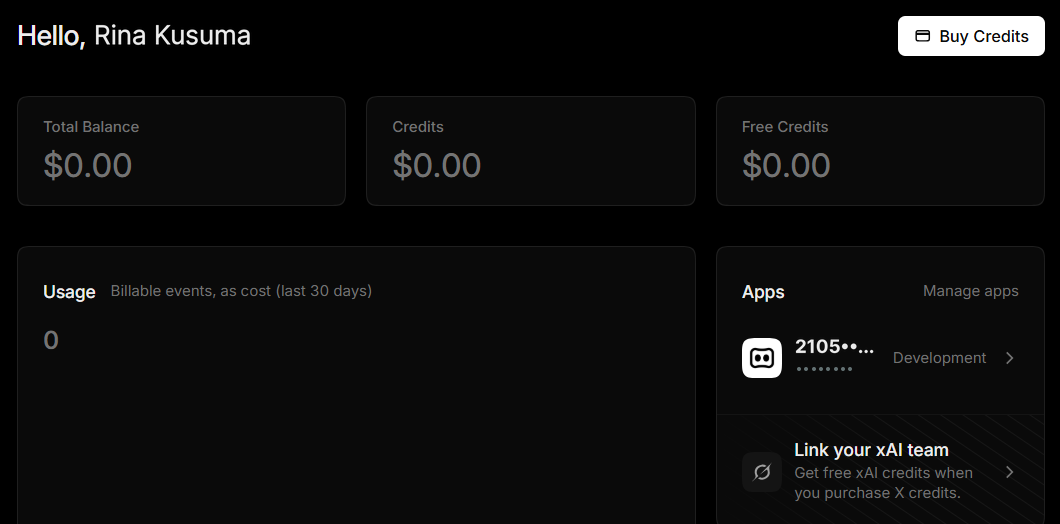
In the Apps menu, X has already created one default app ("This app was created to use the X API.") in the Default Project of type Pay Per Use, with status active. This is the app AutoPost uses; the + Create App button is only needed to create a new app. According to X's policy, a service may have at most three apps (development, staging, production).

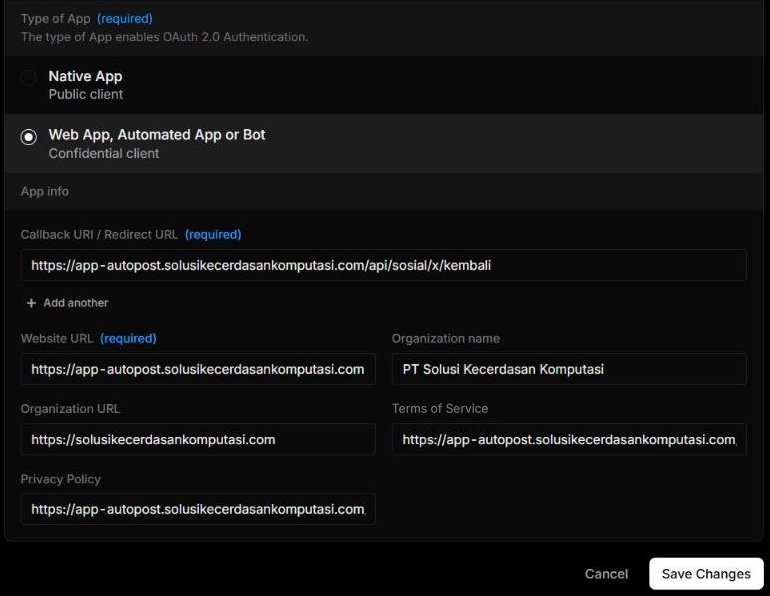
14.4 Authentication settings
Open the app → the Settings button → Authentication settings. Fill in:
| Section | Value for AutoPost |
|---|---|
| App permissions | Read and write (not the default "Read", not "…and Direct message") |
| Request email from users | Off |
| Type of App | Web App, Automated App or Bot — Confidential client (gets a Client Secret) |
| Callback URI / Redirect URL | https://app-autopost.solusikecerdasankomputasi.com/api/sosial/x/kembali — exactly, with no trailing slash |
| Website URL | https://app-autopost.solusikecerdasankomputasi.com |
| Organization name | PT Solusi Kecerdasan Komputasi |
| Organization URL | https://solusikecerdasankomputasi.com |
| Terms of Service | https://app-autopost.solusikecerdasankomputasi.com/ketentuan |
| Privacy Policy | https://app-autopost.solusikecerdasankomputasi.com/privasi |
Press Save Changes.
When first opened, this form still has X's default choices — Read and Native App. Both must be changed:
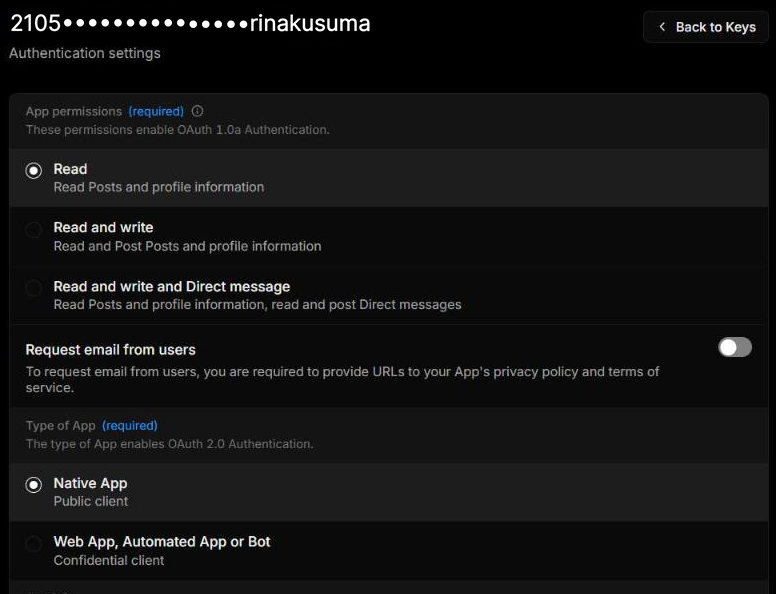
After the change, Read and write and Web App, Automated App or Bot are selected:
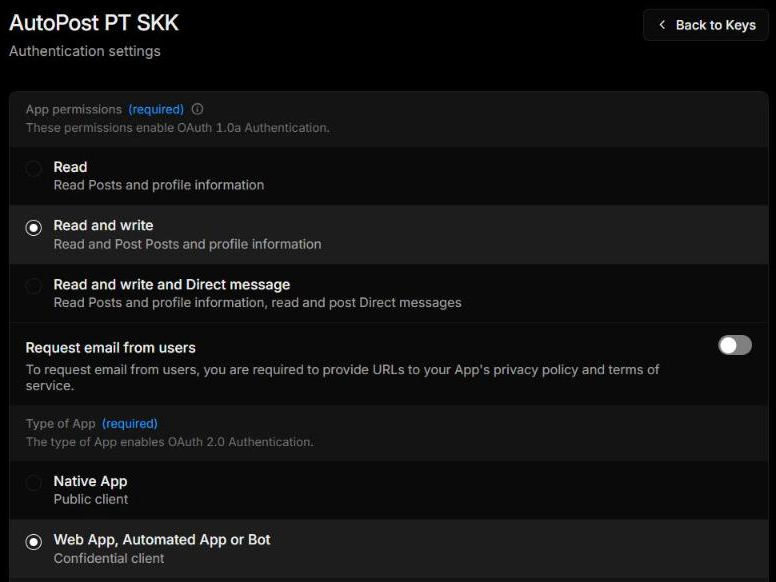
Then fill in the App info section below it and save:
14.5 App keys → Vercel env
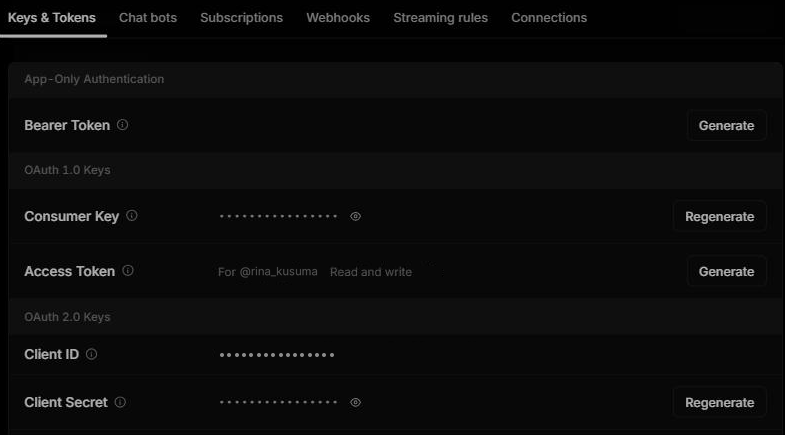
Go back to the app page, Keys & Tokens tab. The OAuth 2.0 Keys section holds the Client ID and Client Secret.
Copy the Client ID. For the Client Secret, press Regenerate if it was never saved — according to X's documentation, credentials are shown only once, and regenerating invalidates the old one.
The Bearer Token, Consumer Key, and Access Token (OAuth 1.0) are not used by AutoPost — don't create them.
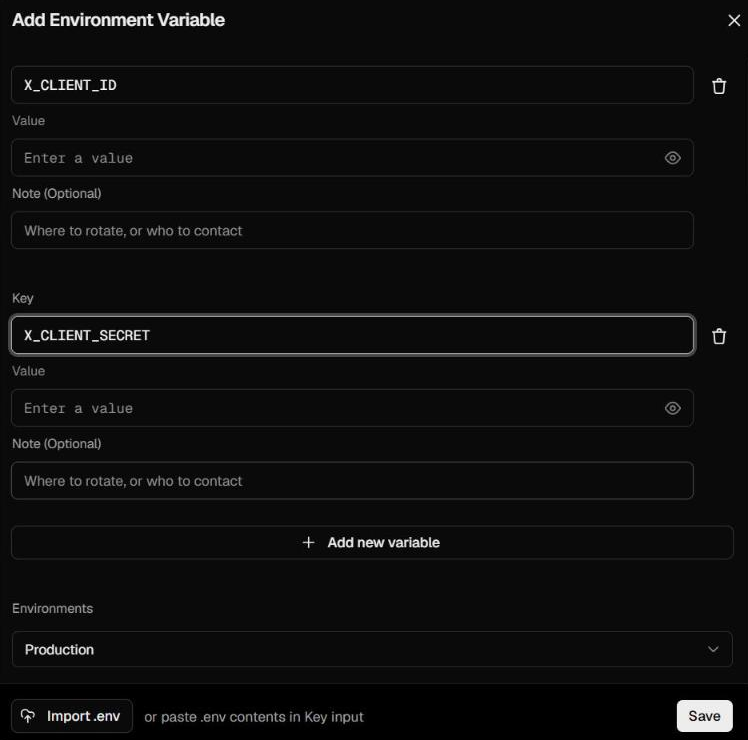
In Vercel, open the project autopost-web › Settings › Environment Variables › Add Environment Variable.
Add two variables, environment Production:
X_CLIENT_ID= Client IDX_CLIENT_SECRET= Client Secret
Press Save, then Redeploy the latest production deployment so the new values are picked up.
After the redeploy, the The X connection isn't open yet box on Social accounts › X disappears and the Connect X button becomes active. Pasting secret values is done by the administrator personally.
14.6 App name and logo
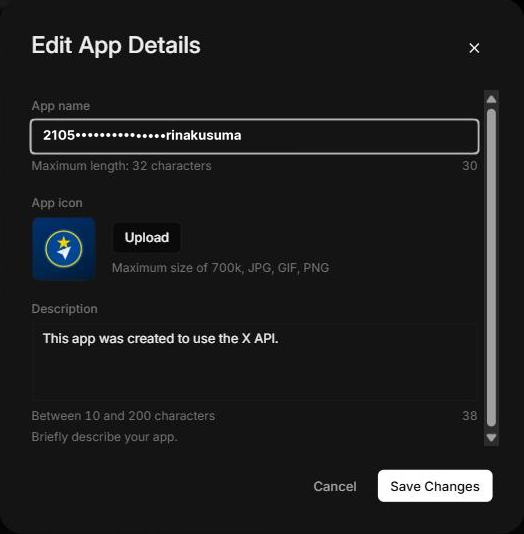
The app name and icon are shown to users on the permission screen (4.3). X gives its default app a long number as its name, so change it:
On the app page, press the pencil icon next to the app name. The Edit App Details dialog opens.
App name: AutoPost PT SKK (at most 32 characters).
App icon: Upload the AutoPost icon (JPG, GIF, or PNG, at most 700 KB).
Description: a short description of 10–200 characters, for example "AutoPost — a social media post scheduler by PT Solusi Kecerdasan Komputasi."
Press Save Changes.
Once saved, the Apps card on the Dashboard shows the app with its new name and icon. In the image below, credits have already been bought (14.7) and a small amount has been used for testing.
14.7 Buying credits
The X API uses a pay-per-use system: credits are bought up front, and each paid call deducts from the balance. Without credits, X rejects posts.
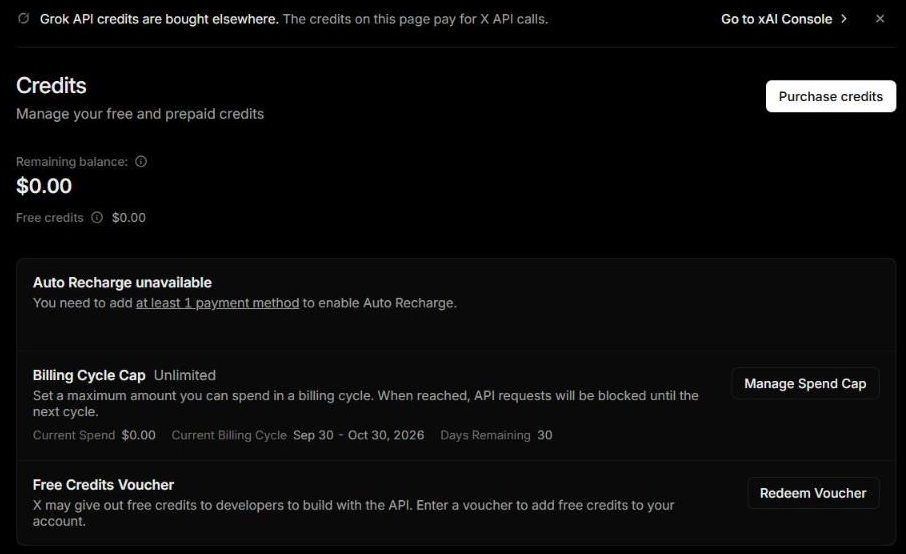
Open Billing › Credits. This page shows Remaining balance, Free credits, Auto Recharge (needs a saved payment method), Billing Cycle Cap, and Free Credits Voucher.
Press Purchase credits and follow X's payment steps. On 30 September 2026 PT SKK bought $10 in credits.
14.8 Setting a spending limit (Spend Cap)
So that the bill never goes over plan, set a spending limit per billing cycle:
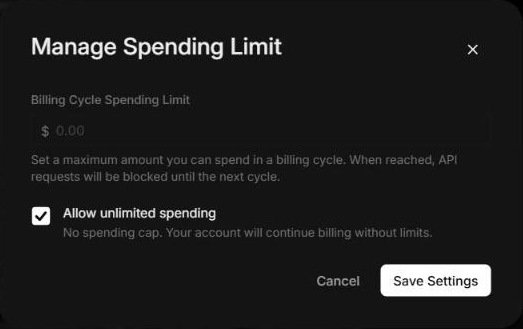
In Billing › Credits, on the Billing Cycle Cap row, press Manage Spend Cap.
The Manage Spending Limit dialog opens. Uncheck Allow unlimited spending.
Enter 10 (US dollars) in Billing Cycle Spending Limit.
Press Save Settings.
Once saved, the Billing Cycle Cap row shows $10.00 together with this cycle's usage (Current Spend, a percent-used bar, and the days left in the cycle).
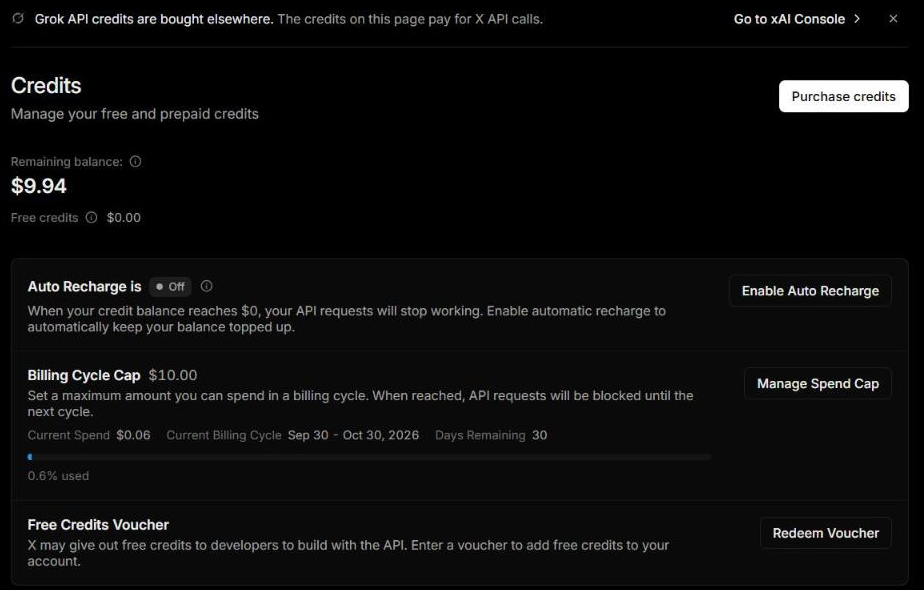
When that limit is reached, X blocks all API requests until the next cycle; in AutoPost, sends are postponed and retried every hour with the message "AutoPost's X credit has run out — the administrator is topping it up; we'll retry automatically."
14.9 Quota env (optional)
Without extra env variables, AutoPost uses the default figures. To change them, add env variables in Vercel (Production), then redeploy:
| Env | Default | Meaning |
|---|---|---|
X_KUOTA_POSTING_BULANAN | 60 | X posts per AutoPost account (and per X account) per WIB month |
X_KUOTA_TAUTAN_BULANAN | 10 | Of which with a link ($0.20 per post) |
X_BATAS_BIAYA_BULANAN_USD | 10 | X cost budget for all users per WIB month (USD) |
The quota figures on the Social accounts, Social accounts › X, and New post pages update by themselves.