AutoPostUser guide
Connecting Telegram to AutoPost
Full guide: from creating a bot to posts published in your channel or group
Save this guide
PDF version to read offline or print · 6.8 MB · 68 pages
Contents
1. At a glance
What you'll achieve
After following this guide, AutoPost can send text, photos, and videos to Telegram through a bot that you own. The target can be a channel, a group, or a private chat with the bot. You can send right away or schedule posts.
Here's how it works:
You create your own bot in Telegram. The bot is free.
You add the bot to the target channel or group and give it permission to post.
You paste the bot's token and the target address into AutoPost.
From then on, every post you choose to send to Telegram is sent by that bot.
- 1You create a bot with @BotFather
- 2The bot is added to your channel/group as an admin
- 3Token + destination are pasted into AutoPost
- 4AutoPost sends posts through the bot
You don't pay Telegram anything. AutoPost uses Telegram's official route for bots (the Bot API).
Estimated time
| Part | Estimate |
|---|---|
| Create the bot (Step A) | 3–5 minutes |
| Set up the channel or group (Step B) | 2–5 minutes |
| Find the chat ID, private targets only (Step C) | 2–5 minutes |
| Connect in AutoPost (Step D) | 1–2 minutes |
| Total | about 10–15 minutes |
What you need
2. Key terms
These words come up often. Read them once; you can come back here at any time.
| Term | What it means in this guide |
|---|---|
| Bot | A special Telegram account run by a program, not a person. AutoPost uses the bot you create to send messages. |
| @BotFather | Telegram's official bot for creating and managing bots. Its name is always @BotFather, with a blue check mark. |
| Token | The bot's secret key. It looks like digits, a colon, then a string of letters and digits, for example 123456789:AAH…. Anyone who holds the token can control your bot. Treat it like a password. |
| Bot username | The bot's unique name. It starts with @ and must end in bot, for example @kabar_kampung_bot. It can't be changed once created. |
| Channel | A place to broadcast messages to many followers. Only admins can post. |
| Public channel | A channel with an @name address. Anyone can find it with Telegram search. |
| Private channel | A channel without an @name address. People can only join by invitation or through an invite link. |
| Group | A place to chat together. Members can send messages unless admins restrict them. |
| Supergroup | A larger kind of group. Telegram can turn a regular group into a supergroup. When that happens, the group ID changes too. |
| Topic group (forum) | A supergroup whose messages are split into topics, for example "Announcements" or "Q&A". There is always a default topic called General. |
| Private chat with the bot | A one-to-one chat between you (or someone else) and the bot. The bot can only send here if that person has pressed Start first. |
| Chat ID | The number that identifies a channel, group, or person in Telegram. All channels and supergroups (public or private) have IDs that start with -100, for example -1001234567890. Regular groups start with just -. People (private chats) have positive numbers, for example 123456789. |
| Admin | A channel or group manager with special rights. In a channel, the bot must be an admin with the Post Messages right. In a group, admins can send automatically. |
| Target | In AutoPost, the "target" is where the bot sends messages: the @name of a public channel/group, a chat ID, or the link of one message in that channel/group (AutoPost turns it into the ID for you). |
3. Step A — Create a bot in @BotFather
Step by step
Open the Telegram app. Your phone or computer both work.
Search for
@BotFatherin the search field. Pick the one with the blue check mark. Ignore other accounts with similar names.Press the Start button (or type
/startand send it). BotFather replies with a list of available commands.Type
/newbotand send it.BotFather asks for your bot's name.Send the bot's name. Example:
Kabar Kampung Kita.This is the name other people see, for example at the top of messages.
The name can contain spaces and can be changed at any time with
/setname.
BotFather then asks for the bot's username.
Send the bot's username. Example:
kabar_kampung_bot. The rules:5 to 32 characters long.
Only Latin letters (A–Z, a–z), digits, and underscores
_. No spaces, no hyphens.Must end in
bot, for examplekabar_kampung_botorKabarKampungBot.Uppercase and lowercase count as the same.
Can't be changed after it's created. Choose carefully.
If someone else already uses the username, BotFather asks again. Try another variation, for example
kabar_kampung_kita_bot.BotFather gives you the token. Its reply contains a long line like this:
123456789:AAHfakeExampleNotARealToken_x9Qz12abc(The example above is fake; it only shows the shape.) The token is made of digits, a colon, then about 35 letters, digits,
-, or_.Copy the token. In many versions of the app, tapping the token copies it. If not, press and hold, then choose Copy. Copy all of it, from the first digit to the last letter. Don't copy any space or period at the end of the sentence.
Keeping your token safe
The token is the full key to your bot. Anyone who has it can send messages as the bot to every channel and group where the bot is an admin.
Store it in a password manager or a locked note.
Don't send it by chat, email, or social media, including to us. You only need to paste the token on the AutoPost Telegram page.
Don't take a screenshot that shows the token and then share it.
Don't keep it in shared documents or family/work groups.
If anyone else has seen the token, change it (see 8.3).
Protecting the bot owner's Telegram account
A bot is tied to the Telegram account that created it. Whoever controls that account can open @BotFather and get the bot's token at any time. So:
Turn on Two-Step Verification on the Telegram account that created the bot (Settings → Privacy and Security → Two-Step Verification).
For businesses or organizations: create the bot from a Telegram account owned by the organization, not an employee's personal account. If the employee who created the bot leaves or loses the account, control of the token is lost too.
One Telegram account can only create a limited number of bots (about 20 bots, according to @BotFather's replies; this number isn't in the official documentation). This matters if you want one bot per target.
Other useful @BotFather commands
| Command | What it does |
|---|---|
/mybots | Opens your list of bots with a button menu (change the name, token, and more). |
/token | Requests a new token if the old one leaked or was lost. Make sure the token really changed (see 8.3). |
/revoke | Revokes the old token. This command isn't in Telegram's official documentation, so it may not be available. An equivalent: /mybots → choose the bot → API Token → Revoke current token. |
/setname | Changes the bot's display name. |
/setuserpic | Changes the bot's profile photo. |
/setdescription | Short text (max. 512 characters) on the "What can this bot do?" screen. |
/setabouttext | Even shorter text (max. 120 characters) on the bot's profile. |
/setjoingroups | Sets whether the bot can be added to groups. If it's off, the bot can't be added to groups. |
/setprivacy | Sets which group messages the bot can read. It doesn't affect sending. AutoPost doesn't need any change here. |
/deletebot | Deletes the bot along with its username. This can't be undone. |
The latest command list is always in @BotFather itself (send /help or /start).
Tip: create one bot just for AutoPost. Don't use a bot that another service already uses. That way, changing the token or deleting the bot won't affect other services.
4. Step B — Set up the target
Choose your type of target, then follow only its part.
| Target type | Must the bot be an admin? | What goes in the AutoPost Target field | Need Step C? |
|---|---|---|---|
| B1 Public channel | Yes, with the Post Messages right | @channelname (or the link of the channel or one of its messages) | No |
| B2 Private channel | Yes, with the Post Messages right | The link of one message in the channel (https://t.me/c/…), or the ID -1001234567890 | Just copy a message link (method 1) |
| B3 Public group / supergroup | Not required, but strongly recommended | @groupname (or the link of the group or one of its messages) | No |
| B3 Private group / supergroup | Not required, but strongly recommended | Supergroup: the link of one message (https://t.me/c/…) or the ID -100…. Regular group: the ID -… | Supergroup: just copy a message link. Regular group: Yes |
| B4 Topic group | Same as B3 | The link of one message inside the topic you want (the B3 entries = the General topic) | No |
| B5 Private chat | No admins | A positive numeric ID, e.g. 123456789 | Yes |
B1 Public channel
A public channel has an @name address, for example @kabar_kampung_kita.
Adding the bot as an admin
Open your channel in Telegram.
Tap the channel name or photo at the top to open the channel info.
Choose Edit (the pencil icon) or Manage Channel.
Choose Administrators.
Choose Add Admin.
Search for your bot's username, for example
kabar_kampung_bot, and select it.In the list of admin rights, make sure Post Messages is on. This right only exists in channels.
You can turn the other rights off. AutoPost only sends new messages; it doesn't edit or delete messages.
Save (the check mark icon or Save/Done).
Quick way (optional). Telegram has a special link that adds a bot as a channel admin directly. Replace kabar_kampung_bot with your bot's username, then open this link on a device that has Telegram installed:
https://t.me/kabar_kampung_bot?startchannel&admin=post_messagesTelegram asks you to choose a channel, then adds the bot as an admin with the Post Messages right.
If the channel has "Sign Messages" turned on, the bot's name may appear as the author under posts sent by AutoPost. That's normal. Turn that setting off in the channel if you don't want it.
What goes in the AutoPost Target field (choose one)
@kabar_kampung_kita— the way we recommend, orkabar_kampung_kita(without@; AutoPost adds it), orthe channel link
t.me/kabar_kampung_kita, with or withouthttps://(thetelegram.me/…form and the web preview linkhttps://t.me/s/kabar_kampung_kitaare accepted too), orthe link of one message in the channel, for example
https://t.me/kabar_kampung_kita/15(press and hold the message → Copy Link). The message number at the end is ignored.
If the channel address changes. If you change the channel's @name address one day, AutoPost keeps sending to the same channel. AutoPost stores the channel's numeric ID, not its address. Press Retest so the name shown in AutoPost is updated too.
B2 Private channel
A private channel has no @name address. Invite links (https://t.me/+AbCd… or t.me/joinchat/…) can't be used as a target; AutoPost rejects them. Use the link of one message in that channel instead, or its numeric ID starting with -100.
Add the bot as an admin exactly as in B1 (steps 1–9), with the Post Messages right on. The quick way with the
?startchannel&admin=post_messageslink also works for private channels.In the channel, press and hold one message (on a computer: right-click), then choose Copy Link. If the channel is still empty, send any message first. The link looks like
https://t.me/c/1234567890/15(see Step C, method 1).Paste that link as is into the AutoPost Target field. AutoPost turns it into the channel ID for you (
-1001234567890); the message number at the end is ignored.
B3 Groups and supergroups
Must the bot be an admin? Not required, but strongly recommended. A bot can send to a group like a regular member, as long as group members are allowed to send that type of message. But a bot that is only a member is subject to all member restrictions:
If your group doesn't let members send messages (only admins can), the bot must be made an admin.
Media permissions for members are set separately for each type: Photos, Videos, and Files. If one of them is off, the bot can't send that type. Note: AutoPost sends photos over 10 MB as files, so large photos need the Files permission, not the Photos permission (see 7.4).
Slow mode: when it's on, regular members (including bots) must wait a set time between messages.
Paid messages: a group can require members who aren't admins to pay Telegram Stars for each message. AutoPost doesn't pay for paid messages, so posts from a member bot to such a group may be rejected.
Make the bot an admin so that none of the restrictions above apply. Once the bot is a group admin, it can automatically send messages and media, isn't affected by slow mode, and doesn't need to pay for paid messages. In groups there is no admin switch for "send messages" or "send media"; the Post Messages switch only exists in channels. A bot that is an admin can see all group messages, but AutoPost doesn't read your group messages; AutoPost only sends.
Adding the bot to a group
Open the group, then open the group info:
Android: tap the group name at the top → the pencil icon at the top right → Administrators.
iPhone: tap the group photo at the top right → Edit → Administrators.
Computer (Telegram Desktop): click ⋯ at the top right → Manage group → Administrators.
Choose Add Admin, search for the bot's username, and select it.
Once the bot is an admin, it can automatically send messages and media. Turn off the rights it doesn't need (delete messages, ban users, add admins, and the like). Also make sure Remain Anonymous is off; if it's on, the bot's messages appear under the group's name. Then save.
If you don't want to make the bot an admin, just add the bot as a member with the Add Members menu, then make sure the group's member permissions allow sending messages, Photos, Videos, and Files, and that slow mode and paid messages are off. When connecting, AutoPost checks that the bot is already in the group and allowed to send messages; if Photos/Videos/Files are closed to the bot, AutoPost only shows a warning note (slow mode and paid messages aren't checked).
Quick way (optional): open https://t.me/kabar_kampung_bot?startgroup (replace it with your bot's username), then choose the group.
What to type in the AutoPost Target field
| Your group | Target field |
|---|---|
Public group (has an @name address) | @groupname, t.me/groupname, or the link of one of its messages (https://t.me/groupname/15) |
| Private supergroup | The link of one message in the group (https://t.me/c/1234567890/15), or the ID starting with -100, for example -1001234567890 (see Step C) |
| Private regular group | The ID starting with - without 100, for example -4123456789 (see Step C, method 2) |
You can paste a group message link directly; the message number at the end is ignored. If you type an ID, any spaces in it are removed automatically.
Important: a group can turn into a supergroup. Telegram can turn a regular group into a supergroup, and when that happens the group ID changes. One trigger for certain: turning on Topics in a regular group always turns it into a supergroup first. So finish the group settings first (turning on Topics, creating a public address, adding admins), then find the ID (Step C). Sends to the old ID fail with this message:
This group has become a supergroup, so its address changed — reconnect this account.
How to fix it is in 8.4.
B4 Topic groups (forums)
A topic group is a supergroup whose messages are grouped by topic. Set up the bot exactly as in B3.
Choosing a topic. AutoPost can send to one specific topic:
Open the topic you want (for example "Announcements"). If it's still empty, send any message there.
Press and hold one message inside that topic (on a computer: right-click), then choose Copy Link. The link contains two numbers after the group address: the topic number (in the examples below:
7), then the message number.private group:
https://t.me/c/1234567890/7/15public group:
https://t.me/groupname/7/15
Paste that link as is into the Target field, then press Test & connect. The green message names the topic, for example "“Diskusi Warga · topik #7” was connected after testing it with Telegram…", and the account label also ends in
· topik #7(account labels are stored in Indonesian, so they read "topik" even in the English interface).
Without choosing a topic, posts go to the default General topic. This happens if you enter @name, a numeric ID, a message link from the General topic, or just a topic link (with only one number after the group address). The account label then ends in · topik General, and the green message gets the note "This group has topics: posts go to the General topic. …".
What you need to know:
A group can only be connected once in your AutoPost account, so one group = one topic. To change the topic, Disconnect that account, then connect again with a message link from the new topic.
If the target topic is closed, sends are rejected with the message "Topic #7 in this group is closed…". For the General topic: hiding the General topic also closes it automatically. Reopen or unhide the topic, then press Resend failed.
If the target topic is deleted, sends fail with the message "Topic #7 wasn't found or has been deleted…" and the account becomes needs reconnecting. Disconnect the account, then connect again with a message link from a topic that still exists.
If the bot isn't an admin, AutoPost shows a note when connecting: if the topic is closed, the bot's posts will be rejected. Making the bot a group admin is safer.
B5 Private chat with the bot
You can also have AutoPost send to a private chat with the bot, for example to check a post before publishing it to a channel.
Telegram's rule: a bot can't start a conversation. The person who is the target must first open the bot and press Start.
Open
https://t.me/kabar_kampung_bot(replace it with your bot's username), or search for the bot's username in Telegram.Press the Start button (or send
/start).Find that person's user ID with Step C, method 2. A user ID is a positive number, for example
123456789.Type that number in the AutoPost Target field.
If that person later blocks the bot or deletes their Telegram account, sends will fail. See section 9.
5. Step C — Find the chat ID
Skip this part if your target is a public channel or a public group. Just use @name.
For private channels and private supergroups (including topic groups), you don't need to work out the ID: just copy the link of one of their messages, then paste that link into the Target field (method 1). You only need to find a numeric ID for private regular groups and private chats (method 2).
| Method | Works for | Needs the token? | Recommendation |
|---|---|---|---|
1. Message link t.me/c/… | Private channels, private supergroups, topic groups | No | Most recommended (you paste the link directly) |
| 2. getUpdates | Regular groups, private chats, also channels/supergroups | Yes | Official, but be careful with the token |
| 3. Other, unofficial methods | — | — | Not recommended |
Method 1: message link (safest)
This method doesn't need the token, so there's no risk of the token leaking.
Open your private channel or supergroup. If there are no messages yet, send any message.
Press and hold that message (phone) or right-click it (computer).
Choose Copy Link (or Copy Post Link — the menu name may differ).
Paste the link into a note. It looks like this:
https://t.me/c/1234567890/15Paste that link as is into the AutoPost Target field. Done: AutoPost turns it into the chat ID
-1001234567890for you and ignores the message number at the end.
If you want to write the ID yourself (for example to keep a record): take the number right after /c/ (in the example above: 1234567890), then put -100 in front of it. The result is -1001234567890, the same as pasting the link.
Notes:
In a topic group, a message link inside a topic looks like
https://t.me/c/1234567890/7/15: the middle number (7) is the topic number. Pasting this link makes AutoPost send to that topic (see B4). If you write the ID yourself, still take the first number after/c/, and posts go to the General topic.Regular groups (not supergroups) don't have
t.me/c/links. Use method 2.If you write the ID yourself, don't forget the minus sign in front.
1001234567890(without the minus) will fail.Public channel links look like
https://t.me/channelname/15, not/c/. You can paste these too, or just use@channelname.AutoPost works out the ID from the link with Telegram's official formula, so the result is correct for numbers of any length. Putting
-100in front yourself is only correct for 10-digit numbers after/c/, which is the form used today.
Method 2: getUpdates (for regular groups and private chats)
This method is official from Telegram, but the address contains your token. Follow the safety steps.
Prepare first:
For a group: add the bot to the group (B3), then send the command
/start@kabar_kampung_botin the group (replace it with your bot's username). A plain message likehellois not received by a bot that isn't an admin (see "If the result is empty").For a channel: make sure the bot is already an admin (B1/B2), then post one new message in the channel.
For a private chat: ask the person to press Start in the bot, then send any message, for example
hello.
Steps:
Open an incognito/private window (Incognito/InPrivate) in your browser, so the address isn't saved in the history. This window does not protect you from browser extensions allowed to run in incognito mode, or from a work proxy that opens HTTPS traffic. The safest option is a personal device, or still change the token afterward.
Type the following address. Replace
<TOKEN>with your bot's token (without the<>signs):https://api.telegram.org/bot<TOKEN>/getUpdatesNote the word
botstuck directly in front of the token. This wordbotis only for this address. When you paste the token into AutoPost, don't addbot.The browser shows a long text. Look for the part
"chat":{"id":…. Example (simplified):"chat":{"id":-1001234567890,"title":"Kabar Kampung Kita","type":"supergroup"}or, for a private chat:
"chat":{"id":123456789,"first_name":"Rina","type":"private"}Copy the number after
"id":inside the"chat"part, including the minus sign (if there is one). Make sure the"title"or"first_name"matches the target you mean.Close the incognito window.
{"ok":true,"result":[{"update_id":…,
 "message":{"message_id":…,
  "from":{"id":…,"is_bot":false,"first_name":"Rina"},
  "chat":{"id":-1001234567890,"title":"Kabar Kampung Kita","type":"supergroup"},
"date":…,"text":"/start@kabar_kampung_bot"}}]}If the result is empty ("result":[]):
In a group: a bot that isn't an admin doesn't receive plain messages (Telegram's privacy mode is on from the start). Send a command
/start@username_bot(not a plain message), or remove the bot from the group and add it back (the bot joining is recorded as a service message), or make the bot an admin. Then reload the page.In a channel or private chat: send another message, then reload the page.
Telegram only keeps recent updates for up to 24 hours. Send a new message, then try again.
This method doesn't work if the bot is already used by another service that set a "webhook". Create a new bot just for AutoPost.
This method can also come back empty or show a
Conflicterror if the bot is being used by another program that also fetches updates (polling). Again: use a bot just for AutoPost.
Token safety (strongly recommended):
If you're on a shared computer, or forgot to use an incognito window, clear the browser history for that address.
For maximum safety: after you get the ID, request a new token in @BotFather (see 8.3), then use that new token in Step D. Make sure the token really changed: compare the last 4 characters of the new token with the old one. If they're the same, the token has not changed yet; use
/mybots→ choose the bot → API Token → Revoke current token (or/revoke). Once it's revoked, the old token that may have been recorded in the browser no longer works.
Method 3: unofficial methods (not recommended)
The number in the Telegram Web address. Telegram doesn't guarantee the format, and it may change. If you use it anyway, always double-check the result with the Test & connect button.
"Show Peer IDs in Profile" in Telegram Desktop (Settings → Advanced → Experimental settings). This method needs no token and no third-party bot, but the number shown for channels/supergroups has no
-100(for example it shows1771275406, while the correct ID is-1001771275406), and in some versions it's copied with thousands separators (1,771,275,406). AutoPost removes commas automatically, but you still have to add-100in front for channels/supergroups yourself. Easier: use method 1 (paste a message link).Third-party bots ("ID" bots, "info" bots, and the like). Telegram itself advises treating every bot as a stranger. Such bots can read group messages if you add them. Don't add third-party bots to channels or groups that contain sensitive content.
6. Step D — Connect in AutoPost
6.1 Opening the Telegram page
Sign in to AutoPost at https://app-autopost.solusikecerdasankomputasi.com.
Open the Social accounts menu.
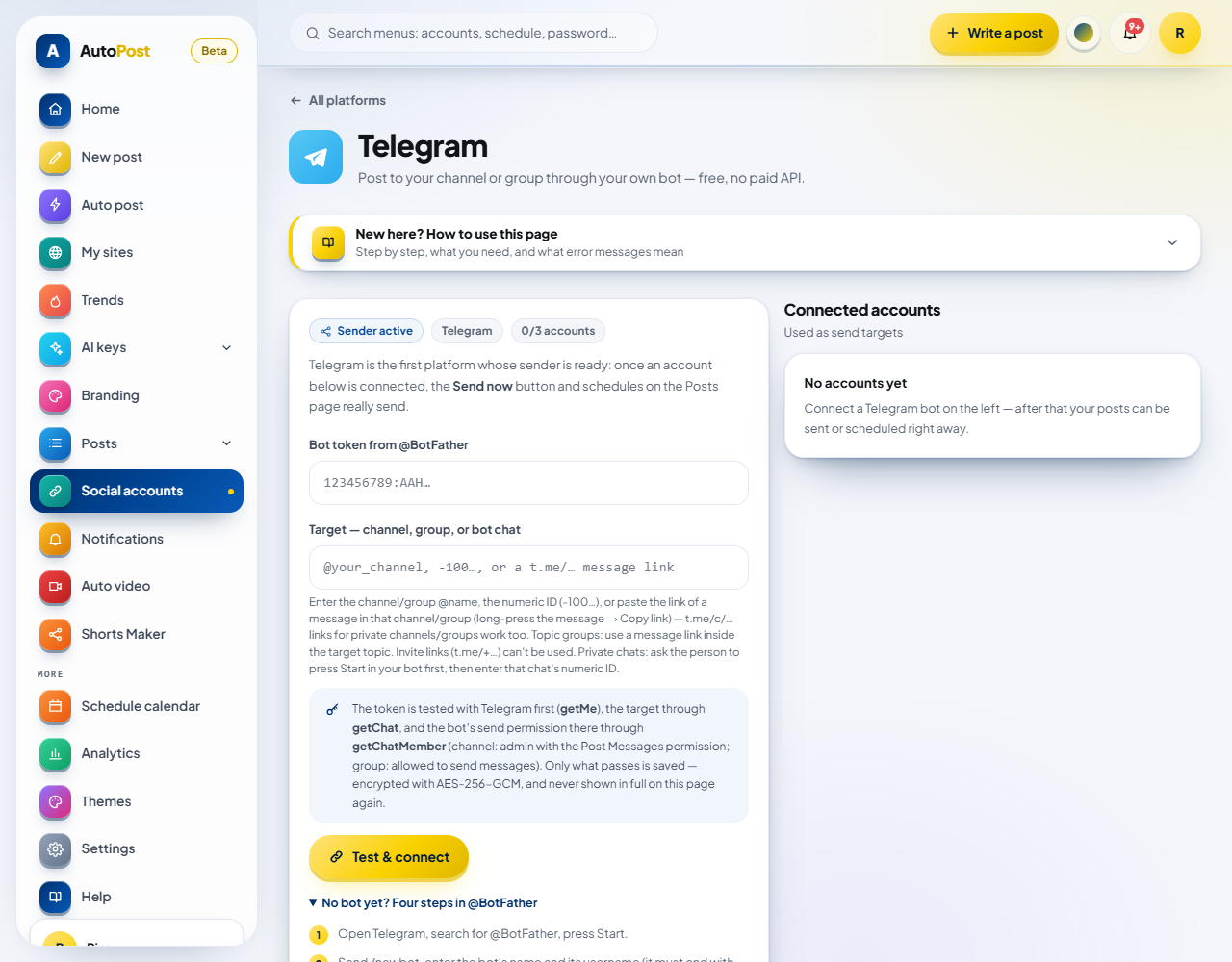
On the Telegram card ("Your channel or group, through a bot you create yourself."), press Connect. If you've connected before, the button is called Manage.
You can also type "telegram" in the search box in the top bar, then choose Connect Telegram.
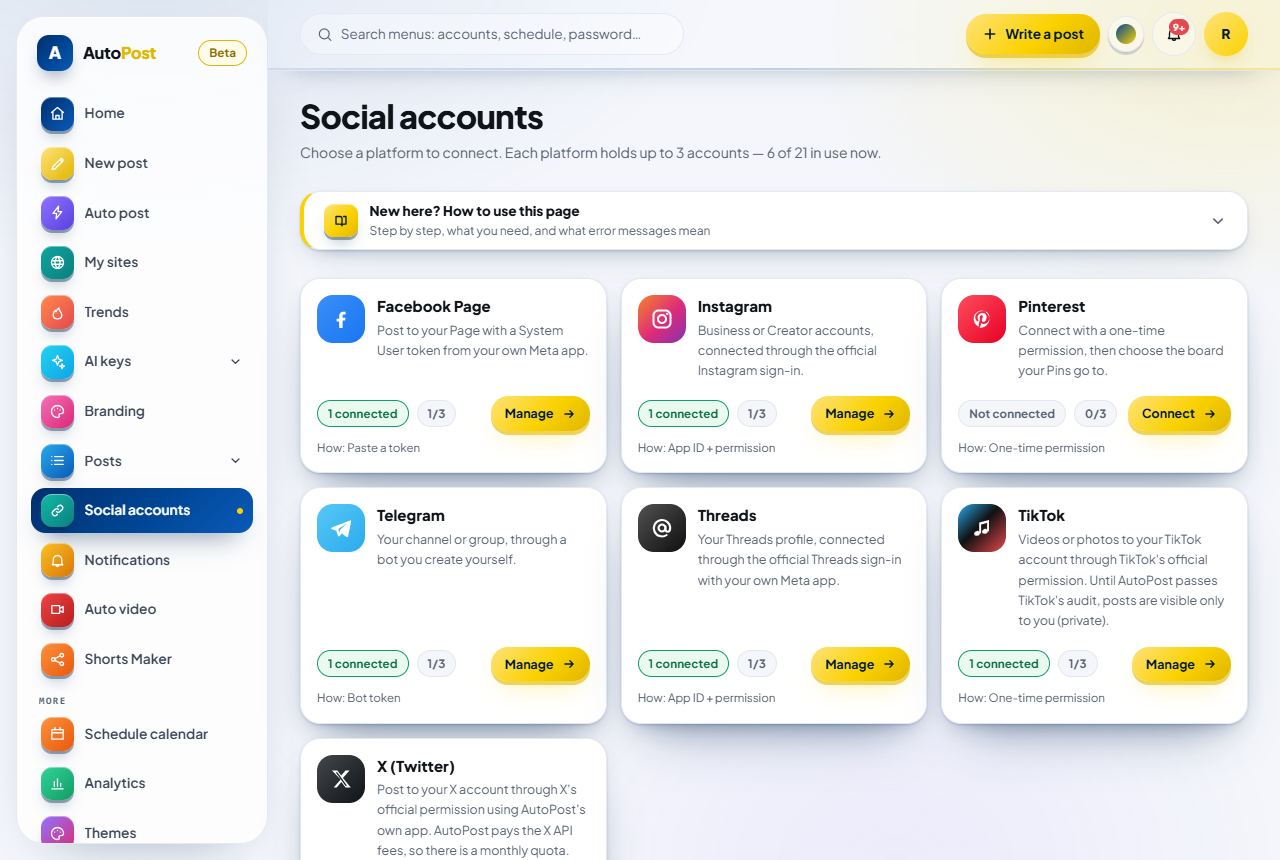
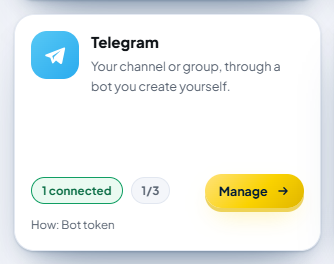
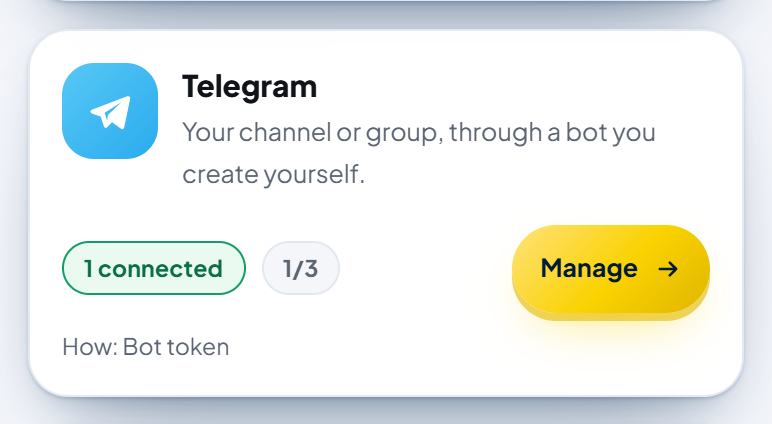
What the marks on the Telegram card mean:
| Mark | What it means |
|---|---|
| Not connected | No Telegram account yet. |
| N connected | There are N healthy Telegram accounts. |
| needs attention | At least one Telegram account has a problem. Open Manage, then see section 8. |
| N/3 | You're using N of the 3 Telegram accounts you can connect. |
6.2 Filling in the form
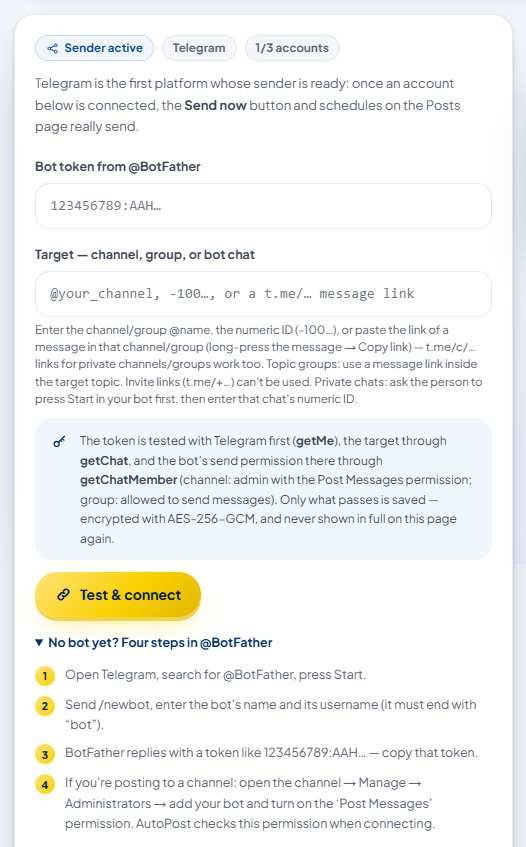
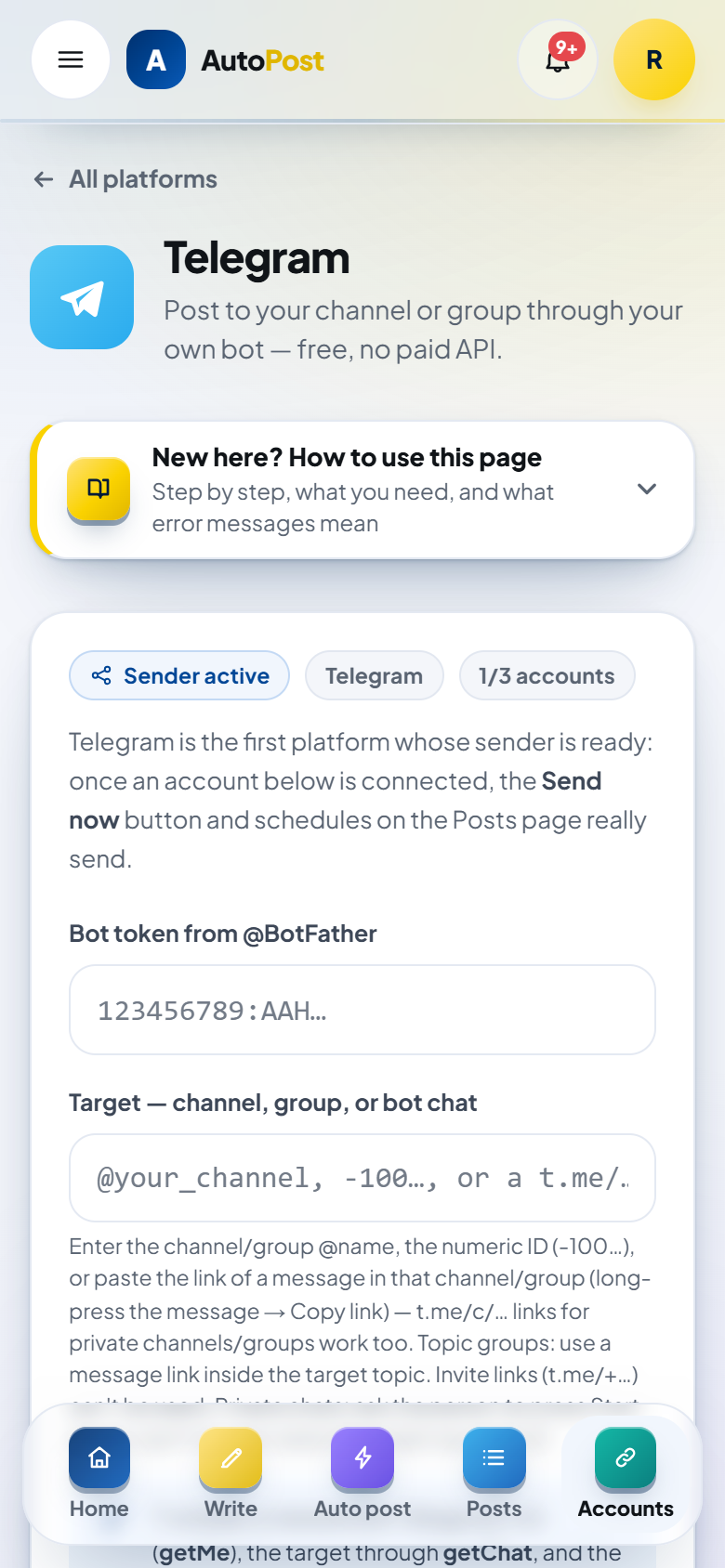
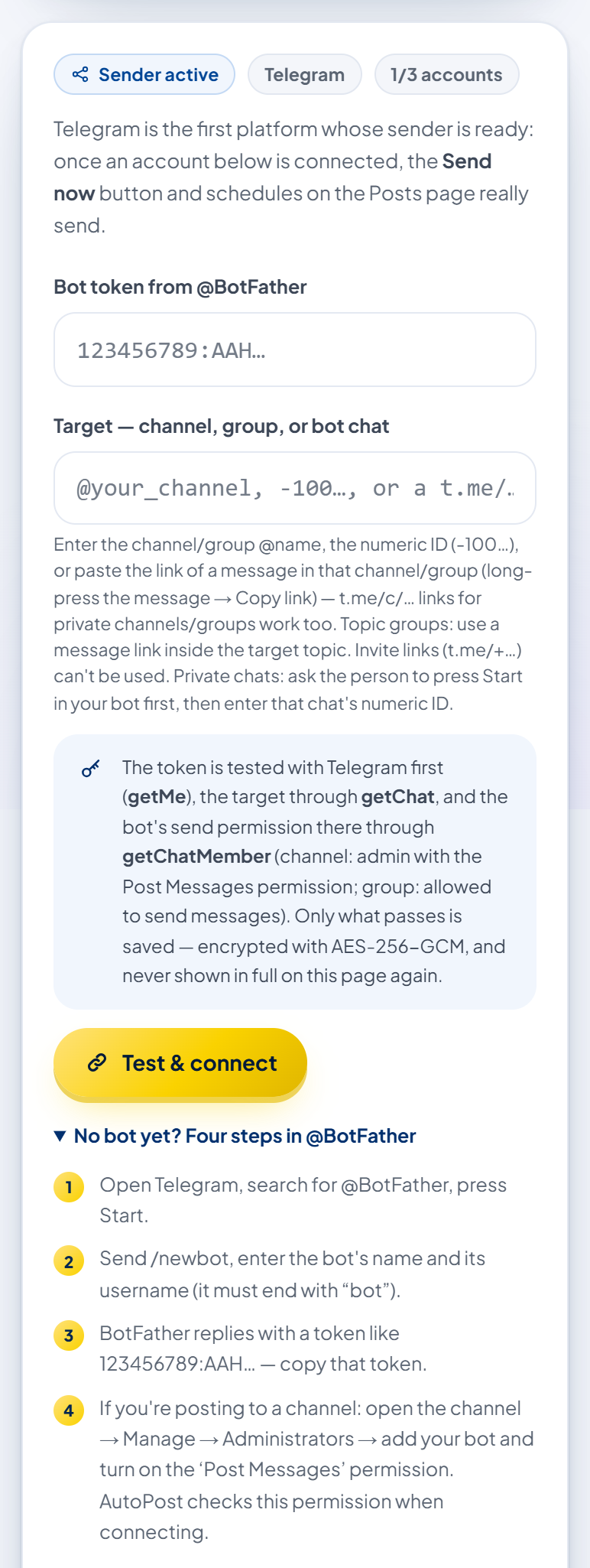
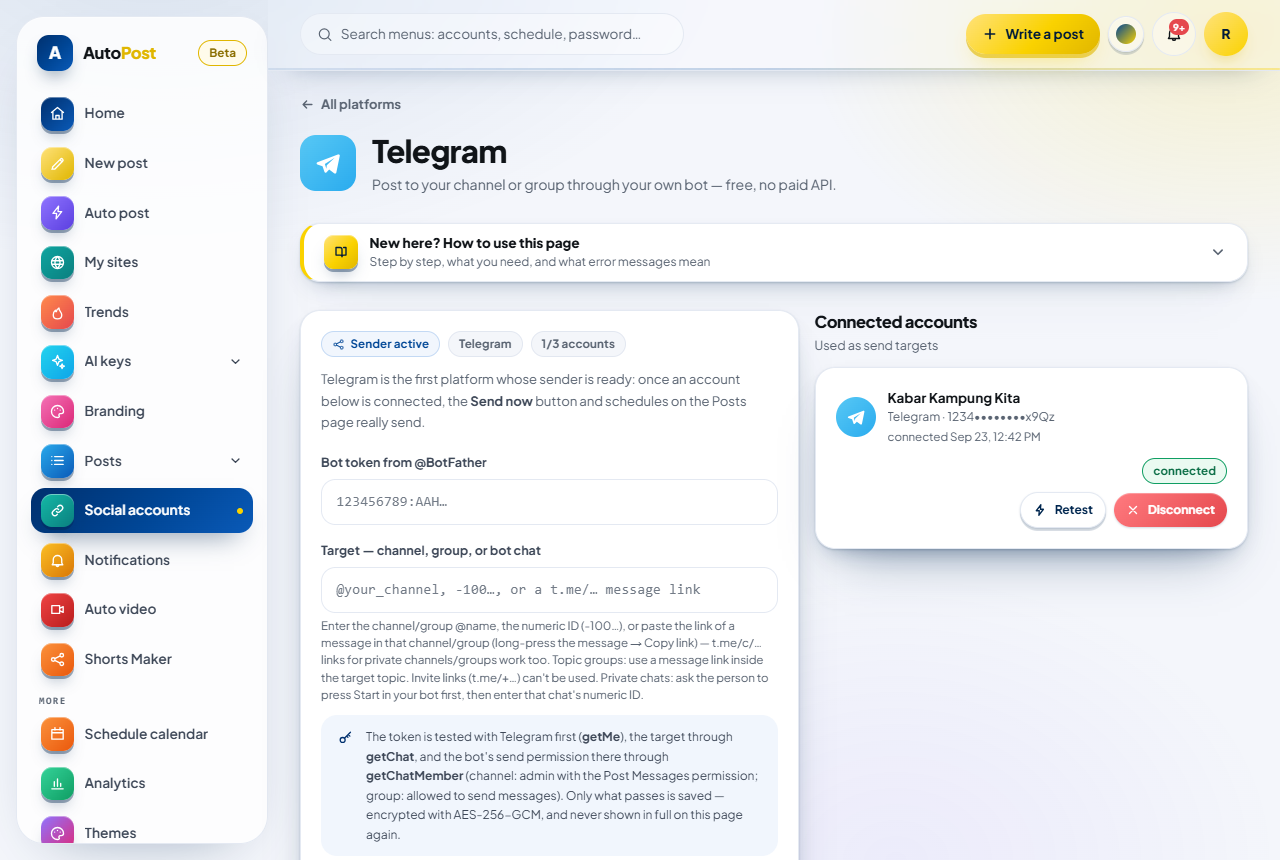
Fill in these two fields:
| Field | What to enter | Example |
|---|---|---|
| Bot token from @BotFather | The token from Step A, in full, without spaces, without the word bot in front. | 123456789:AAH… |
| Target — channel, group, or bot chat | One of: the @name of a public channel/group; a t.me/name link (with or without https://, also telegram.me/name); the link of one message in the channel/group (https://t.me/name/15 or https://t.me/c/1234567890/15; for a topic group, a message link inside the target topic); or a numeric ID (-100…, -…, or a positive number for a private chat). Not an invite link (t.me/+…), not a phone number link, not a bot username. Max. 200 characters. | @kabar_kampung_kita, https://t.me/c/1234567890/15, or -1001234567890 |
Below the Target field there's a short hint about the entries above, including for private chats: the person presses Start (or sends /start) in your bot first, then you enter that chat's numeric ID (see B5).
Small things worth knowing:
The token field hides what you type (it shows dots), just like a password field. That's normal. AutoPost doesn't have a button to show the token; some browsers (for example Edge) have their own eye icon.
Spaces at the start and end of an entry are removed automatically. Inside a numeric ID, spaces and comma separators are removed too.
If the token has the wrong shape, the browser stops you before sending. Its bubble shows the browser's own message (in Chrome, for example, "Please match the requested format.") followed by "Token format: digits, a colon, then about 35 letters/digits — e.g. 123456789:AAH…".
An empty field is also stopped by the browser with its own message (for example "Please fill out this field.").
At the top of the form there are the pills Sender active, Telegram, and N/3 accounts. The All platforms link at the very top of the page takes you back to the Social accounts page.
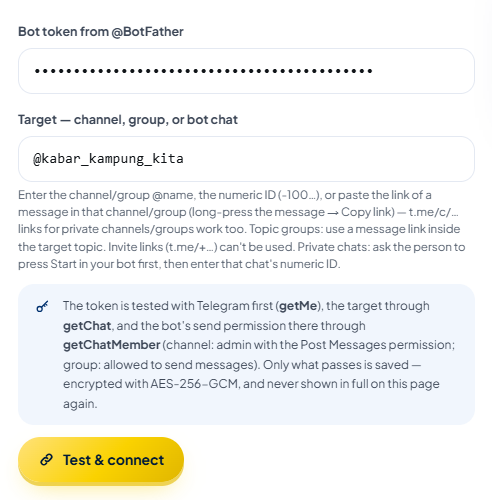
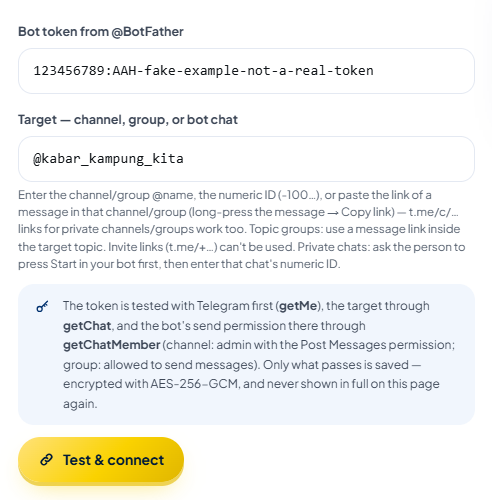
6.3 Pressing "Test & connect"
Press the Test & connect button. AutoPost then checks, in order:
The entry format. The token and target aren't empty, the token looks right, the target is no longer than 200 characters, and the target format is recognized. Invite links, phone number links, and other links that aren't a channel/group are rejected right here.
The attempt limit. At most 5 attempts every 10 minutes. Typos stopped at step 1 don't count. Every attempt that passes the entry format check counts, whatever the result, including ones rejected because the target is "already connected", because there are already 3 Telegram accounts, or because of server problems.
The token, with Telegram. AutoPost asks Telegram whether this token belongs to a valid bot (a check called getMe).
The target, with Telegram. AutoPost asks whether the bot can find that target (a check called getChat). From this, AutoPost gets the channel/group/person name to use as the account label, and learns whether the group has topics.
The bot's send rights. AutoPost asks Telegram what role the bot has in that target (a check called getChatMember). In a channel, the bot must be an admin with the Post Messages right. In a group, the bot must already be in the group and allowed to send messages (as an admin, or as a member in a group that lets members send). If not, the connection is rejected and the account is not saved. For private chats, this check is skipped: a target that was found means the person has already pressed Start.
The 3-account limit. You don't have 3 Telegram accounts yet.
No duplicates. The same target hasn't been connected in your AutoPost account before (even with another bot).
Saving. The token is encrypted (AES-256-GCM) and then saved, together with the topic number if you chose a topic.
Each call to Telegram waits at most 20 seconds.
If the server warning box is shown (see 9.7), the form and the Retest button are disabled.
6.4 Signs of success
If everything passes, a green message appears:
“Kabar Kampung Kita” was connected after testing it with Telegram. Its token is stored encrypted.

For a topic group, the name in that message ends with its topic, for example “Diskusi Warga · topik #7” or “Diskusi Warga · topik General” (see B4).
Sometimes there's a note under the green message. The account is still saved; the note just tells you something to watch out for. Notes you may see:
"Posts will go to topic #7 in this topic group." — the topic from your message link was saved.
"This group has topics: posts go to the General topic. For another topic, connect with the link of a message inside that topic (long-press the message → Copy link)." — no topic was chosen.
"The topic number was ignored because this target isn't a topic group." — the pasted link contained a topic number, but the target is a channel or a group without topics.
"The bot isn't an admin and isn't allowed to send photos, videos, and files (including photos over 10 MB) in this group yet, so posts with … will fail. Make the bot a group admin to be safe." — the list of media types varies; posts without media still go through.
"The bot isn't an admin: if topic #7 is closed, the bot's posts there will be rejected. Make the bot a group admin to be safer." (or "…if the General topic is closed or hidden…") — a warning for topic groups.
"The bot's 'Remain anonymous' admin right is on, so its messages will appear under the group's name. Turn that right off if you want the bot's name to show."
"The bot's send permission couldn't be confirmed (Telegram: …). Send one test post to make sure." — Telegram answered unexpectedly when asked about the bot's rights.
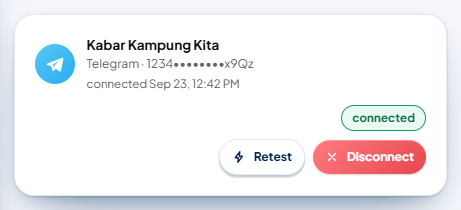
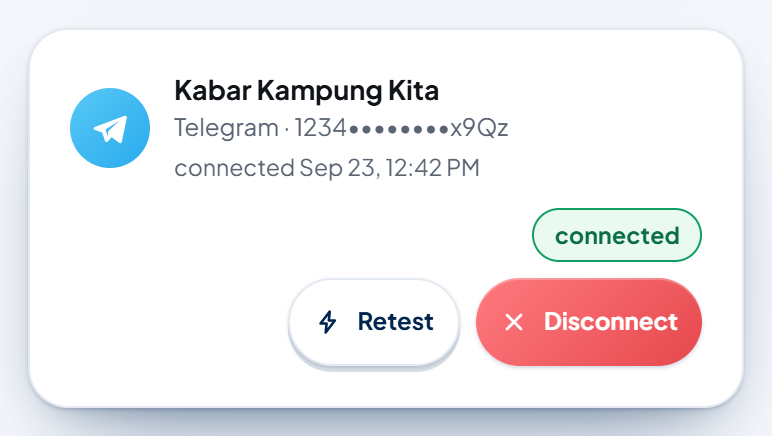
The new account appears in the right-hand card, Connected accounts:
What's on the account card:
Account label — taken automatically from Telegram; you don't need to type it. For channels/groups, the label is the channel/group name. For private chats, the label is that person's username (without
@) if they have one; their first name is only used if they have no username. If there's neither, it saysTanpa nama(stored in Indonesian; it means "no name"). If the channel name changes, press Retest so the label is updated too. For topic groups, the label ends in· topik #Nor· topik General.Telegram · @username — the target's public address (if any).
Masked token — only the first 4 and last 4 characters, for example
1234••••••••x9Qz. The full token is never shown again. If this spot says token can't be opened, the server can't open the stored token: Disconnect the account and connect it again.connected … — the date and time (WIB) when the account was connected, without the year and without the word "WIB", for example
connected Sep 27, 02:05 PM.Status pill —
connected,needs reconnecting, orhas a problem(see 8.1).The Retest and Disconnect buttons.
The account also appears on the Social accounts page, in the "Connected accounts" list.

6.5 What "N/3 accounts" means
The Telegram page has an N/3 accounts pill. It means you've connected N of at most 3 Telegram targets in your AutoPost account. This limit applies per platform: 3 for Telegram, separate from other platforms.
The three targets can use the same bot or different bots.
Once you have 3, the form is disabled and you see the text "Full: disconnect an account first to add another."
7. Step E — Send and schedule to Telegram
7.1 Choosing a Telegram account as a target
Open the New post menu (on phones: Write).
Write the post in the Text field. If needed, fill in Link (optional) and add media under Media (optional).
In the Send to section, look at the account buttons. Checked accounts (blue, with a ✓) will receive the post.
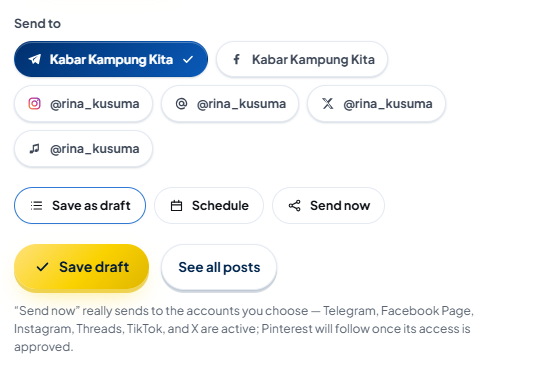
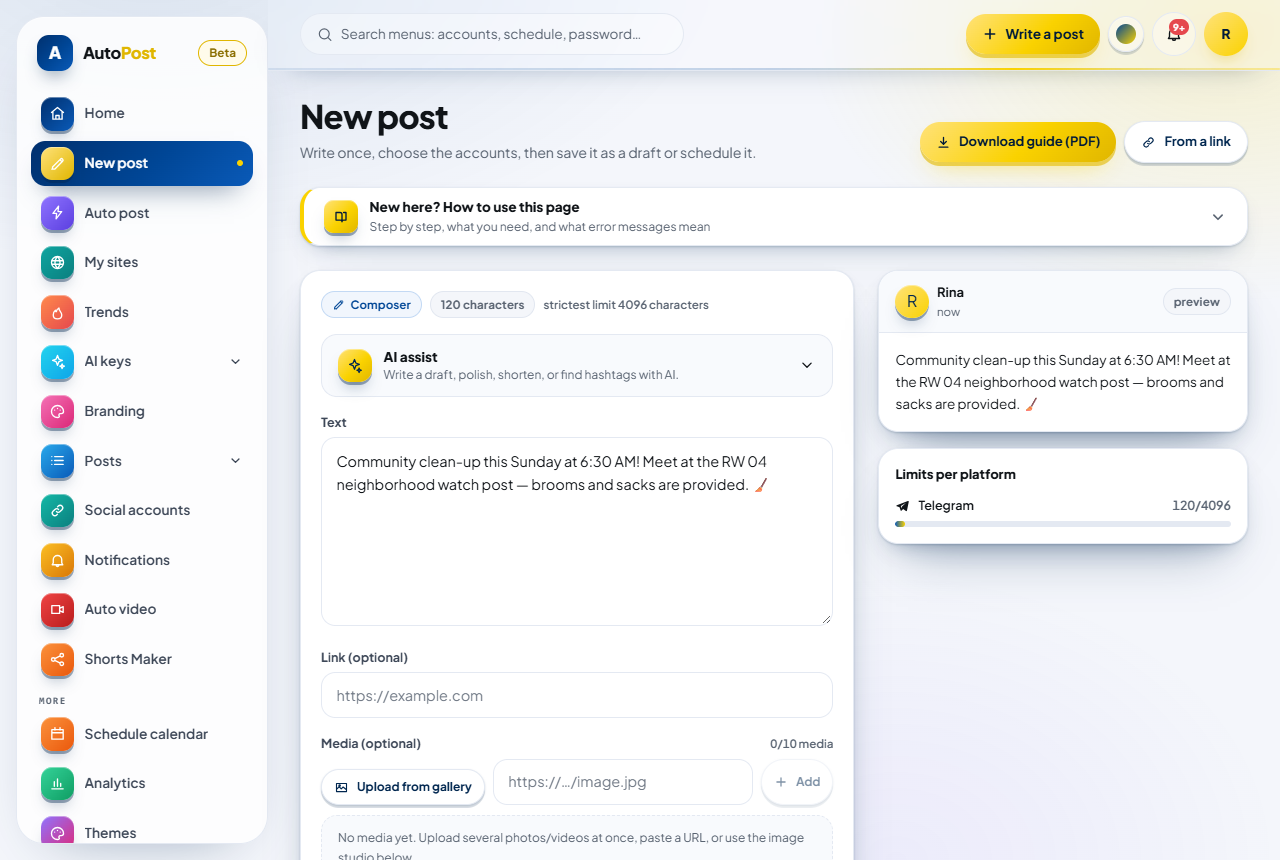
If there are no accounts yet, that section shows "No accounts connected yet" and a Connect account link. A post without accounts can only be saved as a draft.
7.2 Character limits
Telegram has two different limits:
| Type of post | Telegram limit | What happens if you go over |
|---|---|---|
| Text only (no photo/video) | 4,096 characters | AutoPost refuses to save: "The text is too long for: Telegram." But the Link isn't counted here: if text + link go over 4,096 characters, the text is cut at a word boundary when sent, and the Link field stays whole at the end if there's still room. |
| With a photo or video (the text becomes the caption) | 1,024 characters | Cut automatically at a word boundary (not in the middle of a word) and ended with …; the Link field stays whole at the end if there's still room. The send still succeeds, and AutoPost saves a note of how many characters were cut — visible in Details per account on the Posts page (7.9). The composer already warns you before you save (see below). |
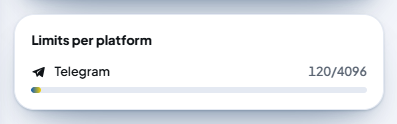
Important things:
The counter in the Limits per platform card adjusts itself: without media the row is Telegram …/4096; as soon as media is added, the row becomes Telegram · photo/video caption …/1024. The number already includes the Link entry. If you go over, the number turns red and below it you see how many characters will be cut when sent — this is a warning, not a rejection: the post can still be saved and sent.
Some emoji count as 2 characters. Cutting doesn't split a single emoji or a flag, but combined emoji (for example family emoji or emoji with a skin tone) that fall exactly at the cut point may appear split. If your text is close to the limit, check its end in the preview.
The Link field is added at the end of the text (after one blank line), if the link isn't already in the text. The link is counted by the Telegram counter in the composer, and counted when cutting. If text + link go over 4,096 characters (without media) or 1,024 characters (with media), it's the text that is cut at a word boundary, while the link from the Link field stays whole at the end (as long as the text still keeps at least 40 characters). A link you type yourself inside the text won't be split in two: if the cut point falls in the middle of the address, the whole address is dropped. A link at the end of the text may be dropped too. Tip: put important links in the Link field or at the start of the text, or keep the text short.
The Link to post feature already counts the 1,024/4,096 limit including the link.
AutoPost's general limit for all platforms: 10,000 characters per post.
7.3 Text format, links, and previews
Text is sent as plain text. Marks such as
*bold*,_italic_, or<b>appear as is, and don't turn into bold or italic text.Buttons under the message (inline buttons) aren't supported yet.
For posts without media, Telegram shows a link preview card automatically. Telegram uses the first link in the text for the preview card. The Link field is placed at the end, so if the text already contains another link, the preview shows that first link, not the Link field. The preview also only appears if the target site provides a title and an image.
For posts with media, the text becomes the photo/video caption and there's no link preview card.
Messages are sent with the normal notification sound (there's no silent send option yet).
7.4 Photos and videos
One post can carry several media. Two to ten photos/videos are sent as a Telegram album; the caption (text) appears on the first media and is at most 1,024 characters. In an album, photos must be 10 MB or less (larger photos fail instead of being sent as files) and all uploaded files together at most 100 MB. GIFs can't go in an album: they're left out with a note — send a GIF as a separate post.
How to add media:
Upload from gallery: JPG, PNG, WebP, GIF photos, or MP4, MOV videos, up to 50 MB.
For Telegram, JPG or PNG is safest. AutoPost accepts WebP, but Telegram may reject it as a photo.
iPhone photos in HEIC format are rejected by the composer ("…: choose a JPG/PNG/WebP/GIF photo or an MP4/MOV video."). Convert the file to JPG first, or set the iPhone camera to Most Compatible (Settings → Camera → Formats).
Once uploaded, you see media attached ✓ (with several media: N media items attached ✓ — the cover shows first) and a Remove media (Remove all media) button. Each media card also has its own remove button.
Add from a URL: paste an
http://orhttps://link directly to the image/video file on the internet, not a web page, then press Add (for example a YouTube link or an article page will fail). AutoPost guesses the media type from the end of the address: a video is only recognized if the address ends in.mp4or.mov(also.m4v,.webm); anything else is treated as a photo, so a video with another address will fail. Safest: Upload from gallery.The Image studio or a design card made by AutoPost. The image is added to the media list with the message "Image saved & ready to send with this post." (or "Image added as media item N & ready to send with this post." if there's already media).
How AutoPost sends media to Telegram:
| Media | Size | Result in Telegram |
|---|---|---|
| JPG/PNG photo | up to 10 MB | Shows as a photo. Telegram may reduce its resolution. |
| Photo (single media only) | 10–50 MB | Shows as a file (document), not a photo. In a group, if the bot isn't an admin, members must be allowed to send Files; otherwise the send fails. Easiest: make the bot an admin, or shrink the photo below 10 MB. |
| MP4 video (H.264) | up to 50 MB | Shows as a video that plays right away. |
| MOV video | up to 50 MB | Usually goes through, but may show as a file or not play on some devices (MOV from iPhones is often HEVC). For a sure result, convert it to MP4 (H.264) first. |
| Anything | over 50 MB | Fails. Shrink or trim the file. |
| GIF | — | Sent through the photo route, not the animation route, so it may show as a still image (not moving). For animation, convert it to a short MP4 video. |
Other photo requirements from Telegram: width + height at most 10,000 pixels, and the ratio of the long side to the short side at most 20:1. The Photo check panel in the composer warns you if a photo goes over these limits.
Telegram reprocesses photos sent as photos, so their quality and resolution may drop. Full quality is only kept when sent as a file, and AutoPost doesn't offer that option yet (except automatically for photos over 10 MB).
Alt text. Each media card has an Alt text button (an image description for screen readers; the button only appears when an Instagram, Threads, Pinterest, or X account is checked). Its content isn't sent to Telegram; only Instagram, Threads, Pinterest, and X use it. But its 1,000-character limit still applies: alt text filled in earlier still blocks saving, even if you later leave only Telegram selected. Clear it or shorten it.
AI photo check. If you press Check with AI in the Photo check panel (an AI key is needed), the result also applies to Telegram posts:
If the verdict is on hold, the save, schedule, and send buttons are locked, with the note "Save, Schedule, and Send now are disabled: …". Replace or remove the photo first.
If there are serious findings, the dialog This photo has serious findings appears when you send or schedule. Check I have the rights/permission for this photo. then press Continue sending / Continue scheduling, or press Cancel.
7.5 Three ways to save: draft, schedule, send now
The composer has three options. It takes two steps: choose the mode first, then press the big button below it.
| Step 1: choose the mode | Step 2: the big button | Result |
|---|---|---|
| Save as draft | Save draft | Not sent. You can reopen it with Open in composer or send it later from the Posts page. |
| Schedule | Schedule post | Sent automatically on the date and at the time you choose. |
| Send now | Send now | Really sent right then to all checked accounts. |
While it works, the big button changes to Saving… or Sending…. After it succeeds, the Text and Link fields and the media are cleared, ready for the next post. If Send now fails for every account, the fields are kept so you can fix them — but the post is already on the Posts page; use Resend failed there instead of pressing Send now again.
Scheduling
Choose Schedule.
Fill in Date & time (WIB, UTC+7). This time is always read as WIB, whatever your device's time zone. If you're in WITA (UTC+8) or WIT (UTC+9), subtract 1 or 2 hours.
Press Schedule post.
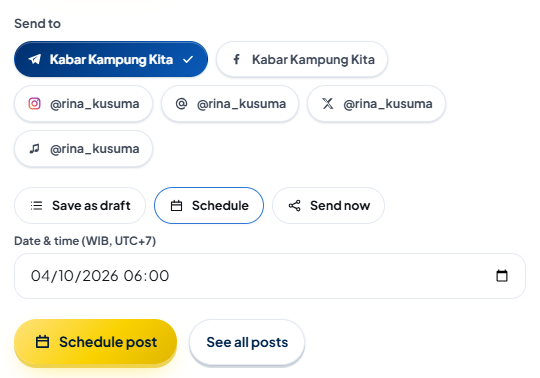
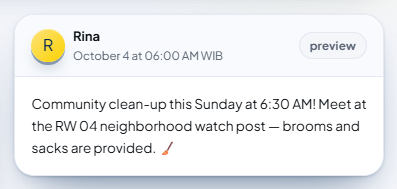
Schedule rules:
It can't be in the past, and at most 1 year from now.
AutoPost checks schedules every minute. A post is usually published at most about 1 minute after the scheduled time, and may take a little longer if the queue is busy.
Schedules are managed by AutoPost, not by Telegram's own "scheduled messages" feature. So scheduled posts aren't visible in the Telegram app before they're published.
You can see scheduled posts in Posts → All posts (the Scheduled tab) and in the Schedule calendar menu.
Changing or canceling a schedule. AutoPost can't edit scheduled posts yet (only drafts can be reopened with Open in composer). Instead: on the Posts page, press the X button (Delete post) on that post, choose Delete (or Cancel), then create a new post with the right content/time. While it works, the button reads Deleting…. Deleting a post in AutoPost does not delete a message that's already published in Telegram.
Send now
The post is saved first, then sent right away. The messages you see:
"Saved — sending to the selected accounts…"
Then a summary of the result, for example "Sent to 1 account."
Drafts and scheduled posts can also be sent early with the Send now button on the Posts page.
7.6 Tracking status on the Posts page
Open the Posts → All posts menu (on phones: Posts). It has the tabs All, Drafts, Scheduled, Sent, Partial, Failed, and Canceled. (The Posts → Pin approval menu is only for Pinterest.)
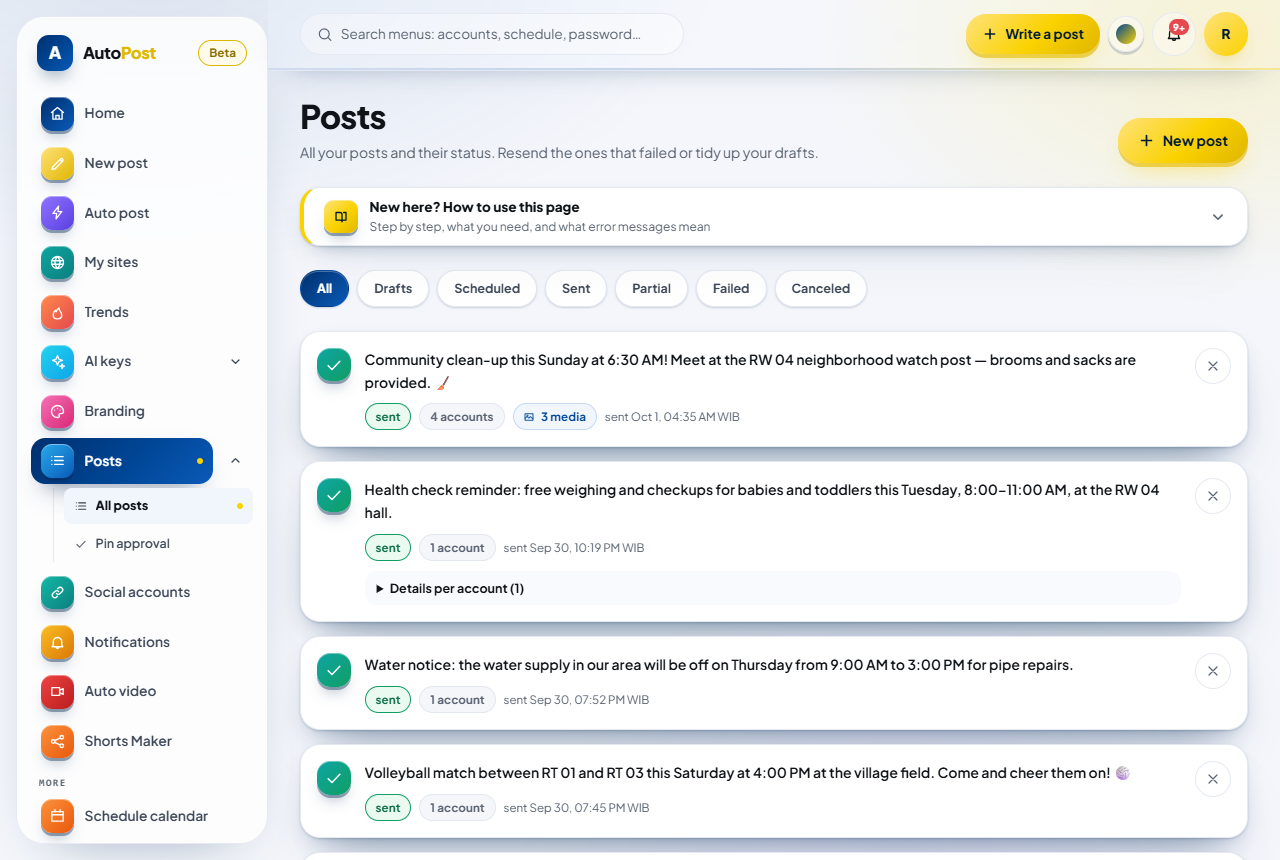
| Status | What it means | Buttons available |
|---|---|---|
| draft | Not scheduled, not sent yet. | Open in composer, Send now |
| scheduled | Waiting for the scheduled time. | Send now |
| sending | Being sent right now. | — |
| sent | All target accounts received the post. | — |
| partial | Some accounts succeeded, some failed. | Resend failed |
| failed | No account has succeeded yet. If there's an N retrying automatically pill, AutoPost will still try; wait, or press Resend failed. | Resend failed |
| canceled | The post was canceled. For Telegram, this status practically never happens (it's used for Pinterest Pins that weren't approved). | — |
Extra pills on each post:
N accounts — the number of target accounts.
N media — the post is an album (cover = first media).
N sent / N failed — the breakdown when the status is partial or failed.
N retrying automatically ± 02:15 PM — some accounts are waiting for a retry, with the estimated time.
The time: scheduled … WIB, sent … WIB, or created … WIB.
Details per account (N) — the list of accounts with the reason they failed or are being retried, or a note about a send that succeeded (for example a caption cut at 1,024 characters). If anything failed, these details open right away; if they only contain notes, press the heading to open them.
Each post also has an X button to delete it (see Scheduling).
Other messages that may appear on this page:
No posts here yet — that tab is empty.
Posts couldn't be loaded. Reload this page in a moment. — a temporary problem while reading the list.
7.7 Send result summary
After you press Send now or Resend failed, one of these messages appears:
| Message | What it means |
|---|---|
| Sent to N accounts. | Everything succeeded. |
| Sent to N accounts, M skipped (platform not supported yet). | Some accounts are on a platform whose sender isn't available yet. |
| Sent to N accounts, X failed, Y will be retried automatically. | Some succeeded, some failed, some are waiting for a retry. |
| Not sent yet — Y will be retried automatically. | Nothing has succeeded yet, but AutoPost will try again. In the composer it's green and followed by "No need to press Send again; follow the result on the Posts page."; on the Posts page it's shown in red, and the post has the failed status while it waits. |
| All sends failed — open the Posts page to see why. | Everything failed. The reason is in Details per account on that post on the Posts page (7.9). |
| Nothing was sent: all target accounts use platforms the AutoPost sender doesn't support yet. | There's no account that can be sent to. |
| Some accounts are being sent to by another process. Reload shortly to see the result. | Sending is running from another process (for example a schedule). Wait, then reload. |
| Sending finished. | The process finished. |
7.8 Automatic retries and resending
Automatic retries. If a failure is temporary (for example Telegram is rate-limiting, Telegram's servers are having trouble, or the connection dropped before the message was sent), AutoPost tries again by itself:
| Attempt | When |
|---|---|
| 1st | When first sent |
| 2nd | 1 minute later |
| 3rd | 5 minutes later |
| 4th | 30 minutes later |
If Telegram asks for a longer wait, AutoPost follows Telegram's request. If it still fails after 4 attempts, the status becomes failed. While it waits, the post card on the Posts page shows the pill "N retrying automatically ± 02:15 PM".
Permanent failures (for example the token was rejected, the bot isn't an admin, the file is too large) are not retried automatically. Fix the cause first. The details for each message are in the "Retried automatically?" column in 9.2 and 9.4.
If a sending process stops partway (for more than 15 minutes), AutoPost recovers it by itself and tries again. Because of this, in rare cases a message may be published twice (if the message had actually been published before the process stopped). Delete one of them in Telegram.
Resend failed. On the Posts page, posts with the partial or failed status have a Resend failed button. This button:
only resends to accounts that failed (accounts that already received it are not sent to again);
starts accounts that failed again from the first attempt;
tries accounts that are waiting for a retry right away, without resetting their attempt count.
7.9 Where to see why a send failed
Main place: the Posts page → Details per account. Every post card that has a reason or a note shows a Details per account (N) section:
One row per account: the platform logo, the account name, its state (failed, retrying, skipped, or sent · note), then the reason in a full sentence (the same message as in the 9.4 table). Rows for accounts that are retrying end with "(retrying automatically, attempt N of 4)".
Accounts that failed are listed at the top, and their details open right away. If they only contain notes about sends that succeeded (for example that the caption was cut at 1,024 characters, or that a photo was sent as a file), the details are collapsed; press the heading to open them.
Accounts that have been disconnected still appear, with the name Disconnected account.
Drafts don't show details.
Second place: red text under the account name in Social accounts → Telegram → Manage. It shows the latest failure reason for that account (not per post). If another send fails after that, the text is replaced; if a send succeeds after that, the text is removed. Not every reason appears here (see the Where is it shown? column in 9.4) — the details on the Posts page are always more complete.
Other places that give hints, but not reasons:
The inline message after you press a send button only contains a summary of the numbers (see 7.7).
Notifications on the bell icon (see 7.10) only tell you the result.
If the number of failures goes up but the details are empty, reload the Posts page. If they're still empty, check that the media is still in storage and the account hasn't been disconnected, then press Resend failed. If it still fails, contact us (section 13).
7.10 Notifications
AutoPost tells you the results of sends through the bell icon in the top bar and the Notifications page:
| Notification title | Content |
|---|---|
| Sent to N accounts | All target accounts received your post. |
| Partially sent (x succeeded, y failed) | Open the Posts page to see why. |
| Sending failed | Open the Posts page to see why. |
A notification appears when the result is final (nothing is waiting for a retry anymore).
"Open the Posts page to see why.": the reason is in Details per account on that post (see 7.9).
You can choose the types on the Notifications page: Successful sends, Failed sends (both are on from the start), and Feature news & tips.
Notifications appear inside AutoPost, and — if you press Turn on for this device under Notifications on this device — also as device notifications for failed sends. There are no alerts through Telegram or email.
7.11 Auto post
The Auto post feature creates posts automatically and sends them through the same queue.
Auto posts are sent in the next round (about 1 minute).
On the auto post's edit page, check the Telegram accounts you want to send to.
Telegram accounts whose status isn't "connected" are skipped without notice. Keep your accounts healthy.
If no connected account is checked, you see the message: "No connected target account yet. Check accounts on the auto post's edit page."
An auto post design card (4:5, 1080 × 1350 pixels) is only created when there's no image and (a) the auto post's image mode is set to card, or (b) Instagram/Pinterest is also selected. If it's created, that card is also sent to Telegram.
The name written on the card (or in the image branding) is taken from the label of the first checked account in the auto post, whatever its platform, so it may not be your Telegram channel name.
7.12 What you can't do for Telegram yet
So there are no surprises, here's what isn't supported yet:
Sending to several topics of one topic group (one group = one topic per AutoPost account; see B4).
Bold/italic text (Markdown/HTML) and buttons under messages.
Silent sends, content protection (no forwarding/saving), polls, stickers, audio, and animations.
Editing or deleting messages already published from AutoPost. Do it directly in Telegram.
Changing a post that's already scheduled or sent. Delete it and create it again (see Scheduling); drafts can be edited with Open in composer.
Sending photos as full-quality files by your choice (only automatic for photos over 10 MB).
Telegram channel view statistics.
Changing the token without disconnecting the account (see 8.3).
Finding the ID of regular groups and private chats from inside AutoPost (for channels/supergroups, just paste a message link; see Step C).
Per-Pin approval only applies to Pinterest, not Telegram.
8. Managing Telegram accounts
Everything is managed in Social accounts → Telegram → Manage.
8.1 What account statuses mean
An account's status can change from two sources: sending and Retest. Each judges it differently.
| Status pill | What it means | What you need to do |
|---|---|---|
| connected (green) | The last test passed or the last send succeeded. | Nothing. If there's red text under the account name, it's the reason the last send failed for another cause (for example the file was too large). Read it and fix it. |
| needs reconnecting (red) — the Social accounts page uses the same label | From sending: Telegram rejected the token; the bot was removed/blocked/isn't an admin; the target wasn't found; the group became a supergroup; the target topic was deleted; or the token can't be opened. From Retest: the token check failed, for any reason, including temporary problems (for example "Telegram didn't answer within 20 seconds" or "Telegram's servers are having trouble…"). | Read the red text under the account name. If the cause is a temporary problem, just press Retest again a little later; no need to Disconnect. Otherwise, fix the cause, then press Retest. If the token or ID changed: Disconnect and connect again. |
| has a problem (red) | From Retest only: the token is valid, but the target check failed, for any reason: the bot was removed, the bot has no send rights (not a channel admin, Post Messages turned off, restricted in the group), the target wasn't found, the group became a supergroup, or a temporary problem. | Read the red text. Check that the bot is still in the channel/group and its rights are right, then Retest. If the cause is a supergroup or a changed ID, follow 8.4. |
If an account isn't "connected", the Social accounts page shows a red banner:
N accounts need attention (label…). Open the platform, then press Retest or reconnect — until it's fixed, posts to that account will most likely fail.
The status goes back to connected automatically when Retest passes or a send to that account succeeds.
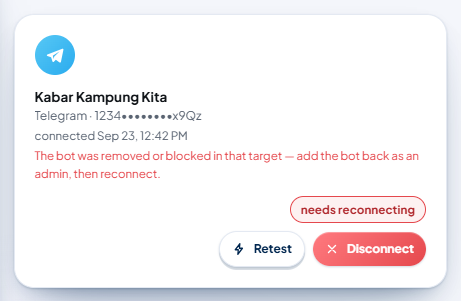
8.2 Retest
The Retest button checks the account again without sending any message:
It opens the stored token.
It asks Telegram whether the token is still valid (getMe).
It asks whether the target can still be found (getChat).
It checks the bot's send rights in that target (getChatMember), the same as when connecting (see 6.3). The stored topic is used too.
If it passes: the status becomes connected, the red text is removed, and the label (including the topic suffix) and the @username are updated from Telegram.
If it passes, you see this message:
Retest finished — the account is still healthy and ready to send.

Below it there may be the same notes as when connecting (see 6.4).
If it fails, a red message "Failed: …" appears at the top of the page, and the reason is also written in red under the account name. The status changes according to the 8.1 table: the token check fails → needs reconnecting; the target check fails → has a problem. If the cause is a temporary problem ("Telegram didn't answer within 20 seconds", "Telegram's servers are having trouble…", "Couldn't reach Telegram from the server", or rate limiting), just press Retest again a little later.
Retest is not limited in number.
Retest now also checks the bot's send rights (channel: admin with the Post Messages right; group: allowed to send messages). Media permissions, slow mode, paid messages, and closed topics aren't checked yet, so the sure way is still Resend failed or a test post.
When to use Retest:
After you add the bot back to the channel/group, or fix its permissions.
After renaming the channel, so the label in AutoPost changes too.
After unblocking the bot in a private chat.
8.3 Changing the token
You need to change the token if it leaked, was lost, or you deliberately created a new one.
In Telegram:
Open @BotFather.
Send
/token, then choose your bot. Or send/mybots→ choose the bot → API Token → the option to revoke the current token (for example Revoke current token). Menu names may differ.Copy the new token.
Make sure the token really changed. Compare the last 4 characters of the new token with the old one (AutoPost shows the old token masked on the account card, for example
1234••••••••x9Qz). If they're the same, the token has NOT changed yet: use/mybots→ choose the bot → API Token → Revoke current token (or/revoke). Once it's really revoked, the old token stops working.
In AutoPost (there's no "change token" button yet, so you disconnect and connect again):
First note down the scheduled posts going to this account (see Posts → All posts, the Scheduled tab, or the Schedule calendar menu). Disconnecting the account also deletes the schedules to that account.
Press Disconnect on the old account, then Yes, disconnect.
Connect again with the new token and the same target (Step D).
Recreate the scheduled posts you noted, and check this account again in auto posts if needed.
Until the new token is entered, every send to this account fails with the message "Telegram doesn't recognize the bot token…" and the account becomes needs reconnecting.
Also make sure the Telegram account that owns the bot uses Two-Step Verification (see Protecting the bot owner's Telegram account).
8.4 Group became a supergroup
If you see the message "This group has become a supergroup, so its address changed — reconnect this account.":
First finish any group settings changes still left (for example turning on Topics), then copy the link of one message in that group (Step C, method 1). A supergroup already has a
t.me/c/…link. For a public group,@groupnameis enough.Note down the schedules going to this account, then Disconnect the old account.
Connect again with the same token and that message link (or the new ID starting with
-100).Recreate the schedules you noted.
AutoPost doesn't move to the new ID automatically.
8.5 Disconnecting an account
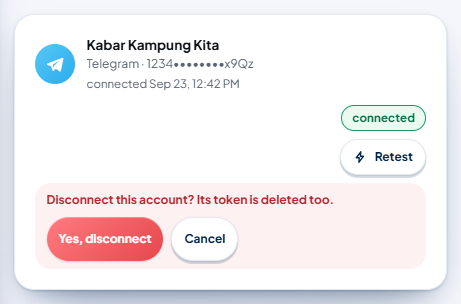
Press Disconnect on the account card.
The question "Disconnect this account? Its token is deleted too." appears, with the buttons Yes, disconnect and Cancel. The Cancel button (or the Esc key on the keyboard) cancels.
Press Yes, disconnect (while it works, the button reads Processing…). You see the message: "Account disconnected — its row and token are gone from the database." This message also appears if the account had already been disconnected in another tab.

What gets deleted from AutoPost too:
The account and its token.
All post targets for that account, including the send result history and schedules that haven't run yet.
That account's selection in auto posts.
Scheduled posts whose only target was that account become failed when their time comes (a Sending failed notification, and a post card without an account pill). If you press send on such a post, you see the message "No target accounts yet — choose target accounts when composing the post."
Once disconnected, the token and account data are removed from the running system right away. Copies in database backups made regularly are only removed when those backups are rotated according to our backup schedule.
What does NOT get deleted:
Messages already published in the Telegram channel/group. Delete them directly in Telegram if needed.
Your bot in Telegram. The bot still exists and is still an admin. Remove the bot from the channel/group, change its token (
/token), or delete the bot (/deletebot) in @BotFather if you no longer use it.
8.6 Adding a 2nd and 3rd account
Repeat Step B and Step D for another target. You can:
use the same bot for several channels/groups (the bot must be an admin in each), or
use a different bot for each target.
You can't connect the same target twice (even with a different bot): you see the message The target "X" is already connected. For topic groups, the message adds a tip about changing the topic (disconnect, then connect again with a message link from the new topic); one topic group can only be sent to one topic per AutoPost account.
The limit is 3 Telegram targets per AutoPost account. To add a fourth, disconnect one first.
9. Troubleshooting
Look for the message you see in the tables below. Messages are written exactly as they appear in AutoPost. The letters N, X, or Y stand for real numbers or names.
On the Telegram page, failure messages start with the word "Failed:" in red.




9.1 When filling in the form (browser messages)
| Message | What it means | How to fix it |
|---|---|---|
| The browser's own message (for example "Please match the requested format.") followed by "Token format: digits, a colon, then about 35 letters/digits — e.g. 123456789:AAH…" | The token doesn't have the right shape. The browser stops it before it's sent. | Copy the full token from @BotFather again. Make sure there are no spaces, no word bot in front, and nothing cut off. |
| A browser message like "Please fill out this field." | A field is still empty. | Fill in the token and the target. |
9.2 When pressing "Test & connect", "Retest", or "Disconnect"
Many messages in this table can also appear when sending, as red text under the account name. The last two columns explain what happens if the message appears when sending:
Retried automatically? — whether AutoPost tries again by itself (see 7.8).
Status becomes needs reconnecting? — whether the account status changes to needs reconnecting.
A — means the message doesn't appear when sending (only when connecting, on Retest, or on Disconnect).
Status changes caused by Retest are explained in 8.1.
| Message | What it means | How to fix it | Retried automatically? | Status becomes needs reconnecting? |
|---|---|---|---|---|
| The bot token hasn't been pasted. | The token field is empty. | Paste the token from @BotFather. | — | — |
| The bot token format isn't recognized. Copy it in full from @BotFather: digits, a colon, then about 35 letters/digits (e.g. 123456789:AAH…). | The token has the wrong shape. | Copy the full token again. Remove spaces, quotation marks, or the word bot in front. | — | — |
| This target is your own bot — a bot can't send to itself. Enter a channel, a group, or the chat ID of someone who has pressed Start in your bot. | You entered your own bot's username or ID. | Enter the channel, group, or person who receives the messages. | — | — |
| The token doesn't look right. A bot token from @BotFather looks like 123456789:AA… (about 45 characters). | The token passed the first check, but its length is unusual. It's usually cut off or has extra characters. | Copy the full token again. If needed, request a new token (8.3). | — | — |
| Telegram doesn't recognize the bot token. Check what you pasted (it looks like 123456789:AA…) | Telegram rejected the token: a typo, it has been changed, or the bot has been deleted. | Copy the latest token from @BotFather (/mybots → bot → API Token). If the token was changed: Disconnect and connect again with the new token (8.3). | No | Yes |
| The target is empty — channel @name, -100… ID, or a t.me link. | The target field is empty. | Enter an @name or a numeric ID. | — | — |
| The target is empty. | The target is empty after tidying (for example it only contained @). | Enter a full @name or a numeric ID. | — | — |
| The target is too long. Enter the channel @name, -100… ID, or a t.me link. | More than 200 characters (for example a long text was pasted). | Enter an @name, an ID, or just one message link. | — | — |
| A bot can't use an invite link as a target — copy the link of a MESSAGE in that group/channel (long-press the message → Copy link) and paste it here. | You pasted an invite link (t.me/+…, t.me/joinchat/…, or a folder link t.me/addlist/…). Bots can't use invite links. | Open the channel/group, press and hold one message → Copy Link, then paste that link. | — | — |
| A phone number link can't be used as a target. For a private chat, ask the person to press Start in your bot, then enter that chat's numeric ID. | You pasted a phone number link (t.me/+62…). | Follow B5. | — | — |
| That's not a Telegram link. Enter the channel/group @name, a numeric ID (e.g. -1001234567890), or paste a t.me message link from that channel/group. | The pasted link isn't a t.me/telegram.me address. | Enter an @name, a numeric ID, or a message link from Telegram. | — | — |
| That link isn't a channel or group address. Paste the link of a MESSAGE in the target channel/group (long-press the message → Copy link), or enter the @name / numeric ID. | Another kind of Telegram link, for example a sticker, share, or proxy link. | Copy the link of one message in the target channel/group. | — | — |
| The t.me/c/… link is incomplete. Copy the link of a message again (long-press the message → Copy link) and paste it in full. | The t.me/c/… link is cut off or its numbers are broken. | Copy the message link again in full. | — | — |
| Invalid chat ID. Channel/supergroup IDs start with -100 (e.g. -1001234567890), regular groups start with a minus sign, private chats are positive numbers. | The entry is a number that can't be an ID (for example 0, or too long). | Check the number, or just paste a message link. | — | — |
| Target not recognized. Enter a public channel/group @name, a numeric ID (e.g. -1001234567890), or paste a message link from that channel/group. | The entry isn't an @name, a number, or a Telegram link, for example it contains spaces (Kabar Kampung) or hyphens (kabar-kampung). | Write the @name address exactly (Latin letters, digits, underscores), or paste a message link. | — | — |
| Target not found. Make sure the bot has interacted with that channel/group, or use @name or the -100… ID | Telegram can't find the target. Common causes: a typo; a private channel written as @name; an ID without the minus sign or without -100 (for example a number from Telegram Desktop); a private chat where Start hasn't been pressed. For private targets only (a numeric ID or a t.me/c/… link): the bot hasn't been added to the channel/group. | Check the spelling. For a private channel/group, paste the link of one of its messages (Step C, method 1) and make sure the bot has been added (Step B). For a private chat, press Start in the bot first. | No | Yes |
| This group has become a supergroup, so its address changed — reconnect this account. | The group was upgraded to a supergroup; its ID changed. | Follow 8.4. | No | Yes |
| The bot was removed or blocked in that target — add the bot back as an admin, then reconnect. | The bot was removed from the channel/group. For a private chat: that person blocked the bot. | Channel/group: add the bot back as an admin, then Retest. Private chat: unblock the bot and press Start (or Restart), then Retest. | No | Yes |
| The bot isn't an admin of that channel/group yet — make it an admin first (permission: send messages). | Appears when sending: the bot isn't a member/admin, or its rights aren't enough (for example the bot's permissions were changed after connecting). Channel: the Post Messages right is off. Group: the bot is only a member and the group doesn't let members send messages or that media type (for example Files for photos over 10 MB). | Channel: turn on the Post Messages right. Group: just make the bot an admin (group admins can send automatically; there's no "send messages" switch in groups). Then Retest and Resend failed. | No | Yes |
| The bot isn't an admin of this channel yet. Make the bot a channel admin with the 'Post Messages' permission, then try again. | When connecting or on Retest: the bot isn't in the channel, or is only a regular member. | Add the bot as a channel admin with the Post Messages right (B1), then try again. | — | — |
| The bot is a channel admin, but its 'Post Messages' permission is still off. Turn that permission on in the bot's admin settings, then try again. | The bot's Post Messages right is off. | Turn that right on (B1 step 7), then try again. | — | — |
| The bot was removed from this channel before. Add the bot back as a channel admin with the 'Post Messages' permission, then try again. | The bot was removed from the channel. | Add the bot back as an admin, then try again. | — | — |
| The bot isn't in this group yet. Add the bot to the group — preferably as an admin — then try again. | The bot hasn't joined the group. This often happens with public groups, because a public group's info can be read even when the bot hasn't joined. | Add the bot to the group (B3), then try again. | — | — |
| The bot was removed or blocked from this group. Remove the bot from the blocked users list, add it back to the group (preferably as an admin), then try again. | The bot was removed and is on the group's block list. | In the group settings, open the list of removed/blocked users (Removed Users), remove the bot from that list, then add it back. | — | — |
| The bot is restricted in this group and can't send messages. Lift the restriction or make the bot a group admin, then try again. | A group admin restricted the bot (restricted). | Lift the bot's restriction, or make the bot an admin. | — | — |
| This group only lets admins send messages. Make the bot a group admin, then try again. (topic groups: "This topic group only lets admins send messages, including to topic #N. …") | The group's member permissions don't allow sending messages, and the bot is only a member. | Make the bot a group admin (B3), then try again. | — | — |
| The bot's send permission couldn't be checked because Telegram isn't responding properly. Try again shortly. | A temporary problem while checking the bot's rights. The account hasn't been saved yet; on Retest, its status becomes has a problem. | Try again a little later. | — | — |
| Telegram is rate-limiting sends (try again in N seconds). | Telegram asks for a pause. | Wait N seconds. The send will be retried automatically. | Yes | No |
| Telegram is rate-limiting sends. Try again shortly. | The same, without saying how long to wait. | Wait a moment, then try again. | Yes | No |
| Telegram's servers are having trouble. We'll try again. | A problem on Telegram's side. | When sending: wait for the automatic retry. When connecting or on Retest: try again a few minutes later. | Yes | No |
| Telegram didn't answer within 20 seconds | The token/target check took too long. Only appears when connecting or on Retest. When sending, a timeout always appears as an "…uncertain…" message (see 9.4). | Try again a little later. | — | — |
| Couldn't reach Telegram from the server | The connection from the AutoPost server to Telegram failed. | Try again later. If it keeps happening, contact us. | Yes | No |
| Telegram's response couldn't be read (HTTP N) | Telegram answered in an unexpected format. | Try again. If it keeps happening, contact us and mention the number N. | Yes if N = 429 or 500 and up; otherwise No | Yes if N = 401 or 404; otherwise No |
| Telegram rejected the request (HTTP N) | Telegram rejected it without an explanation. | Check the token and target, then try again. If it keeps happening, contact us. | No | Only if N = 403 |
| Telegram rejected the request. | The same, without a code. | Same as above. | No | No |
| Too many attempts. Wait about N seconds, then try again. (or "… N minutes …") | More than 5 connection attempts in 10 minutes. | Wait for the time given. While you wait, double-check the token and target. | — | — |
| There are already 3 Telegram accounts. Disconnect one first if you want to replace it. | The 3-account limit has been reached. | Disconnect one of the accounts (8.5). | — | — |
| This platform's limit of 3 accounts has been reached. | The same; caught by the database check. | Disconnect one of the accounts. | — | — |
| The target "X" is already connected. | That target is already in your account list (even through another bot). For topic groups, the message adds: "To change its topic, disconnect that account first, then connect again with a message link from the new topic." | Use the existing account (press Retest if needed), or disconnect and connect again to change the topic. | — | — |
| This account is already connected. | The same; caught by the database check. | Reload the page; the account is already in the list. | — | — |
| The account to disconnect wasn't recognized. | The form data is broken or incomplete (very rare). Note: disconnecting an account that was already disconnected in another tab still shows the success message "Account disconnected — …". | Reload the page, then try again. | — | — |
| The account to test wasn't recognized. | The form data is broken or incomplete (very rare). | Reload the page, then try again. | — | — |
| Account not found. | You pressed Retest on an account that's already been disconnected (for example in another tab). | Reload the page. | — | — |
| This account's token can't be opened (the server encryption key differs from when it was saved). Disconnect and reconnect. | The server can no longer open the stored token (appears on Retest; the account status becomes needs reconnecting). | Disconnect and connect again with the same token. | — | — |
| The token can't be opened — the server encryption key changed. Reconnect this account. | The same (shown as red text under the account after Retest). | Disconnect and connect again. | — | — |
| This bot still uses a webhook, so AutoPost can't use it. | Very rare. The bot is being used by another service. | Create a new bot just for AutoPost. | No | No |
9.3 When composing a post
| Message | What it means | How to fix it |
|---|---|---|
| Write something or add media first. | The text and media are both empty. | Fill in the text or add media. |
| The text is too long for: Telegram. | The text is longer than 4,096 characters. | Shorten the text. Remember: with media, the real limit is 1,024 characters. |
| Links must start with http:// or https://. | The Link field isn't valid. | Write the full link, for example https://example.com. |
| Choose the date and time for the schedule. | Schedule mode without a date. | Fill in the date and time. |
| The schedule date and time aren't complete yet. | The date or time is missing. | Complete both. |
| The scheduled time has already passed — choose a time in the future. | The scheduled time is in the past. | Choose a future time (WIB). |
| Connect an account first — schedules and sends need a target account. The draft can still be saved. | No account is connected yet. | Connect Telegram (Step D), or save as a draft. |
| Choose the target accounts first. | No account is checked. | Check an account in the Send to section. |
| …: choose a JPG/PNG/WebP/GIF photo or an MP4/MOV video. | The file type isn't supported. This often happens with iPhone photos in HEIC format. | Convert it to one of those types (for Telegram, JPG/PNG is safest). On an iPhone, set the camera to Most Compatible. |
| …: larger than 50 MB — choose a smaller file. | The file is too large to upload. | Shrink or trim the file. |
| Media uploaded & ready to send with this post. | The upload succeeded. | — |
| Image saved & ready to send with this post. | The image from the Image studio was saved. | — |
| No session found — sign in before uploading. | Your sign-in session had ended when uploading. | Sign in again, then upload again. |
| Media upload failed. Check the file type and size (max. 50 MB), then try again. | Storage rejected the file. | Check the file type and size, then try again. |
| The media was uploaded, but its preview link couldn't be created. Try again. | The file was saved, but its link couldn't be created. | Upload it again. |
| …: upload failed. | Another upload failure, without details. | Try again. If it keeps happening, contact us. |
| The alt text for media item N is too long (max. 1000 characters, currently N). (Server check: "The alt text is too long (max. 1000 characters, now N).") | The Alt text field is longer than 1,000 characters. This message blocks saving even if only Telegram is selected (alt text isn't sent to Telegram). | Shorten or clear the Alt text field. |
| Invalid alt text. | The server couldn't read the alt text. | Clear the Alt text field, then save again. |
| This photo was held by the AI check. Replace or remove the photo first — a post with this photo can't be saved, scheduled, or sent. | The AI photo check put this photo on hold. | Replace or remove the photo. |
| Save, Schedule, and Send now are disabled: … | The note under the buttons when a photo is held by the AI check. | Replace or remove the photo. |
| The This photo has serious findings dialog (the box "I have the rights/permission for this photo.", the buttons Continue sending / Continue scheduling / Cancel) | The AI check found something serious in the photo (for example about copyright). | Only check the box if you really have the rights/permission, then continue. If not, press Cancel and replace the photo. |
| Couldn't save (HTTP N). Please try again. | The server failed to save. | Try again. If it keeps happening, contact us. |
| Couldn't reach the server. Check your connection and try again. | Your internet connection dropped. If this message appears after "Saved — sending…", the post has already been saved and may already have been sent. | Check your connection. Before pressing again, check the Posts page and your channel/group so it isn't posted twice (see Send now). |
| Saved — sending to the selected accounts… | Send now is running. | Wait for the result summary. |
| Post scheduled. | The schedule was saved. | — |
| Draft saved. | The draft was saved. | — |
| Add text or media. | Server check: the content is empty. | Fill in the text or media. |
| The text is too long (max. 10,000 characters). | More than 10,000 characters. | Shorten the text. |
| Invalid schedule time — include the time zone. | The time format couldn't be read. | Choose the date and time again, then save again. |
| Invalid schedule time. | The same; the server couldn't read the date. | Choose the date and time again, then save again. |
| The request body couldn't be read. | The data sent by the browser is broken. | Reload the page, then try again. |
| The target accounts can't be read right now. Please try again shortly. | A temporary problem while checking the target accounts. | Try again shortly. |
| The schedule time has already passed. | The schedule is in the past. | Choose a future time. |
| You can schedule at most one year ahead. | The schedule is more than 1 year away. | Choose a closer date. |
| Choose target accounts for a scheduled post. | A schedule without accounts. | Check at least one account. |
| Too many target accounts (max. 24). | More than 24 accounts are checked. | Reduce the target accounts. |
| The media file wasn't found in your storage. | The selected file no longer exists. | Upload the media again. |
| Invalid media address — upload the file or use an http/https link. | The media address isn't recognized. | Upload the file, or paste an https://… link to the file. |
| Target accounts not found — reload the page and choose them again. | A checked account has been disconnected. | Reload the page, then check the accounts again. |
| The post couldn't be saved. Please try again shortly. | A storage problem. | Try again shortly. |
| The target accounts couldn't be saved, so the post wasn't saved. Try again. | A storage problem. | Try again. |
| Your session has ended. Please sign in again. | You were signed out automatically. | Sign in again. Text that wasn't saved may need to be typed again. |
The Photo check panel (appears when Telegram is selected):
| Message | What it means | How to fix it |
|---|---|---|
| The X MB file is over the limit for Telegram (10 MB as a photo; larger files are sent as a document). | The photo is larger than 10 MB. It's sent as a file (in a group, a member bot needs the Files permission). Sizes over 10 MB are written without decimals, for example 12 MB. If other platforms are also selected, the message is combined, for example "… over the limit for Instagram (8.0 MB) and Telegram (10 MB as a photo; …)". The tip shown: "Compress or resize the image to under …". | Shrink the photo below 10 MB if you want it to show as a photo. |
| Width + height of N px is over Telegram's limit (10,000 px). | The photo's dimensions are too large. | Reduce the photo's dimensions. |
| The … ratio is too elongated for Telegram (max 20:1). | The photo is too long or too tall. | Crop the photo so its ratio is no more than 20:1. |
9.4 When sending
Besides the messages in 9.2 (which can also appear when sending), here are the messages specific to sending.
The Retried automatically? column shows whether AutoPost will try again by itself.
The Where is it shown? column shows where you can read the message. Details = in Details per account on the post card on the Posts page — every message in this table appears there. Red text = also shown under the account name in Social accounts → Telegram → Manage (see 7.9).
| Message | What it means | Retried automatically? | Where is it shown? | How to fix it |
|---|---|---|---|---|
| Telegram couldn't fetch the media file — make sure the file still exists and is publicly accessible. | Telegram failed to fetch the media from its address, and AutoPost also failed to upload it directly. | Yes | Details + red text | Make sure the media address can still be opened without signing in and points directly to the file (not a web page). Safest: upload the file from your gallery. |
| The media file is too large for Telegram (photos up to 10 MB, videos/files up to 50 MB). | The media is over Telegram's limits. | No | Details + red text | Shrink the file, then Resend failed. |
| The media file (X MB) exceeds the Telegram bot upload limit (50 MB). Make the file smaller or trim it, then resend. (the size may be missing if media from an outside address was refused while downloading because it was too large) | The media is over 50 MB. | No | Details + red text | Shrink or trim the video, replace the media, then send again. |
| The text is too long for Telegram. | Very rare, because text is usually cut automatically. | No | Details + red text | Shorten the text. |
| Telegram didn't answer within 30 seconds, so the result is uncertain. Check the target channel/group before resending so it isn't posted twice. (for media: 120 seconds) | It's unclear whether the message was published. | No | Details + red text | Open the channel/group first. If the message is already there, don't resend. If it isn't, press Resend failed. |
| The connection to Telegram dropped mid-send, so the result is uncertain. Check the target channel/group before resending so it isn't posted twice. | The same. | No | Details + red text | Same as above. |
| Telegram took very long to refuse fetching the media by link. The message hasn't been sent — retrying later. | Telegram is slow to fetch the media. | Yes | Details + red text | Wait. If it keeps happening, upload the media from your gallery. |
| The media couldn't be fetched for uploading to Telegram: … (followed by the reason, for example "The site refused the request or the page wasn't found." or "The site didn't respond in time.") | The AutoPost server failed to fetch the media file to upload it directly to Telegram. This usually happens with large media uploaded to AutoPost (photos over 5 MB, videos over 20 MB). | Yes | Details + red text | Wait for the retry. If the stated reason is about the address (a local network, a special port, a username/password in the address, or not http/https), waiting won't help: fix the address or upload from your gallery. If it keeps happening, upload the media again. |
| The media file is empty. | The media file is 0 bytes. | No | Details + red text | Upload the correct file again. |
| There's no text to send. | The text is empty and there's no media. | No | Details + red text | Fill in the text. |
| The send target is empty — reconnect this account. | The account's target data is broken. | No | Details + red text | Disconnect and connect again. |
| The saved target isn't recognized — reconnect this account. | The account's target data is broken (very rare). | No | Details + red text | Disconnect and connect again. |
| Topic #N in this group is closed, so the bot can't send there. Reopen that topic and resend, or reconnect this account with a message link from another topic. | The target topic in the topic group is closed. | No | Details + red text | Reopen the topic in Telegram, then Resend failed. |
| The General topic in this group is closed or hidden, so the bot can't send there. Reopen or unhide the General topic and resend, or reconnect this account with a message link from another topic. | The account has no topic, and the General topic is closed or hidden. | No | Details + red text | Reopen or unhide the General topic, then Resend failed. |
| Topic #N wasn't found or has been deleted. Reconnect this account with a link to a message in a topic that still exists (long-press the message → Copy link). | The target topic was deleted. The account becomes needs reconnecting. | No | Details + red text | Disconnect the account, then connect again with a message link from another topic (B4). |
| The account has no target (channel/group) yet — reconnect this account. | The same. | No | Details + red text | Disconnect and connect again. |
| The sender hit an unexpected error. | An error in AutoPost. | Yes | Details + red text | Wait for the retry. If it keeps happening, contact us. |
| The account token can't be opened — the server encryption key differs from when the token was saved. Disconnect and reconnect this account. | The stored token can no longer be opened. The account becomes needs reconnecting. | No | Details + red text | Disconnect and connect again. |
| This target account has been deleted. | The account was disconnected before the post was sent. | No | Details | Connect again, then recreate the post. |
| The target account doesn't belong to you. | The account doesn't match your AutoPost account. | No | Details | Reload and choose an account that belongs to you. |
| The AutoPost server is having trouble opening account tokens. We'll try again later. | A temporary problem on the AutoPost server. | Yes (after a pause of at least 30 minutes) | Details (+ the "retrying automatically" pill) | Wait. If it keeps happening, contact us. |
| This post's media file doesn't belong to you. | The media doesn't match your account. | No | Details | Replace the media with your own upload. |
| This post's media file is no longer in storage — upload the media again. | The media has been deleted from storage. | No | Details | Recreate the post with the media uploaded again. |
| The media link couldn't be created. We'll try again. | A temporary problem. | Yes | Details (+ the "retrying automatically" pill) | Wait for the retry. |
| Pengiriman sebelumnya terputus; kami mencoba lagi otomatis. (Shown in Indonesian; it means "The previous send was interrupted; we're retrying automatically.") | The sending process stopped for a while; AutoPost recovered it. In rare cases, the message may be published twice. | Yes | Details (+ the "retrying automatically" pill) | Wait. If the message is published twice, delete one of them in Telegram. |
| Pengiriman terputus berulang kali. Periksa tujuan lebih dulu sebelum mengirim ulang, supaya tidak dobel. (Shown in Indonesian; it means "The send was interrupted repeatedly. Check the target before resending so it isn't posted twice.") | It stopped 4 times. | No | Details | Check the channel/group first, then resend only if it wasn't published. |
The note "The … MB photo exceeds Telegram's photo limit (10 MB), so it was sent as a file (document)." isn't an error; see 9.8. The same goes for the text-cutting note ("The text exceeded Telegram's limit for … characters, so N characters at the end were cut at a word boundary and replaced with "…".): the send still succeeds, and both appear as sent · note in Details per account on the Posts page.
9.5 Messages after pressing a send button
| Message | What it means | How to fix it |
|---|---|---|
| This post has been canceled. | The post has the canceled status. | Create a new post. |
| No target accounts yet — choose target accounts when composing the post. | The post has no target accounts (for example its account has been disconnected). | Recreate the post and check an account. |
| The database is having trouble. Please try again shortly. | A temporary problem. | Try again shortly. |
| Sending failed (HTTP N). Try again. | The server failed to process the button. | Try again. |
| Couldn't reach the server. Check your connection. | Your internet connection dropped. | Check your connection. |
| Post not found. | The post has been deleted. | Reload the page. |
Other send result summaries are in 7.7.
When deleting a post (the X button on the Posts page):
| Message | What it means | How to fix it |
|---|---|---|
| The post couldn't be deleted (HTTP N). | The server failed to delete it. | Try again. If it keeps happening, contact us. |
| Post not found or already deleted. | The post no longer exists (for example it was deleted in another tab). | Reload the page. |
| Post not found. | The post address isn't valid. | Reload the page. |
| Couldn't reach the server. Check your connection. | Your internet connection dropped. | Check your connection, then try again. |
9.6 Original messages from Telegram
If Telegram sends a reason that AutoPost hasn't translated yet, AutoPost shows Telegram's original text (in English, up to 160 characters). The ones you're most likely to see:
| Original message | What it means | How to fix it |
|---|---|---|
| Forbidden: bot can't initiate conversation with a user | The target person has never pressed Start in the bot. | Ask that person to open the bot and press Start, then Retest. |
| Forbidden: user is deactivated | The target Telegram account has been deleted. | Disconnect this account; the target can't be sent to anymore. |
| Forbidden: the group chat was deleted | The group has been deleted. | Disconnect this account. |
| Bad Request: photo has unsupported extension. Use one of .jpg, .jpeg, .gif, .png, .tif or .bmp | Telegram doesn't accept this photo type. Common cause: a WebP photo. This message isn't retried automatically. | Convert the photo to JPG or PNG, then recreate the post or resend. |
| Bad Request: wrong HTTP URL specified | Telegram says the media address isn't valid. It's rarely seen as is: Telegram's media errors usually read "wrong file identifier/HTTP URL specified" and appear as "Telegram couldn't fetch the media file…" (9.4). | Check the media address, or upload from your gallery. |
| Forbidden: bot can't send messages to bots (the exact text may differ slightly) | The Target field contains a bot's username, for example your own bot. Telegram doesn't let bots send to bots. | Disconnect this account, then connect again with the right target (a channel, group, or person). |
Messages starting with Forbidden usually give the account the needs reconnecting status. Once the cause is fixed, press Retest.
Other original messages not in this table aren't retried automatically. Copy the text if you contact us.
9.7 Server warning box
If a warning box titled "The server encryption key isn't set up yet" or "A database migration hasn't been run" appears on the Telegram page, or you see a technical message that mentions the encryption key, a server configuration file, or a database migration…
…it's a problem on our server, not your mistake. The form and the Retest button are temporarily disabled. Don't keep trying; contact us (section 13) and copy the message shown.
9.8 Problems that show no message
| Symptom | Possible cause | How to fix it |
|---|---|---|
| Connecting succeeded, but later sends fail with "The bot isn't an admin…" | The bot's rights changed after connecting (the bot was removed or its rights were turned off), or in a group: the bot is a regular member and the group doesn't allow that media type. | Channel: turn on the Post Messages right. Group: make the bot an admin (B1–B3). Then Retest and Resend failed. |
| The account status is needs reconnecting after Retest, even though the token is right | Retest hit a temporary problem while checking the token (for example Telegram didn't answer). | Press Retest again a little later. No need to Disconnect. |
| Sends to the group work, but large photos fail | Photos over 10 MB are sent as files; the group doesn't let members send Files and the bot isn't an admin. | Make the bot an admin, or shrink the photo below 10 MB. |
| The bot's messages appear under the group's name, not the bot's | The Remain Anonymous admin right is on for the bot. | Turn that right off in the bot's admin settings. |
| The bot's name appears as the author under channel posts | The channel has Sign Messages turned on. | Normal. Turn that setting off in the channel if you don't want it. |
| Posts go to your own private chat, but you meant a group | The ID copied from getUpdates is the "from" number (a personal ID), not the "chat" one. | Get the ID again from the "chat" part (a negative number), Disconnect, then connect again. |
The text in Telegram is cut off and ends with … | The post has media; captions are limited to 1,024 characters (without media: 4,096). AutoPost cuts at a word boundary; a note of how many characters were cut is in Details per account (Posts page), and the composer already marked it red before saving. | Shorten the text below 1,024 characters, or send without media. |
| The link at the end of the text doesn't appear | You typed that link yourself at the end of a text that was too long, so it was cut too. (A link from the Link field is kept whole as long as the text still keeps at least 40 characters.) | Move the link to the Link field or to the start of the text, or shorten the text. |
* or _ marks appear as is | AutoPost sends plain text. | Remove those formatting marks. |
| Posts go to the General topic, not the topic you wanted | The account was connected with @name, a numeric ID, or just a topic link (one number), not a link to a message inside the topic. The account label ends in · topik General. | Disconnect, then connect again with the link of one message inside that topic (B4). |
| The photo shows as a file (document), not a photo | The photo is larger than 10 MB. AutoPost deliberately sends it as a file; this isn't an error. Its note appears as sent · note in Details per account. | Shrink the photo below 10 MB. |
| The photo looks less sharp than the original | Telegram reprocesses photos sent as photos. | Normal. AutoPost can't send small photos as full-quality files yet. |
| A GIF shows as a still image (not moving) | GIFs are sent through the photo route, not the animation route. | Convert the GIF to a short MP4 video. |
| A MOV video shows as a file or doesn't play on some devices | Telegram only guarantees MP4 (H.264) videos; MOV (often HEVC from iPhones) is sent as is. | Convert the video to MP4 (H.264), then send it again. |
| A scheduled post is published about 1 minute late | AutoPost checks schedules every minute. | Normal. |
| A post is published at the wrong time | The time was entered in WITA/WIT, but AutoPost reads WIB. | Enter the time in WIB. |
| A post was sent to an account you didn't mean | All accounts except TikTok and X are checked automatically in New post. | Uncheck the accounts you don't want before saving. |
| Auto post doesn't send to Telegram | The Telegram account's status isn't "connected", or it isn't checked in the auto post. | Fix the account status (section 8), then check the account on the auto post's edit page. |
| Schedules to a Telegram account disappeared | The account was disconnected at some point; schedules to that account were deleted too. | Recreate the schedules after connecting again. |
| Double messages in the channel | One of: (1) pressing Resend after an "uncertain" result, when the first message had already been published; (2) pressing Send now again after the "Couldn't reach the server…" message in the composer, when the first post had already been saved (see Send now); (3) automatic recovery after a sending process stopped for more than 15 minutes (see 7.8). | Delete one message in Telegram. Next time, check the channel and the Posts page first. |
| Several scheduled posts to the same group are a few minutes late | Telegram limits the rate (about 20 messages per minute per group); AutoPost retries automatically. | Leave a few minutes between schedules to the same group. |
| A message deleted in AutoPost is still in Telegram | AutoPost doesn't delete messages already published. | Delete it directly in Telegram. |
| The bot can't be added to a group | /setjoingroups is turned off in @BotFather. | Turn it back on in @BotFather. |
You can't find the ID with getUpdates ("result":[]) or Conflict appears | No new messages yet; in a group, plain messages aren't received by a non-admin bot (privacy mode); more than 24 hours passed; the bot uses a webhook; or the bot is used by another program. | See Step C, method 2. |
| The channel name in AutoPost is still the old name | The label is only updated on Retest. | Press Retest. |
| A message sent to a channel also appears in the discussion group | Telegram forwards channel posts to the linked discussion group. This is Telegram's behavior. | Normal. Change it in the Telegram channel settings if you don't want it. |
10. Security and privacy
10.1 Protecting the token
Token = full control of the bot. Treat it like a password.
Paste the token only on the AutoPost Social accounts → Telegram page, at the address
https://app-autopost.solusikecerdasankomputasi.com. Check the address in your browser before pasting.Don't send the token by chat or email to anyone, including us.
Don't keep the token in screenshots, shared documents, or unlocked notes.
Make the bot an admin only in the channels/groups you actually want to post to, with only the rights it needs: in a channel, Post Messages is enough; in a group, just make it an admin and turn off the other rights (delete messages, ban users, add admins, and the like).
If you use getUpdates, follow the safety steps in Step C, method 2.
Protect the Telegram account that created the bot with Two-Step Verification, and for organizations, create the bot from an account owned by the organization (see Protecting the bot owner's Telegram account).
10.2 If the token leaks
Do this right away, in order:
Change the token in @BotFather:
/token(or/mybots→ bot → API Token → Revoke current token). Make sure the token really changed: the last 4 characters of the new token must differ from the old token (see 8.3). Once revoked, Telegram rejects the old token.Reconnect in AutoPost with the new token (8.3).
Check the channels and groups where the bot is an admin. Delete messages you didn't send. Remove the bot from channels/groups you no longer use.
If the bot has already been misused, consider deleting the bot (
/deletebot, can't be undone), then create a new bot.If you suspect the Telegram account that created the bot was broken into (not just the token), secure that account first and turn on Two-Step Verification; otherwise, the attacker can get a new token again through @BotFather.
10.3 What AutoPost stores and how it's protected
| What's stored | Protection |
|---|---|
| Bot token | Encrypted with AES-256-GCM by the application server before it goes into the database. The key only exists on the server. The token is only opened on the server when needed to send or test. |
| Target (chat ID), channel/group name, @username, connection status, last failure message | Stored in the database, readable only by your AutoPost account. |
| Bot details (username, ID, and bot name), chat type, whether it's a topic group, topic number | Stored for technical purposes. The topic number also appears in the account label. |
| Post content and media | Sent to Telegram when published. |
The token is never shown in full again. The page only shows the first 4 and last 4 characters.
AutoPost doesn't read messages in your channels or groups. AutoPost only sends.
AutoPost uses Telegram's official route. No Telegram passwords or sign-in cookies are stored.
The AutoPost sending server runs in Singapore, and your data (including the encrypted token, posts, and uploaded media) is also stored in Singapore. Telegram may process post content on servers outside Indonesia.
Media you upload is shared with Telegram through signed links that are valid for a limited time (1 hour), not permanent public links. Large media is uploaded directly by the AutoPost server to Telegram.
Media from Add from a URL (outside links) is fetched directly by Telegram from that site; that site may record the requests from Telegram.
Full details are on the AutoPost Privacy Policy (/privasi) and Terms of Use (/ketentuan) pages.
10.4 Your data rights
Deleting one Telegram account: press Disconnect. The token and data of that account are removed right away from the running system (8.5).
Deleting your whole AutoPost account: the Settings → Delete account menu. To confirm, type
HAPUS(all capital letters) and your password. All social accounts with their encrypted tokens, posts, schedules, send results, and the media you uploaded are removed immediately from the running system.Copies in database backups made regularly are only removed when those backups are rotated or destroyed according to our backup schedule. Until then, backups are only used for recovery after an outage.
Not removed: messages already published in Telegram, and the bot you created yourself. Delete or revoke them directly in Telegram.
Other rights (access, getting a copy of your data, correcting it, withdrawing consent, objecting) are explained in Privacy Policy → Your rights. Send your request from your account's email address; we respond within 3 × 24 hours after the request is received and your identity is verified.
Can't sign in? Send a deletion request from your registered email address (see section 13).
11. Frequently asked questions
1. Does connecting Telegram cost anything?There's no charge from Telegram. The bot is created for free through @BotFather, and AutoPost uses the official Bot API route.
2. Why do I have to create my own bot? Can't I use my personal Telegram account?Telegram's official route for apps like AutoPost is through a bot. With a bot, AutoPost doesn't need your Telegram account's password or sign-in code.
3. I pasted the token, but it says "Telegram doesn't recognize the bot token". Why?Usually the token is cut off, has a space, or has been changed in @BotFather. Copy the latest token from @BotFather (/mybots → bot → API Token), then try again.
4. Can one bot be used for several channels?Yes. Make the bot an admin in each channel, then connect each channel as a separate account (up to 3 Telegram accounts).
5. My channel is private. What goes in the Target field?The easiest way: copy the link of one message in the channel (https://t.me/c/1234567890/15) and paste that link as is. AutoPost turns it into the ID -1001234567890 for you. You can also type that ID yourself. See Step C.
6. Can I use an invite link (t.me/+…) as the target?No. AutoPost rejects it with the message "A bot can't use an invite link as a target — …". Copy the link of one message in that channel/group (press and hold the message → Copy Link), then paste that message link.
7. Does the bot have to be an admin in a group?Not required, but strongly recommended. A bot that's a regular member is subject to all member restrictions: message permissions, the separate Photos/Videos/Files permissions, slow mode, and paid messages (Stars). A bot that is a group admin can automatically send messages and media without those restrictions (see B3).
8. AutoPost said it connected, so why did the first send fail?When connecting, AutoPost checks the token, the target, and the bot's right to send messages. What isn't checked yet: permission to send photos/videos/files in groups, slow mode, paid messages, and closed topics. The bot's rights can also change after connecting. Read the red text under the account name, fix the cause (channel: Post Messages; group: make it an admin), press Retest, then Resend failed.
9. Why was my text cut off in Telegram?If the post has a photo or video, Telegram limits the caption to 1,024 characters. AutoPost cuts the rest at a word boundary, adds …, keeps the Link field whole, and saves a note of how many characters were cut. Without media, the limit is 4,096 characters.
10. Can I choose a topic in a topic group?Yes. Copy the link of one message inside that topic (press and hold the message → Copy Link), then paste it into the Target field when connecting. Without that, posts go to the General topic. See B4.
11. Can I send several photos at once (an album)?Yes. Add 2 to 10 photos/videos in New post; AutoPost sends them as one album. GIFs can't be part of an album, and albums can't have buttons under the message.
12. Can AutoPost edit or delete messages already published?Not yet. Edit or delete them directly in the Telegram app.
13. Which time zone do scheduled times follow?Always WIB, whatever your device's time zone.
14. How punctual are scheduled posts?They're usually published at most about 1 minute after the scheduled time.
15. If Telegram has an outage, are my posts lost?No. For temporary problems, AutoPost tries again automatically after 1, 5, and 30 minutes (4 attempts in total). If it still fails, you can press Resend failed.
16. Are channel messages deleted too if I disconnect the account or delete my AutoPost account?No. Messages already published stay in Telegram. But schedules to that account that haven't run yet are deleted from AutoPost.
17. Can AutoPost read the messages in my group?No. AutoPost only sends; it doesn't read channel or group messages.
18. How do I change the token without losing my settings?There's no change-token button yet. Note down the schedules to that account, Disconnect the account, connect again with the new token, then recreate the schedules. See 8.3.
19. Does "Pin approval" apply to Telegram?No. Per-Pin approval is only for Pinterest. Telegram posts are sent directly on schedule or when you press Send now.
20. My account says "needs reconnecting". Is that different from what the Social accounts page shows?No. Both pages use the same label, and it means the account needs fixing. Read the red text under the account name, fix the cause, then press Retest.
21. Why am I asked to wait when I try to connect?For security, AutoPost allows 5 connection attempts every 10 minutes. Wait for the time given.
22. Can AutoPost send to other people's private chats?Only if that person has opened your bot and pressed Start, and you know their numeric ID. Only send to people who have agreed to receive messages.
23. How do I change or cancel a scheduled post?Scheduled posts can't be edited yet (only drafts can be reopened with Open in composer). Delete that post with the X button on the Posts page, then create a new post. See Scheduling.
24. Where can I see why a send failed?On the Posts page: open Details per account on that post's card. The latest failure reason for each account is also shown as red text in Social accounts → Telegram → Manage. See 7.9.
25. Can I put my bot's username in the Target field?No. The target is the channel, group, or person who receives the messages. Telegram doesn't let bots send messages to bots, and AutoPost rejects your own bot's ID on Test & connect.
12. One-page checklist
Print or save this page, then check the items one by one.
Preparation
Step A — Bot
Step B — Target (choose what applies)
Step C — ID (private targets only)
Step D — AutoPost
Step E — First post
Security
13. Help and contact
If your problem isn't answered in section 9 or section 11:
Email: halo@autopost.solusikecerdasankomputasi.com. Send it from the email address registered to your AutoPost account.
Include: the message shown (copied exactly, or a screenshot without the token), the type of target (public/private channel, group, topic group, or private chat), and roughly when it happened (WIB).
Never include your bot token in an email. We don't need it to help you.
Related pages in AutoPost:
Privacy Policy —
/privasiTerms of Use —
/ketentuanDeleting your account —
/hapus-akun
Telegram's official guide to bots: https://core.telegram.org/bots/features#botfather
AutoPost isn't affiliated with Telegram. Telegram is a trademark of its owner.
© 2026 PT Solusi Kecerdasan Komputasi. This guide was updated on 3 October 2026. The Telegram and AutoPost apps may change at any time.