AutoPostUser guide
Shorts Maker: one long video into up to 5 shorts
Transcript, scored candidates, karaoke captions, Follow face, limits, AI cost, and every message
Save this guide
PDF version to read offline or print · 3 MB · 34 pages
Contents
1. Overview
What Shorts Maker is
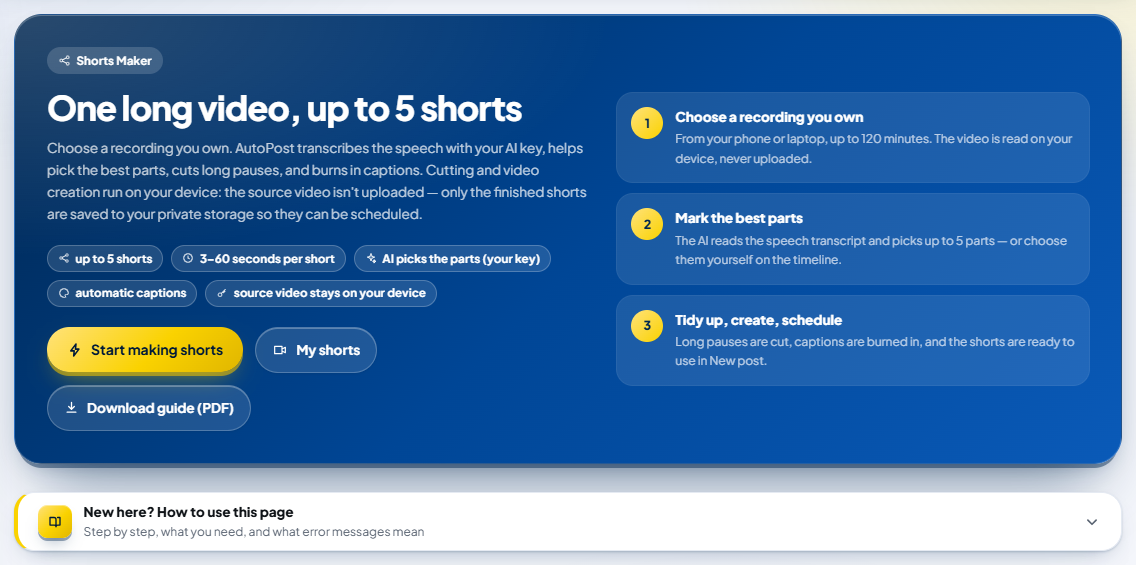
Shorts Maker is AutoPost's auto clipper: you choose one long recording you own — an interview, a podcast, a class, or a vlog of up to 120 minutes — and AutoPost helps you cut it into up to 5 shorts in vertical 9:16, each 3–60 seconds long, with captions that highlight the word being spoken, long pauses removed, and background music.
What makes it different from other clipping apps: all the cutting and video creation runs in your browser. The source video is never uploaded to the server. Only the finished shorts are saved, in your private storage, so they can be scheduled right away through New post.
What you'll be able to do
After following this guide you can:
choose a video from your phone or laptop and confirm your right to use it;
ask the AI to transcribe the speech and pick the best moments — or choose the parts yourself on the timeline;
read the AI candidates with their score, title, hook, hashtags, and suggested caption, then copy a list of timestamps or YouTube chapters;
tidy each part's bounds to the right start/end of a sentence;
choose a caption style (including karaoke-style word highlighting), a frame, music, and Follow face;
make the short on your device, download its MP4, or use it straight away in New post.
Quick flow
| Step on the page | What you do | Result |
|---|---|---|
| Step 1 — Choose a video you own | choose an MP4/MOV file, tick the usage rights statement | the audio is read on the device, pauses detected |
| Step 2 — Choose the parts to turn into shorts | transcribe the speech, ask the AI to pick (or choose yourself) | up to 8 candidates, up to 5 parts ticked |
| Step 3 — Tidy up & set the look | set captions, pauses, design, frame, music, Follow face | the look of the shorts |
| Step 4 — Create & save | choose 720p/1080p, press Create … shorts | MP4 shorts saved, ready to schedule |
Estimated time
| Stage | How long (examples) |
|---|---|
| Reading the video's audio on the device | a few seconds (1:48 video: 3.7 s; the 1:07 sample in this guide: 0.6 s) |
| AI transcript | a few seconds to a few minutes, depending on the length of the audio |
| Making one short | on a laptop often faster than the short itself (the 17.4-second sample short at 720p took 4.4 s); on a mid-range phone roughly as long as the short (0.83–1.0× real time) |
2. Understanding the terms
| Term | What it means in Shorts Maker |
|---|---|
| Short | one vertical 9:16 short video cut from the source, 3–60 seconds |
| Part | the time range in the source video that becomes one short (Start–End) |
| Transcript | the spoken words in the video with the time of each word, made by AI with your key |
| Candidate | a part suggested by the AI (or by the suggestion without AI), with a score and a title |
| Match score | a number from 0 to 100 estimating how well the part works as a short — an estimate, not a promise of going viral |
| Hook | the opening line shown at the top of the short during the first 2 seconds (optional) |
| Pause | silence between speech; shown as a grey band on the timeline |
| Burned-in captions | captions drawn straight into the video (viewers can't turn them off) |
| Word highlight | karaoke style: the word being spoken is colored |
| Follow face | the vertical crop pans gently to follow the speaker's face |
| AI key | your own API key from an AI provider (e.g. Gemini), stored in the AI keys menu |
3. Before you start
What you need
| Need | Notes |
|---|---|
| A video you own | MP4 or MOV, at most 2 GB, 3 seconds to 120 minutes |
| A browser that can make MP4 | the latest Chrome or Edge (Android/Windows/Mac), or Safari 16.4+. Firefox for Android can't make MP4 yet |
| Your own AI key (for the transcript & AI picks) | add it in the AI keys menu. A Gemini key is available for free |
| The screen stays on | while shorts are being made, the page must stay open |
Without an AI key, what still works?
Shorts Maker still works without an AI key, with limits:
You choose the parts yourself on the timeline (I'll choose myself), or use Suggest without AI, which reads the video's audio on the device (parts that are dense with speech and energetic).
Captions aren't available, because captions are made from the transcript. The Burned-in captions switch shows "Needs a speech transcript (step 2)."
Candidates have no title, hook, hashtags, or suggested caption from the AI; their score comes from the video's audio only.
Only videos you own — links aren't accepted
Shorts Maker only accepts files from your device. YouTube, TikTok, or Instagram links aren't accepted, because their terms of service forbid downloading content. Before choosing a video, you must tick the statement that the video is yours or that you have permission to use it.
The background music in Shorts Maker is made by AutoPost itself (synthesized on the device), not third-party songs, so it adds no copyright risk.
4. Privacy: what is sent where
| Data | Where to | Notes |
|---|---|---|
| Source video | nowhere | read and cut in your browser; never stored on the server |
| Compact audio (Opus 16 kbps) | to your AI provider with your key, only when you press Transcribe speech | only the AUDIO is sent, not the video; AutoPost doesn't store it |
| Transcript (the spoken text) | to your AI provider when you press Ask the AI to pick … parts | kept in this device's browser for 30 days (can be cleared) |
| Video frames for Follow face | nowhere | faces are found on the device; the detector is downloaded once (about 3 MB) |
| Finished short (MP4 + JPEG cover) | your private storage in AutoPost | at most 50 MB per short; stays until you delete it |
| Shorts plan (parts, style, usage rights statement) | the AutoPost database | shown under My shorts |
Follow face runs entirely on the device. In the 6 October 2026 test, not a single face-detector telemetry request left the browser.
5. Step 1 — Choosing a video you own
Open the Shorts Maker menu, then press Start making shorts (or scroll to the Make shorts from your video section).
On the Step 1 — Choose a video you own card, press Choose a video from your device and choose an MP4 or MOV file.
AutoPost reads the file on the device and shows a summary: file name, duration, size, resolution, and video codec (e.g.
1:07 · 640 KB · 1280×720 · AVC). A video without sound is marked " · no audio".
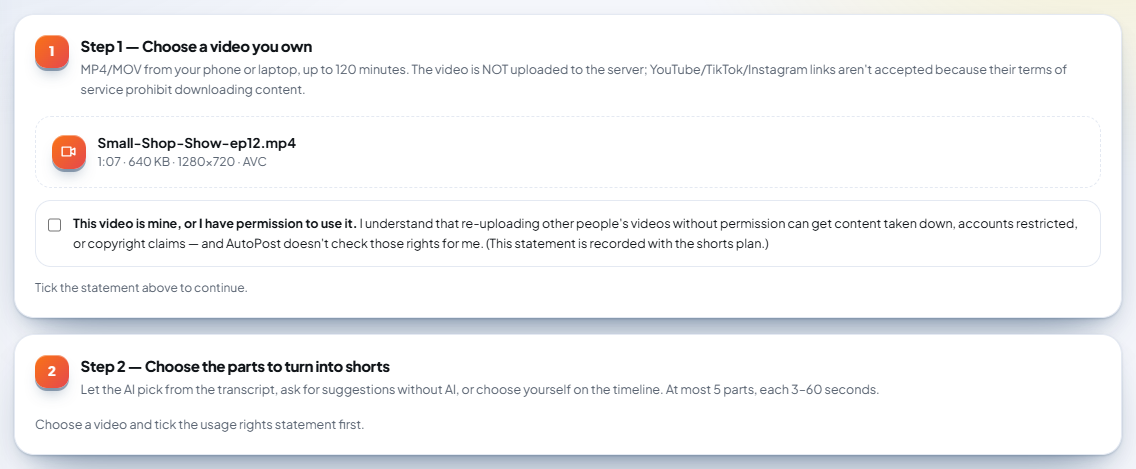
Read and tick This video is mine, or I have permission to use it. Until it's ticked, the next step stays locked ("Choose a video and tick the usage rights statement first.").
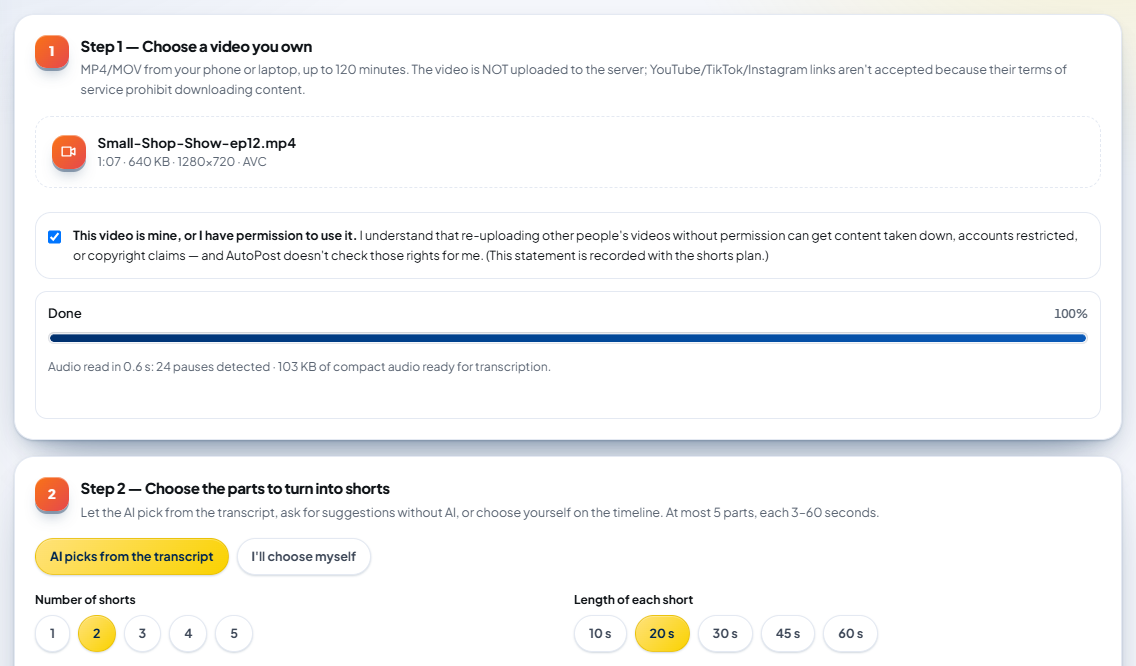
Once ticked, AutoPost reads the video's audio in one pass on the device: it finds the pauses and prepares compact audio for the transcript. The progress box stays in place when it's done — the bar fills up and the summary appears on its bottom line, for example Audio read in 0.6 s: 24 pauses detected · 103 KB of compact audio ready for transcription. (The steps below don't jump.)
If the video can't be read
Messages that can appear in Step 1 (full meanings in chapter 16):
"The file is larger than 2 GB. …" — trim the recording first in your phone's gallery.
"The video is longer than 120 minutes. Shorts Maker accepts recordings up to 120 minutes."
"The video is too short (at least 3 seconds)."
"This file can't be read as a video. Choose an MP4 or MOV file." — export it again as MP4 (H.264).
6. Step 2a — Transcribing the speech
The transcript is needed for two things: AI picks and captions. Its box is on the Step 2 — Choose the parts to turn into shorts card.
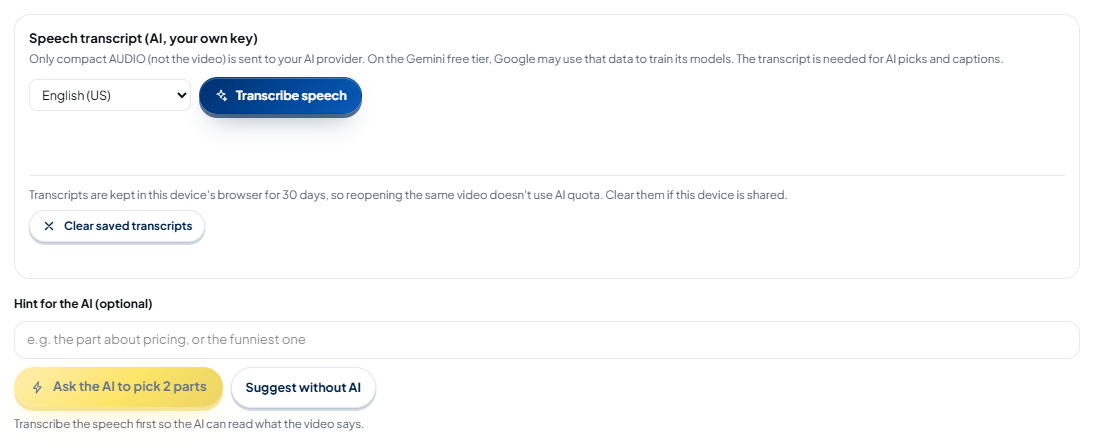
Choose the spoken language of the video. The choices: Detect automatically, Indonesian, English (US), English (UK), Malay, Mandarin, Japanese, Korean, Hindi, Arabic, Spanish, Portuguese (Brazil), French, German, and Vietnamese. The default follows the interface language (English (US) in the English interface).
Press Transcribe speech. While it runs, the button says "Transcribing…" and can be stopped with Cancel (that button appears next to it, in space that was already set aside — nothing shifts).
When it's done, AutoPost shows the number of words and the model used below the button, for example 147 words transcribed (gemini-3.5-transcribe) → 38 caption segments.
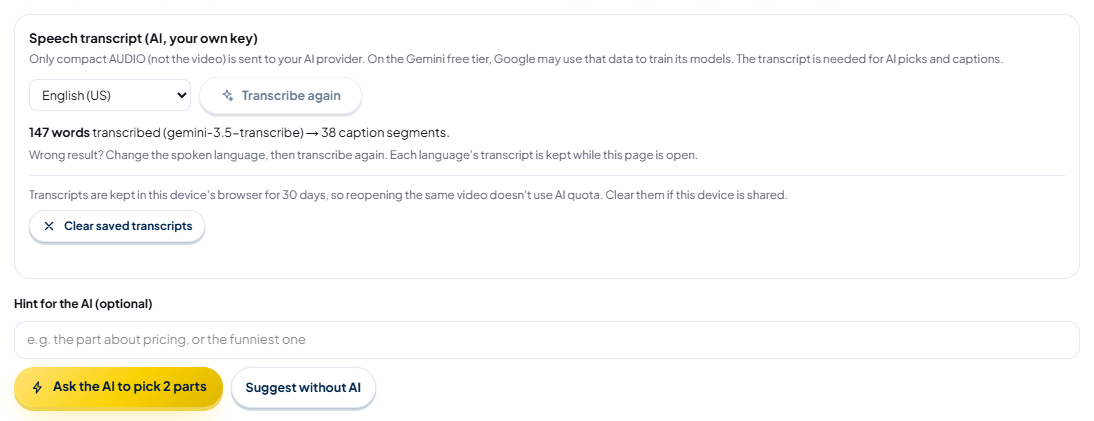
Wrong result? Transcribe again
If the transcript is garbled (usually because the wrong language was chosen), change the spoken language, then press Transcribe again. Each language's transcript is kept while the page is open; choosing a language again that was already transcribed reuses the earlier result without calling the AI ("This language was already transcribed in this session — reused without calling the AI.").
Transcripts kept on the device for 30 days
So that reopening the same video doesn't use AI quota again, transcripts are kept in this device's browser for 30 days (at most 30 transcripts). When you choose the same video, you see "Transcript loaded from this device, no AI quota used."
If the device is shared, press and hold Clear saved transcripts until it fills (about 2 seconds) — every transcript on this device is cleared, so the same video will use AI quota again. A short tap clears nothing (a reminder appears). The result reads, for example, "1 transcript cleared from this device."
In private (incognito) mode, browser storage isn't available: transcripts can still be made, they just aren't saved.
7. Step 2b — Choosing the parts
Above the transcript box there are three settings:
| Setting | Choices | Default |
|---|---|---|
| How to choose | AI picks from the transcript or I'll choose myself | AI picks from the transcript |
| Number of shorts | 1, 2, 3, 4, 5 | 2 |
| Length of each short | 10, 20, 30, 45, 60 s | 20 s |
"Length of each short" is a target. A chosen part can be a little shorter or longer so that sentences aren't cut, but it always stays between 3 and 60 seconds.
Option A — The AI picks
(Optional) Fill in Hint for the AI, for example "the part about pricing, or the funniest one" (at most 300 characters).
Press Ask the AI to pick … parts. The button stays faded until the transcript is done. While the AI is choosing, the button says "The AI is choosing…" and Cancel is available next to it.
The AI reads the transcript and suggests up to 8 candidates in the AI candidates panel (chapter 8). The highest-scoring candidates, as many as Number of shorts, are ticked right away and added to the Parts to create list.
Option B — Suggest without AI
The Suggest without AI button (in AI mode) or Suggest … parts (no AI) (in "I'll choose myself" mode) picks parts from the video's audio alone: parts that are dense with speech and spoken with more energy than the rest of the video. It needs no AI key, no transcript, and sends nothing anywhere.
Option C — Choose yourself on the timeline
Choose I'll choose myself.
Play the video to the position you want, then press Add a part at the player position.
Tidy that part right on the timeline: drag a box's edge to trim it, drag its body to move it.
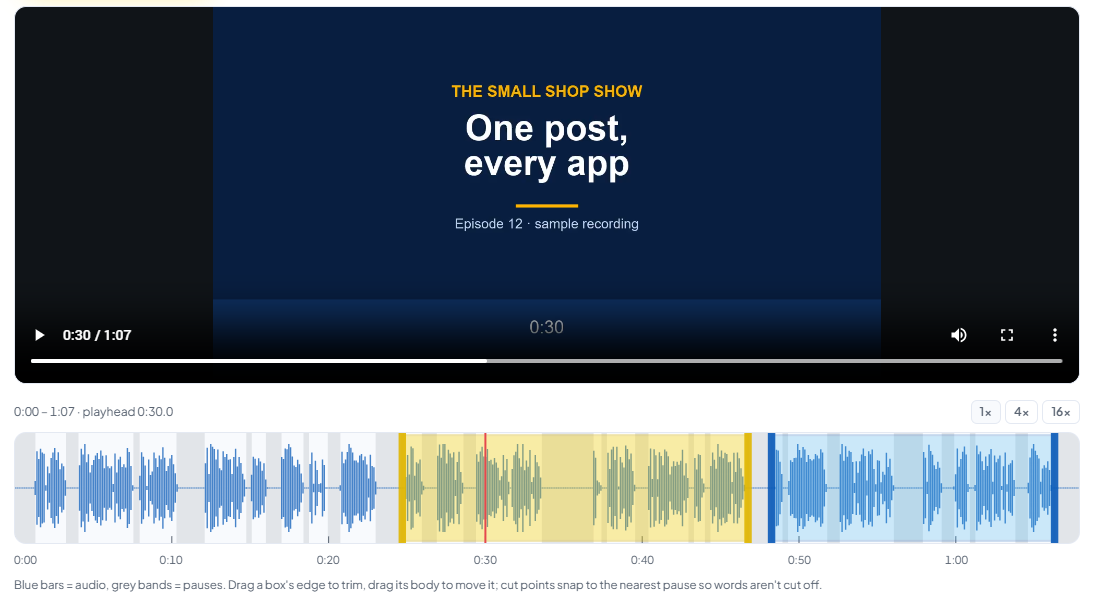
The timeline shows the audio waveform: blue bars = audio, grey bands = pauses. Cut points snap to the nearest pause so words aren't cut off. For long videos, zoom the timeline with 1×, 4×, or 16×.
Rules for parts:
at most 5 parts per video;
each part 3–60 seconds;
parts may not overlap — if you drag one until it overlaps, its bounds are moved automatically ("The bounds were moved so they don't overlap another part.").
8. AI candidates, scores, and the copy list
The AI candidates panel holds all of the AI's suggestions (and the suggestions without AI). Tick the candidates you want to turn into shorts — at most 5.
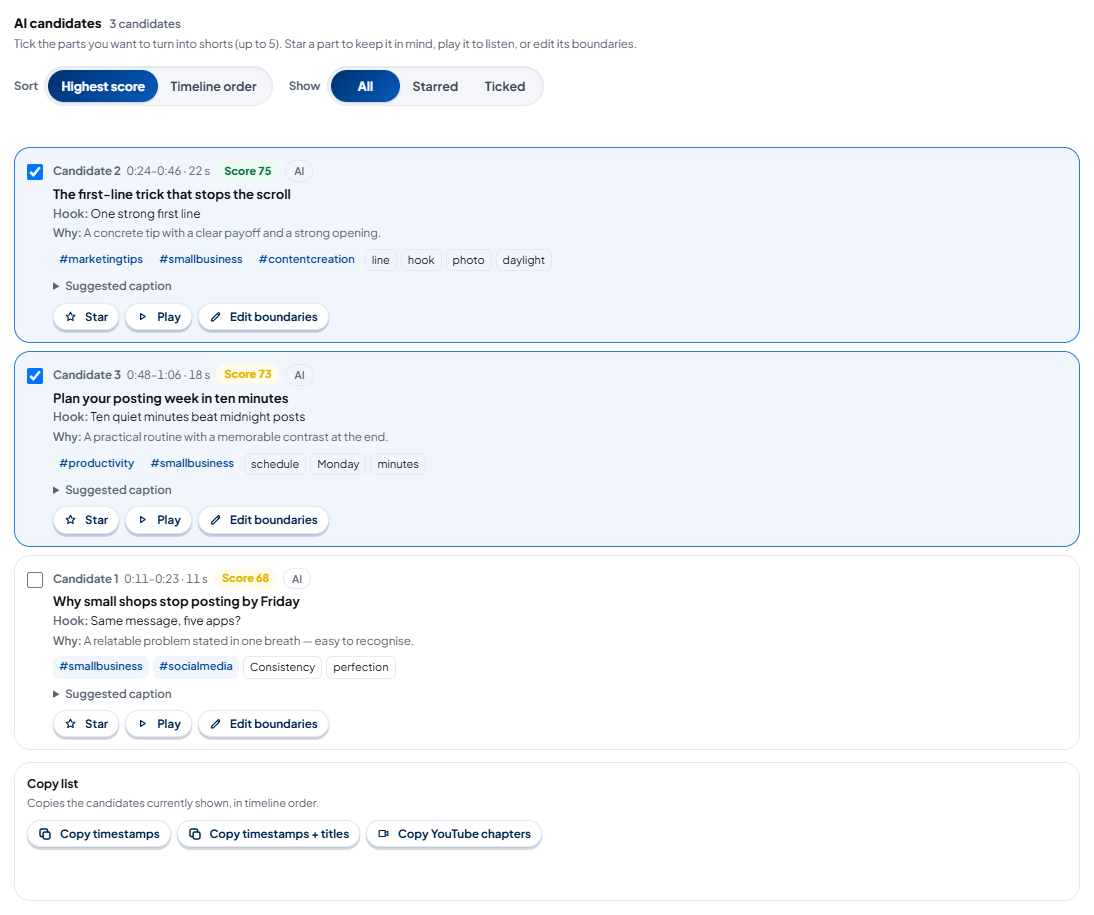
What a candidate card shows
| Part of the card | Content |
|---|---|
| Candidate N · range · duration | the position in the source video, e.g. "0:24–0:46 · 22 s" |
| Score | the match score 0–100 (see below) |
| Source | AI, Suggestion (no AI), or Manual |
| Title | the short's title from a third-person point of view, in the spoken language (≤ 100 characters) |
| Hook | the opening line shown during the first 2 seconds (≤ 80 characters) |
| Why | why the AI chose it, in your interface language (≤ 200 characters) |
| Hashtags | up to 5 hashtags, e.g. #marketingtips #smallbusiness |
| Keywords | up to 8 words actually spoken in that part — they're also colored in the captions |
| Suggested caption | a suggested post caption (≤ 300 characters); click to open it |
Buttons on each card:
Star — keeps a temporary mark; filter with Show › Starred.
Play — plays that part in the preview.
Edit boundaries — opens the boundary editor (chapter 9).
Sort candidates by Highest score or Timeline order, and filter with All, Starred, or Ticked (sliding choices; the keyboard arrow keys work too). A card you unstar or untick while filtering stays visible until you change the filter, so it doesn't vanish under your pointer. When 5 parts are already ticked, a sixth candidate is refused and the line "5 parts are already ticked — untick one first." appears above the list (its space is set aside, so the list doesn't shift).
What the score means
The match score is calculated from two sources:
The AI's rating (0–100) — weighted 70%;
The video's audio signal (0–100), calculated on the device from speech density and voice energy — weighted 30%.
Point at the score to see the breakdown, for example "AI rating 90 × 70% + video audio signal 82 × 30%. This is an estimate, not a promise of views." If the AI gives no score (or the candidate comes from the suggestion without AI), the score comes from the video's audio only.
Copy list: timestamps and YouTube chapters
Below the candidate panel is the Copy list box. What gets copied is the candidates currently shown, in timeline order.
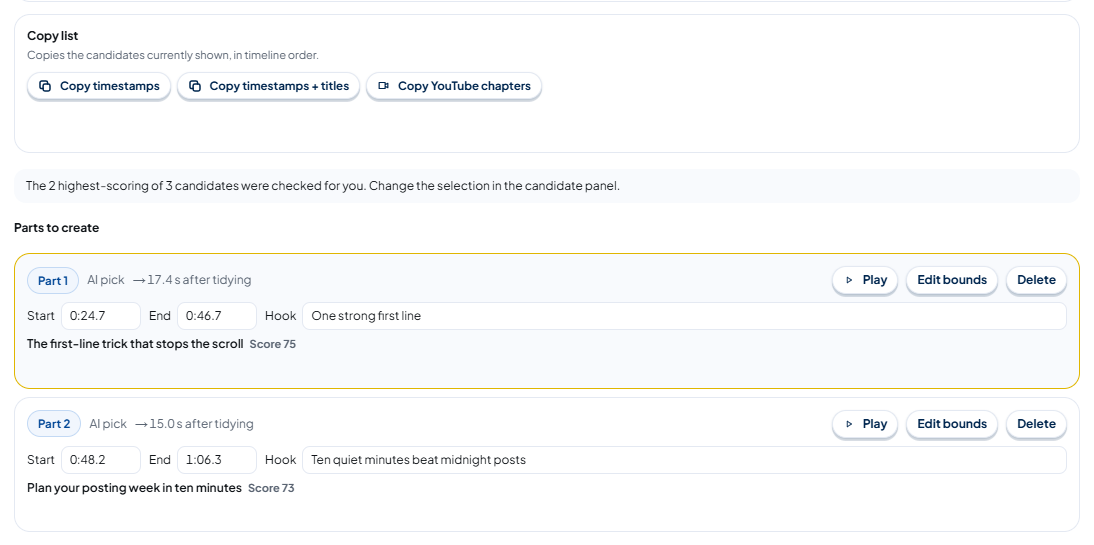
| Button | Result (example from the three candidates above) |
|---|---|
| Copy timestamps | 0:11–0:23, 0:24–0:46, 0:48–1:06 (one per line) |
| Copy timestamps + titles | 0:24–0:46 The first-line trick that stops the scroll and so on |
| Copy YouTube chapters | 0:00 Intro, then 0:11 …, 0:24 …, 0:48 … with the candidate titles |
YouTube chapters have two official rules that AutoPost checks:
at least 3 lines (including
0:00) — if fewer: "YouTube chapters need at least 3 lines (including 0:00). …";each chapter at least 10 seconds apart, including the last chapter to the end of the video — if not: "YouTube chapters must be at least 10 seconds apart, …".
Paste the result into the description of your long video on YouTube. A copy button briefly changes to Copied only when copying really worked; if the browser refuses the clipboard, it says Copy failed. A chapter-rule refusal appears below the three buttons, in space that's already set aside.
Parts to create
Ticked candidates become Part 1, Part 2, and so on. Each part shows its source (AI pick, suggestion, manual), its length after pauses are removed ("→ 17.4 s after tidying"), editable Start, End, and Hook fields, and the Play, Edit bounds, and Delete buttons. Times are written like 1:05 or 65.5 (seconds); if a time can't be read, leaving the field shows "Write a time like 1:05 or 65.5 (seconds). The previous time is kept." right below it — what you typed isn't silently replaced.
9. Editing a part's bounds
The AI sometimes starts a part a split second too early, or cuts before a sentence ends. Press Edit boundaries (on a candidate card) or Edit bounds (in the parts list) to open the editor.
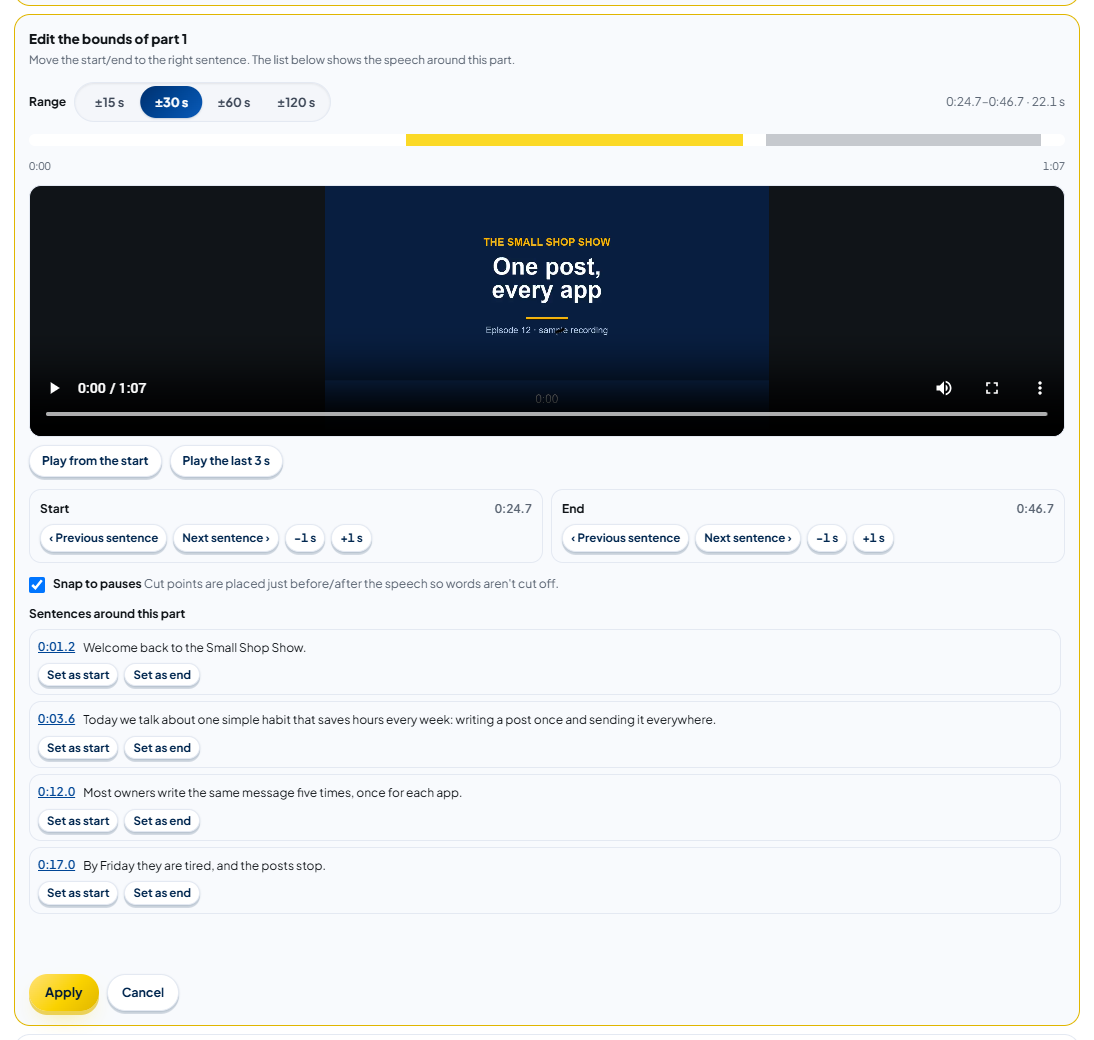
| Control | What it's for |
|---|---|
| Range ±15 / ±30 / ±60 / ±120 s | how far around the part is shown |
| Play from the start / Play the last 3 s | listen to the opening and closing of the part |
| ‹ Previous sentence / Next sentence › | move Start or End to the nearest sentence boundary |
| −1 s / +1 s | fine adjustment by the second |
| Snap to pauses | cut points are placed just before/after the speech so words aren't cut off |
| Set as start / Set as end | pick a sentence from the "Sentences around this part" list |
| Apply / Cancel | keep or discard the changes |
Invalid bounds are refused: "The part is too short (at least 3 seconds).", "The part is too long (at most 60 seconds).", or "This part overlaps another part. …" — the sentence appears right above Apply (its space is always set aside, so the button doesn't move) and Apply can't be pressed until the bounds are fixed. Without a transcript, the sentence list isn't available ("No transcript yet: …").
10. Step 3 — Tidy up & set the look
Four switches
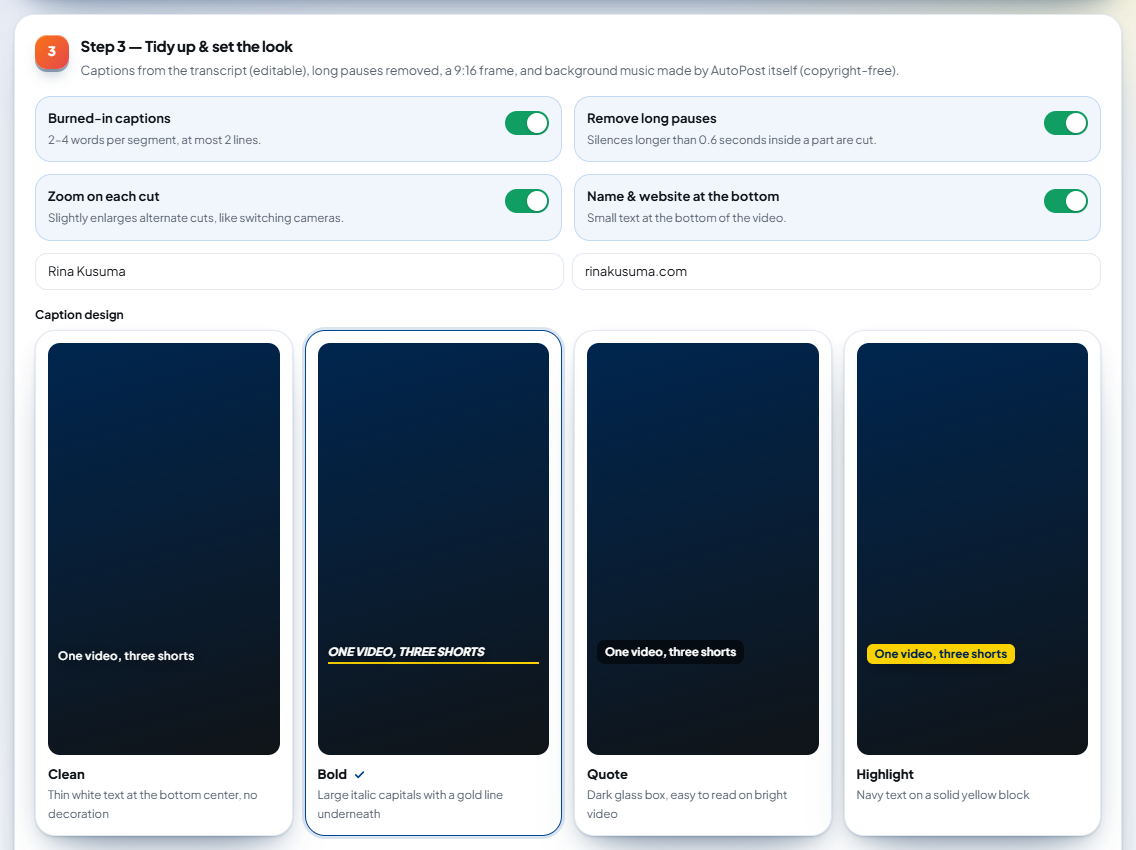
| Switch | Meaning | Default |
|---|---|---|
| Burned-in captions | 2–4 words per segment, at most 2 lines; needs the transcript | on |
| Remove long pauses | silences longer than 0.6 seconds inside a part are cut | on |
| Zoom on each cut | slightly enlarges alternate cuts, like switching cameras | on |
| Name & website at the bottom | small text at the bottom of the video; filled in from your profile, can be changed | on if your profile has a name/website |
Because pauses are removed, a short is usually shorter than the original part (example: the part 0:24.7–0:46.7 becomes 17.4 seconds). If after removing pauses a part is left with less than 3 seconds, AutoPost refuses to make it: "After removing pauses, part … is only … seconds (at least 3 seconds). Lengthen the part or turn off "remove pauses"."
Caption design
| Design | Look |
|---|---|
| Clean | thin white text at the bottom center, no decoration |
| Bold (default) | large italic capitals with a gold line underneath |
| Quote | dark glass box, easy to read on bright video |
| Highlight | navy text on a solid yellow block |
Caption style and word highlight (karaoke)
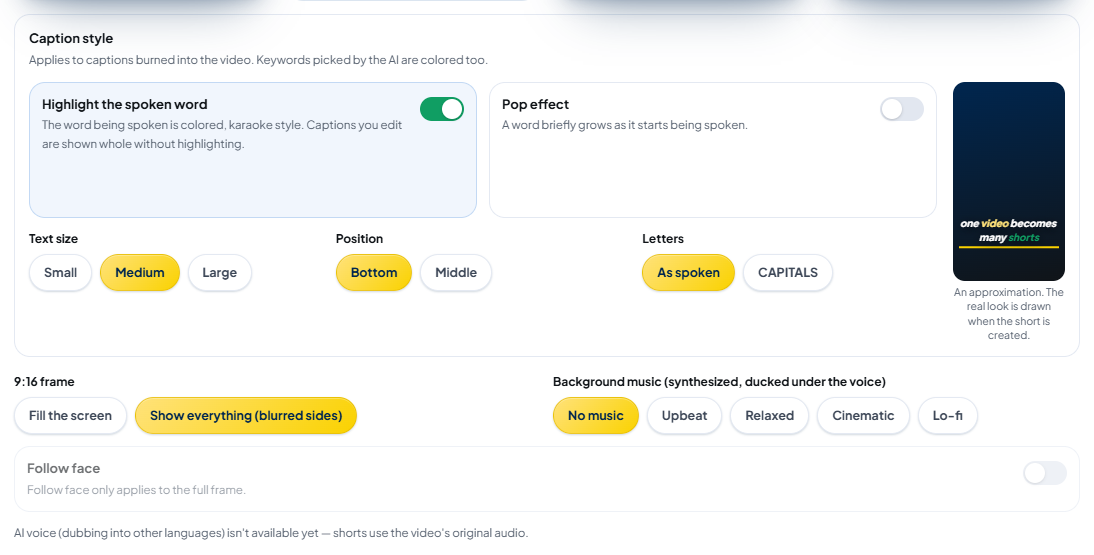
| Setting | Choices | Default |
|---|---|---|
| Highlight the spoken word | the word being spoken is colored, karaoke style | on |
| Pop effect | a word briefly grows as it starts being spoken | off |
| Text size | Small · Medium · Large | Medium |
| Position | Bottom · Middle | Bottom |
| Letters | As spoken · CAPITALS | As spoken |
Keywords picked by the AI also get their own color (in the Bold design: yellow for the word being spoken, green for keywords — see the result in chapter 12). The preview next to the controls is only an approximation; the real look is drawn when the short is created.
9:16 frame and background music
| Setting | Choices | Default |
|---|---|---|
| 9:16 frame | Fill the screen (the video is cropped vertically) · Show everything (blurred sides) (the whole video, the rest of the screen filled with a blurred copy) | Show everything |
| Background music (synthesized, ducked under the voice) | No music · Upbeat · Relaxed · Cinematic · Lo-fi | No music |
Background music is composed by AutoPost on the device (not third-party songs) and automatically gets quieter when someone speaks.
11. Follow face
Follow face pans the vertical crop gently to keep the speaker's face in the middle of the screen, even when the speaker moves sideways.

Under 9:16 frame, choose Fill the screen — with "Show everything" the switch is faded ("Follow face only applies to the full frame.").
Turn on the Follow face switch (it's off by default). The first time, your device downloads a face detector of about 3 MB and keeps it in the browser cache.
If your device or browser doesn't support it (it needs Web Workers, OffscreenCanvas, and WebAssembly SIMD), the switch is still shown but faded, with the line "This device or browser can't follow faces yet. The crop stays centered." Right after the page opens it briefly reads "Checking whether this device can follow faces…".
When it works well and when it's weak — honest test results
Tested on 6 October 2026 on 10 clips (public-domain VOA video, CC0 timelapse) against an independent face detector:
| Kind of recording | Result |
|---|---|
| One speaker (interview, vlog, class) | good: the face stayed in frame 95–100% of the time in 8 single-person clips (a center crop: 60–78% on multi-camera clips) |
| Camera changes inside the video | the frame jumps instantly to the new face instead of panning slowly |
| Two people in one wide shot | weak: the face stayed in frame only about 30% of the time |
| No face (scenery, slides) | the crop stays centered ("No face was detected. The crop stays centered."); the same if the detector fails halfway |
12. Step 4 — Create & save
Choose a resolution: 720p (faster) or 1080p (sharper). On phones, shorts are made in 720p so they're quick.
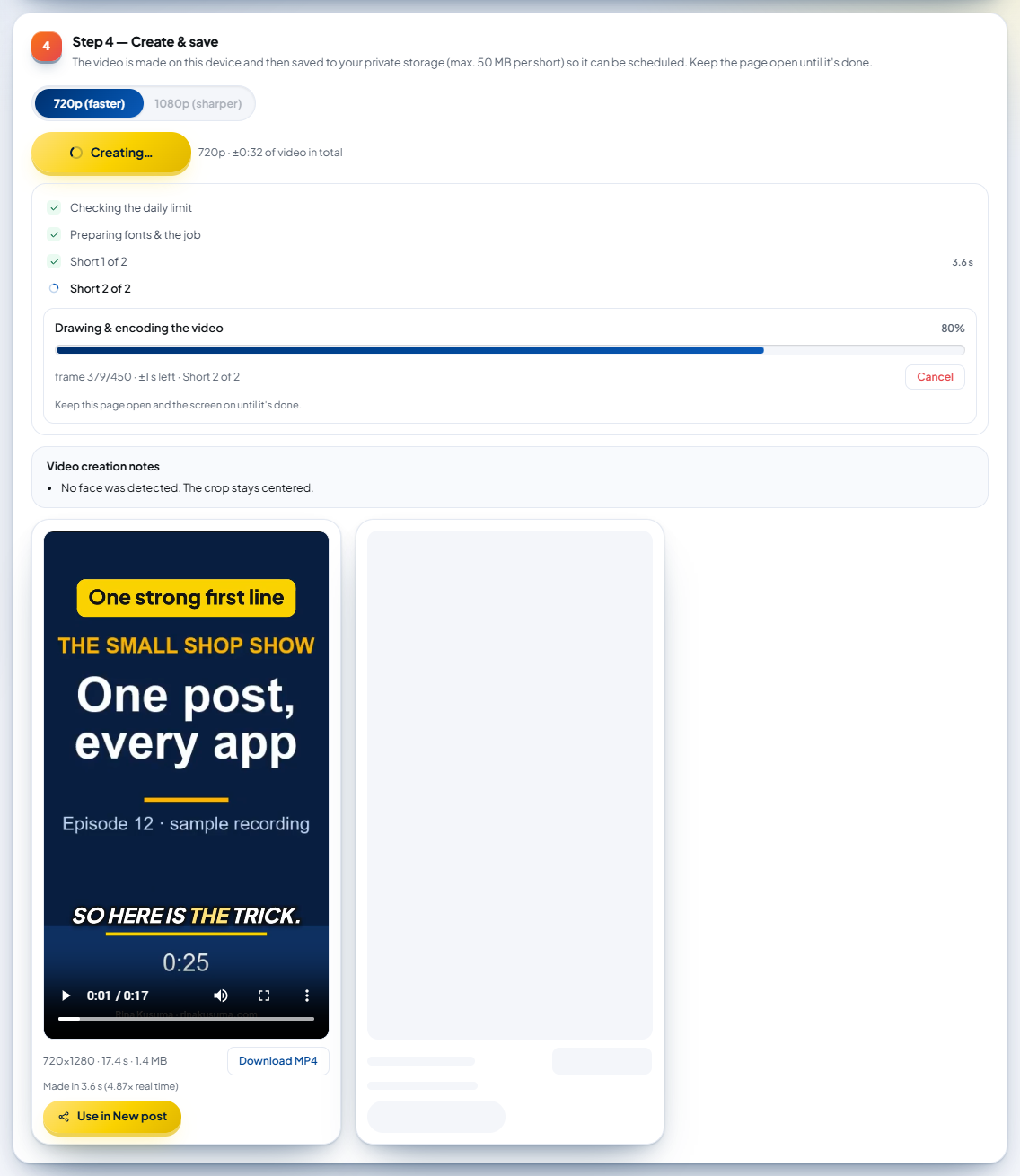
Press Create … shorts. The button changes to "Creating…" and below it a list of steps appears that stays the same from start to finish: Checking the daily limit, Preparing fonts & the job, then Short 1 of N, Short 2 of N, and so on. Finished steps get a green tick (a finished short shows how long it took, e.g. "3.6 s"); the current step spins.
If Follow face is on, AutoPost looks for faces in each short first ("Looking for faces in short 1 of 2… 0%").
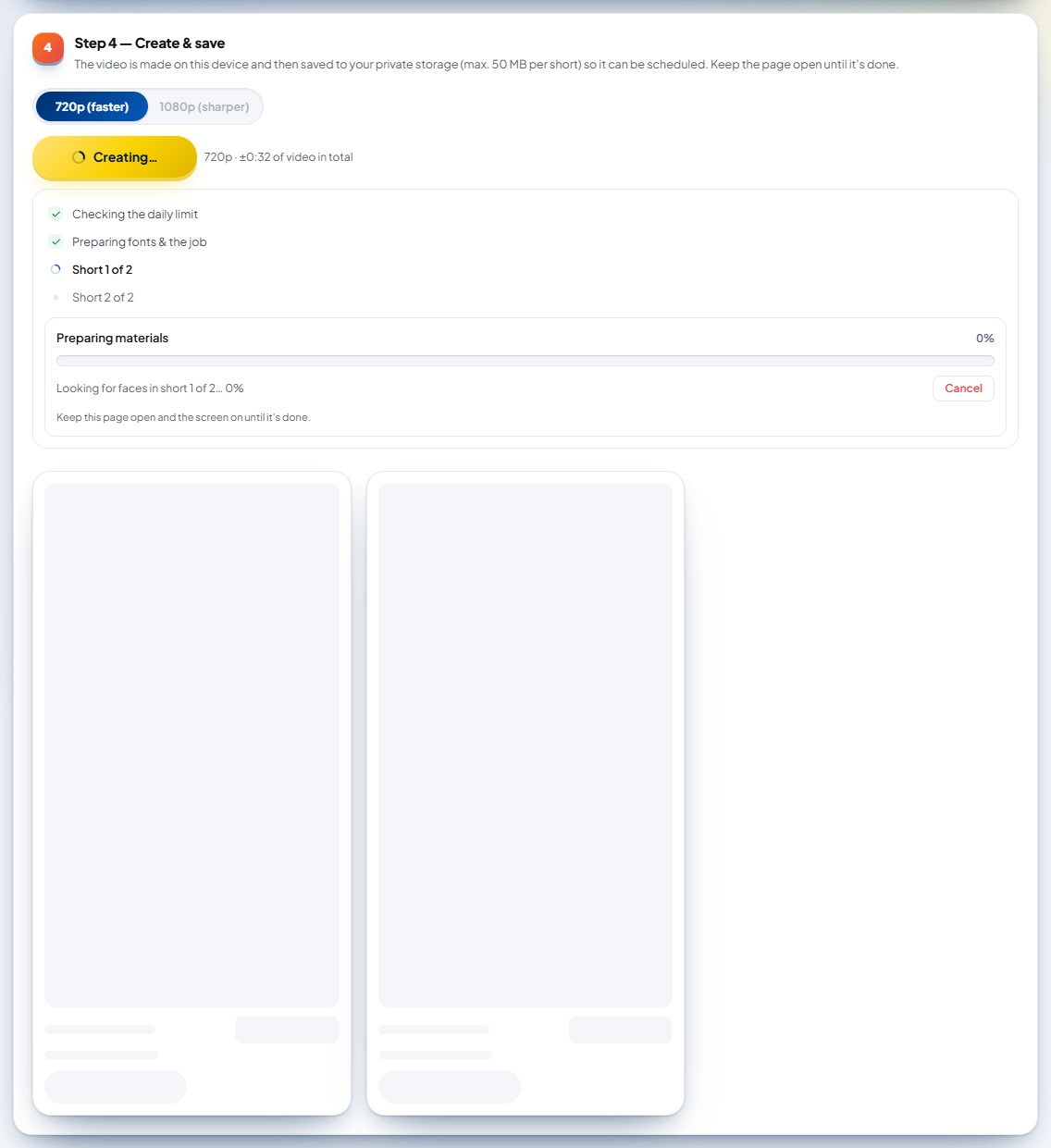
Shorts are made one by one on the device. The progress box shows the stage ("Drawing & encoding the video"), the percentage, the frames, the estimated time left, and which short it is on. While a stage has no real number yet (checking the daily limit, preparing fonts), the bar sweeps back and forth without a percentage — not a guessed number.
Every short has its place set aside from the start (a grey placeholder box); a finished short replaces its placeholder, so the page doesn't jump around while shorts are being made.
The result
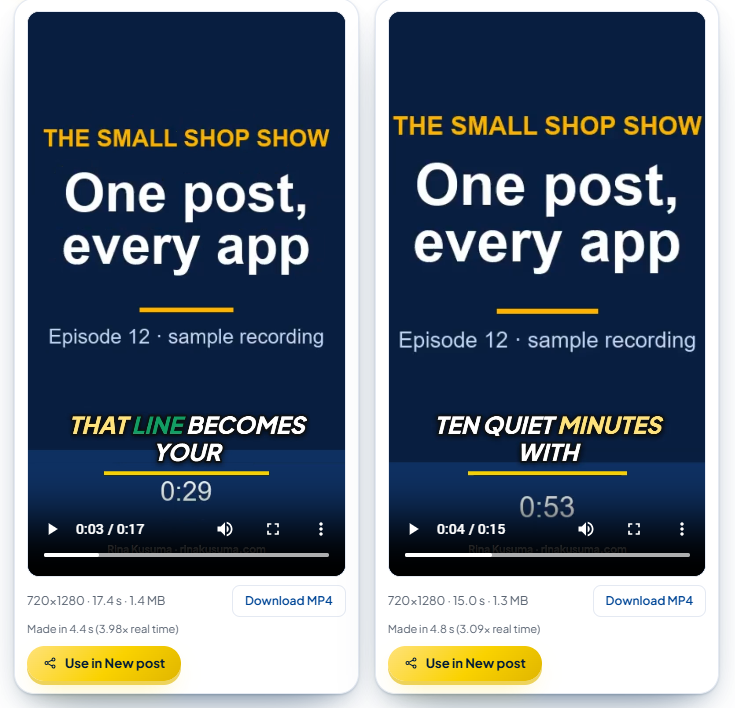
Each short appears with a player, its size and duration, how long it took to make (e.g. "Made in 4.4 s (3.98× real time)"), and two buttons:
Download MP4 — saves the file to your device.
Use in New post — opens the post composer with this short as the first media item. Its initial caption is built from the title + the AI's suggested caption + hashtags (at most 2,200 characters); without an AI caption, from the hook and the speech of that part. Edit it as you like before sending or scheduling.
Video creation notes
The Video creation notes box holds notices, not errors: full-range color read with a software decoder, an HDR video converted to standard color (SDR), quality lowered slightly to keep the short under 50 MB, or a Follow face note (no face / the detector failed → centered crop). This box, the "canceled" notice, and the error box always appear below the Create button, so the button is never pushed down.
Save the plan only
The Save the plan only button saves the chosen parts and look without making the video — useful if this device can't make MP4. The plan appears under My shorts with the status "plan (not created yet)".
13. My shorts: history, search, use, delete
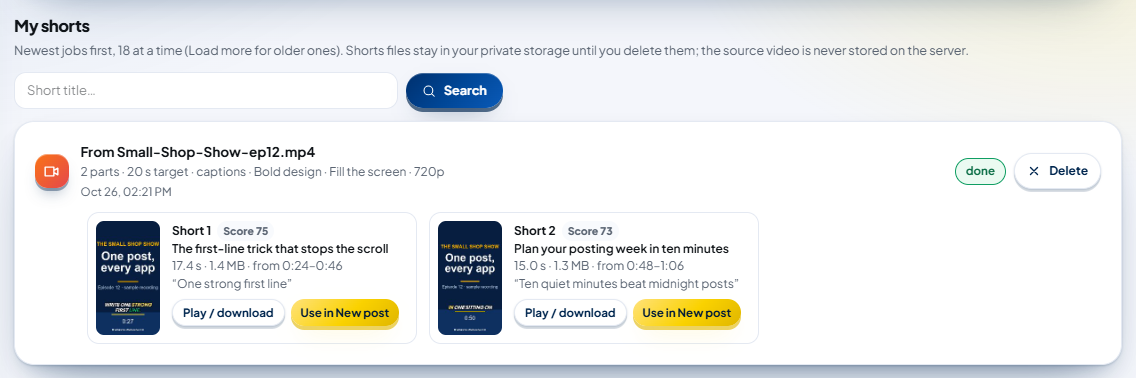
The My shorts section at the bottom of the page shows the newest jobs first, 18 at a time; press Load more below the list for older ones (the button says "That’s everything" when there are no more). Shorts files stay in your private storage until you delete them; the source video is never stored on the server.
| What's shown | Notes |
|---|---|
| Job summary | number of parts, target duration, captions, design, frame, resolution, date |
| Status | done · in progress · plan (not created yet) · failed · canceled · interrupted · partly saved — a job that's in progress (e.g. in another tab) gets a progress bar that updates every few seconds |
| Each short | cover, Score, title, duration, size, source range, hook; Play / download, Use in New post |
Searching. Type part of a title in the Short title… field, then press Search. The search filters 100 jobs at a time ("… jobs with a title containing “…”."); while older jobs remain, the sentence reads "… so far — Load more to check older ones." (or "No shorts titled “…” among the latest jobs yet — …"), and Load more checks the next 100. Press Show all to go back.
Deleting. Press and hold Delete until its red sweep fills (about 2 seconds). A short tap or letting go early deletes nothing — a reminder appears ("Delete it along with its videos?" / "Delete this plan?"). The short and its files are deleted from storage — unless they're still used by a post that hasn't been sent (replace the media first) or are still being made/uploaded; the reason appears in a small bubble below the button. A job without a progress update for 15 minutes (page closed, screen off) has the status "interrupted": delete it, then make it again.
14. Long videos up to 120 minutes
Shorts Maker accepts recordings of up to 120 minutes. For videos longer than 30 minutes, three things are different.
Transcript in parts (at most 25 minutes each)
The AI provider can only write per-word timing for at most 30 minutes of audio per request. That's why AutoPost cuts the audio into parts of at most 25 minutes, at pauses so sentences aren't split, and transcribes them one after another.
Before you press Transcribe speech, the estimate is shown, for example: "120 minutes of audio will be transcribed in 5 consecutive parts with your AI key. Each part counts as one transcription request." While it runs: "Transcribing speech, part 2 of 5…".
The AI picks per 30-minute window
A long transcript is read by the AI in windows of at most 30 minutes ("AI is picking moments in part 1 of 4…"), then the best candidates from all windows are merged ("8 best moments merged from 4 parts of the video."). This can be stopped with Cancel.
More AI quota is used
Each transcript part and each picking window is one AI request with your key. A finished transcript is kept on the device for 30 days (chapter 6), so reopening the same video doesn't use quota again. If one part fails, the message says which one: "Part 3 of 5 could not be transcribed."
15. Limits, quotas, and estimated AI cost
Shorts Maker limits
| Limit | Value |
|---|---|
| Source video size | at most 2 GB |
| Source video duration | 3 seconds to 120 minutes |
| Shorts per video | up to 5 (the AI suggests up to 8 candidates) |
| Length of each short | 3–60 seconds (target 10, 20, 30, 45, or 60 seconds) |
| Size of each short | at most 50 MB |
| Render results per day | at most 40, counted per WIB day (Western Indonesia Time) |
| Audio per transcription request | at most 4 MB (about 30 minutes of 16 kbps Opus) |
| Transcripts kept on the device | 30 days, at most 30 transcripts |
| History | 18 jobs at a time, Load more for older ones (search: 100 at a time) |
The daily limit is checked before creation starts. If the remaining quota is less than the number of shorts about to be made, AutoPost tells you, for example: "Today (WIB) 1 of 40 render results are left, but you're about to make 2. Reduce the number of parts or try again tomorrow."
AI request rate limits
So that your AI key isn't drained by repeated clicks, AutoPost limits requests per user:
| Request | Limit |
|---|---|
| Transcribe speech (per audio part) | 6 requests per 10 minutes |
| Ask the AI to pick … parts (per window) | 10 requests per 10 minutes |
When exceeded: "Too many attempts. Wait about …, then try again." A 120-minute video needs about 5 transcription requests and about 4 picking requests, so it still fits in one run — but transcribing a long video again several times within 10 minutes can hit this limit.
Besides AutoPost's limits, your AI provider has its own quota (per minute or per day). When it runs out: "Your AI key's quota to transcribe the video's speech has run out (the provider's per-minute or per-day limit). …"
Estimated AI cost (billed to your key, not to AutoPost)
Making the video, Follow face, the music, and storing the shorts don't use AI and add no AI cost. Only the transcript and the AI picks use your AI key. According to AutoPost's price catalog (read from the providers' official documentation):
| Task | Default model | Catalog price | Estimate |
|---|---|---|---|
| Transcript | Gemini 3.5 Transcribe | US$0.003 per minute of audio | 10 minutes ≈ US$0.03 · 60 minutes ≈ US$0.18 · 120 minutes ≈ US$0.36 |
| Picking clips (per 30-minute window) | Gemini 3.1 Flash-Lite | US$0.25 per 1 million input tokens, US$1.50 per 1 million output tokens | about 8,000 input + about 3,000 output tokens ≈ US$0.0065 per request |
So one 120-minute video (5 transcript parts + 4 picking windows) costs roughly US$0.39. Both models also have a Gemini free tier (the size of its free quota isn't known yet); with the free tier there's no bill, but Google may use the data to train its models (chapter 4). The transcript only uses Gemini 3.5 Transcribe. For AI picks, if your key can't use Gemini 3.1 Flash-Lite, AutoPost tries the next backup model in the task chain (Gemini 3.8 Flash, gpt-oss-120b on Groq, then DeepSeek Flash) at their own catalog prices.
16. What every message means
Messages are written exactly as in the app. Parts that vary (numbers, file names) are marked "…".
Choosing the video (Step 1)
| Message | Meaning | What to do |
|---|---|---|
| "The file is larger than 2 GB. Choose a smaller recording or trim it first in your phone's gallery." | the file is over 2 GB | trim or compress it first in the gallery/an editing app |
| "The video is longer than 120 minutes. Shorts Maker accepts recordings up to 120 minutes." | the duration is over 120 minutes | split the recording into several files |
| "The video is too short (at least 3 seconds)." | the video is under 3 seconds | choose another video |
| "This file doesn't contain a readable video." | the file has no video track | choose the right video file |
| "This browser can't read the … video codec. Use an MP4 (H.264) video from a phone camera, or open it in the latest Chrome." | the video codec (e.g. HEVC) isn't supported by the browser | export it again as MP4 H.264, or use the latest Chrome |
| "The video's picture size is too small." | the video resolution is too small | use a higher-resolution recording |
| "This file can't be read as a video. Choose an MP4 or MOV file." | the file is damaged or not a video | export it again as MP4 |
| "The file can't be read." | the file couldn't be opened | choose the file again |
| "This video has no audio: transcript, captions, and pause removal aren't available. Choose the parts manually." | a silent video | choose the parts yourself; the short can still be made |
| "This browser can't read the video's audio (unsupported audio codec). You can still choose the parts manually." | the audio codec isn't supported | export it again with AAC audio, or choose the parts yourself |
| "This browser can't compress audio to Opus, so the AI transcript isn't available. Choose the parts manually." | the browser has no Opus encoder | use the latest Chrome/Edge, or choose the parts yourself |
| "The audio is too long for the AI transcript (over 4 MB). Choose the parts manually." | the compact audio is over 4 MB | choose the parts yourself, or use a shorter recording |
| "The video's audio couldn't be read" | the audio analysis failed | choose the video again; if it still fails, choose the parts yourself |
Transcript and AI picks (Step 2)
| Message | Meaning | What to do |
|---|---|---|
| "No AI key yet. To transcribe the video's speech, AutoPost uses your own AI key — add one on the AI keys page first (you can get a Gemini key for free)." | no AI key yet | press Add AI key, or choose the parts yourself |
| "Your AI key hasn't been proven able to listen to audio (transcription). Run the «In-depth test» in the Models tab of the key's page, or add another key." | the key hasn't been tested for transcription | press Run the in-depth test |
| "There's no active AI key that can listen to audio (transcription). …" | no key supports transcription | add a Gemini key |
| "Your AI key can't be used to transcribe the video's speech right now (inactive, rejected by the provider, or out of quota)." | the key is inactive/rejected | check it on the AI keys page |
| "Your AI key's quota to transcribe the video's speech has run out (the provider's per-minute or per-day limit). …" | the provider's quota ran out | wait a few minutes, or add another key |
| "The provider rejected your AI key or its balance has run out. Check it on the AI keys page." | the key is invalid / no balance left | renew the key or top up the balance |
| "Too many attempts. Wait about …, then try again." | AutoPost's rate limit (6 transcripts / 10 picks per 10 minutes) | wait for the time shown |
| "The AI ran out of time trying to transcribe the video's speech. Please try again shortly." | the provider is slow | try again |
| "The AI provider is hard to reach right now. Please try again shortly." | a provider outage | try again later |
| "The AI provider rejected this content under its safety rules. Change the wording, then try again." | the content was blocked by the provider | change the AI hint, or choose the parts yourself |
| "The AI's answer couldn't be used. Try again — it usually works on the next attempt." | a broken AI answer | press it again |
| "No speech was heard" / "The AI found no words in this audio. Try another language, …" | an empty transcript | change the spoken language; or choose the parts yourself |
| "The transcript didn't work" | the transcript failed | read the message below it; try again |
| "Part … of … could not be transcribed." | one audio part of a long video failed | press Transcribe speech again |
| "The audio is too large (at most 4 MB ≈ 30 minutes of 16 kbps Opus)." | the audio of one request is over 4 MB | choose the parts yourself |
| "Unsupported audio type. Send Ogg/Opus, WebM, MP3, M4A, or WAV audio." | the audio format isn't supported | use the latest Chrome/Edge |
| "The AI didn't find a suitable part" / "Try changing the duration or the hint, or choose the parts manually." | the AI found no candidate | change the length of each short or the hint |
| "The AI couldn't choose parts" | the picking request failed | try again, or use Suggest without AI |
| "The transcript is too long (at most 8000 words)." | the transcript of one window is too long | rare; choose the parts yourself |
| "The connection dropped while sending the audio. Check your internet, then try again." | the internet dropped | check the connection |
| "Browser storage isn't available (e.g. private mode). …" | private mode | nothing to do; the transcript just isn't saved |
Candidates, parts, and the editor
| Message | Meaning | What to do |
|---|---|---|
| "5 parts are already ticked — untick one first." | the limit of 5 parts | untick another candidate |
| "This candidate overlaps a part that's already checked and there's no free gap around it. Uncheck another part first." | the candidate overlaps | untick the overlapping part |
| "There's no free space of at least 3 seconds at the player position. Move the player outside the existing parts." | the player is inside another part | move the player, then add again |
| "The bounds were moved so they don't overlap another part." | a notice: the bounds were tidied automatically | check the bounds |
| "The part is too short (at least 3 seconds)." / "The part is too long (at most 60 seconds)." | the bounds are outside 3–60 seconds | lengthen or shorten it |
| "This part overlaps another part. Move its bounds into a free gap." | the new bounds overlap another part | move it into a free gap |
| "No candidates match this filter." | the filter is too strict | choose All |
| "YouTube chapters need at least 3 lines (including 0:00). …" | fewer than 2 candidates shown | show more candidates |
| "YouTube chapters must be at least 10 seconds apart, …" | two candidates are too close together | filter out the close candidates |
| "The clipboard is not available in this browser. Copy it manually from the box below." | the browser refused the clipboard | copy from the text box |
| "A part is too short" / "After removing pauses, part … is only … seconds (at least 3 seconds). …" | a part is left with < 3 seconds after pauses are removed | lengthen the part or turn off Remove long pauses |
Creating and saving (Step 4)
| Message | Meaning | What to do |
|---|---|---|
| "This device can't create videos yet" + "This browser can't create MP4 videos on the device yet. …" | the browser has no MP4 encoder | open it in the latest Chrome/Edge or Safari 16.4+; or Save the plan only |
| "The video maker only runs on a secure page (HTTPS). …" | opened through http:// | open it through an https:// address |
| "Daily limit reached" / "Today (WIB) … of 40 render results are left, …" | the quota of 40 results per WIB day is almost/fully used | reduce the number of parts or try tomorrow |
| "Daily limit reached: at most 40 render results per day (WIB). Try again tomorrow." | the quota ran out while recording the result | try tomorrow |
| "A …-second video at … would exceed the 50 MB limit. Shorten the video or choose 720p." | the estimated size is > 50 MB | choose 720p or shorten the part |
| "The … MB video exceeds the 50 MB limit. Try 720p or a shorter duration." | the result is > 50 MB | choose 720p or shorten the part |
| "Shorts creation canceled. Shorts that were already finished stay saved." | you pressed Cancel | — |
| "Some shorts were saved" / "… of … shorts are saved; the rest failed: …" | some shorts failed | read the reason; make the failed parts again |
| "The shorts couldn't be created" | creation failed | read the message below it |
| "The video encoder failed (…)." | the device's video encoder failed | close other apps, try 720p, or use another device |
| "The connection dropped while uploading. Check your internet, then retry." | the upload of a short was interrupted | check the internet, then retry |
| "The connection dropped while recording the job. …" / "… while recording the result. …" | the connection dropped while saving the record | check the internet, then retry |
| "Plan saved. Open this page in the latest Chrome or Edge to create the video." | the plan was saved without a video | make it from a device that supports it |
| "The plan wasn't saved" | saving the plan failed | try again |
Follow face
| Message | Meaning | What to do |
|---|---|---|
| "No face was detected. The crop stays centered." | there's no face in that part | — (the short is still made) |
| "The face detector files couldn't be downloaded. Check your connection, then try again." | the download of about 3 MB failed | check the internet |
| "The face detector can't run on this device." | the detector failed to start | turn off Follow face |
| "The video frames couldn't be read to look for faces." | the frames failed to decode | turn off Follow face |
| "The face detector stopped partway." | detection stopped | — (the short is still made with a centered crop) |
| "This device or browser can't follow faces yet. The crop stays centered." | the device doesn't support it | use the latest Chrome/Edge on a laptop |
All Follow face error messages are followed by "The short is still made with a centered crop."
History and deleting
| Message | Meaning | What to do |
|---|---|---|
| "This video is still used by a post that hasn't been sent. Delete or replace the media in that post first." | the short is used by a draft/scheduled post | replace the media in that post first |
| "This video is still being created or uploaded (last update … minutes ago), so it can't be deleted yet. …" | the job is still running | wait or press Cancel; after about 15 minutes without an update the status becomes "interrupted" |
| "Not deleted yet (HTTP …). Try again." / "The connection dropped. Try again." | deleting failed | try again |
| "Some files weren't deleted from storage yet, so the history wasn't deleted. Try again." | some files failed to delete | press Delete again |
| "No shorts titled “…”." | an empty search | change the keyword, or Show all |
| "No shorts titled “…” among the latest jobs yet — Load more to check older ones." | not found in the 100 jobs checked so far | press Load more, or change the keyword |
17. Questions and answers
Is my video uploaded to the AutoPost server?No. The source video is read and cut in your browser. Only the finished shorts are stored (at most 50 MB per short), in your private storage.
What is sent to the AI?Only the compact audio (for the transcript) and the transcript text (for the AI picks), through your own AI key. Video frames are never sent.
Can I use a YouTube or TikTok link?No. The terms of service of YouTube, TikTok, and Instagram forbid downloading content, so Shorts Maker only accepts files from your device.
I don't have an AI key. Can I still make shorts?Yes. Choose the parts yourself or use Suggest without AI. Captions aren't available without a transcript.
Does a high score mean my short will go viral?No. The score is an estimated match (70% AI rating + 30% video audio signal), not a promise of views.
Why is my short shorter than the part I chose?Because Remove long pauses cuts silences longer than 0.6 seconds. Turn the switch off if you want the original length.
Why aren't my edited captions colored like karaoke?Segments you edit no longer have per-word timing, so they're shown whole without highlighting.
Follow face doesn't appear on my page.Your device or browser doesn't support it (it needs Web Workers, OffscreenCanvas, and WebAssembly SIMD). Use the latest Chrome or Edge on a laptop.
Follow face follows the wrong person.For two people in one wide shot, the feature is still weak. Use Show everything (blurred sides) for such recordings.
Can shorts be made on a phone?Yes, in the latest Chrome (Android) or Safari 16.4+ (iPhone). On phones shorts are made in 720p; keep the screen on and don't switch apps until it's done.
How long are transcripts kept?In this device's browser, 30 days. Press Clear saved transcripts if the device is shared.
Is there dubbing into other languages?Not yet. Shorts use the video's original audio.
18. Checklist
Before you start:
While choosing the parts:
Before creating:
After it's made: