AutoPostUser guide
How to use New post
Beginner's guide: write it yourself or with AI, then save, schedule, or send to several accounts at once
Save this guide
PDF version to read offline or print · 2.3 MB · 33 pages
Contents
1. Overview
What you can do on this page
New post is where you write one post and send it to several social accounts at once. You only write it once: the text, a link, and up to 10 photos or videos. If you like, AI assist writes the draft for you, the Image studio makes a branded image, and Photo check reviews your photo. While you write, you see a preview and the character limit for each platform. Finally, choose the accounts under Send to, then save it as a draft, schedule it, or send it now.
Three ways to start
| Way | Good for | What you do |
|---|---|---|
| Write it yourself | You already know what to say. | Type in the Text field. No AI key needed. |
| AI assist | You have an idea but need help with the wording. | Open the AI assist panel, fill in the topic, then press Write draft. Needs an AI key. See section 4. |
| From a link | You want to share an article from another site. | Press the From a link button at the top right. AI summarizes the article into 2–3 text options. Needs an AI key. See 4.8. |
New post can also open with the text already filled in, for example from the Trends menu or from the Upcoming observances card on Home. Prefilled text like this is at most 1,500 characters.
Parts of the page
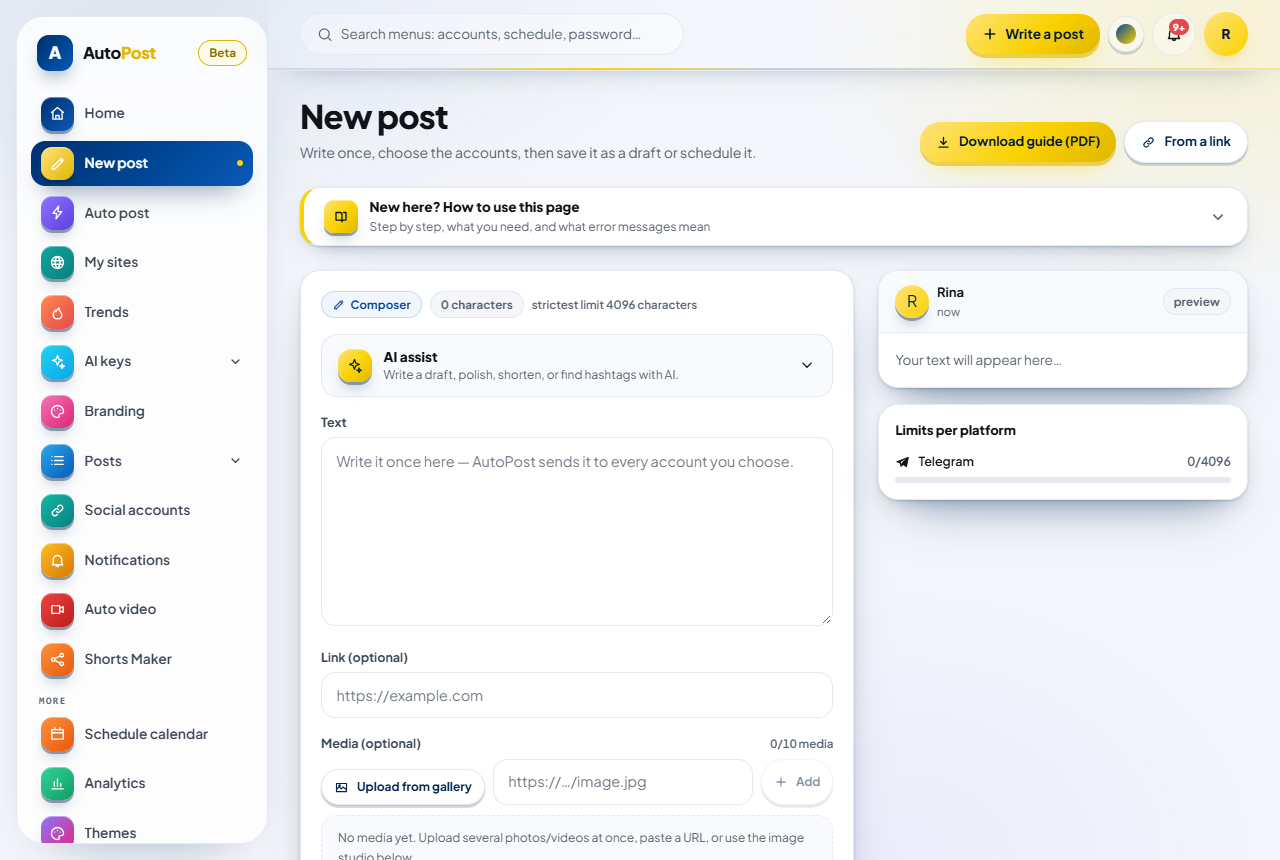
Page header — the title "New post", the Download guide (PDF) button for this guide (before its PDF is available, the button says Guide), and the From a link button.
New here? How to use this page — a short guide box you can open and close. The guide you're reading now is the full version.
Composer (left column), from top to bottom:
the Composer pill and a character counter, for example "0 characters";
the AI assist panel (closed until you press it);
the Text and Link (optional) fields;
the Media (optional) section — the Upload from gallery button, the Add from a URL field, and a card for each media item (each photo card has its own Alt text button);
the Image studio;
Send to — the list of target accounts;
the Save as draft, Schedule, or Send now options, then the big gold button and the See all posts button.
Preview (top of the right column) — a picture of your post.
Limits per platform (bottom of the right column) — a character counter for each platform of the selected accounts.
Guide to using New post (at the very bottom) — the Download guide (PDF) and Read web version buttons.
On a wide screen, the right column moves down with you as you scroll, so the preview stays in view. On a phone, the right column moves below the composer.
2. Before you start
Connected social accounts
To schedule or send, at least one social account must already be connected. Connect it from the Social accounts menu (/akun). Each platform allows up to 3 accounts.
| Platform | Status when this guide was written |
|---|---|
| Telegram | Active. The easiest for beginners: all you need is a free bot. The full steps are in the guide "Connecting Telegram to AutoPost" (/panduan/telegram/en). |
| Facebook Page, Instagram, and Threads | Active. They need your own Meta app (the steps are in each platform's guide). |
| TikTok | Active through TikTok's official permission. While TikTok is still reviewing AutoPost, posts are visible only to you (private). |
| Waiting for access approval from Pinterest. | |
| X (Twitter) | Active through X's official permission, with a monthly quota (posts with links are limited more strictly). A post can go to only one X account. |
AI key (optional)
You only need an AI key for the AI features:
AI assist (Write draft, Improve, Shorten, Suggest hashtags);
Check with AI for photos (the basic check of photo size and format still runs without a key);
From a link (Link to post).
Writing on your own, uploading photos, the Image studio, scheduling, and sending do not need an AI key.
An AI key is a secret code from an AI provider (for example Google Gemini) that you create yourself and then paste into AutoPost. The free quota and any billing belong to your account with that provider. To add one:
Open the AI keys menu (
/kunci-ai), then the Add key page (/kunci-ai/tambah).Paste your key, then press Test & save.
In AI keys › Overview, the Write a post task must be labeled Covered (meaning an AI model is ready for it). If it says Not covered, read the reason below it and follow the link to fix it.
What to prepare
3. Quick start in 5 minutes
This example creates an invitation to a community clean-up with AI assist, for the Telegram account "Kabar Kampung Kita". Replace the content with your own. If you don't have an AI key yet, skip steps 3–9 and type your own text in the Text field.
Open the New post menu (on a phone: Write in the bottom menu).
Look at the Send to section. All your accounts are already selected, except TikTok and X accounts (you tick those yourself). Tap any account you don't want to send to until its check mark disappears. Do this first, because AI assist adjusts the length of the text to the selected accounts.
Press the AI assist panel above the Text field. The panel opens.
In the What do you want to write about? field, type your topic, including the day, date, time, and place. The example in this guide uses this topic:
Invite residents to the community clean-up of the drainage channels on Sunday, October 4, at 6:30 AM. Meet at the RW 04 neighborhood watch post; brooms and sacks are provided by the organizers.Check the options. The defaults already suit beginners: Tone Casual, Length Medium, Language English (the default follows the app language), and Add hashtags and Use emoji turned on.
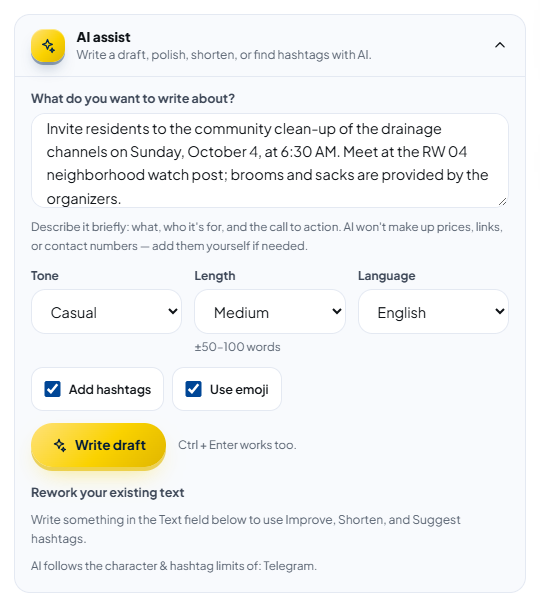
Press Write draft (or press Ctrl + Enter in the topic field). While you wait, you see "AI is writing a draft…" and a seconds counter. It usually takes 5–30 seconds.
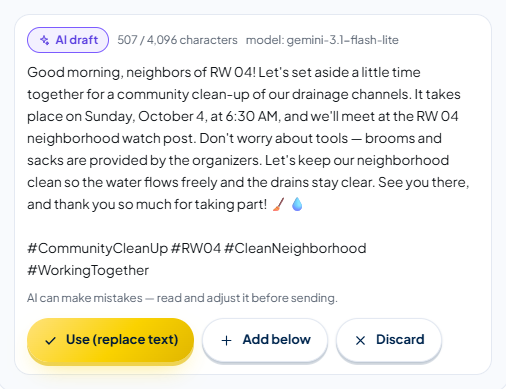
Read the AI draft box. Make sure the date, time, and place are right. If it's good, press Use (replace text). If not, press Write draft again for another version, or press Discard.
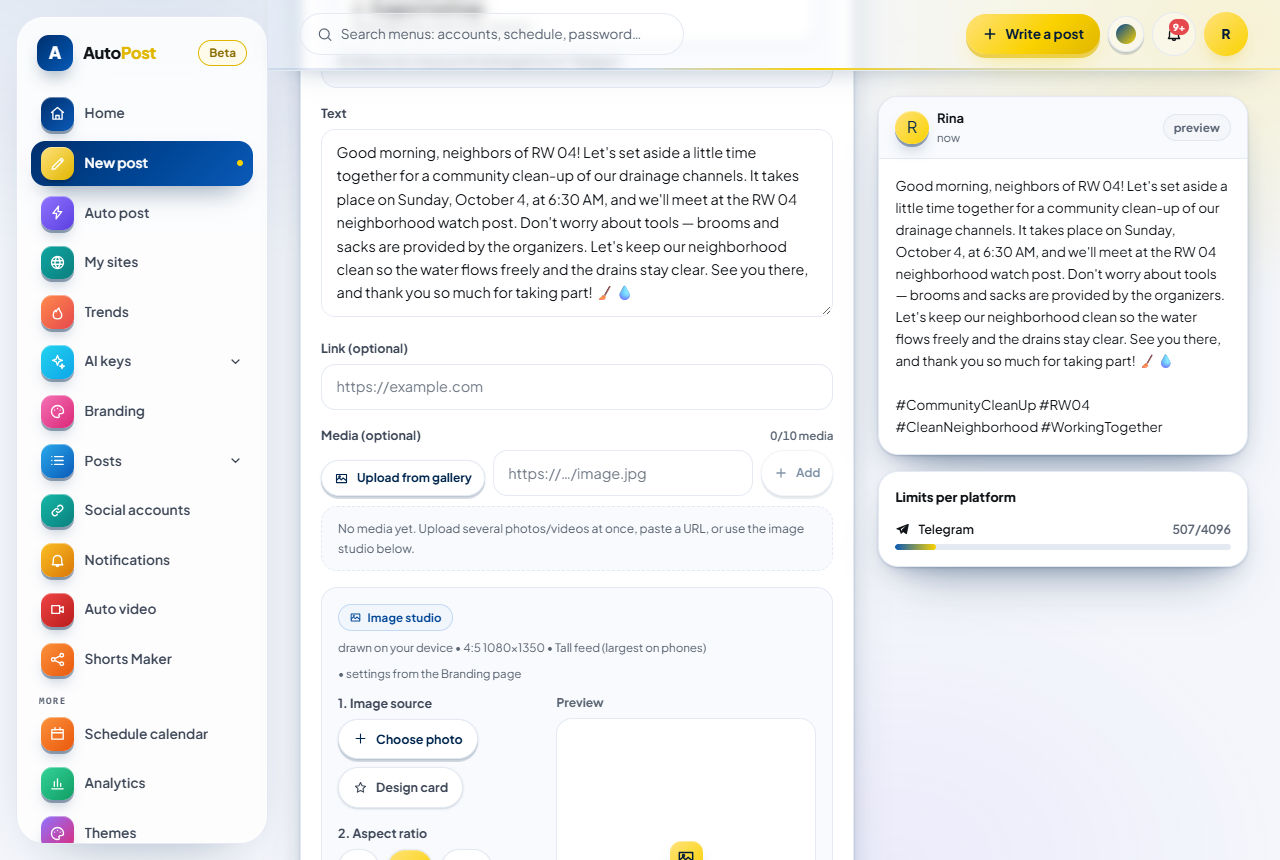
The AI text is now in the Text field, and the preview on the right fills in too. Under the AI assist panel title you see "Text replaced with the AI result." and an Undo button. Edit the text however you like — from now on, the text is yours.
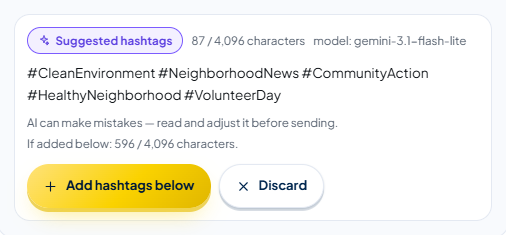
(Optional) In the Rework your existing text section, press Suggest hashtags. If the hashtags fit, press Add hashtags below; if not, press Discard.
(Optional) Fill in Link (optional) and add a photo with Upload from gallery (5.3).
Glance at the Limits per platform card on the right. A red number means the text goes over that platform's limit (see 6.1).
Choose how to save, then press the gold button below it:
Save as draft → the Save draft button: saved, not sent yet.
Schedule → fill in Date & time (WIB, UTC+7) → the Schedule post button: sent automatically at that time.
Send now → the Send now button: really sent, right away.
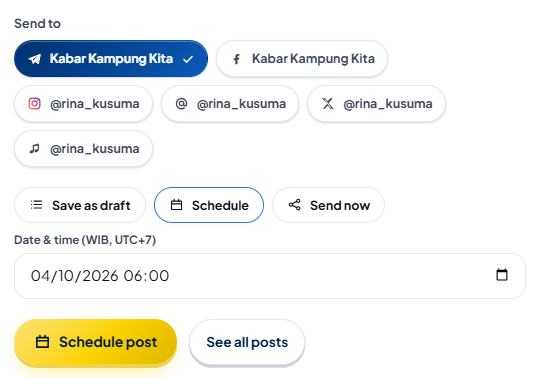
Wait for the green message: "Draft saved.", "Post scheduled.", or — for Send now — first "Saved — sending to the selected accounts…", then a summary of the result, for example "Sent to 1 account." After it succeeds, the Text, Link, and media fields are cleared, and the option goes back to Save as draft.
Press See all posts to see your post on the Posts page.
4. AI assist
AI assist is a folding panel above the Text field. It has two parts: Write a new draft (from a topic) and Rework your existing text (Improve, Shorten, Suggest hashtags).
4.1 Opening the panel
Press the AI assist row ("Write a draft, polish, shorten, or find hashtags with AI."); press it again to close it. A topic you've already typed isn't lost when you close the panel.
Below the buttons, you can see which platforms the AI follows, for example "AI follows the character & hashtag limits of: Telegram." If no account is selected, it says "Choose accounts under “Send to” so AI can follow their platforms' character & hashtag limits." and the AI uses a safe limit of 2,200 characters.
4.2 Writing a draft from a topic
| Field | Options | Notes |
|---|---|---|
| What do you want to write about? | Free text, 3–1,000 characters | Describe it briefly: what, who it's for, and the call to action. |
| Tone | Casual (default), Formal, Promotional, Educational | Promotional = invites people without overblown claims. Educational = explains things simply. |
| Length | Short, Medium (default), Long | The approximate word count is shown below the box: ±25–50, ±50–100, or ±100–170 words. If the platform limit is tighter, the AI writes shorter. |
| Language | English, Indonesian (the default follows the app language) | The language of the AI's text. |
| Add hashtags | On (default) | Hashtags go on the last line. |
| Use emoji | On (default) | The AI is asked to use one to three emoji. If you turn it off, emoji are removed from the result. |
Press Write draft, or Ctrl + Enter in the topic field. While you wait, you see for example "AI is writing a draft…" and "7 s · Usually 5–30 seconds. Don't close this page." Pressing Write draft again usually gives you a different version.
4.3 Reading the AI result
The result appears in its own box, containing:
the box title — AI draft, Improved version, Shorter version, or Suggested hashtags;
the character count against the strictest limit of the selected accounts, for example "312 / 4,096 characters". For Telegram, the limit already subtracts the length of the Link field, because the link is added to the end of the text when it's sent;
model: … (the AI model's name) and the suggested text;
a yellow note when there is one, for example "Links written by AI were removed — add your own link in the Link field." or "Check again: … from your topic isn't in the draft — add it yourself if needed.";
the reminder "AI can make mistakes — read and adjust it before sending."
If you change your text after pressing Improve, Shorten, or Suggest hashtags, a warning appears: "Your text has changed since this result was made. “Use” will replace the current text."
4.4 Use, Add below, Discard, and Undo
| Result | Buttons |
|---|---|
| AI draft (Write draft) | Use (replace text) · Add below · Discard |
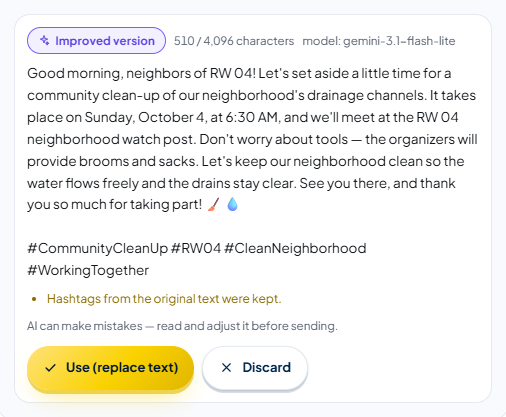
| Improved version (Improve) | Use (replace text) · Discard |
| Shorter version (Shorten) | Use (replace text) · Discard |
| Suggested hashtags | Add hashtags below · Discard |
Use (replace text) — everything in the Text field is replaced by the AI result.
Add below / Add hashtags below — the result is added below your text, separated by one blank line. The result box first counts the combined length ("If added below: 612 / 4,096 characters.") and warns you if the combined text goes over the platform limit.
Discard — the result is removed; your text doesn't change.
Undo. After you use a result, a green row appears saying "Text replaced with the AI result." (or "AI result added below your text.") with an Undo button that brings your previous text back. The button disappears as soon as you type again (so your edits aren't overwritten), and it only works for the most recent AI change.
4.5 Improve, Shorten, and Suggest hashtags
These three buttons only appear once the Text field has something in it, and they only work for text up to 5,000 characters. If the Text field is still empty, it says "Write something in the Text field below to use Improve, Shorten, and Suggest hashtags."
| Button | What the AI does |
|---|---|
| Improve | Tidies spelling, punctuation, and sentence structure, in the same language. The AI is asked to keep the meaning, facts, numbers, names, contacts, call to action, hashtags, and emoji. If the AI still drops all the hashtags, AutoPost puts the original hashtags back and adds the note "Hashtags from the original text were kept." Still read the result before pressing Use. |
| Shorten | Shortens the text to fit the platform limit; if it already fits, makes it about 60% of its length. The main message, contacts, call to action, and hashtags are kept as long as they fit. The text must be at least 40 characters. |
| Suggest hashtags | Suggests up to 5 extra relevant hashtags, without repeating the ones you already have. If Instagram is selected, the whole text still has at most 5 hashtags. |
4.6 What AI won't make up
AutoPost gives the AI strict rules, then checks the result once more before showing it:
Links and site names that aren't in your topic or text are removed. Put your link in the Link field.
Phone numbers, WhatsApp numbers, and email addresses you didn't provide are replaced with the marker
[isi kontak]; prices you didn't provide are replaced with[isi harga]. Your own numbers and contacts stay intact. (These markers stay in Indonesian even when AutoPost is in English.)The result is plain text, and it's always fitted to the limit of the selected platforms (if needed, hashtags are removed or the text is cut, with a note).
The AI is told to treat your topic and text as material, not as instructions.
Replace the [isi kontak] and [isi harga] markers with the correct details, or delete them, before sending. If you leave them, the markers are sent too.
4.7 AI keys and usage limits
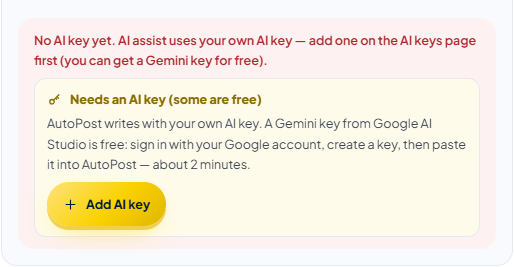
AI assist uses your own AI key. Without a key, you see the Needs an AI key (some are free) box with the Add AI key button. If you have a key but it can't be used for writing yet (out of quota, off, rejected, or not tested yet), you see the Your AI key can't be used for writing yet box with the link See the cause in AI keys Overview, plus the time it recovers if the cause is an exhausted quota and the time is known.
At most 20 requests per 10 minutes. Attempts without an AI key aren't counted.
The AI gets about 45 seconds to answer.
Privacy: your topic and text are sent to the AI provider of your key. AutoPost itself doesn't store the topic, the text, or the AI result; it only records how much you used. Don't put your customers' personal data in the topic.
What each AI assist error message means is in 8.4.
4.8 From a link: turning an article into a post
Want to share an article from another site? Press the From a link button at the top right of New post. The Link to post page opens (creating variants needs an AI key):
Paste the article address into Paste an article link, then press Read. An article preview card appears.
If the article content can't be read, open Paste the article text yourself (optional) and paste text you have the rights to (at least 80 characters).
Set Language, Tone, Number of variants (2 or 3), Hashtags, and Emoji. Credit the source is always on.
Press Create variants (usually 10–40 seconds; at most 10 times per 10 minutes).
Check each Key facts item against the article, then tick it.
Edit the variant you like, then press Use in composer.
New post opens again with the text (at most 1,500 characters) and the article link already filled in. The article's photo only comes along if you turn on Use the article image and check I have permission to use this photo. After that, carry on as usual: choose accounts, then save, schedule, or send. To go back without using a variant, press Write manually.
Pinterest Pins you send from New post (including through Use in composer) are your own choice, so they don't need approval again under Pin approval. That approval is only for Pins from auto posts.
5. Text, link, media, and alt text
5.1 The Text field
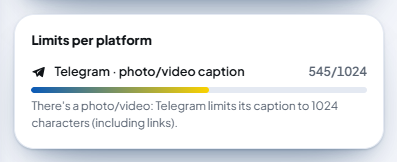
Type your post in the Text field ("Write it once here — AutoPost sends it to every account you choose."). The pill above it counts the characters, for example "312 characters", and, if any accounts are selected, shows the strictest limit, for example "strictest limit 2200 characters". For Telegram with a photo/video, the limit counted is 1024 characters (the photo caption limit), the same as on the Limits per platform card.
The text is sent as plain text; line breaks are sent too. Markers such as
*bold*appear as typed in Telegram.A hashtag is a word starting with
#with no spaces, for example#KopiSenja. A hashtag must contain letters (#2026doesn't count), the same hashtag is counted once, and a#inside a web address doesn't count.If Instagram is selected and the text has more than 5 hashtags, a red box appears below the Text field. Send now and Schedule are on hold until there are 5 hashtags or fewer; you can still save a draft.
5.2 The Link field
Fill in Link (optional) with a full web address starting with http:// or https://. Each platform uses it differently:
| Platform | What happens with the Link field |
|---|---|
| Telegram | Added at the end of the text, after one blank line (unless that address is already in the text). The link counts toward Telegram's character limit. |
| Facebook Page | Without a photo/video: sent as the post's link (a preview card), not repeated in the text. With a photo/video: added at the end of the text. |
| Added at the end of the caption as text. Links in Instagram captions can't be clicked. | |
| Becomes the Pin's destination link. |
5.3 Photo or video
One post can carry up to 10 photos or videos (the counter, for example "1/10 media", is at the top right of the Media (optional) section). How to add them:
Upload from gallery (the safest). Choose one or several JPG, PNG, WebP, GIF photos or MP4, MOV videos, each up to 50 MB. Each file becomes a card in the media list.
Add from a URL — paste an
https://link that goes directly to an image or video file (for example ending in.jpgor.mp4), not to a web page, then press Add. Addresses ending in.mp4and.movare treated as video; everything else is treated as a photo.Image studio — see 5.4.
Each media item appears as a card with a Photo or Video label. The first card is the Cover; change the order by dragging the cards or with the arrow buttons. Above the cards, a badge per selected platform (for example "Telegram 1/10 ✓") shows whether that platform accepts the list. iPhone photos in HEIC format aren't accepted; convert them to JPG first. To remove one item, press the cross on its card; Remove media below the preview removes the media too. Each photo has its own alt text (5.6).
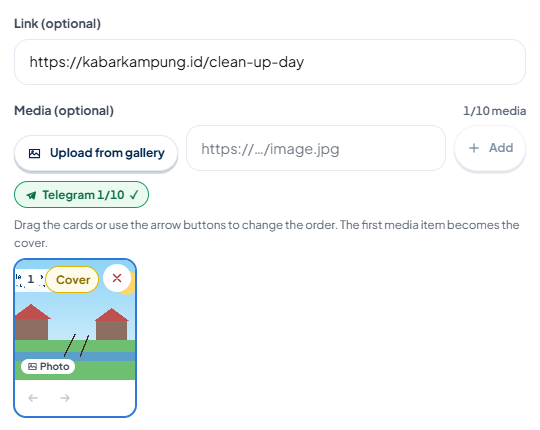
Media requirements for each platform (the same numbers are used by the Photo check panel):
| Platform | Requirements |
|---|---|
| Telegram | Photos up to 10 MB are sent as photos; 10–50 MB are sent as files. Videos up to 50 MB. Photo/video captions are at most 1,024 characters. |
| An image or video is required. Images must be JPEG, with an aspect ratio between 4:5 and 1.91:1, up to 8 MB. | |
| Facebook Page | Media is optional. Photo check suggests photos of at most 4 MB. |
| An image is required (JPEG or PNG, up to 20 MB). Video Pins aren't supported yet. |
If Instagram is selected and there's no image or video, a red note appears below Send to ("Instagram only accepts posts with an image or video. …") — the draft can still be saved. For Pinterest, check the image yourself before pressing the gold button.
5.4 Image studio
The Image studio makes a branded image from your photo, or a design card with a title. Everything is drawn on your device, and the result is always JPG (the format Instagram accepts). Colors, font, and bar text come from the Branding page if you've set it up; if not, the default settings are used.
1. Image source — press Choose photo, or turn on Design card and fill in the card's big title.
2. Aspect ratio — 1:1 (Facebook & Instagram feed), 4:5 (tall feed, the default), 16:9 (X, Pinterest, link previews), or 9:16 (Reels, Stories, Shorts). For Instagram, choose 1:1, 4:5, or 16:9: AutoPost sends images to Instagram as feed posts (not Stories), and Instagram rejects 9:16 images there.
3. Branding — make sure Apply branding to this photo is checked (the default), then set the account name on the image, the Bottom bar text, the Bar and Text colors, the Font, the 3D or Flat style, and Show account name. The default account name is the first selected account under Send to.
(Optional) NEWS LOOK — a big hook line with a color bar, taken from the first line of your text (at most 90 characters), or type your own.
Look at the Preview on the right of the studio, then press Use this image. The image is uploaded and added as the post's media, with the message "Image saved & ready to send with this post."
The top part of the Image studio (1. Image source and 2. Aspect ratio) is visible in the picture at step 8 of the Quick start.
5.5 Photo check
As soon as there's a photo, the Photo check panel appears below the preview (videos aren't checked).
Without AI, the panel immediately compares the format, pixel size, and file size with the requirements of the selected accounts' platforms. Its findings stay hidden until you press See details (N). Some findings have an Auto-fix button, for example "Auto-fix: convert to JPEG". That button downloads the fixed file to your device; upload that file with Upload from gallery. Findings that aren't serious can be hidden with Ignore.
Check with AI (needs an AI key): press the button, read the Before the photo is sent to AI box, check I understand and agree to this photo being sent to the AI provider., then press Check now. This consent is remembered while that browser tab stays open, so the next checks run right away. A small copy of the photo, without location data, is sent to the AI provider of your key. The result can include a summary of the photo, "Match with your text: N/100", findings (for example people's faces), and suggested alt text with the Use as alt text button. At most 15 checks per 10 minutes.
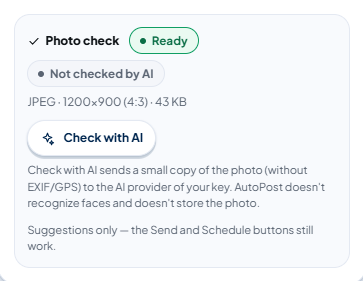
| Status pill | What it means |
|---|---|
| Ready | No real problems. Small notes (for example a photo narrower than 1080 px, or people's faces) can still appear under See details. |
| N suggestions | There are suggested fixes (for example the format or aspect ratio isn't a good fit). It doesn't block anything. |
| Needs review | The AI found something serious. When you schedule or send, the This photo has serious findings dialog appears: check I have the rights/permission for this photo., then press Continue scheduling or Continue sending — or Cancel and replace the photo. |
| On hold | The photo is held, for example because the AI provider refused to check it. The gold button is locked, with the note "Save, Schedule, and Send now are disabled: …". Press Remove media and add another photo; your text isn't lost. |
5.6 Alt text
Alt text is a short description of the image for screen reader users (blind or low-vision people). Each media card has its own Alt text button (it reads Alt text ✓ once filled in); press it to open the field, with a counter, for example "0/1000".
It's sent with the image to Instagram, Threads, Pinterest (cut to 500 characters), and X. It is not sent to Telegram or Facebook. For videos, alt text is sent to Threads only.
The 1,000-character limit applies to every post: if it's longer, the post can't be saved.
A quick way to fill it in: Check with AI, then press Use as alt text.
Example: "Residents cleaning the drain in front of their houses with brooms and sacks in the morning."
6. Limits per platform, preview, and target accounts
6.1 Limits per platform
The Limits per platform card in the right column counts your text against the limit of each selected account's platform. Its bar is blue-gold when you're within the limit, and red when you go over. If no account is selected, the card only shows the sentence "Choose an account first to see each platform's character limits."
| Row on the card | Limit | What's counted | If you go over |
|---|---|---|---|
| Telegram (no photo/video) | 4,096 characters | Text + the Link field (if the link isn't already in the text) | Only a warning: when it's sent, the text is cut at a word boundary and ends with …; the link from the Link field stays whole as long as there's room. Except when the Text field alone is already over 4,096 characters: the card says AutoPost won't save it, and the post really is rejected ("The text is too long for: Telegram."). |
| Telegram · photo/video caption | 1,024 characters | Same, when there's a photo/video | Only a warning, cut when it's sent (see above). The cut is noted on the Posts page. |
| 2,200 characters | Text only | Rejected: "The text is too long for: Instagram." | |
| Instagram · hashtags | 5 hashtags | Hashtags in the text | Send now and Schedule are on hold; a draft is allowed. |
| Facebook Page | 5,000 characters | Text only | Rejected: "The text is too long for: Facebook Page." |
| Pinterest · title (first line) | 100 characters | The first line with text | If there's text on the following lines: rejected. If the text is a single line: the title is cut to 100 characters and the full text goes into the description (only a note). |
| Pinterest · description | 800 characters | Text after the first line | Rejected. |
| X (Twitter) | 280 weighted characters (a link = 23) | Text, photo, or video | One X account per post; there's a monthly quota, and posts with links are limited more strictly. |
Other limits that apply to every post:
Text is at most 10,000 characters ("The text is too long (max. 10,000 characters).").
Links are at most 2,048 characters; alt text is at most 1,000 characters.
The "The text is too long for: …" rejection applies to every way of saving, including drafts. Shorten the text (for example with Shorten in AI assist), or deselect that platform's account.
How characters are counted:
Each letter, number, space, or line break counts as one. Most emoji count as 2.
The counter on the card writes numbers without thousands separators, for example "1180/1024".
For Telegram, the note under its row explains what will happen, for example "When sent, 156 characters at the end will be cut at a word boundary and replaced with "…" (the link stays whole). Shorten it if you want it whole."
6.2 Preview
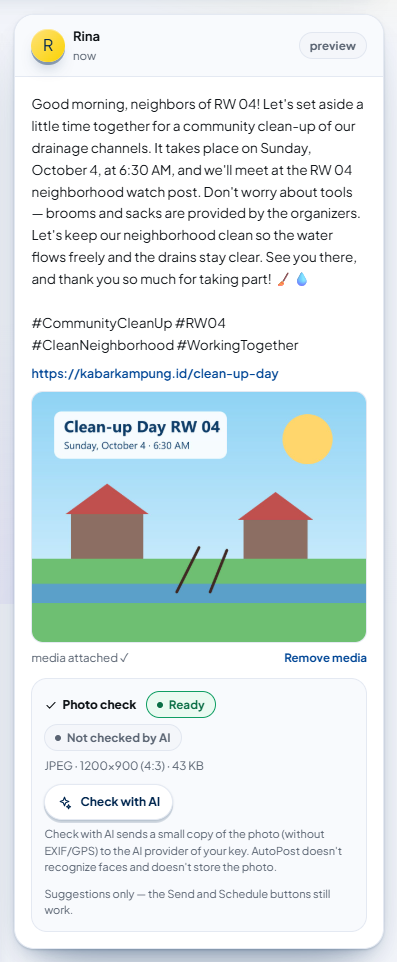
The preview card in the right column shows a picture of your post:
Card header — your initial and your profile name (not the target account's name), then the time: "now", or the scheduled date and time, for example "October 4 at 06:00 AM WIB", if you chose Schedule. On the right is the preview pill.
Text — exactly as you typed it, including line breaks. If it's empty, it says "Your text will appear here…".
Link — shown below the text in blue.
Photo or video — with the words "media attached ✓" and the Remove media button. Videos can be played (muted at first).
Photo check — the check panel, if the media is a photo (5.5).
6.3 Choosing accounts under Send to
The Send to section shows one button for each connected account, with the platform icon and the account name. They are ordered by when the account was connected.
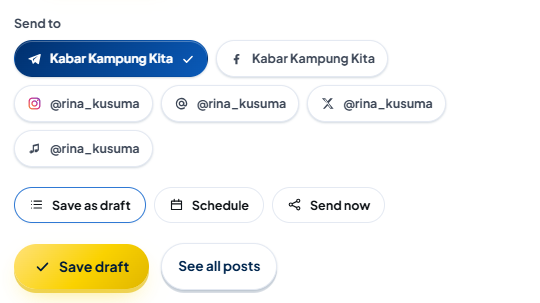
All accounts are selected automatically every time the page opens, except TikTok and X accounts (they have their own rules, so you tick them yourself). Selected buttons are blue with a ✓.
Tap an account button to deselect it; tap it again to select it.
Your choice of accounts affects the Limits per platform card, the limit used by AI assist, the Photo check rules, and the default account name in the Image studio.
After a post is saved, the selected accounts are not reset. Check them again before writing your next post.
If no account is connected yet, this section shows the No accounts connected yet box with the Connect account button. In that state you can only save drafts (read the Important box in section 2 before you do).
7. Save draft, Schedule, or Send now
7.1 Two steps: choose the mode, then press the gold button
It takes two steps: choose the mode first, then press the gold button below it.
| Step 1: choose the mode | Step 2: the gold button | Result |
|---|---|---|
| Save as draft (default) | Save draft | Saved, not sent. |
| Schedule | Schedule post | Sent automatically on the date and at the time you choose. |
| Send now | Send now | Really sent, right away to all selected accounts. |
While it works, the gold button says Saving… or Sending…. After it succeeds, the Text and Link fields, the media, the alt text, and the schedule are cleared, and the mode goes back to Save as draft.
If something isn't right yet, a red box appears above the gold button. What it means is in 8.1.
7.2 Save draft
Choose Save as draft, then press Save draft. If it works, a green message appears:
Draft saved.
The draft appears on the Posts page, in the Drafts tab. From there you can send it with the Send now button — to the accounts that were selected when the draft was saved. You may save a draft without a target account, but a draft like that can't be sent later (see section 2).
7.3 Schedule
Choose Schedule. The Date & time (WIB, UTC+7) field appears.
Choose the date and time. This time is always read as WIB, whatever your device's time zone is. If you're in WITA (UTC+8), subtract 1 hour; in WIT (UTC+9), subtract 2 hours.
Check the time in the preview card header.
Press Schedule post.
If it works, a green message appears:
Post scheduled.
Scheduling rules:
The time can't be in the past, and it can be at most one year from now.
At least one account must be selected.
AutoPost checks the queue every minute. Posts usually go out about one minute after the scheduled time.
If a send fails because of a temporary problem, AutoPost retries on its own after 1, 5, and then 30 minutes.
Scheduled posts can be seen on Posts (the Scheduled tab) and in the Schedule calendar menu. They are not visible in the platform's app before they're published.
7.4 Send now
Choose Send now, then press the gold Send now button. The post is saved first, then sent right away. The messages you see:
"Saved — sending to the selected accounts…"
Then a summary of the result, for example "Sent to 1 account." What each summary means is in 8.2.
If all sends fail, the message is red: "All sends failed — open the Posts page to see why." The composer fields are kept so you can fix them, but the post has already been saved on the Posts page. Open that page to see why and use Resend failed there — don't press Send now again, or you create a second post.
Near the gold button it says "“Send now” really sends to the accounts you choose — Telegram, Facebook Page, Instagram, Threads, TikTok, and X are active; Pinterest will follow once its access is approved."
7.5 Seeing the results on the Posts page
Press See all posts, or open the Posts → All posts menu (on a phone: Posts). Above the list are the All, Drafts, Scheduled, Sent, Partial, Failed, and Canceled tabs.
Each post card shows:
a status pill: draft, scheduled, sending (being processed), sent, partial, failed, or canceled;
N accounts (the number of target accounts), then N sent / N failed if any failed;
N retrying automatically ± HH:MM if any account is waiting to be retried;
the time scheduled … WIB, sent … WIB, or created … WIB;
Details per account (N) — shown when an account has a failure reason or a note. Each row has the account name, the status (failed, retrying, skipped, pending, or sent · note), and the reason. The details open automatically if something failed or is waiting to be retried. Notes on successful sends (for example a Telegram caption cut at 1,024 characters) are folded; press the title to open them.
7.6 Editing, canceling, or resending
Editing a post — a draft can be edited with Open in composer on its card (see question 6 in 9.2). Scheduled and sent posts can't be edited yet: delete the post, then create a new one with the right content or time.
Deleting or canceling a schedule — on the Posts page, press the X button (Delete post) on that card, then choose Delete or Cancel. While it works, the button says Deleting…. Deleting in AutoPost does not delete a post that's already published on the platform.
Sending a draft or scheduled post early — press Send now on that card.
Resending what failed — on a post with the partial or failed status, press Resend failed. Only the accounts that failed are sent to again; accounts that already received it aren't sent to twice.
8. Error messages and what they mean
Find the message you see in the tables below. … and N stand for parts that change (platform names, numbers). Some similar messages are grouped in one row, separated by slashes.
8.1 When saving, scheduling, or sending
Error messages appear in a red box right above the gold button. For example:
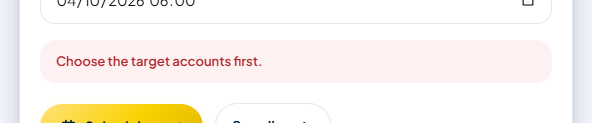
| Message | What it means | How to fix it |
|---|---|---|
| Write something or add media first. | The text and the media are both empty. | Fill in the Text field, or add a photo/video. |
| The text is too long for: … (e.g. Instagram, Facebook Page, Telegram) | The text goes over the limit of a selected account's platform. This applies to drafts too. | Look at the Limits per platform card. Shorten the text, or deselect that platform's account. |
| Pinterest: the first line becomes the Pin title, max. 100 characters (currently N) — … / Pinterest: the Pin description (text after the first line) max. 800 characters (currently N). | The Pin title (first line) or Pin description is too long. | Shorten the first line and write the rest from the second line on, or shorten the description. |
| The alt text for media item N is too long (max. 1000 characters, currently N). | The Alt text field has more than 1,000 characters. | Shorten or clear the alt text. |
| Instagram allows 5 hashtags per post — this text has N. Remove the extra hashtags (…) or deselect the Instagram account. | More than 5 hashtags and Instagram is selected. It only holds back Schedule and Send now. | Remove the hashtags it names, deselect the Instagram account, or save it as a draft first. |
| Links must start with http:// or https://. | The Link field doesn't hold a full web address. | Copy the full address from the browser's address bar, including https://. |
| The link is too long (max. 2,048 characters). | The Link field has more than 2,048 characters. | Use a shorter address (for example without the tracking parameters after the ?). |
| Choose the date and time for the schedule. / The schedule date and time aren't complete yet. | Schedule mode, but the date or time isn't completely filled in. | Complete the Date & time (WIB, UTC+7) field. |
| The scheduled time has already passed — choose a time in the future. / The schedule time has already passed. | The time you chose (read as WIB) has already passed. | Choose a time in the future. |
| You can schedule at most one year ahead. | The date is more than a year ahead. | Choose a closer date. |
| This photo was held by the AI check. Replace or remove the photo first — a post with this photo can't be saved, scheduled, or sent. | Photo check is holding this photo. | Press Remove media, then add another photo. Your text stays. |
| Connect an account first — schedules and sends need a target account. The draft can still be saved. | No account is connected at all. | Connect an account in the Social accounts menu (/akun), then come back. |
| Choose the target accounts first. / Choose target accounts for a scheduled post. | No account is selected. | Tap at least one account under Send to. |
| Target accounts not found — reload the page and choose them again. | A selected account has already been removed from AutoPost with the Disconnect button in the Social accounts menu (for example in another tab). | Reload the page, then choose the accounts again. |
| Invalid media address — upload the file or use an http/https link. / The media file wasn't found in your storage. | The media URL isn't a web address, or the file doesn't exist. | Use Upload from gallery. |
| The text is too long (max. 10,000 characters). | The text has more than 10,000 characters. | Shorten the text. |
| The post couldn't be saved. Please try again shortly. / The target accounts can't be read right now. Please try again shortly. / The target accounts couldn't be saved, so the post wasn't saved. Try again. / Couldn't save (HTTP N). Please try again. | A problem on the server; the post hasn't been saved. | Wait a moment, then press the gold button again. If it keeps happening, contact us. |
| Your session has ended. Please sign in again. | Your sign-in session has expired. | Copy any long text first, sign in again, then try again. |
| Couldn't reach the server. Check your connection and try again. | The internet connection dropped. | Check your internet. If this message appears after "Saved — sending…", read the Watch out for double sends box in 7.4. |
8.2 Send results
These messages appear after Send now (and after Send now or Resend failed on the Posts page).
| Message | What it means |
|---|---|
| Sent to N accounts. | Every target account received the post. |
| Sent to N accounts, M skipped (platform not supported yet). | Some accounts are on a platform whose sender isn't available yet. |
| Sent to N accounts, X failed, Y will be retried automatically. | Partly successful. The failure reasons are in Details per account (7.5). |
| Not sent yet — Y will be retried automatically. | Nothing has succeeded yet, but AutoPost retries after 1, 5, and then 30 minutes. In the composer it's followed by "No need to press Send again; follow the result on the Posts page." Wait, or press Resend failed on the Posts page. |
| All sends failed — open the Posts page to see why. | Everything failed. Read Details per account, fix the cause, then press Resend failed. |
| Nothing was sent: all target accounts use platforms the AutoPost sender doesn't support yet. | There's no account that can be sent to. |
| Some accounts are being sent to by another process. Reload shortly to see the result. | Sending is already running from another process. Wait, then reload. |
| Sending finished. | The process finished without a specific summary. |
Common failure reasons: Instagram without an image ("Instagram only accepts posts with an image or video. Add a JPEG image or a video, then resend."), Pinterest without an image ("Pinterest requires an image on every Pin. Add an image and resend."), or an account that needs reconnecting. For Telegram-specific reasons, see section 9 of the Telegram guide (/panduan/telegram/en).
8.3 When uploading media and using the Image studio
| Message | What it means | How to fix it |
|---|---|---|
| Choose a JPG/PNG/WebP/GIF photo or an MP4/MOV video. | The file type isn't supported (for example HEIC). | Convert the file to JPG or MP4 first. |
| The file is larger than 50 MB — choose a smaller one. | The file is too big. | Shrink or trim the file. |
| Media upload failed. Check the file type and size (max. 50 MB), then try again. / The media was uploaded, but its preview link couldn't be created. Try again. | Storage rejected the file, or the connection dropped. | Check the type and size, then upload again. |
| No session found — sign in before uploading. | Your session has expired. | Sign in again. |
| Choose a photo first or turn on the design card. | The Image studio has no image source yet. | Press Choose photo, or turn on Design card. |
| The image file couldn't be read. / The image is damaged or its format isn't supported. / The preview couldn't be drawn: … | The studio can't open or draw that photo. | Use another JPG or PNG photo. |
8.4 When using AI assist
| Message | What it means | How to fix it |
|---|---|---|
| First write what you want to write about (at least 3 characters). | The topic field is empty or too short. | Fill in the topic, then press Write draft again. |
| This text is already short — no need to shorten it. / The text is too long for AI assist (max. 5,000 characters). | The text is under 40 characters, or over 5,000 characters. | No need to Shorten, or shorten part of it yourself first. |
| The text already has 5 hashtags — the Instagram limit. Remove some first if you want other suggestions. | Instagram is selected and the hashtags are already full. | Remove some hashtags. |
| No AI key yet. AI assist uses your own AI key — add one on the AI keys page first (you can get a Gemini key for free). | You have no AI key at all. | Press Add AI key, paste the key, press Test & save, then try again. |
| Your AI key can't be used for writing right now (inactive, rejected by the provider, or out of quota). Add another key or try again later. / No active AI key can write yet — your key is inactive or from a provider that doesn't support writing yet. | You have a key, but none is ready to write. | Press See the cause in AI keys Overview, then fix it, or add another key (for example Gemini). |
| Your AI key's quota has run out, so AI can't write right now. / Your AI key's quota has run out. Try again in a few minutes, or add another key on the AI keys page. | The daily or per-minute quota has run out. If the time is known, it says "Your AI quota resets around …". | Wait, or add another key. |
| Your AI key hasn't been proven to write yet. Run "Deep test" on the Models tab of its provider page, or add another key. | The key's abilities haven't been tested yet. | Press Open the Models tab → Deep test (if shown), run the test, then try again. |
| Your AI key was rejected by the provider or its balance has run out. Check it on the AI keys page. | The key was revoked, is wrong, or has no balance left. | Check the key in the AI keys menu; replace it if needed. |
| The AI provider refused to write this because of its safety rules. Change the topic or wording, then try again. | The topic is considered to break the provider's rules. | Change the wording. |
| AI didn't respond within 45 seconds. Please try again shortly. / AI took too long to respond. Please try again shortly. / The AI provider is hard to reach right now. Please try again shortly. | The AI is slow or the provider is having problems. | Try again a little later. |
| The AI's answer couldn't be used. Try again — it usually works on the next attempt. / AI couldn't write this yet. Please try again shortly. / AI couldn't write this because of an unexpected error. Please try again shortly. / The server's response couldn't be read. Try again. / AI assist failed (HTTP N). Please try again shortly. | A momentary problem. | Press the button once more; if it keeps happening, contact us. |
| Too many attempts. Wait about …, then try again. | More than 20 requests in 10 minutes. | Wait for the time it gives. |
| Couldn't reach the server. Check your connection and try again. | The internet connection dropped. | Check your internet. |
8.5 When checking a photo
| Message | What it means | How to fix it |
|---|---|---|
| No AI key yet. Add a key on the AI keys page to use this check. | Check with AI needs an AI key. The basic check still runs. | Press Open AI keys, add a key, then check again. |
| Your key's ability to read images hasn't been proven yet. Run "Deep test" on the AI keys page. | The ability to read images hasn't been tested yet. | Press Test key (it opens AI keys), open your key's provider under Providers, run Deep test on the Models tab, then check again. |
| Too many photo checks. Try again in N minutes. | More than 15 checks in 10 minutes. | Wait for the time it gives. |
| The photo is larger than 15 MB — too big to check. | The photo is too big for the AI to check. | Shrink the photo, then upload it again. |
| That address isn't an image. / AI checking works for photos only, not videos. | The media URL points to a web page, another kind of file, or a video. | Use a direct link to an image file, or Upload from gallery. |
| This photo is on hold. Replace or remove the photo before sending. … | The AI provider refused to check the photo under its safety rules, or a child was found together with adult content. | Press Remove media and use another photo. |
9. Tips and frequently asked questions
9.1 Writing tips
The first line matters most. Pinterest uses it as the Pin title, and NEWS LOOK in the Image studio uses it as the hook line. Keep it short and clear, under 100 characters.
Put links in the Link field. If the text is too long for Telegram, the text is cut, while the link from the Link field stays whole.
Using a photo? Keep the text under 1,024 characters if Telegram is selected. Anything beyond that is cut when it's sent.
Instagram: at most 5 hashtags. Choose the most relevant ones; Suggest hashtags helps.
Write the important details yourself in the AI assist topic: date, time, place, price, and contact. Replace the
[isi kontak]or[isi harga]markers before sending.Reread the AI result. AI can make mistakes. Make sure the names, dates, and claims are right.
Fill in the alt text for photos sent to Instagram or Pinterest.
Don't write secret data (bank account numbers, customer data, passwords) in a post or in an AI topic.
9.2 Frequently asked questions
1. Do I have to have an AI key?No. Writing on your own, uploading photos, the Image studio, scheduling, and sending all work without an AI key. An AI key is only for AI assist, Check with AI, and From a link.
2. Does the AI replace my text right away?No. The AI result only goes into the Text field after you press Use (replace text) or Add below, and you can bring your text back with Undo as long as you haven't changed the text again.
3. Does AutoPost store the topic and text I give the AI?No. AutoPost doesn't store the topic, the text, or the AI result; it only records how much you used. But the content is sent to the AI provider of your key, so that provider's privacy rules still apply.
4. What do [isi kontak] and [isi harga] in the AI result mean?The AI wrote a number, email address, or price that you didn't provide, and AutoPost replaced it with that marker. Replace it with the correct details, or delete it, before sending.
5. Why are all accounts selected every time the page opens?That's how it's designed, so one text goes straight to all your accounts (except TikTok and X, which you tick yourself). Deselect the accounts you don't want to send to before you press the gold button.
6. Can I edit a post that's already saved or scheduled?Drafts, yes: on the Posts page, press Open in composer on the draft card. The text, link, accounts, and the whole media list (with its order and alt text) open again in New post; Save draft, Schedule, or Send now saves the changes to that same draft (not a new post). Scheduled posts can't be edited yet: delete it with the X button on the Posts page, then create a new post.
7. My draft has no target account. Can I send it later?Not as it is. You get the message "No target accounts yet — choose target accounts when composing the post." Open the draft with Open in composer, choose its target accounts, then save, schedule, or send it.
8. Can I send several photos at once (an album or carousel)?Yes, up to 10 media items per post. Choose several files at once with Upload from gallery (or add them one by one), then set the order by dragging the cards or with the ←/→ arrow buttons; the first media item becomes the Cover. Platforms that already accept several media items in one post:
| Platform | Several media items |
|---|---|
| Telegram | An album of 2–10 photos/videos. GIFs can't go into an album. |
| Facebook Page | 2–10 photos in one post (videos are sent as separate posts). |
| A carousel of 2–10 photos/videos; photos must be JPEG; all are cropped to match the first media item. | |
| Threads | A carousel of 2–10 photos/videos. |
| Pinterest, TikTok, X | Not yet — one media item only. If the account is selected and there's more than one media item, Send now and Schedule are on hold (for TikTok, drafts too). |
The badge above the media list (for example "Instagram 3/10 ✓ · X 3/1 ✗") shows which platforms accept that list before you press the gold button.
9. Why are the Schedule and Send now buttons gray?One of your photos is being held by Photo check (the red box says which photo). Remove that photo from the media list (the cross icon on its card), then add another photo.
10. Do Pins from New post need approval under Pin approval?No. Pin approval is only for Pins created by auto posts.
11. My internet dropped during Send now. What should I do?Don't resend right away. First check the Posts page and your target accounts, because the post may already be saved or already sent. See 7.4.
12. Why was my text on Telegram cut off and ended with "…"?The text (plus the link) went over 4,096 characters, or 1,024 characters if there's a photo/video. The note is in Details per account on the Posts page. Shorten the text if you want it whole.
10. Checklist and help
10.1 Checklist before you press Send
Tick these one by one before you press Send now or Schedule post.
Content
Media
Accounts and limits
Timing
Afterwards
10.2 Help and contact
If your problem isn't answered in section 8 or 9.2:
Open the Help menu in AutoPost for a short guide to every menu.
The full Telegram guide:
/panduan/telegram/en.Email: halo@autopost.solusikecerdasankomputasi.com. Send it from the email address registered to your AutoPost account.
Include: the message you saw (copied exactly, or a screenshot), the target platform, and roughly when it happened (WIB).
Never include account tokens, AI keys, or passwords. We don't need them to help you.
© 2026 PT Solusi Kecerdasan Komputasi. This guide was updated on 3 October 2026. The AutoPost interface may change at any time.