AutoPostUser guide
Post metrics in AutoPost
A guide to turning on, reading, turning off, and deleting post numbers for each account — Facebook Page, Instagram, Threads, and Pinterest
Save this guide
PDF version to read offline or print · 2.9 MB · 21 pages
Contents
1. At a glance
Post metrics is an optional feature available since October 24, 2026. When you turn it on for an account, AutoPost reads the numbers (likes, comments, and similar) of posts sent through AutoPost to that account, starting from the moment you turn it on. Post content isn't read, and other posts on your account aren't touched.
What to know up front:
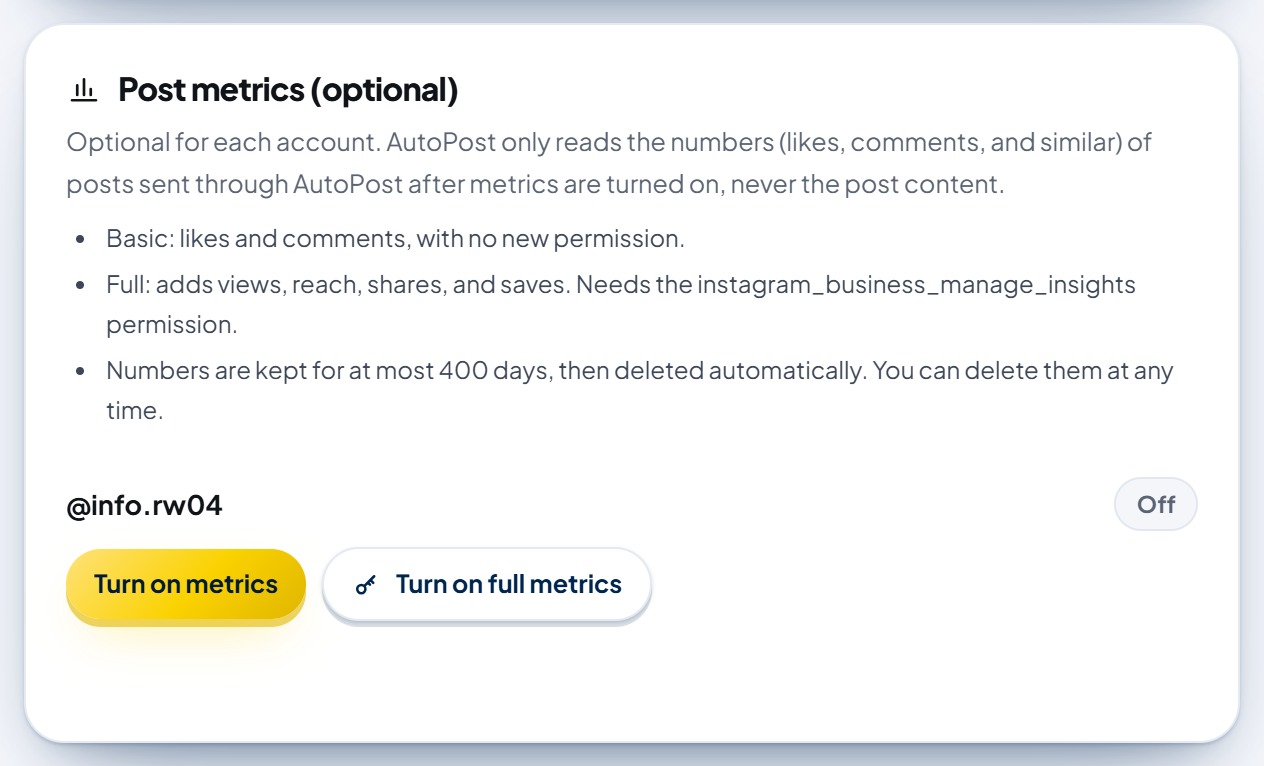
Off by default. No numbers are read from any account until you press the button yourself in the Post metrics (optional) panel on that account's page.
Per account. Each account is turned on, turned off, and cleared on its own. One account's numbers are never combined with another account's.
Read four times. About 1 hour, 3 hours, 24 hours, and 7 days after a post is sent.
Kept for at most 400 days, then deleted automatically. Pinterest numbers are never stored at all.
Supported platforms: Facebook Page, Instagram, Threads, and Pinterest. X metrics exist in the code but are currently turned off by AutoPost because of cost. TikTok, Telegram, and YouTube aren't read yet.
Status on October 24, 2026. Everything in this guide has been tested with simulated data. Reading from real Facebook, Instagram, Threads, and Pinterest accounts hasn't been tested yet. All images use sample account names and numbers, not real account data.
The panel is on the Social accounts › Facebook Page, › Instagram, › Threads, › Pinterest, and › X pages. You read the results in Analytics.
2. What is read on each platform
| Platform | Basic level (no new permission) | Full level (extra permission) |
|---|---|---|
| Facebook Page | likes (reactions), comments, shares | adds views, reach, and clicks. The read_insights permission through a new System User token |
| likes, comments | adds views, reach, shares, and saves. The instagram_business_manage_insights permission | |
| Threads | none | likes, replies, reposts, and quotes. The threads_manage_insights permission |
| lifetime Pin numbers (views, saves, clicks, comments, likes), read when you press the button | none | |
| X | turned off by AutoPost (section 7) | none |
| TikTok, Telegram, YouTube | not read yet | not read yet |
The panel on the account page describes each level in the same words, for example "Basic: likes, comments, and shares, with no new permission." for Facebook. Each account's status label is Off, Basic, or Full.
What is not read: post content, other people's comments, follower lists, and posts that weren't sent through AutoPost or were sent before metrics were turned on for that account.
3. Turning on Basic metrics
This applies to Facebook Page, Instagram, and Pinterest. Threads has no Basic level (go straight to section 4.3).
Open Social accounts, then the platform's page (for example Social accounts › Instagram).
Scroll to the Post metrics (optional) panel. Each connected account has one row with a status label.
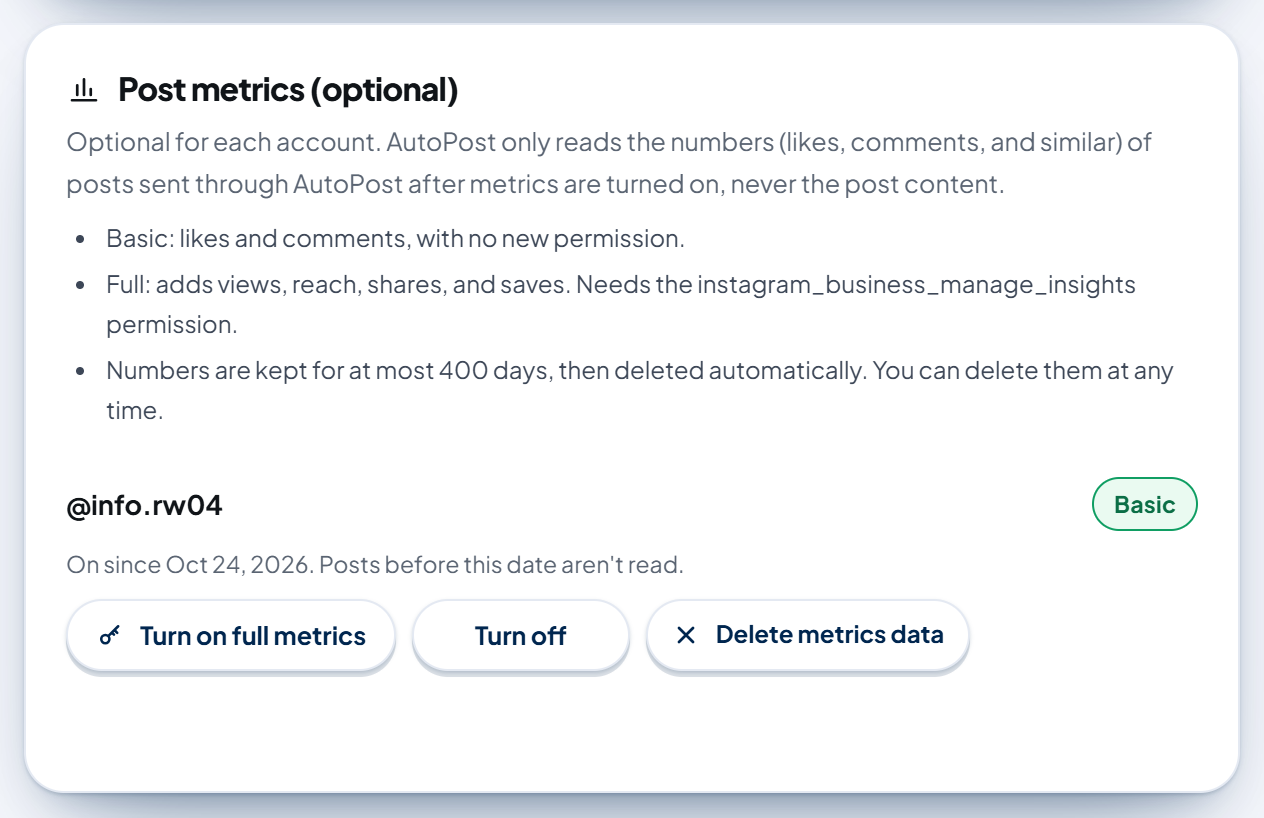
Press Turn on metrics on that account's row. When it works, "Metrics turned on." appears and the label changes to Basic.
Under the account name you'll see "On since … Posts before this date aren't read." Only posts sent after that moment are read.
No account on that platform yet? The panel says "Connect an account first to manage post metrics." Connect the account first using the form on the same page.
4. Turning on Full metrics
The Full level needs an extra permission from the platform. AutoPost only raises the status to Full after that permission is confirmed as granted (AutoPost asks the platform directly instead of trusting your checkbox). You can press the button from either Off or Basic; you don't have to turn on Basic first.
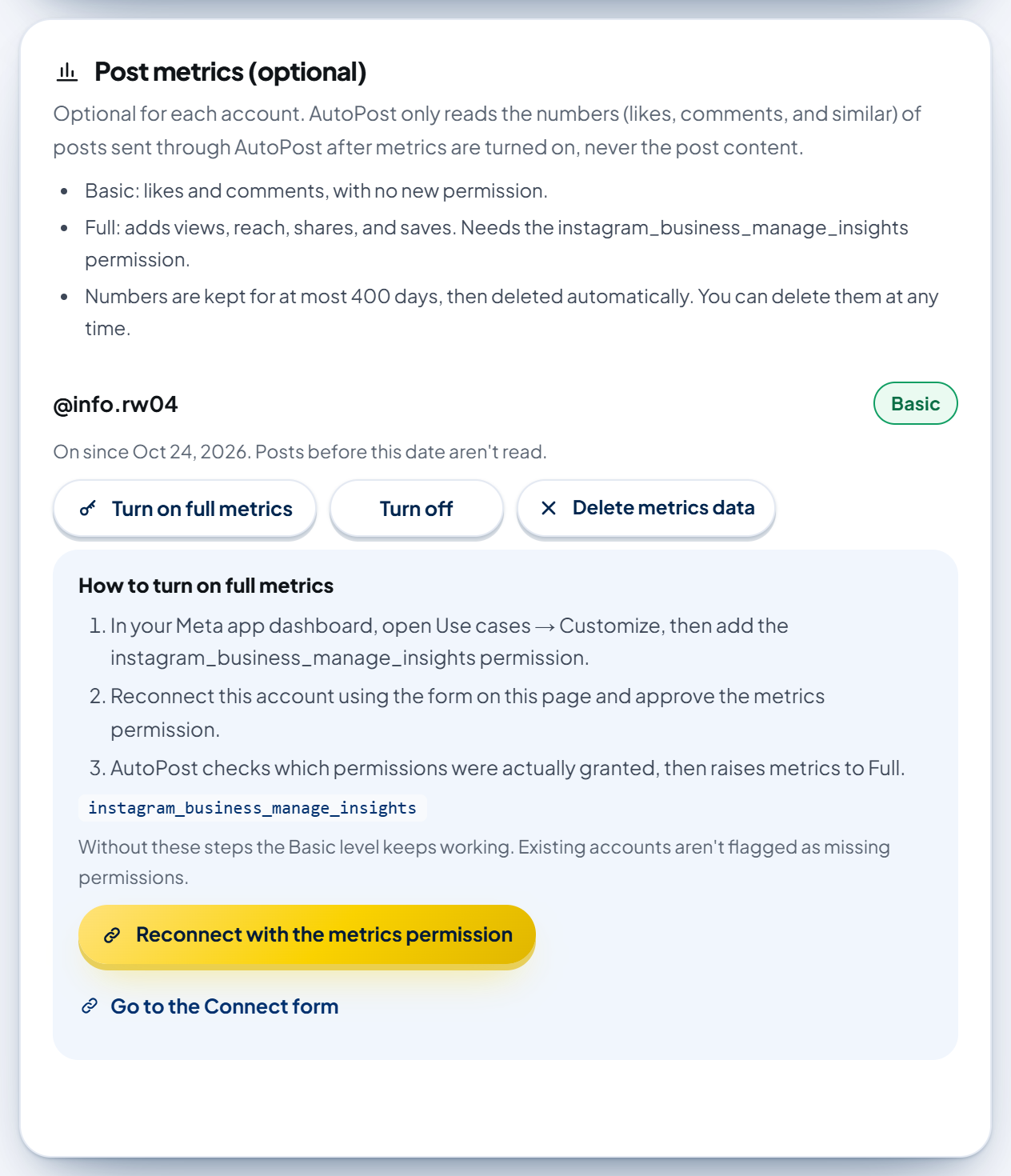
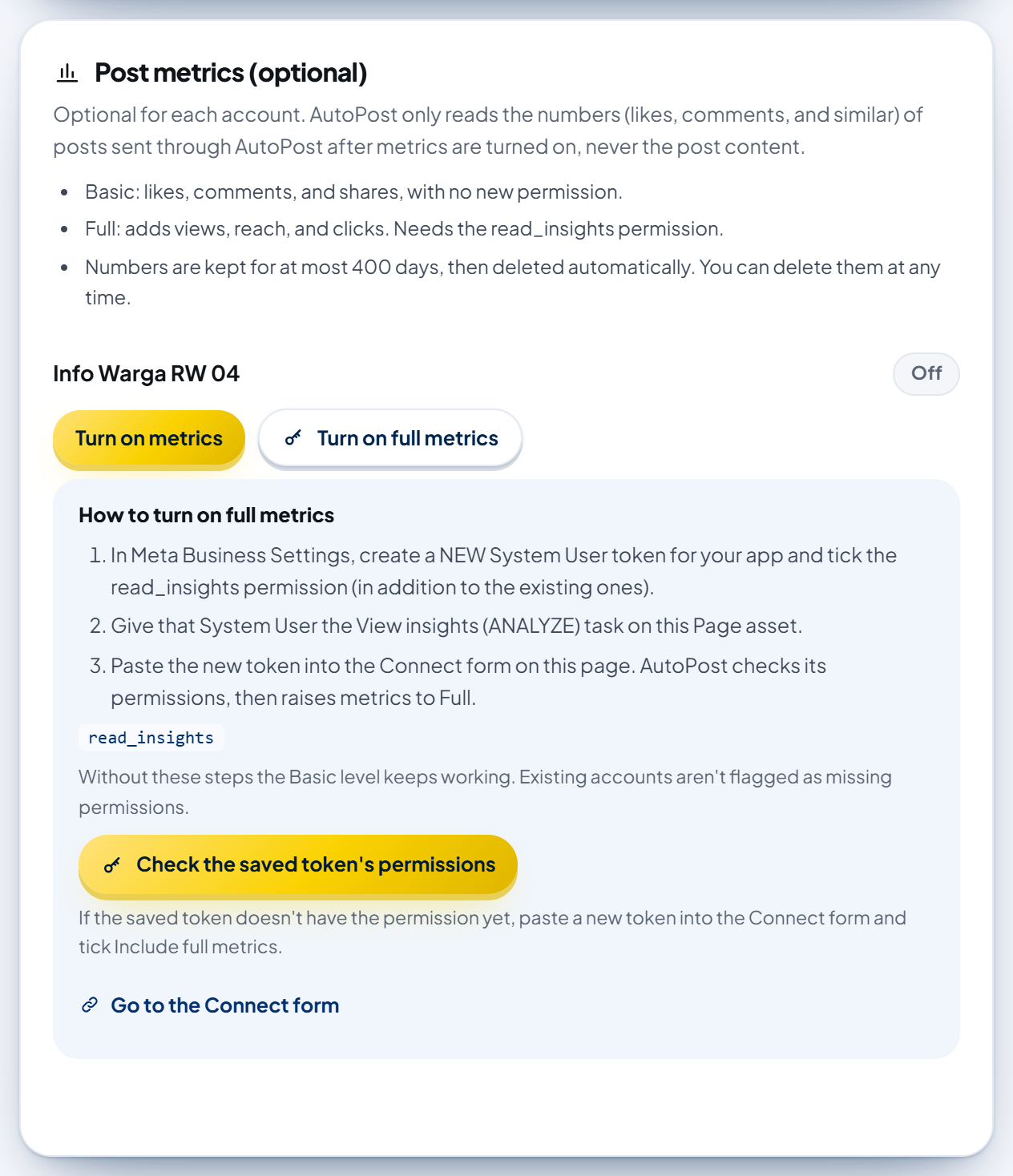
Press Turn on full metrics (on Threads: Turn on metrics) to open the How to turn on full metrics box, then follow the steps for your platform. The box also has a Go to the Connect form link.
4.1 Facebook Page
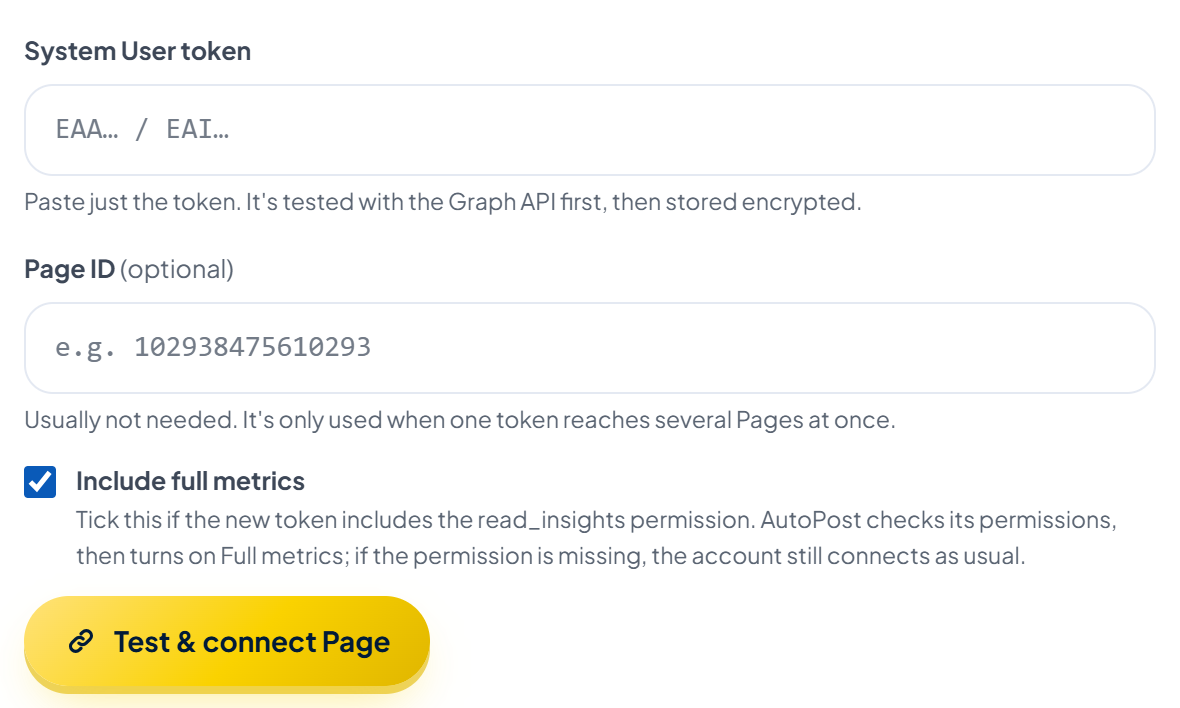
In Meta Business Settings, create a new System User token for your app and tick the
read_insightspermission, in addition to the four permissions you already have.Give that System User the View insights (ANALYZE) task on the Page asset.
Paste the new token into the Connect form on the same page, tick Include full metrics, then press Test & connect Page. If the permission is missing, the Page still connects as usual and metrics don't rise to Full.
If the token you already saved turns out to hold
read_insights, just press Check the saved token's permissions in the steps box.
Facebook notes:
Facebook insights numbers update about once a day, and a Page with fewer than 100 likes may have no insights numbers at all. A number that isn't available yet is shown as "—", not 0. Likes, comments, and shares are still read.
At the Full level, if Facebook refuses to return insights because of a permission or token problem (for example the ANALYZE task wasn't given), AutoPost turns off metrics for that account instead of quietly dropping it to Basic (see section 8.3). If you aren't sure your token is complete, turn on Basic first.
Pasting a new token without
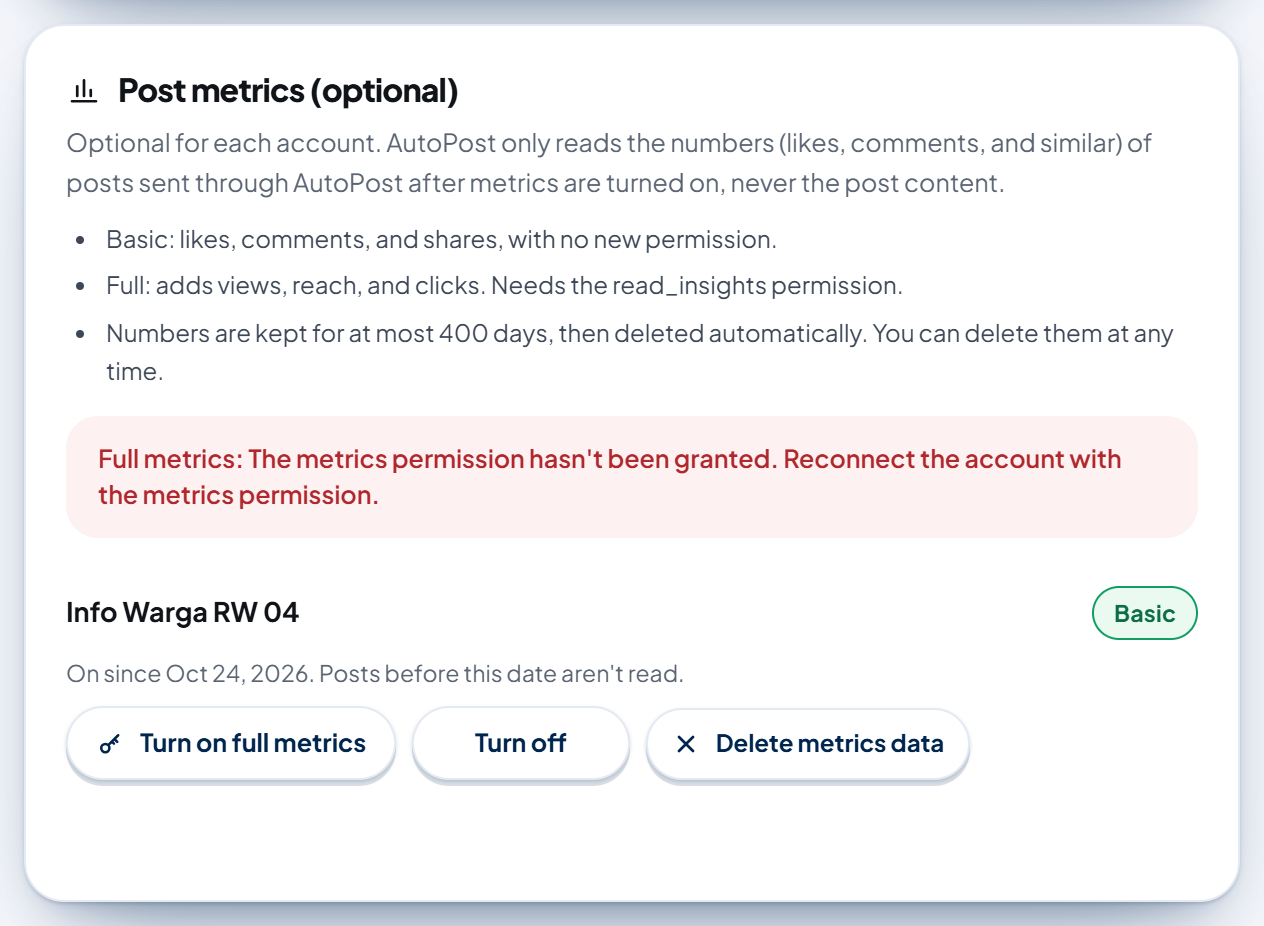
read_insightsfor a Page that is already Full drops its metrics to Basic, and the panel says "Full metrics: The metrics permission hasn't been granted. Reconnect the account with the metrics permission."
4.2 Instagram
In your Meta app dashboard, open Use cases → Customize, then add the
instagram_business_manage_insightspermission.In the steps box, press Reconnect with the metrics permission and approve the permission on the Instagram page. AutoPost uses the App ID and App Secret already saved for that account.
AutoPost checks which permissions were actually granted, then raises the status to Full.
Instagram can delay insights data by up to 48 hours, so views and reach are only treated as stable at the 7-day read. If you reconnect without approving the metrics permission, an account that was Full drops to Basic.
4.3 Threads
Threads only has the Full level, so its button is called Turn on metrics and opens the steps box right away.
In your Threads app dashboard, press Add on the
threads_manage_insightspermission.Press Reconnect with the metrics permission and approve the permission. If the saved token already holds that permission, just press Check the saved token's permissions.
AutoPost checks which permissions were actually granted, then turns metrics on.
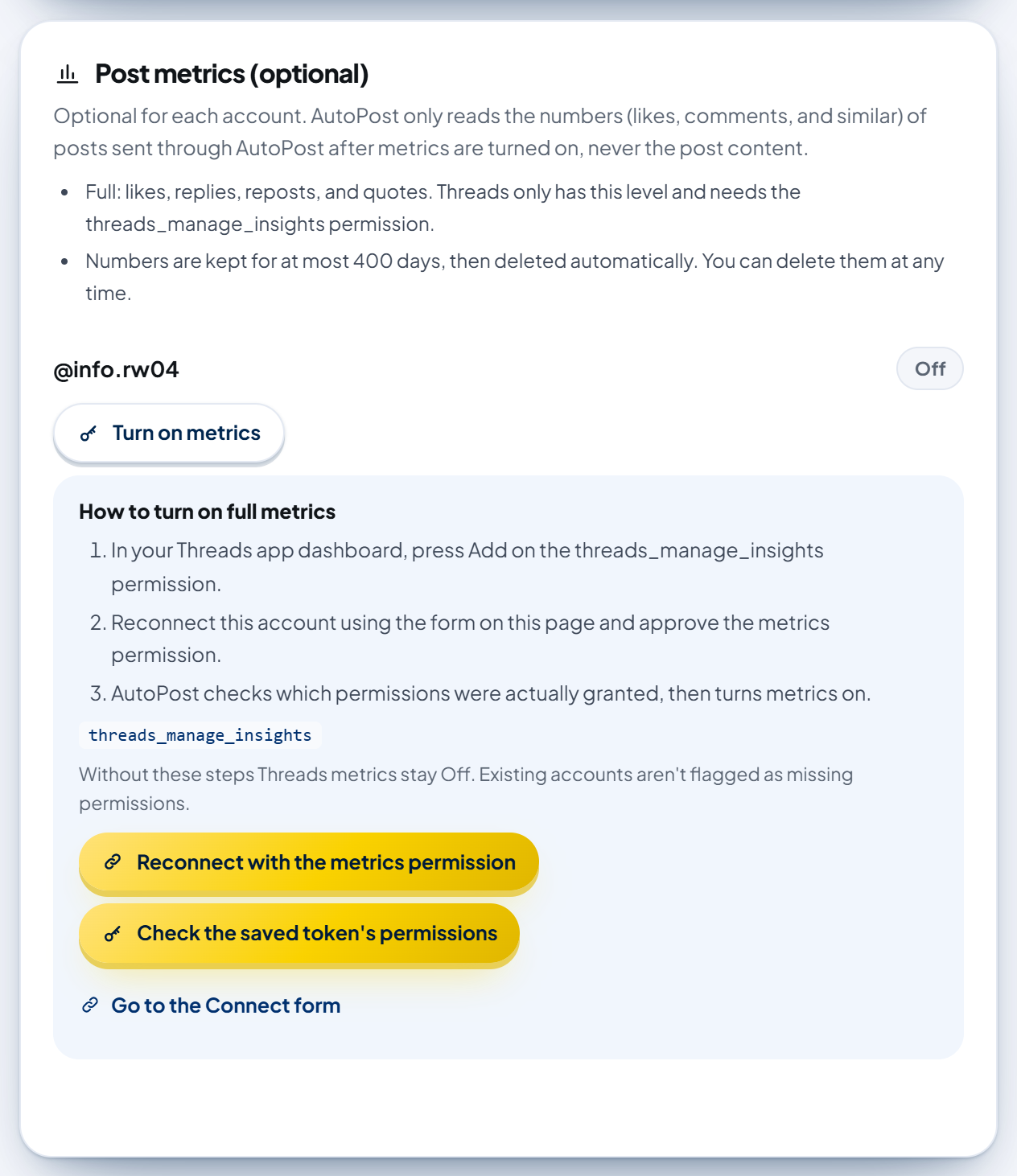
Without that permission Threads metrics stay Off. Threads views and shares are still "in development" by Threads, so they aren't counted. If an active Threads account is reconnected without the metrics permission, its metrics are turned off (the reason is written on the account row) and the Threads numbers stored for that account are deleted too, because they are Meta data (section 8.3).
4.4 How to tell it worked (or didn't)
After you come back from the platform (or after pressing Check the saved token's permissions), the panel shows a result strip:
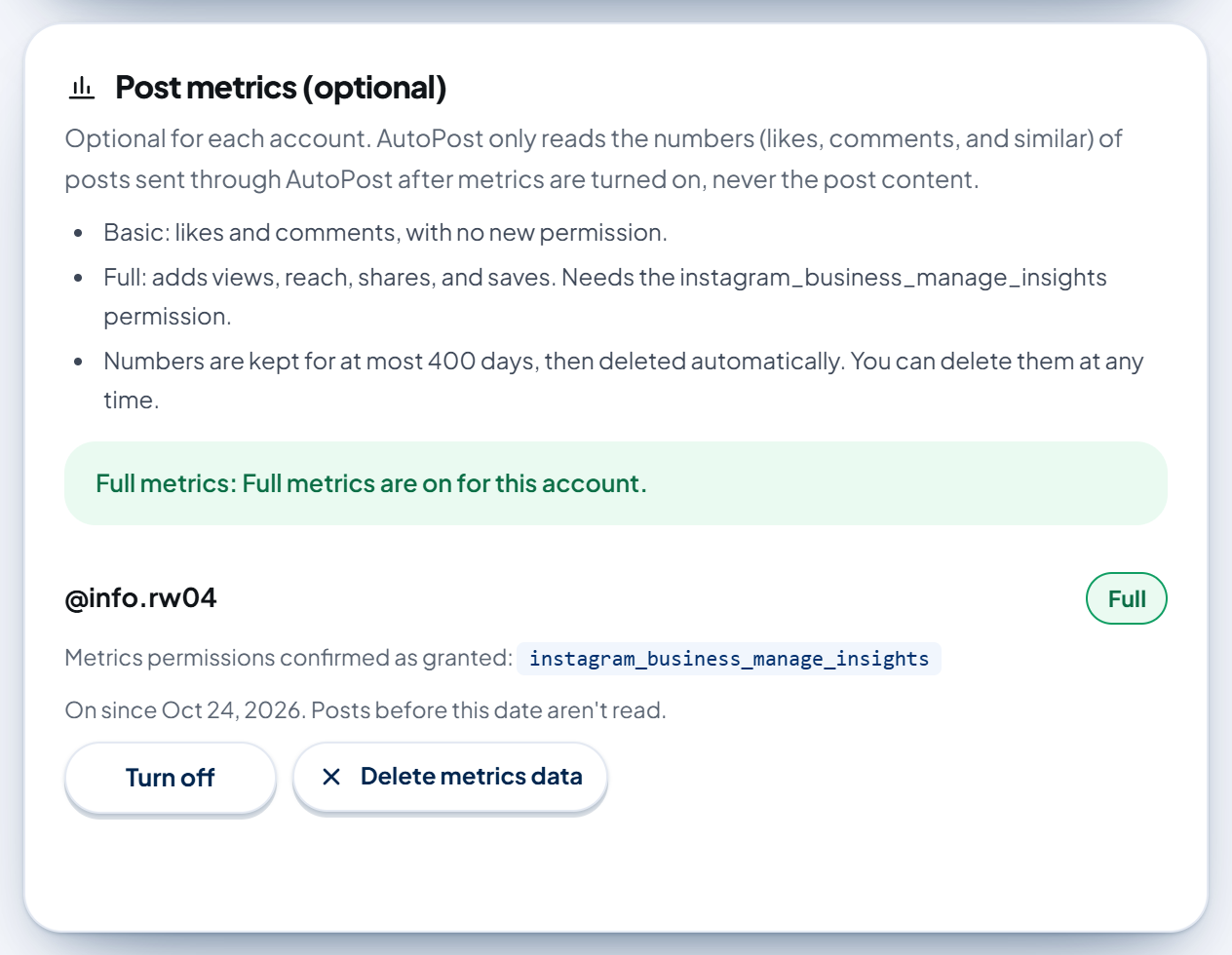
Green: "Full metrics: Full metrics are on for this account." The account row is labeled Full and lists Metrics permissions confirmed as granted.
Red: for example "Full metrics: The metrics permission hasn't been granted. Reconnect the account with the metrics permission." The Basic level (where it exists) keeps working.
The On since date doesn't change when you move from Basic to Full: posts already read still count.
5. Reading the cards in Analytics
Open Analytics. The Post metrics section sits next to the accounts-per-platform card (on a phone: below it).
5.1 Before any account has metrics
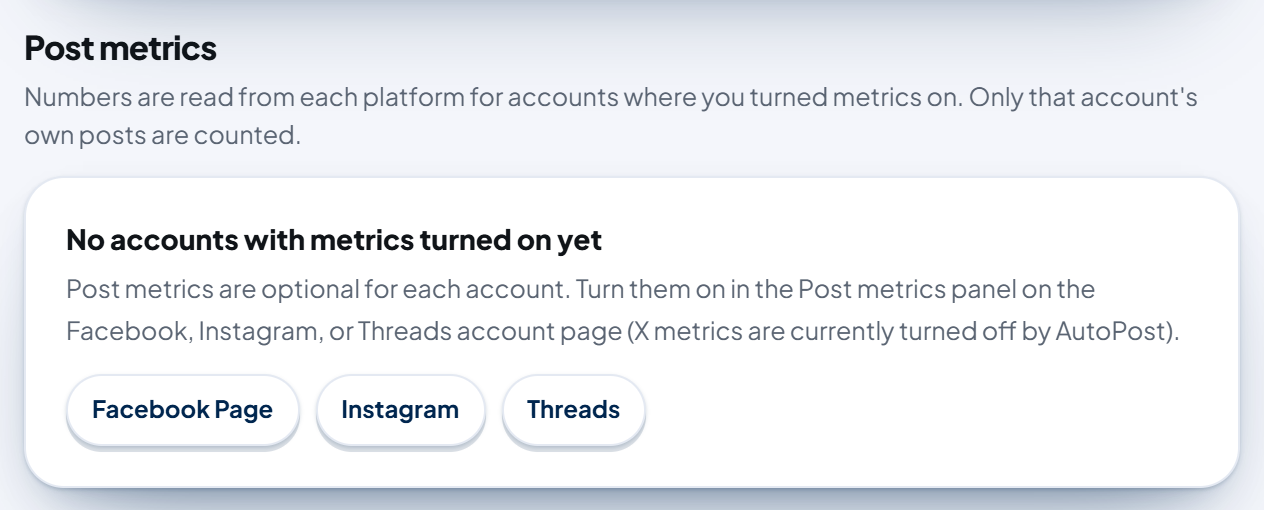
Until a Facebook, Instagram, or Threads account has had metrics turned on, this section says "No accounts with metrics turned on yet" with buttons to the Facebook Page, Instagram, and Threads pages.
5.2 Choosing an account
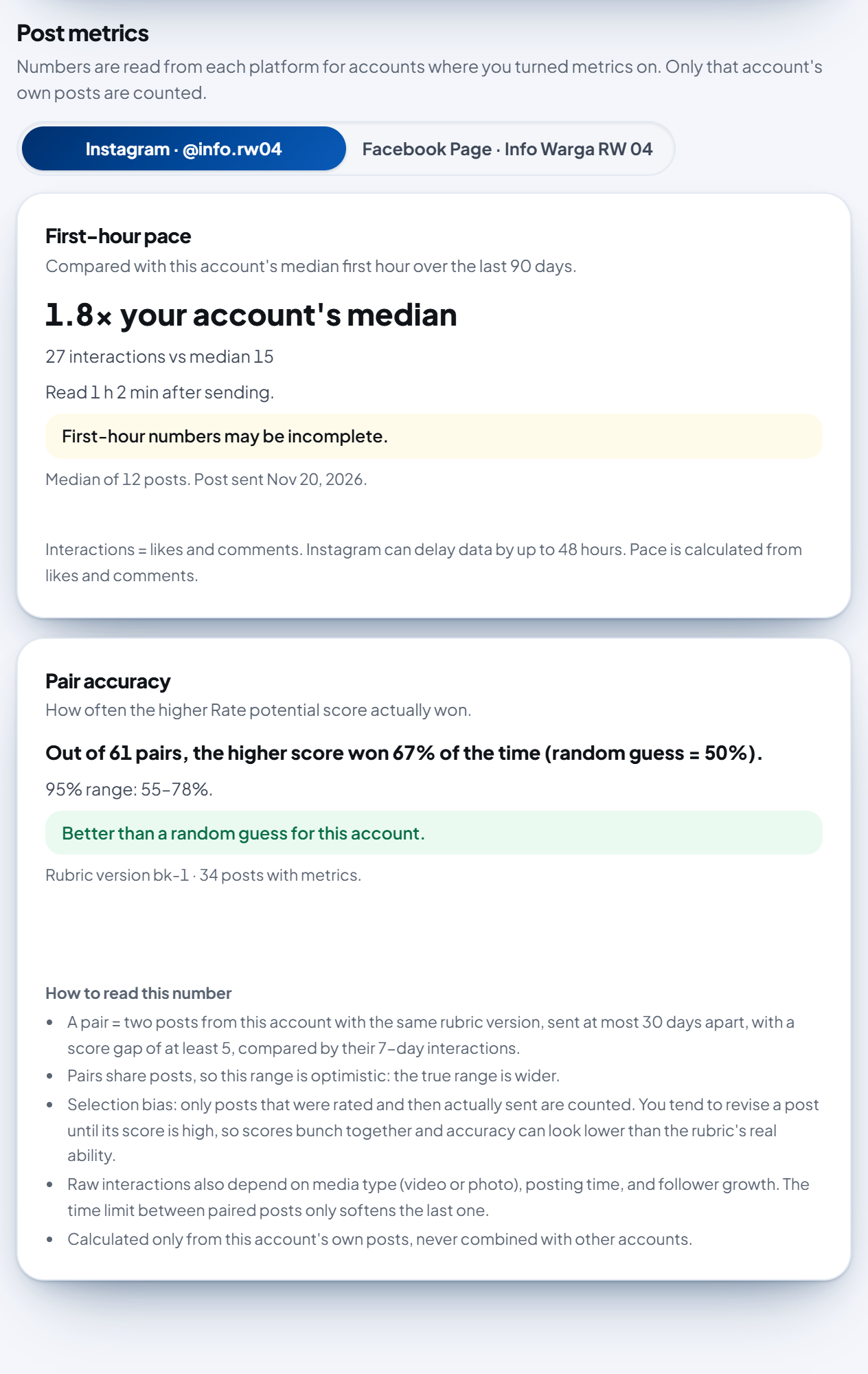
Have more than one account with metrics? Choose the account above the cards (for example Instagram · @name or Facebook Page · Page name). An account whose metrics were turned on and later turned off can still be chosen, marked (metrics off); if its data has already been deleted, the cards are empty. Both cards always count one account only. Pinterest accounts aren't in this picker (section 6).
5.3 First-hour pace
This card compares the first-hour interactions of the latest post with that account's median first hour over the last 90 days. Example: "1.8× your account's median" means this post is moving 1.8 times faster than usual.
Interactions are counted the same way on each platform so they stay comparable before and after a level change: Facebook = likes + comments + shares; Instagram = likes + comments; Threads = likes + replies + reposts + quotes. Views, reach, and clicks are deliberately left out.
It needs at least 6 posts with metrics read at the 1-hour mark: the post itself plus 5 other posts for the median. Until then it says, for example, "Not enough data yet: 3 of 6 posts."
First-hour numbers are often incomplete, especially on Facebook and Instagram. The card says so with a yellow strip.
If your account's median is still 0, no ratio is calculated: the card says "Your account's median is still 0, so no ratio is calculated."
5.4 Pair accuracy
This card answers: how often did the higher Rate potential score actually win? The Rate potential score comes from the Rate potential button in New post (the Compare Content feature).
A pair = two posts from this account with the same rubric version, sent at most 30 days apart, with a score gap of at least 5, compared by their 7-day interactions.
The percentage appears only after 30 posts with metrics within one rubric version: posts rated with Rate potential, then sent, whose numbers were read 7 days after sending.
A random guess = 50%. The card says "Better than a random guess for this account." only when the lower end of the 95% range is already above 50%. Otherwise it says "Not yet shown to beat a guess."
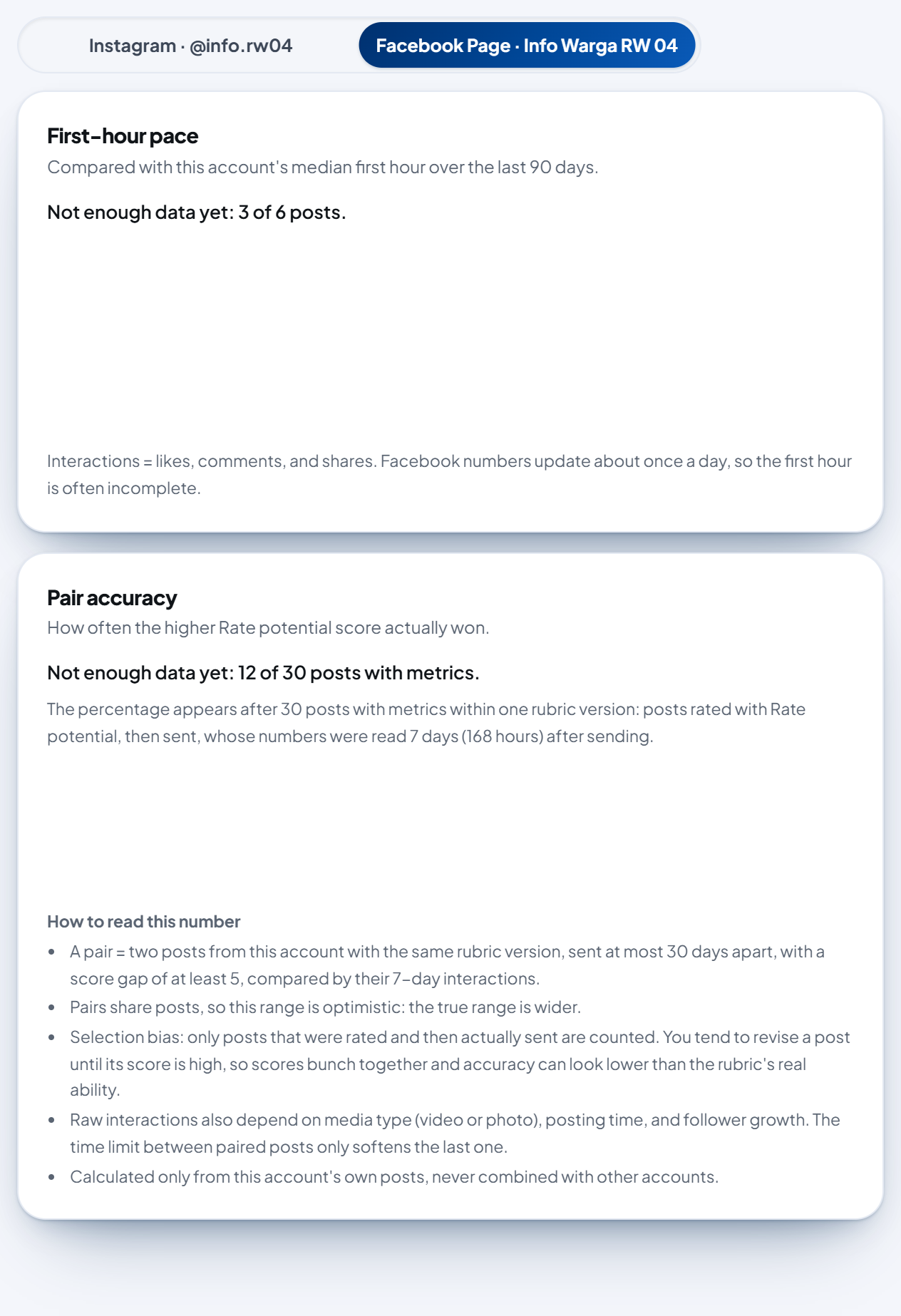
Limits written on the card: the range is optimistic because pairs share posts; there is selection bias because only posts that were rated and then sent are counted; and raw interactions also depend on media type, posting time, and follower growth. This number is an estimate, not a guarantee.
6. Pinterest: read live, never stored
Pinterest's rules don't allow Pin numbers to be stored or compared. So:
Turn it on with Turn on metrics in the panel on the Social accounts › Pinterest page. The Pinterest permission you approved when connecting is enough.
Open Analytics, then in the Pin numbers (Pinterest) box press Read Pin numbers.
Lifetime Pin numbers (views, saves, clicks, comments, likes) are read straight from Pinterest right then, for up to the 10 latest Pins sent through AutoPost after metrics were turned on, with the time they were read. Press Read again for the latest numbers.
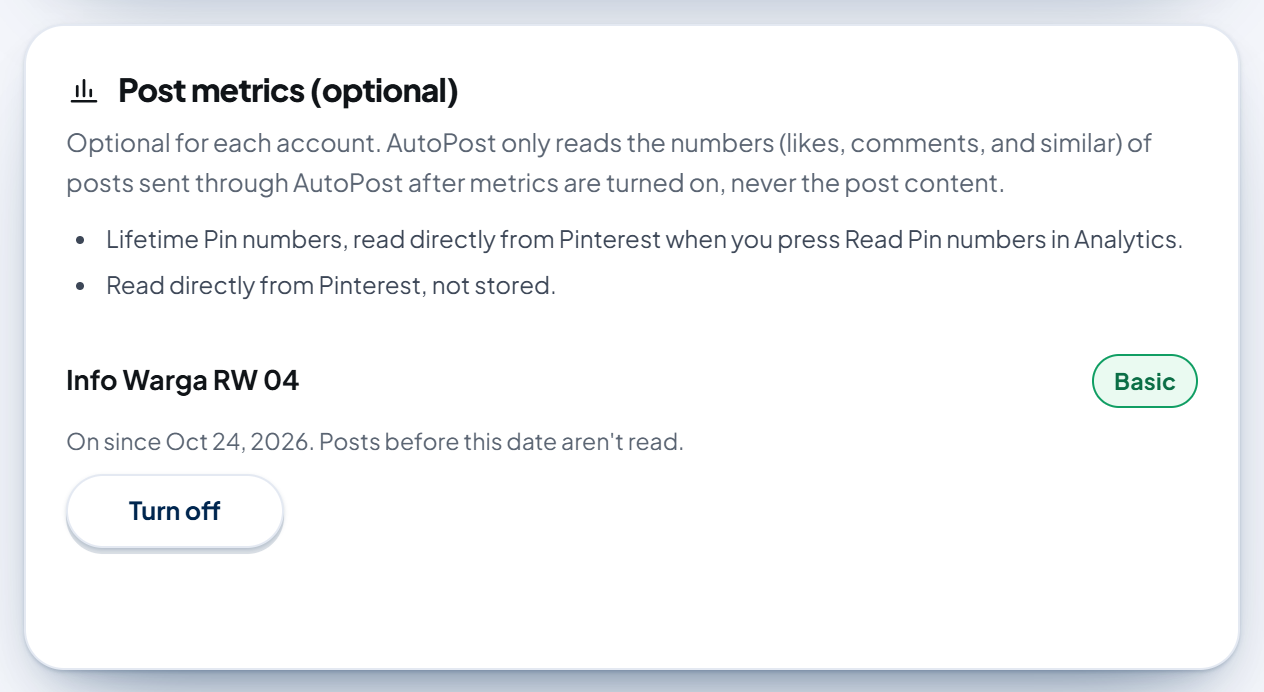
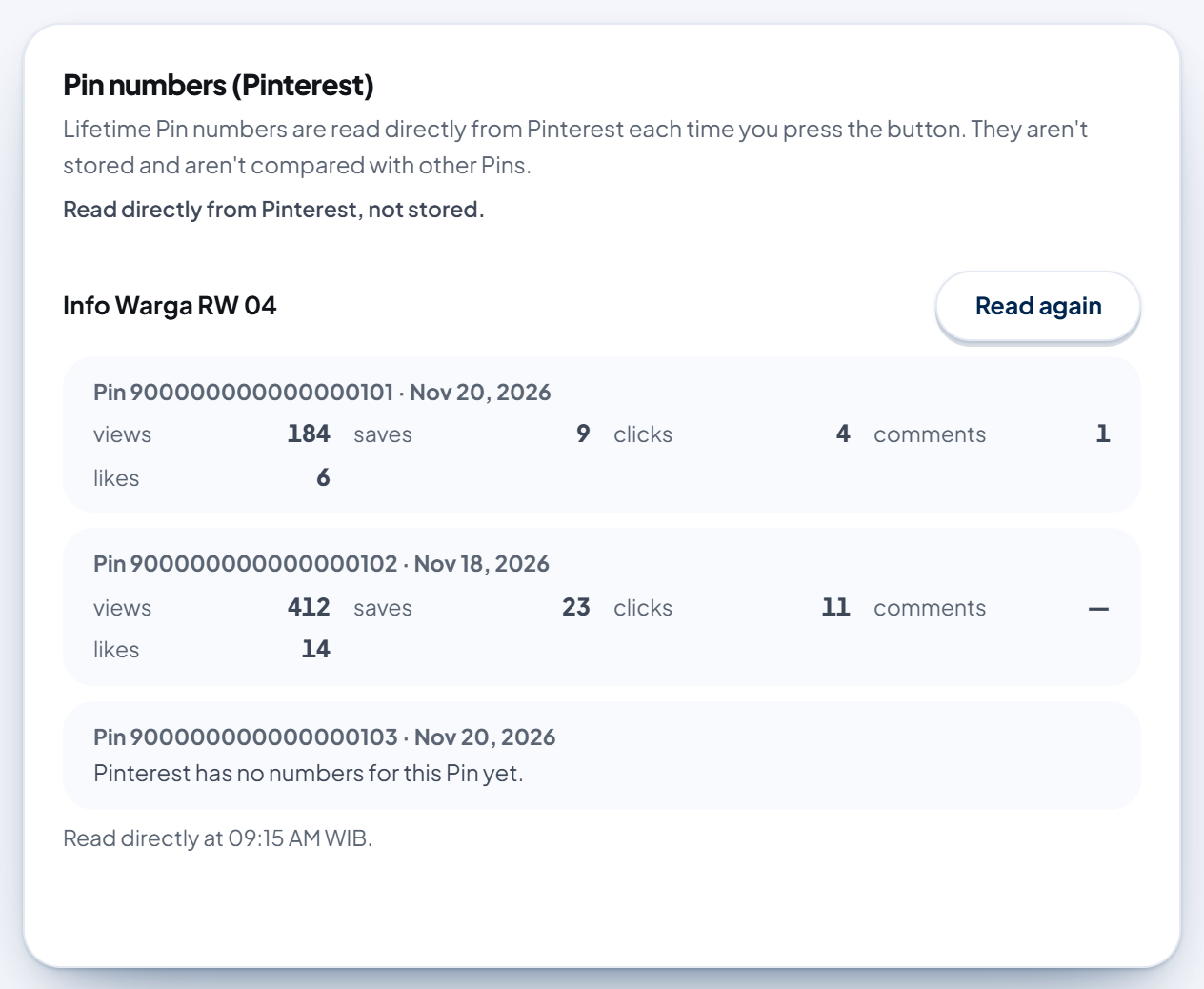
Pinterest numbers aren't stored, don't appear in the Pace or Accuracy cards, and aren't compared with other Pins. Because nothing is stored, the Pinterest panel has no Delete metrics data button. Messages you may see for a Pin: "Pinterest has no numbers for this Pin yet.", "This Pin wasn't found on Pinterest.", "This Pin's numbers couldn't be read.", or "This Pin was skipped."
7. X: turned off by AutoPost
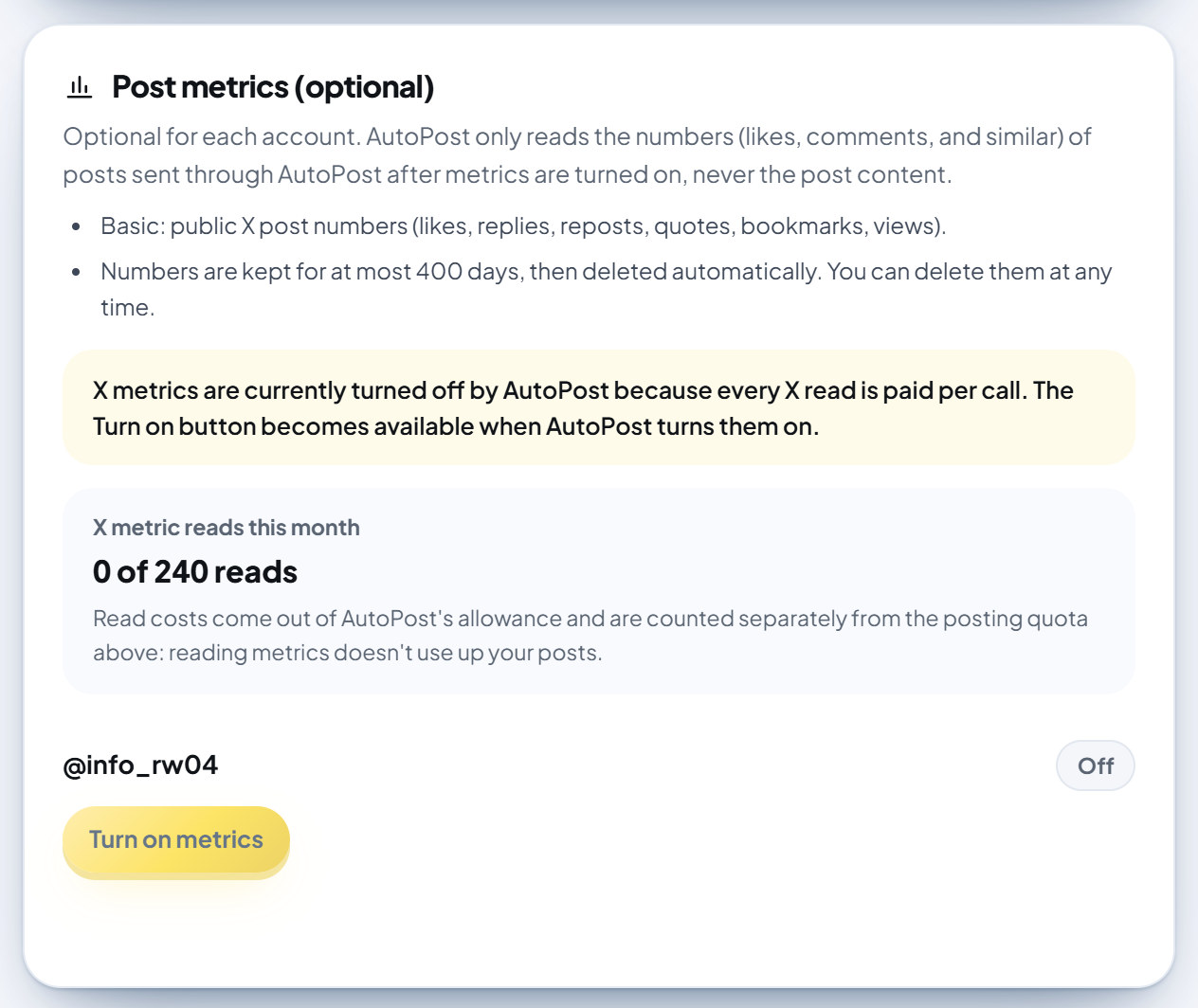
Every read of X numbers is paid per call by AutoPost. So X metrics are turned off until AutoPost decides on a budget. The panel on the Social accounts › X page says "X metrics are currently turned off by AutoPost because every X read is paid per call." and the Turn on metrics button is locked. The X metric reads this month box shows the read allowance, which is counted separately from your X posting quota.
8. Turning off and deleting data
8.1 Panel buttons
| Button | What happens |
|---|---|
| Turn off | Reading stops. Numbers already stored stay until you delete them or they pass 400 days. The account can still be chosen in Analytics, marked (metrics off). |
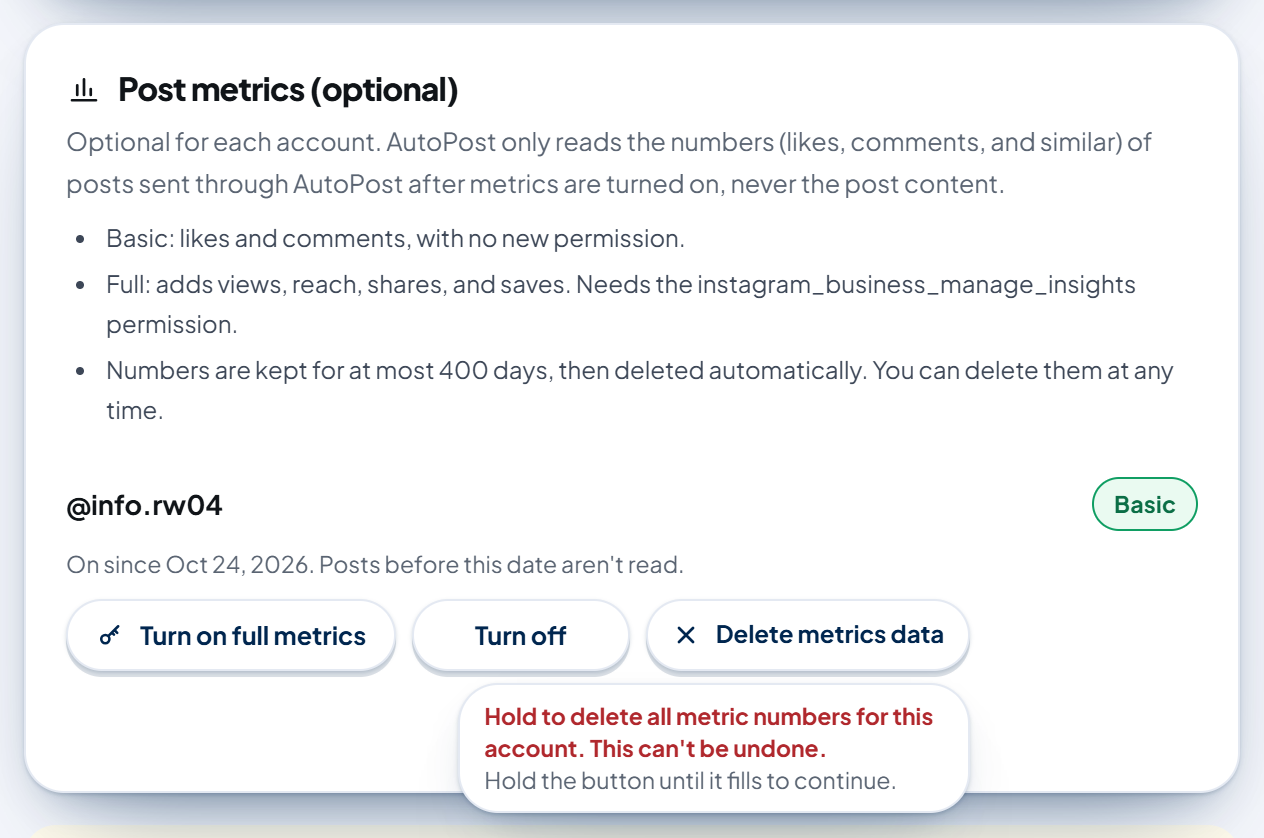
| Delete metrics data (press and hold until full) | Metrics for that account are turned off and all its stored numbers are deleted. This can't be undone. If it fails, you'll see "Metrics data wasn't deleted. Try again in a moment." |
The Delete metrics data button has to be held for about 2 seconds until the red sweep fills. If you only tap it, the hint "Hold to delete all metric numbers for this account. This can't be undone." appears and nothing happens.
8.2 Other deletions
Disconnecting the account from AutoPost, deleting the post, or deleting your AutoPost account deletes the numbers right away. Numbers that reach 400 days old are deleted automatically.
8.3 Turned off automatically
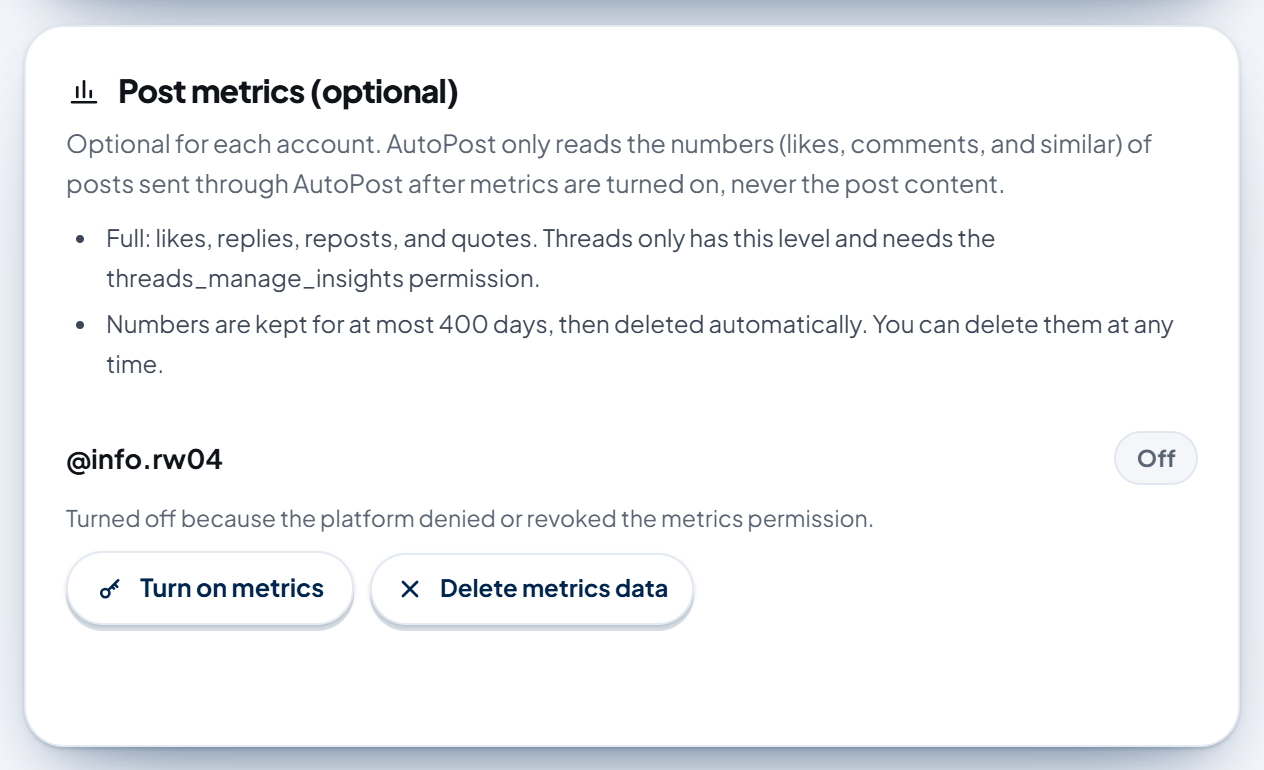
Metrics are also turned off automatically when the platform denies or revokes the metrics permission, the token is no longer valid, or AutoPost's access to the account is revoked. When that happens:
The reason is written on the account row, for example "Turned off because the platform denied or revoked the metrics permission.", "Turned off because the account's token is no longer valid.", or "Turned off because AutoPost's access to this account was revoked."
For Facebook, Instagram, and Threads, the numbers stored for that account are deleted too, because they are Meta data that may not be kept once access is gone.
When the denied permission or invalid token is detected while AutoPost is reading the numbers, AutoPost also sends a System item to the Notifications page (at most one per account per reason within 7 days, and only when the Failed sends notification option is on).
Access revoked from the Threads side, and a Threads account reconnected without the metrics permission, do not send a notification: the reason only shows on the account row on its account page.
Sending posts isn't affected.
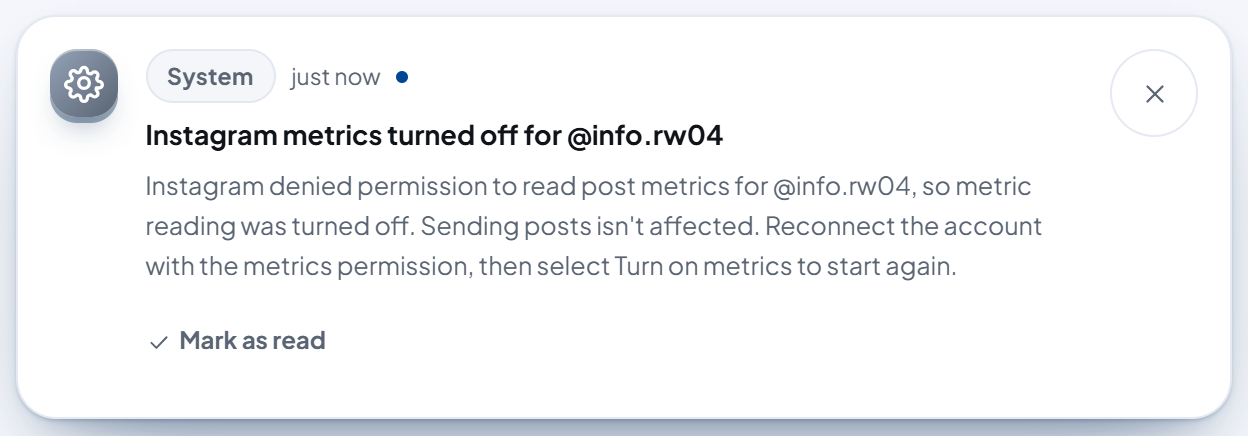
To turn it back on: fix the permission (section 4), then press Turn on metrics or the Full-level path again. Posts sent before you turn it back on aren't read.
9. Troubleshooting
| Message or symptom | What it means and how to fix it |
|---|---|
| "The metrics permission hasn't been granted. Reconnect the account with the metrics permission." | The extra permission isn't in the token or wasn't approved. Repeat section 4 for that platform. The Basic level (Facebook, Instagram) keeps working. |
| The status drops from Full to Basic after reconnecting | The new token doesn't hold the metrics permission. Repeat section 4.1 or 4.2. |
| "Turned off because the platform denied or revoked the metrics permission." | The platform refused the read (permission revoked, ANALYZE task removed, Page out of reach). That account's Meta numbers have already been deleted. Fix the permission, then turn metrics on again. |
| "Turned off because the account's token is no longer valid." | Reconnect the account on the same page, then press Turn on metrics. |
| "X metrics are currently turned off by AutoPost." | X metrics are deliberately off because of cost (section 7). |
| "No accounts with metrics turned on yet" in Analytics | No Facebook, Instagram, or Threads account has metrics turned on. Pinterest accounts appear separately in the Pin numbers box. |
| A card says "Not enough data yet: …" | Normal at the start. Pace needs 6 posts with metrics read in their first hour; Accuracy needs 30 posts that were rated with Rate potential, then sent, and read 7 days later. |
| "No post has been read at the 1-hour mark yet." | No post from this account has had its numbers read about 1 hour after sending yet. Send a post through AutoPost, then check again after its first hour. |
| A number shows "—" | The platform hasn't provided that number yet. "—" isn't 0. |
| "Metrics couldn't be loaded. Try again in a moment." | A brief problem. Press Reload metrics. |
| "Metrics settings weren't saved. Try again in a moment." | A panel button didn't save. Press it again a little later. |
| "Metrics settings couldn't be read. Reload this page in a moment." | The panel couldn't read its settings, so its buttons are locked. Reload the page. |
| "Pin numbers couldn't be read from Pinterest. Try again in a moment." | Pinterest isn't responding. Press Read Pin numbers again later. |
| "Metrics aren't turned on for this account. Turn them on from its account page." | Metrics for that Pinterest account were turned off. Turn them on again in Social accounts › Pinterest. |
| "This account's token is no longer valid. Reconnect the account from its account page." | Reconnect that Pinterest account, then read again. |
The full legal explanation is in Privacy Policy section 5e (effective October 24, 2026).