AutoPostUser guide
Connecting Threads to AutoPost
The complete guide: from your Threads profile and Meta app to your first text, image, and video published on Threads
Save this guide
PDF version to read offline or print · 6.5 MB · 45 pages
Contents
1. Overview
What you'll achieve
After following this guide, AutoPost can send text, images, and videos to your Threads profile: right away when you press Send now, or automatically at the time you schedule.
It works through the official Threads sign-in and your own Meta app. You never give your Threads password to AutoPost. A regular Threads profile is accepted too — Threads has no Business or Creator accounts like Instagram does.
Estimated time
| Your situation | Estimate |
|---|---|
| You already have a Meta app (for example from the Facebook Page or Instagram guide) | About 30 minutes |
| You don't have a Meta app yet | About 45 minutes |
You only do this once. Most of the time is spent in the Meta dashboard and in your Threads settings.
What you need
| What you need | Details |
|---|---|
| A Threads profile | It must already exist. Step A explains how to find its username. |
| A personal Facebook account | Used to sign in to developers.facebook.com. |
| A Meta app | You can use an existing app (for example your Facebook Page or Instagram app). Don't have one? Step B. |
| A laptop or computer | The Meta developer dashboard and threads.com are easiest to use on a wide screen. |
| An AutoPost account | Already signed in to the AutoPost app. |
What AutoPost sends to Threads
| Post content in AutoPost | Result on Threads |
|---|---|
| Text only | A text post. That's fine — Threads doesn't require an image. |
| Text + the Link field (no image/video) | A text post with a link preview card. The link isn't added to the text. |
| A link inside the text (no image/video) | According to Meta, the first link becomes the link preview. |
| A JPEG or PNG image | An image post. The text becomes the caption; the Link field is written on a new line at the end. |
| An MP4 or MOV video | A video post. Text and link work the same as for images. |
| Alt text | Sent along for images and videos (max. 1,000 characters). |
| WebP, GIF, HEIC images and similar | The image is skipped; the text is still sent as a text post (with a note). With no text and no Link field: rejected. AutoPost recognizes the format from the file name's extension (.webp, .gif, …). |
| WebM, MKV, AVI videos and similar | Rejected. Threads only accepts MP4 or MOV. |
| Hashtags | Threads uses the first hashtag as the post's topic. |
| Text length | At most 500 characters — an emoji counts as more than one (see 10.1). |
| Links | At most 5 different links per post. |
Carousels are supported: 2–10 photos/videos in one post (add several media in New post), alt text per media item.
Not supported by AutoPost yet: polls, replies, GIFs, spoilers, and editing or deleting posts that are already published. To delete a post, do it directly in the Threads app or on the Threads website.
2. Understanding the terms
| Term | What it means |
|---|---|
| Meta app | The app you register at developers.facebook.com. It's free. This app is what asks your Threads profile for permission. |
| Use case | The choice of "what this app is for". For Threads: Access the Threads API. |
| Permission | A right AutoPost asks for. There are only two: threads_basic (read the profile) and threads_content_publish (publish posts). |
| Threads app ID | The app's number specific to Threads (16 digits in this guide's example). It's different from the Facebook App ID at the top of the dashboard. |
| Threads app secret | The app's secret key, specific to Threads. Treat it like a password. It's different from the Facebook app secret. |
| The three addresses | AutoPost addresses you paste into the Settings of the Threads use case: Redirect Callback URLs (where you return after granting permission), Uninstall Callback URL (called by Meta when you revoke permission), and Delete Callback URL (called by Meta when you ask for your data to be deleted). |
| Threads Tester | A role in the Meta app for Threads profiles. With this role, your profile can grant permission without App Review. |
| Token | The access key from Threads after you grant permission. It starts out valid for 1 hour; AutoPost immediately exchanges it for a 60-day token, then renews it automatically. |
| Permission period | According to Meta, the permission you grant lasts 90 days and is extended by 90 days each time the token is renewed. |
| Topic | A one-word label on a Threads post. AutoPost has no topic field; Threads takes it from the first hashtag in the text. |
3. Step A — Checking your Threads profile
3.1 Your Threads profile must already exist
AutoPost connects a Threads profile, not an Instagram account. If you've never opened Threads, first create your profile in the Threads app or at threads.com.
3.2 Finding your Threads username
You'll need this name in Step F.
Open threads.com and sign in.
Open Profile.
Note the username shown there (without the @).
3.3 Public or private profile?
Our test used a public profile. Meta's documentation doesn't forbid private profiles from using the Threads API, but the documentation itself is inconsistent about permission renewal for private profiles. If your private profile is ever labeled needs reconnecting, just reconnect it (11.2).
4. Step B — Preparing a Meta app
If you already have a Meta app
For example the app you created while following the Facebook Page guide (/panduan/facebook/en) or the Instagram guide (/panduan/instagram/en). Just use that app. This guide was tested with the same app: the Access the Threads API use case can be added to an app that already serves a Facebook Page and Instagram. Go on to Step C.
If you don't have a Meta app yet
Follow Step B in the Facebook Page guide (/panduan/facebook/en) to create an app at developers.facebook.com. Once the app exists, add the Threads use case through Step C below.
5. Step C — Adding the Access the Threads API use case
At developers.facebook.com, open your app.
In the left menu, choose Use cases.
Press Add use case (the button at the top right). A window for adding more use cases opens. Access the Threads API usually appears under the Featured filter; if you don't see it, choose the All filter.
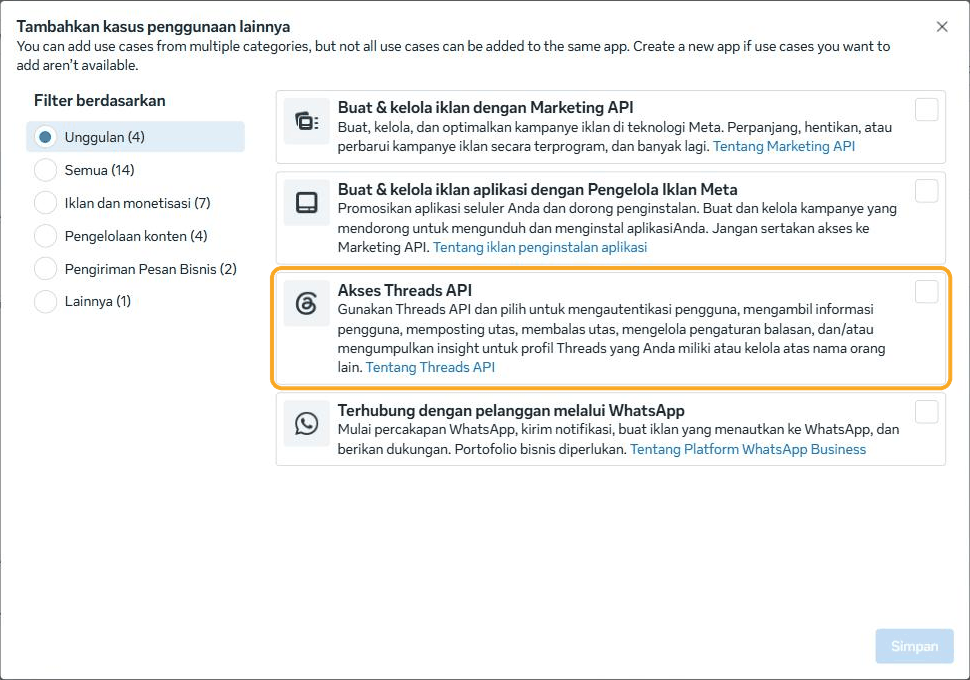
Tick the box on the right of the Access the Threads API card.
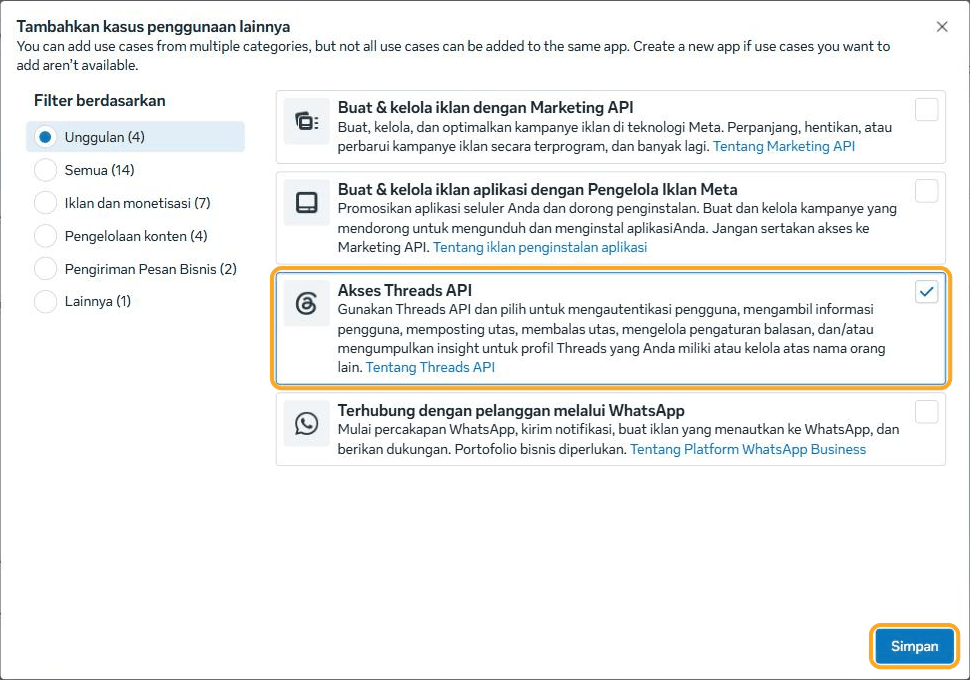
Press Save at the bottom right.
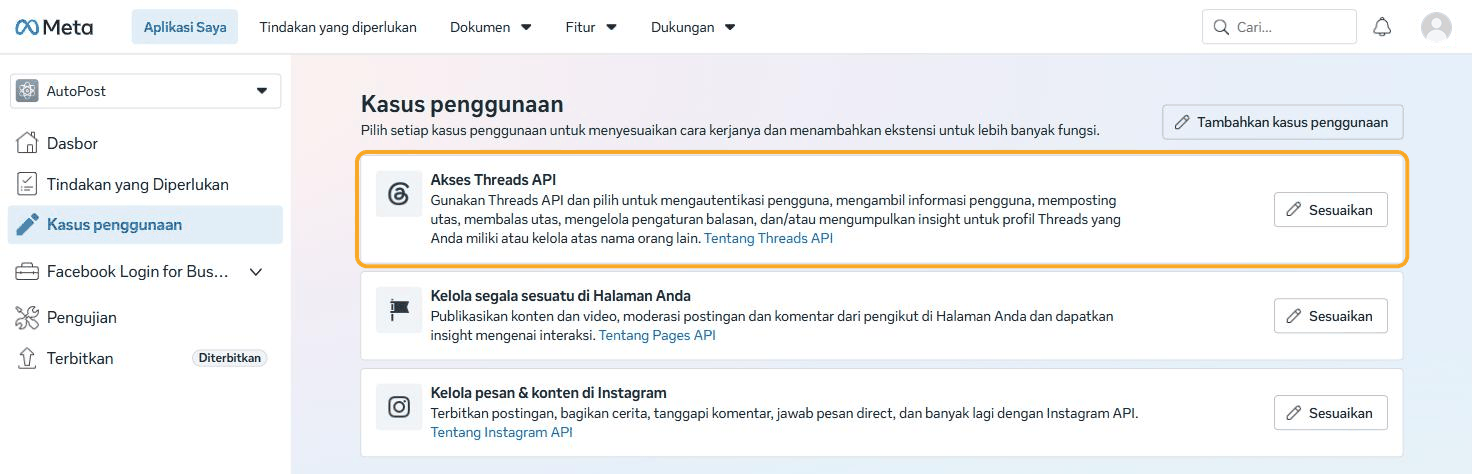
Access the Threads API now appears in your app's list of use cases, with a Customize button.
6. Step D — Adding the publishing permission
On the Access the Threads API card, press Customize.
In the left menu of that page, choose Permissions and features.
The
threads_basicrow is already there and marked Ready for testing. This permission is required and can't be removed.On the
threads_content_publishrow, press Add.
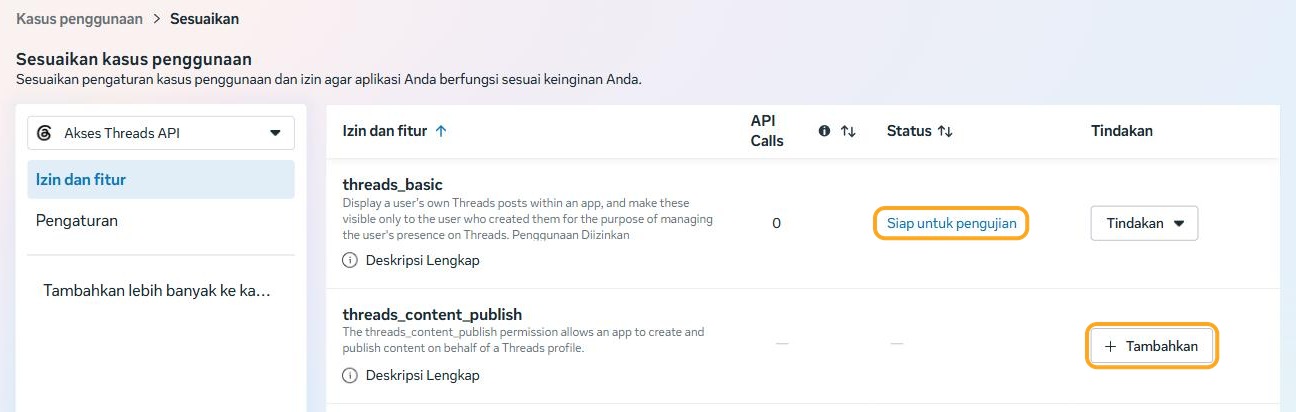
The
threads_content_publishrow is now also marked Ready for testing.
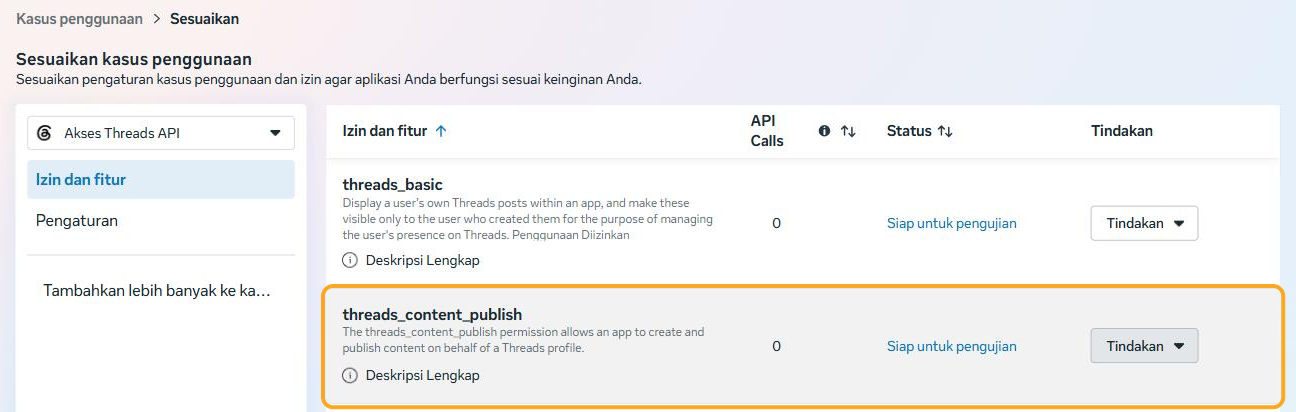
| Permission | What it's for |
|---|---|
threads_basic | Reading your Threads ID, username, name, and profile photo. |
threads_content_publish | Publishing text, images, and videos. |
You don't need to add any other permissions. "Ready for testing" sounds as if it isn't ready, but for your own profile acting as a Threads Tester, this status is enough.
7. Step E — Entering the three addresses in Settings
7.1 Copying the addresses from AutoPost
In AutoPost, open the Social accounts menu. On the Threads card, press Connect (it says Manage if an account is already connected).
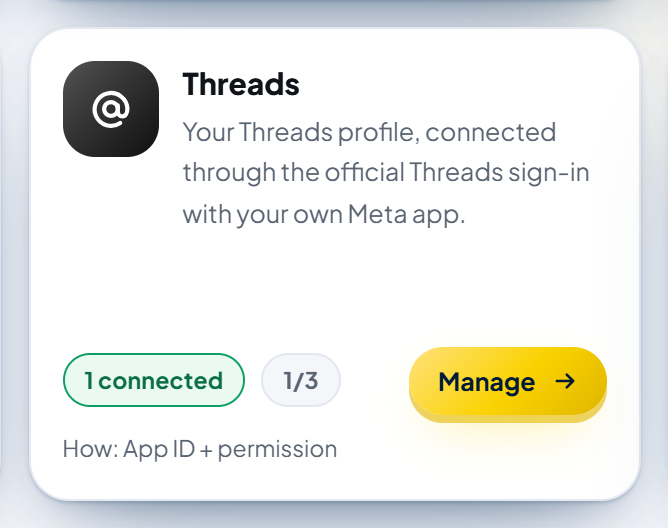
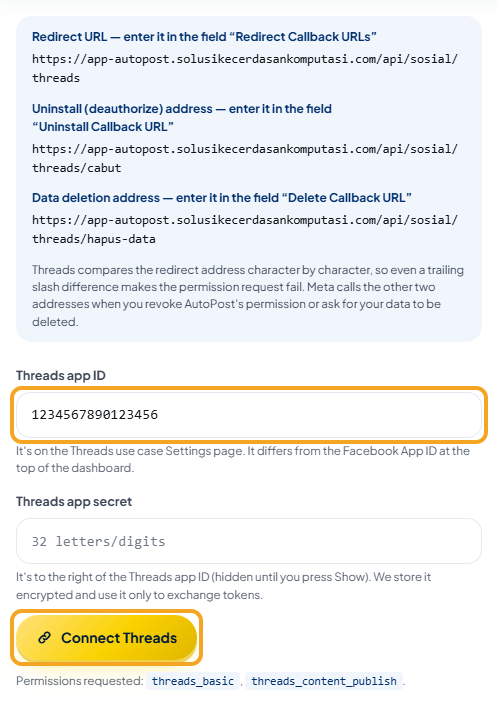
The Threads page opens. The How to connect card has numbered steps, followed by a blue box with the three addresses.
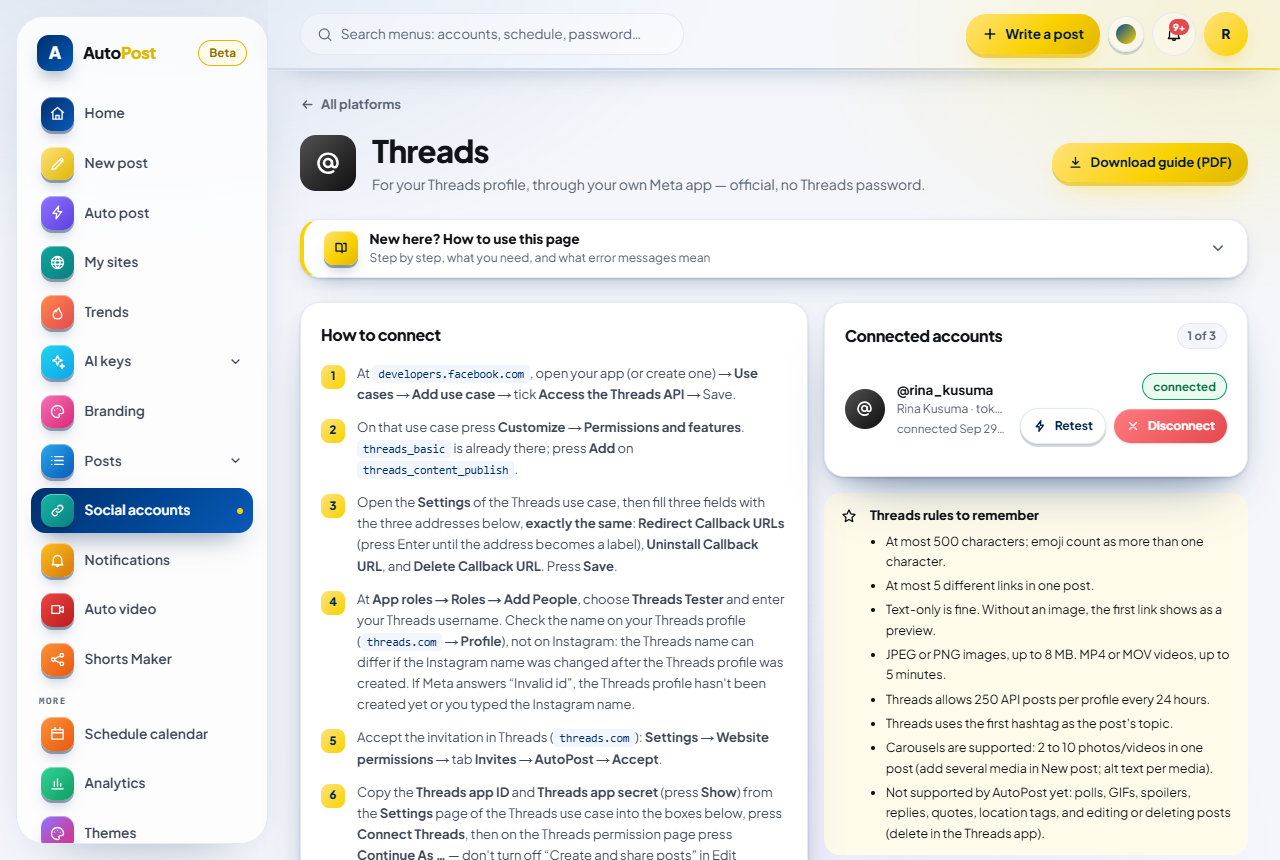
Click an address in the blue box. The whole address is selected at once. Copy it (Ctrl+C), then paste it into the Meta dashboard field named right above that address.
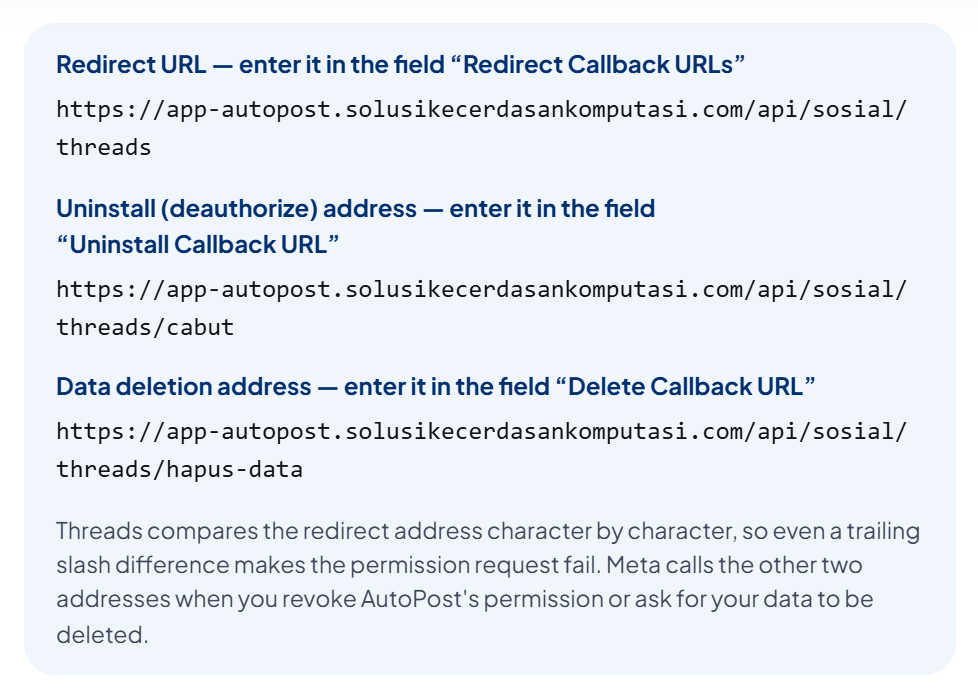
For AutoPost at app-autopost.solusikecerdasankomputasi.com, the three are:
| Box in AutoPost | Field in the Meta dashboard | Address |
|---|---|---|
| Redirect URL | Redirect Callback URLs | https://app-autopost.solusikecerdasankomputasi.com/api/sosial/threads |
| Uninstall (deauthorize) address | Uninstall Callback URL | https://app-autopost.solusikecerdasankomputasi.com/api/sosial/threads/cabut |
| Data deletion address | Delete Callback URL | https://app-autopost.solusikecerdasankomputasi.com/api/sosial/threads/hapus-data |
7.2 Pasting them in the Meta dashboard
In the Meta dashboard, open Use cases, press Customize on the Access the Threads API card, then choose Settings in the left menu.
The top of the page shows the Threads app ID and, to its right, the Threads app secret (hidden, with a Show button). Below them is the Threads Display Name field (or similar). The ID and secret are used in Step G.
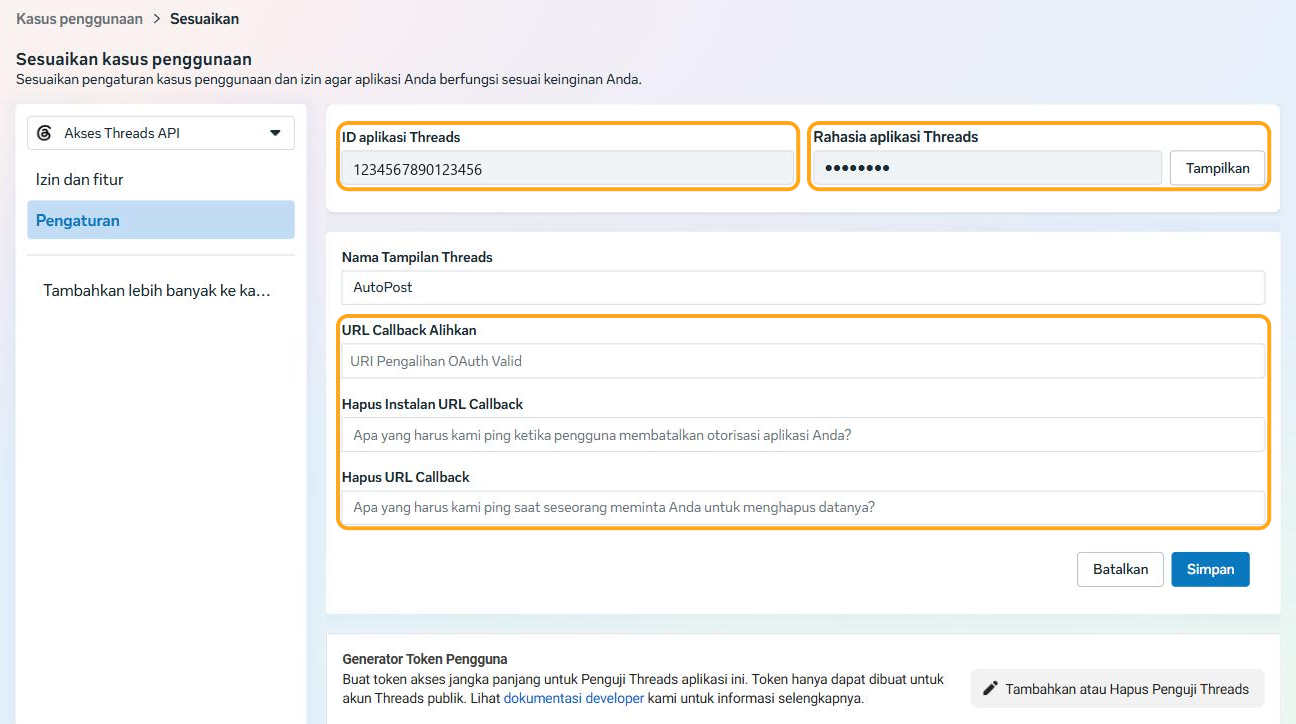
In the Redirect Callback URLs field, paste the redirect URL, then press Enter. The address turns into a label (a small box). Without Enter, the address isn't saved as a list item yet.
In the Uninstall Callback URL field, paste the uninstall (deauthorize) address.
In the Delete Callback URL field, paste the data deletion address.
Press Save.
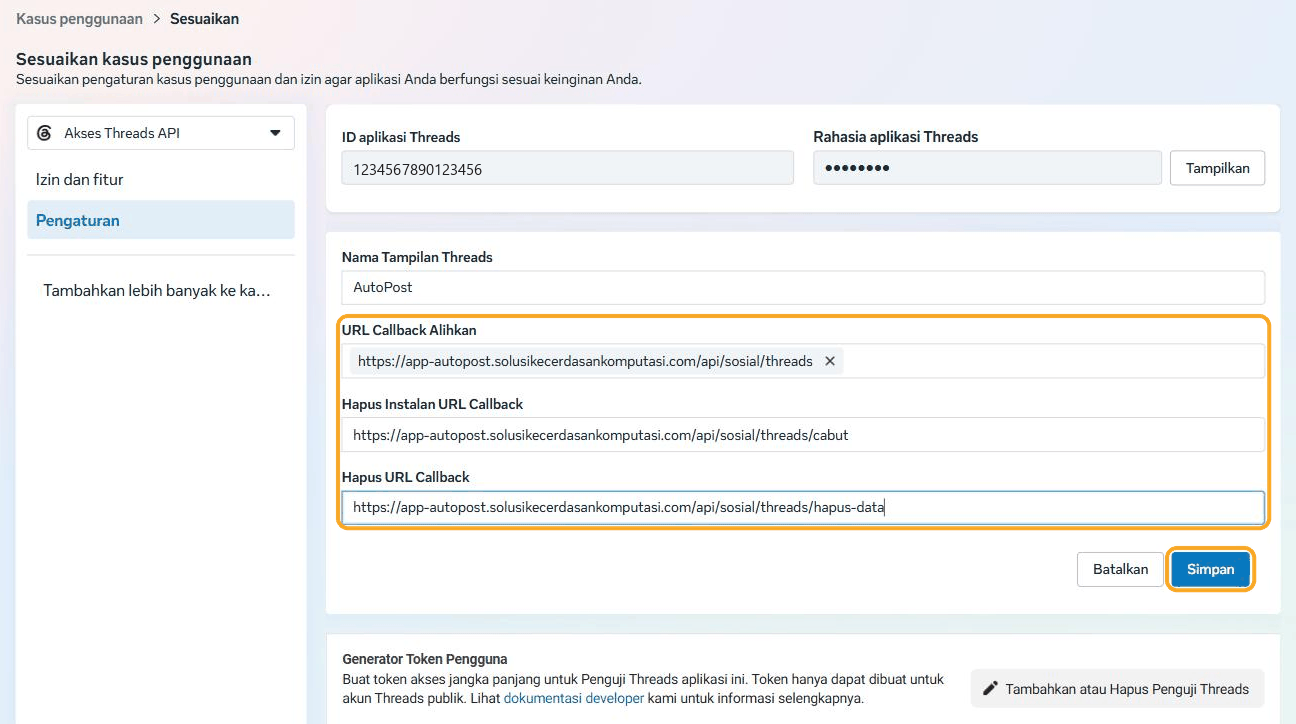
Below them is the User Token Generator section. You don't need it — AutoPost gets its own token when you grant permission in Step G.
8. Step F — Making your profile a Threads Tester
Until the app passes App Review for the Threads permissions, only profiles that have a role in the app can grant those permissions. So your Threads profile needs to be made a Threads Tester, and then the invitation must be accepted.
8.1 Adding the tester in the Meta dashboard
In the app dashboard's left menu, choose App roles → Roles. (From the Settings page of the Threads use case, the Add or Remove Threads Testers button takes you to the same place.)
Press Add People.
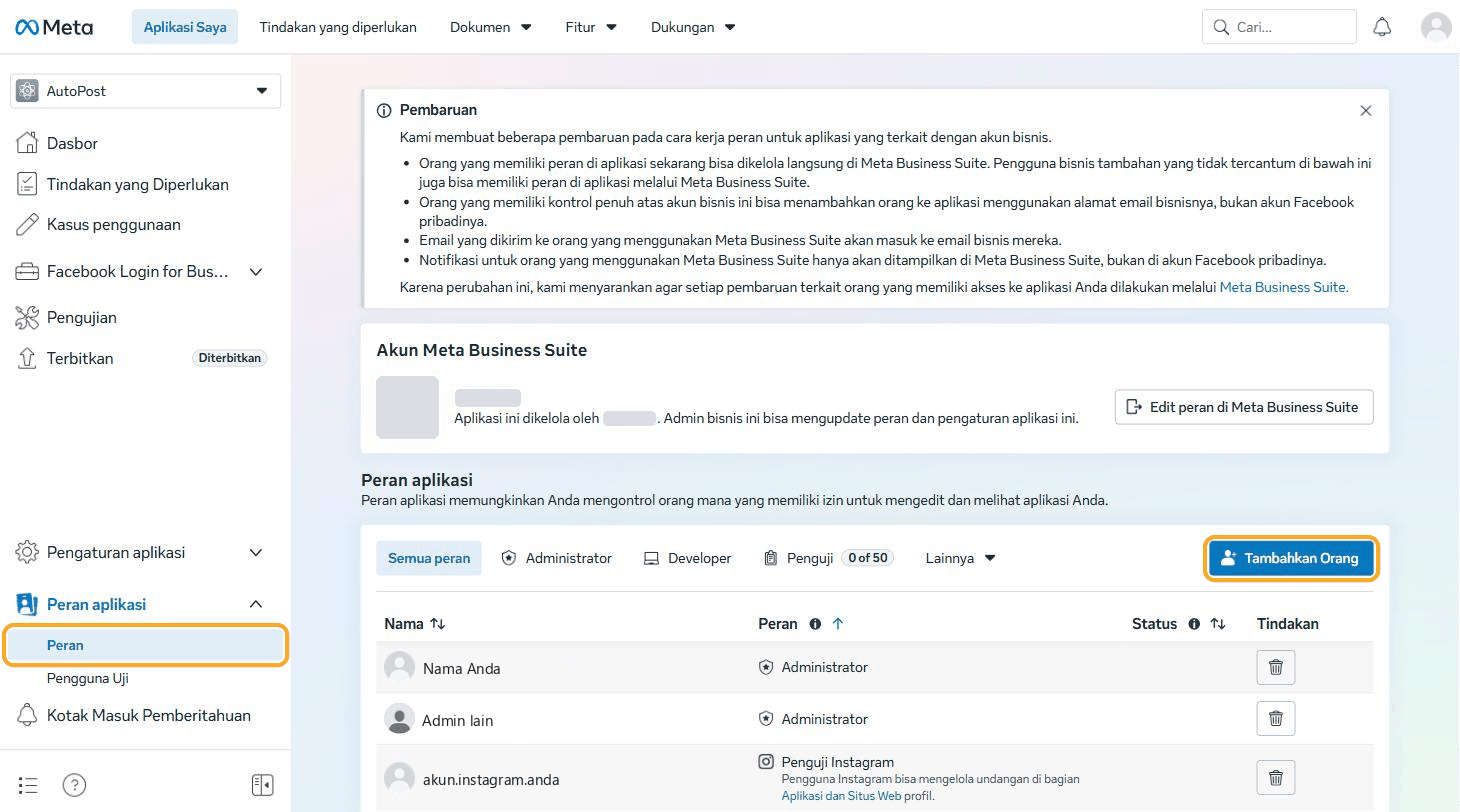
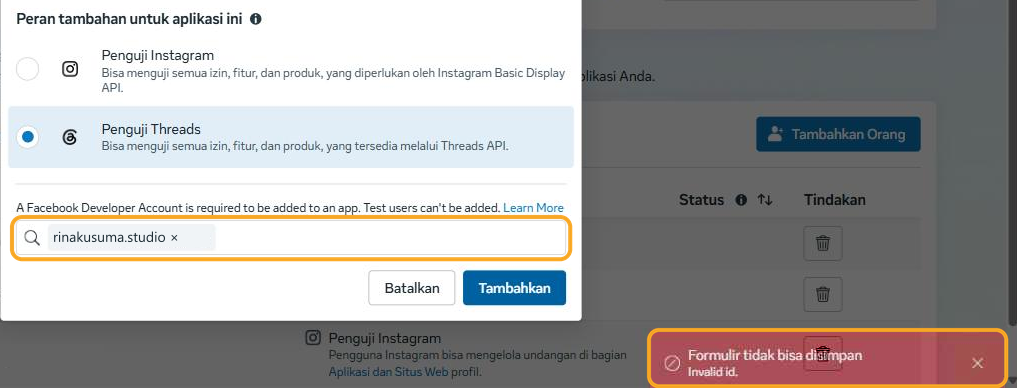
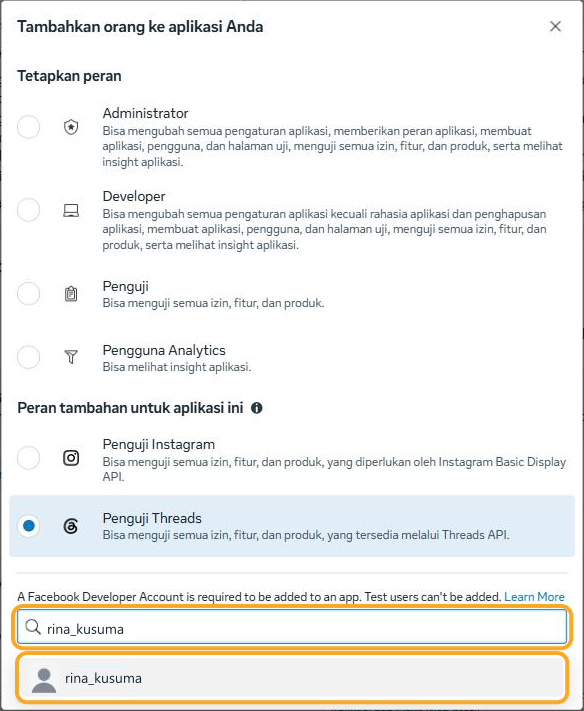
A window for adding people to your app opens. Don't choose the roles at the top (Administrator, Developer, Tester, Analytics User). In the section for additional roles for this app, choose Threads Tester.
In the field that asks for the Threads account username, type your Threads username (from Step A, without the @).
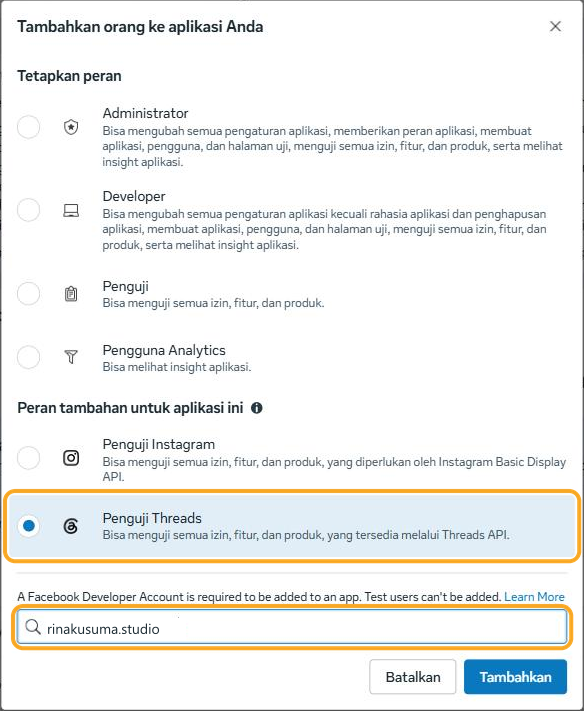
With the correct Threads name, an account suggestion appears below the field. Choose your account.
Press Add.
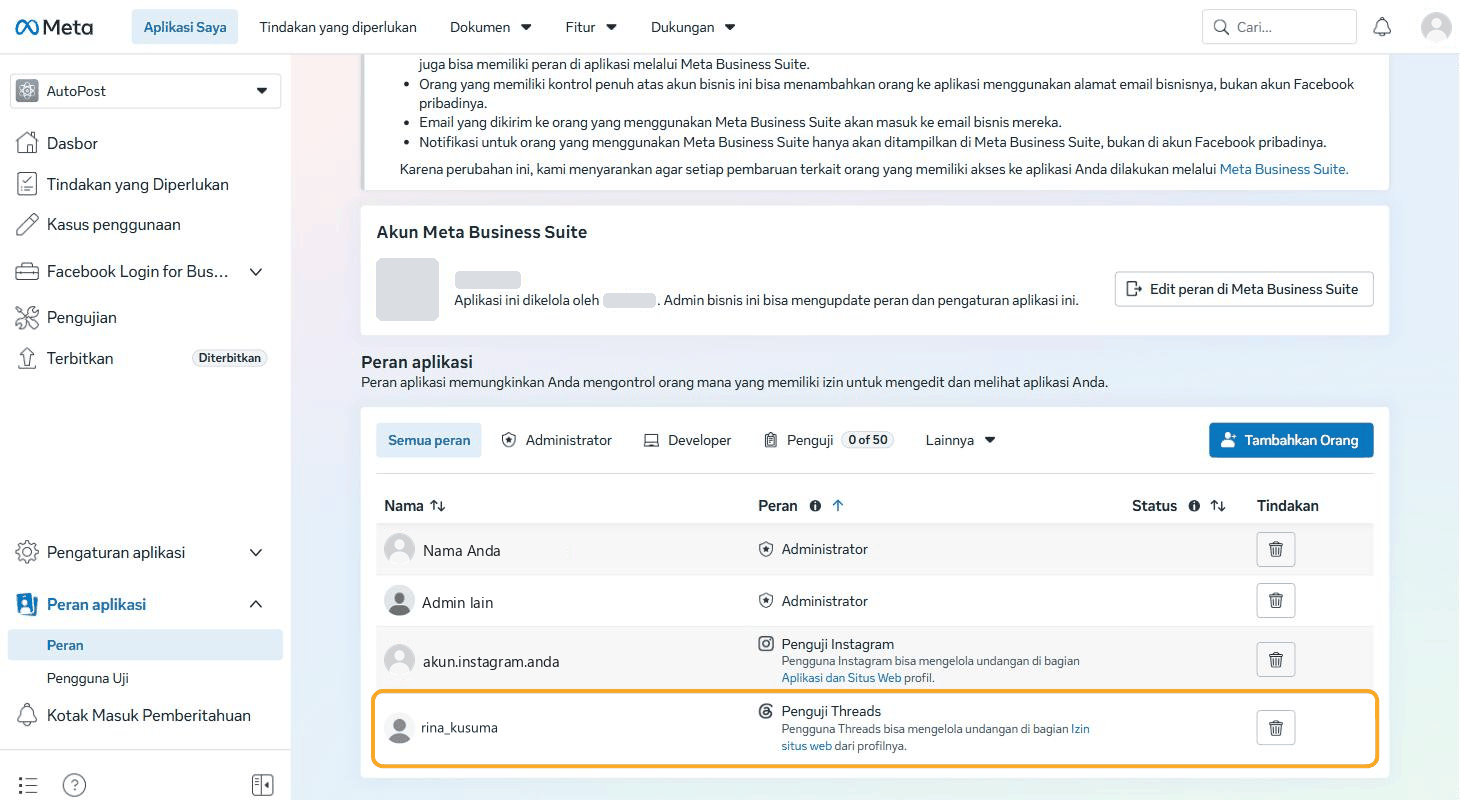
Your profile now appears in the App roles list with the Threads Tester role and the status Pending (or similar wording meaning "Waiting for approval"). That status disappears once the invitation is accepted (8.2).
8.2 Accepting the invitation in Threads
The invitation is accepted from that Threads profile itself, in a web browser.
Open threads.com and sign in with the profile you just invited.
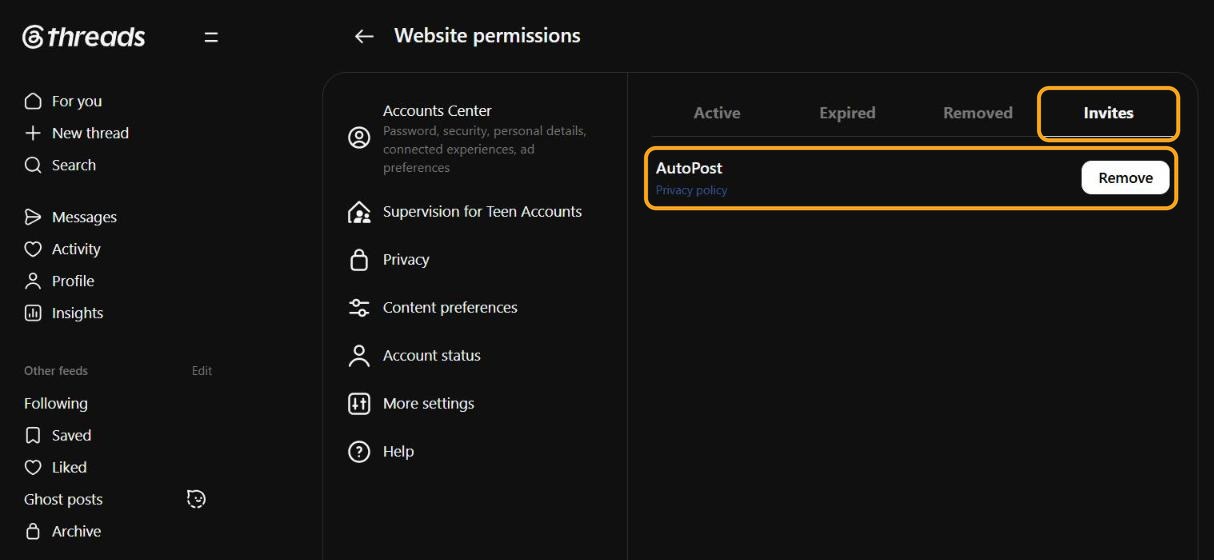
Open Settings, then Website permissions. This page has four tabs: Active, Expired, Removed, and Invites.
Choose the Invites tab.
On the invitation from your app (in this example AutoPost), press Accept. Before it's accepted, the invitation shows a consent sentence (starting with "By accepting this tester invitation…") and two buttons: Accept and Decline. Don't press Decline.
By pressing Accept, you agree to Meta's Platform Terms and Developer Policies — the invitation says so. Since the app is your own, that's expected.
Once accepted, AutoPost stays listed on the Invites tab, now with a Remove button (the picture below was taken after the invitation was accepted, so the Accept button is no longer visible). Don't press Remove here.
In the Meta dashboard, the status in the App roles list is now empty — no longer pending. Under the Threads Tester role, a note says that Threads users can manage invitations in the Website permissions section of their profile.
9. Step G — Connecting in AutoPost
9.1 Copying the Threads app ID and secret
Both are in the Settings of the Access the Threads API use case (Step E, 7.2), at the very top.
Threads app ID — copy the number.
Threads app secret (to the right of the ID) — press Show, then copy all of it. Meta may ask for your Facebook password first; enter it yourself, and never give it to anyone else.
9.2 Filling in the form
Go back to the Threads page in AutoPost. Below the box with the three addresses is a form:
Threads app ID — paste the ID. It's 10–20 digits.
Threads app secret — paste the secret. It's deliberately shown as dots.
Press Connect Threads.
9.3 Granting permission in Threads
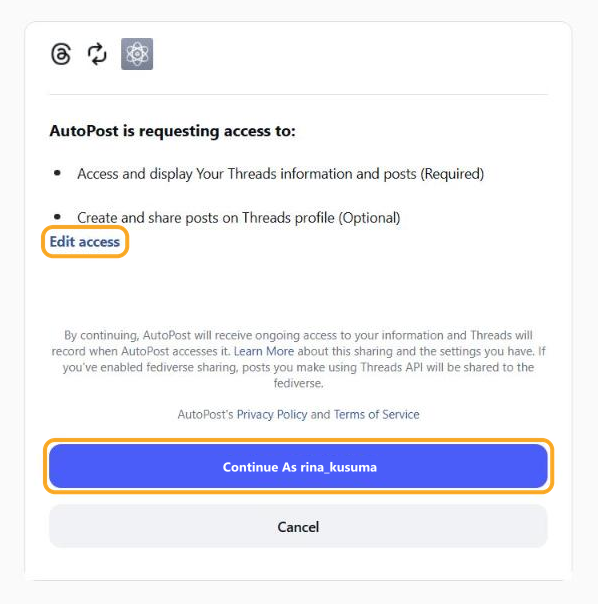
AutoPost takes you to the Threads permission page. It reads "AutoPost is requesting access to:" followed by the list of permissions.
| Row on the permission page | What to do |
|---|---|
| Access and display Your Threads information and posts (Required) | Required. Leave it as is. |
| Create and share posts on Threads profile (Optional) | Leave it on. Without this permission AutoPost can't post. |
| Edit access | Don't use it to turn off "Create and share posts". |
Check the profile name on the blue button. Make sure it's the profile you want to connect. If it's the wrong profile, press Cancel, sign out of Threads, sign in with the right profile, then repeat from 9.2.
Press Continue As (your profile name) — for example Continue As rina_kusuma.
9.4 What AutoPost does behind the scenes
When you press Connect Threads, AutoPost checks the format of the ID and secret, then creates a random security code (state). That code, the ID, and the secret are stored encrypted in a browser cookie that lasts 10 minutes.
After you grant permission, Threads sends you back to the redirect URL. AutoPost makes sure the security code matches and that you're still signed in with the same AutoPost account.
AutoPost exchanges the authorization code for a 1-hour token, then immediately exchanges that for a 60-day token.
AutoPost reads your Threads profile (ID, username, name, profile photo).
The token, Threads app ID, and Threads app secret are stored encrypted (AES-256-GCM) in the database. The secret is stored because it's needed to verify that revocation and data-deletion notifications really come from Meta. The temporary cookie is deleted.
The token is renewed automatically when 15 days or less of its validity remain (and the token is at least 24 hours old — a Meta requirement). The AutoPost worker runs this check about once an hour, so you don't need to reconnect every 60 days. According to Meta, each renewal also extends the 90-day permission period.
9.5 Signs that it worked
You return to the Threads page in AutoPost. A green box appears at the top:
“@rina_kusuma” was connected after testing it with Threads. Its token is stored encrypted.
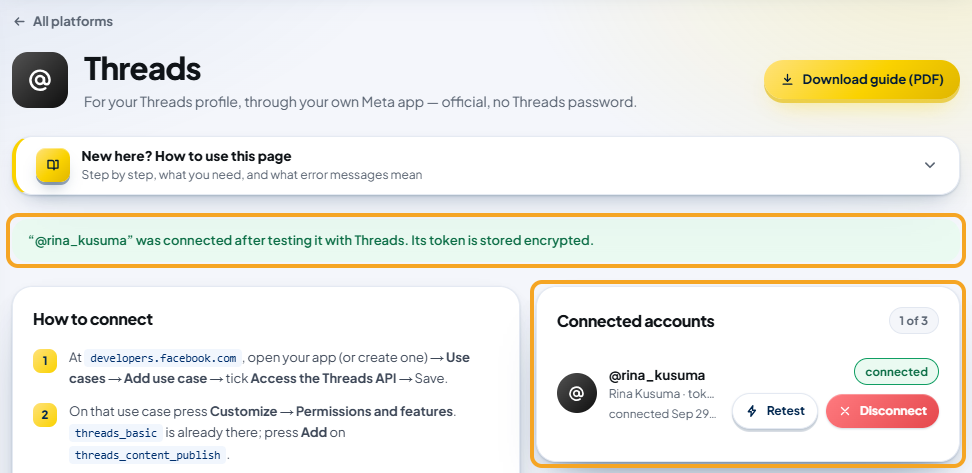
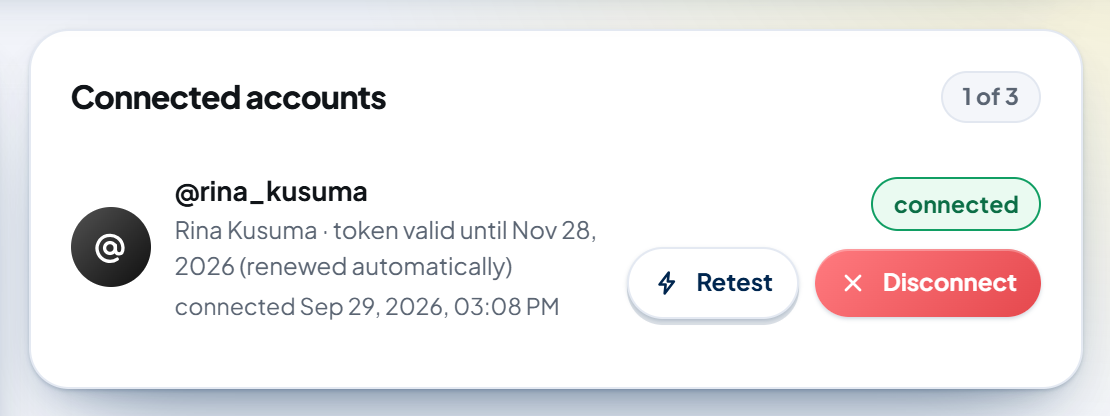
Your profile appears in the Connected accounts card with the label connected. Under the name are the display name and the token's validity, for example "Rina Kusuma · token valid until Nov 28, 2026 (renewed automatically)", then the time it was connected, the Retest button, and the red Disconnect button.
9.6 What "1 of 3" means
Each AutoPost account can connect at most 3 Threads profiles. This limit is enforced in the database. Once you have 3, the text next to the button says "Already 3 accounts — you can only reconnect the same account. Disconnect one to add another." A fourth profile is rejected with the message "There are already 3 Threads accounts. Disconnect one first if you want to replace it."
10. Step H — Your first post
10.1 Quick rules before you send
Text only is fine. An image or video isn't required.
At most 500 characters — an emoji counts as more than one (see the table below).
At most 5 different links (including the Link field).
Images in JPEG or PNG, up to 8 MB.
Videos in MP4 or MOV: up to 5 minutes, up to 1 GB, 23–60 fps. The Upload from gallery button in AutoPost accepts files up to 50 MB.
Alt text up to 1,000 characters.
The first hashtag becomes the topic (10.5).
Threads allows 250 posts through the API per profile every 24 hours.
How Threads counts emoji. According to Meta's documentation, an emoji counts as many characters as its UTF-8 bytes. AutoPost counts it the same way (deliberately a little strict), so text that passes in AutoPost won't be rejected by Threads for its length. Examples of AutoPost's count:
| What you type | Counted as |
|---|---|
Good | 4 |
| 😀 (smiling face) | 4 |
| ❤️ (red heart) | 6 |
| 👍🏽 (thumbs up with skin tone) | 8 |
| 👨👩👧 (family) | 18 |
Promo 🎉 | 10 |
So 480 regular characters plus five 🎉 emoji is exactly 500 (480 + 5×4). One more emoji makes it 504 — over the limit, and the composer holds it back. Regular letters, digits, spaces, and accented letters (for example é) count as one.
10.2 Text with a link
Open New post and write your text.
Fill in Link (optional), for example the address of your article.
Look at the Limits per platform card. For Threads there are two rows: Threads (x/500) and — as soon as there's a link — Threads · different links (x/5). Without an image/video, the note says: "No photo/video: the Link field appears as a link preview and isn't counted."
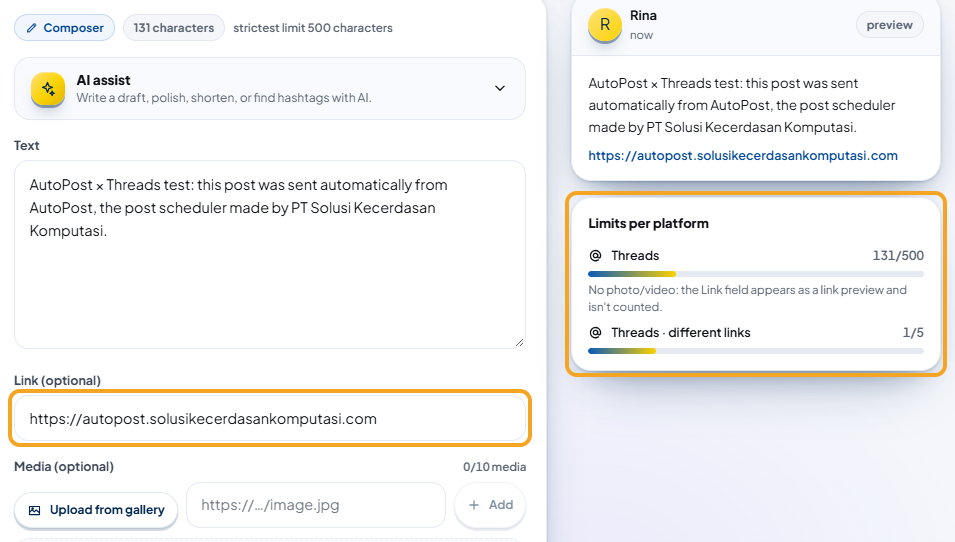
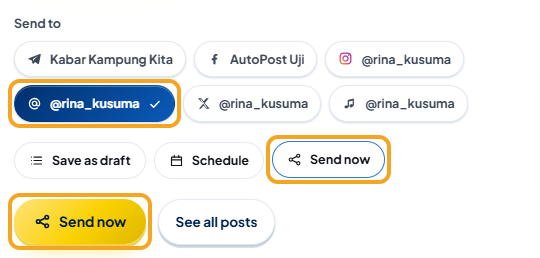
Under Send to, make sure only your Threads profile is selected (with a check mark).
Choose Send now (next to Save as draft and Schedule), then press the gold Send now button.
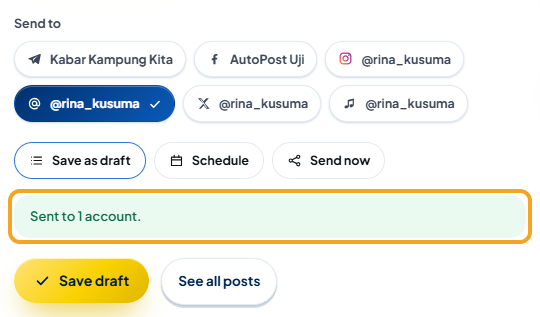
For a moment you'll see "Saved — sending to the selected accounts…", then the green message "Sent to 1 account." The composer is cleared and the choice goes back to Save as draft.
10.3 Images
Press Upload from gallery and choose a .jpg or .png image (or create one with the Image studio, which always saves JPEG).
Fill in Alt text — a short description of the image for screen readers. This field appears below the media field once an image is attached (it isn't visible in the next picture).
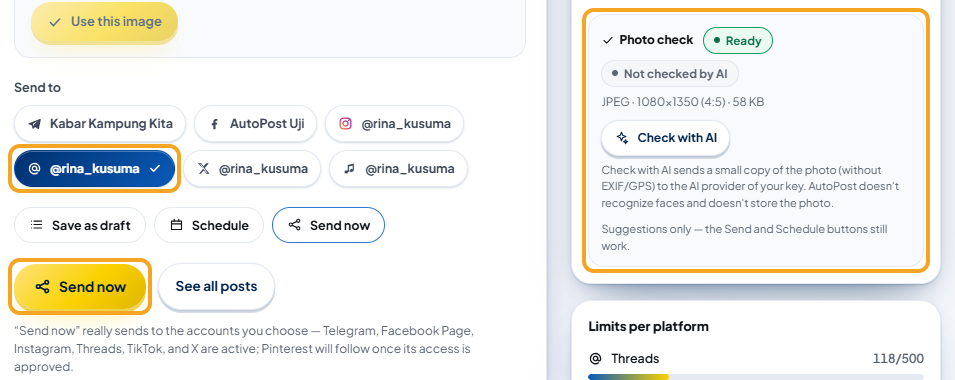
Choose your Threads profile under Send to, then Send now.
On the right, the Photo check card assesses the image. The Ready label means the format is accepted.
If the Link field is filled in, the link is written on a new line at the end of the text (unless it's already in the text) and counts toward the 500 characters. The Threads row in Limits per platform is renamed Threads · text + link, with the note "There's a photo/video: the Link field is added at the end of the text and counted."
10.4 Videos
Press Upload from gallery and choose an MP4 or MOV video.
When a Threads profile is selected, the Alt text field also appears for videos: "For videos, alt text is sent to Threads only."
Choose your Threads profile under Send to, then Send now.
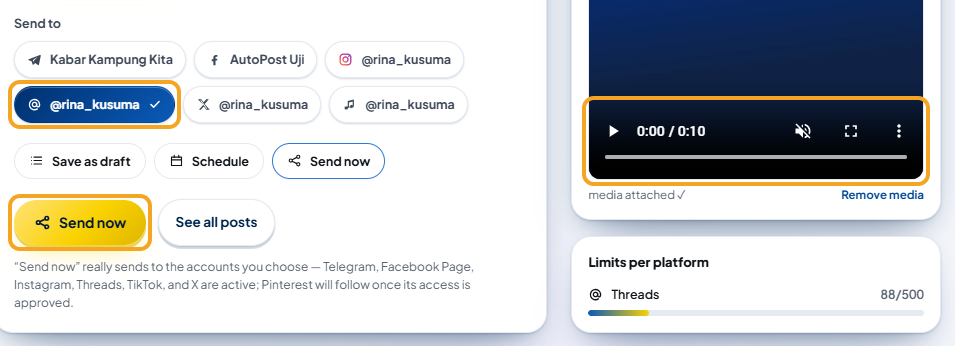
| Threads video requirement | Value |
|---|---|
| Format | MP4 or MOV, H.264 or HEVC video, AAC audio (max. 48 kHz, mono/stereo) |
| Duration | More than 0 seconds, up to 5 minutes |
| File size | Threads: max. 1 GB. AutoPost's Upload from gallery: max. 50 MB |
| Frame rate | 23–60 fps |
| Shape | Max. width 1920 px; vertical 9:16 (for example 1080×1920) recommended |
10.5 Hashtags and topics
Threads uses one topic per post. AutoPost has no topic field: Threads takes the first valid hashtag in the text as its topic. In our test on 29 September 2026, text ending in #AutoPost was published with the topic autopost (shown next to the profile name: "› autopost"). In the published text, that hashtag appears as the word AutoPost without the # sign.

When the text contains more than one hashtag and a Threads profile is selected, the composer shows a note (it doesn't block anything):
Threads uses the first hashtag as the topic; other hashtags still appear as text. The first hashtag in this text: #AutoPost.
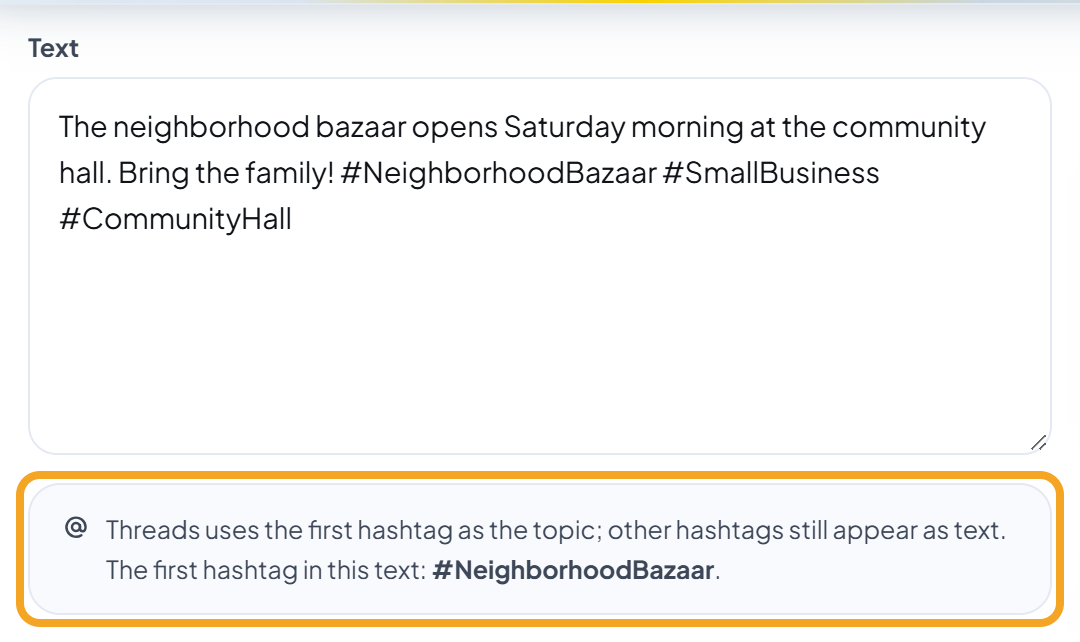
According to Meta's documentation: a hashtag made only of digits (for example #1) doesn't become a topic, and a topic stops before a space or the characters . & @ ! ? , ; :. Put the hashtag that best represents the post first.
10.6 Checking the result
In AutoPost, open the Posts menu. A successful send has the status sent. A successful send with a note (for example an image that was skipped or text that was shortened) is labeled sent · note in Details per account. A failed send has the status failed; the reason is in Details per account, and the Resend failed button is available.
On Threads, open your profile.
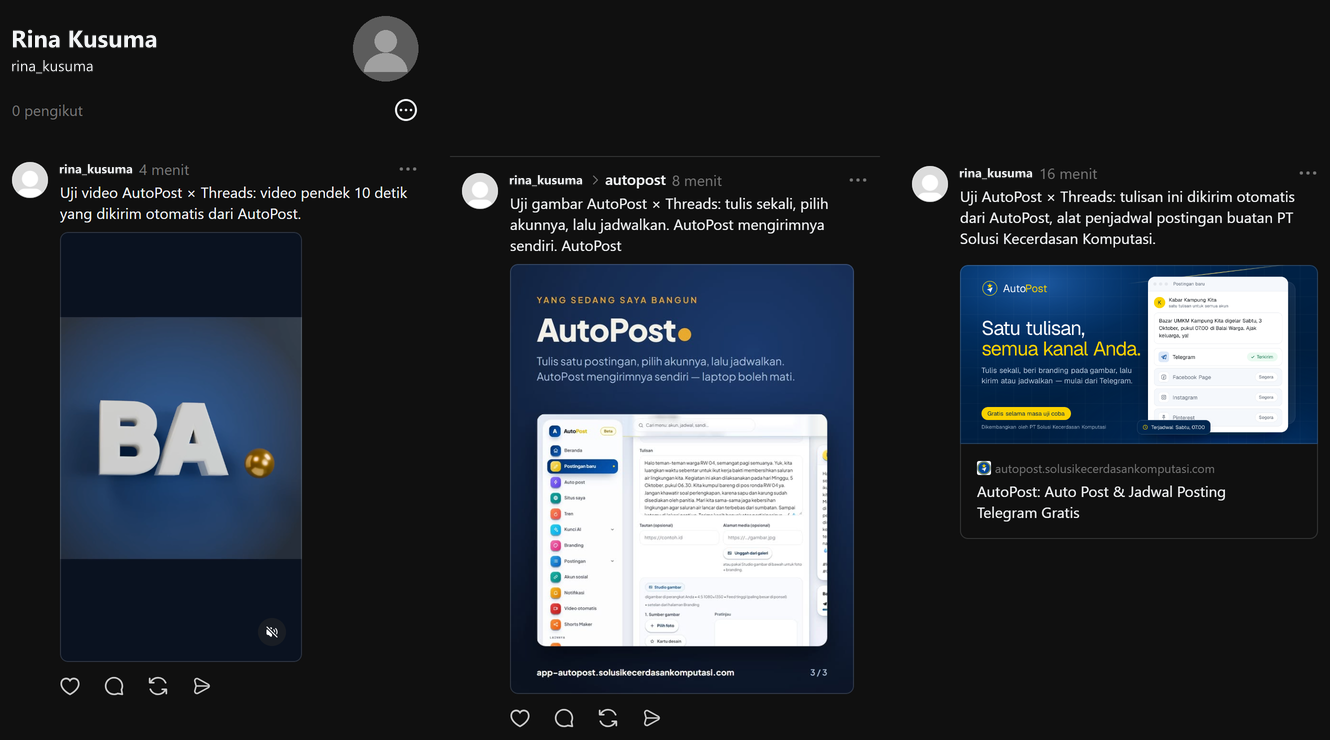
In our test on 29 September 2026, all three posts were visible from a browser that was not signed in to Threads — meaning they're shown to the public.
10.7 Scheduling and Auto post
Schedule: choose Schedule, fill in the date and time (WIB), then press Schedule post. The AutoPost worker sends it by itself at that time. The 500-character and 5-link rules still apply: the composer holds the post back, and the server rejects it too.
Auto post: a Threads profile can be chosen as a target. Once it's chosen, the Auto post form shows the note "Threads: max. 500 characters per post"; if the text is written by AI with a length other than Short, it adds the suggestion "Choose the Short post length so Threads posts don't need shortening." Because Auto post doesn't go through the composer, AutoPost adjusts by itself when sending:
Text over 500 characters is shortened at a word boundary with a "…" mark, and links stay intact. The note in Details per account: "The text was shortened to 500 characters to fit Threads' limit."
Images other than JPEG/PNG are skipped; the text is still published (with a note as in 10.3).
When there's a note like that, AutoPost also adds the link to the post: "View on Threads: …".
The full guide to the composer is the New post guide: the Download guide (PDF) button on the New post page, or its web version at
/panduan/postingan-baru/en.
11. Managing connected accounts
11.1 Retest
The Retest button in the Connected accounts card opens the token, makes sure it hasn't expired, renews it if it's close to expiring, then reads your Threads profile again. If everything is healthy, one of these messages appears:
"Retest finished — the account is still healthy and ready to send."
"Retest finished — the account is healthy and we extended its token too."

If Threads is busy (rate limits, network, a momentary outage), the account status isn't changed; the message ends with "We didn't change the account status — try testing again shortly." If the token has expired or was revoked, the account is labeled needs reconnecting. Other errors give it the label has a problem. The reason appears in red text under the account name.
Retest also updates the name and profile photo if you changed them on Threads.
11.2 Reconnecting
Fill in the Threads app ID and Threads app secret again, press Connect Threads, then Continue As … with the same Threads profile. AutoPost refreshes the token (it doesn't create a new account), and scheduled posts keep running.
Reconnect when:
the account is labeled needs reconnecting;
you revoked AutoPost's permission on Threads and want to use it again;
the Threads app secret was changed in the Meta dashboard (13.3);
you move the profile to another Meta app.
11.3 Disconnect
The Disconnect button removes that account from AutoPost along with its token and Threads app secret. AutoPost asks "Disconnect this account? Its token is deleted too."; press Yes, disconnect to continue. The result: "Account disconnected — its row and token are gone from the database."
Disconnecting also removes that account from scheduled posts and auto posts that target it, and the records of earlier sends to that account in Details per account are removed too. If you only want to refresh the token, don't disconnect — reconnect instead (11.2).
Disconnecting in AutoPost does not revoke the permission on the Threads side. To revoke it as well, see 11.6.
11.4 Deleting or editing posts
AutoPost can't delete or edit posts that are already published on Threads yet. Deleting a post in AutoPost's Posts menu only removes it from AutoPost; the post on Threads stays. Delete it directly in the Threads app or on the Threads website if needed.
11.5 Adding a 2nd and 3rd profile
Make the next Threads profile a Threads Tester in the same app (8.1), then accept the invitation from that profile (8.2).
In your browser, sign out of the first Threads profile and sign in with the next one.
Repeat 9.2 and 9.3 with the same ID and secret. On the permission page, check that the button says Continue As followed by the next profile's name, not the first profile's.
At most 3 Threads profiles. We haven't tried this with a second profile yet; the flow is the same as for the first.
11.6 Revoking permission from Threads
You can revoke AutoPost's permission directly from Threads:
On threads.com, open Settings → Website permissions — the same place as the invitation in 8.2.
The app currently using your permission is usually listed on the Active tab. Press Remove on your app (in this example AutoPost). We haven't captured this step yet; if it looks different, look for your app on the page's tabs.
What happens in AutoPost (according to Meta's documentation and AutoPost's design; we hadn't received a real notification from Meta when this guide was written):
Meta calls the uninstall (deauthorize) address (Step E). AutoPost verifies it with the stored Threads app secret, then marks the account needs reconnecting with a red note: "AutoPost's permission was revoked from Threads. Reconnect if you want to use this account again." The next sends to that account will most likely fail until it's reconnected.
If you (through Meta) ask for your data to be deleted, Meta calls the data deletion address. AutoPost deletes that Threads account row along with its token (the records of its earlier sends in Details per account are removed too), records the request, then gives Meta a confirmation code and the page address
/hapus-akun?threads=<code>. That page says: "Threads data deletion confirmation code: …. If Meta gave you this code when you requested deletion, the related Threads account and its token were deleted from AutoPost at that time, and the code is recorded in our system. Keep this code if you want to ask us about it." Posts already published on Threads aren't deleted.
12. Troubleshooting
All the AutoPost messages below are written exactly as they appear on screen. On the Threads page the messages start with "Failed:"; in Details per account, messages that will be retried end with "(retrying automatically, attempt N of 4)". Parts that vary are marked "…" or "N".
12.1 When you press "Connect Threads" or return from Threads
| Message | Cause & fix |
|---|---|
| The Threads app ID is a number (10–20 digits) and DIFFERS from the Facebook App ID. Copy it from Use cases › Access the Threads API › Settings. | What you pasted isn't the Threads app ID (e.g. it has spaces or letters, or it's cut off). Copy the number again from the Settings of the Threads use case (7.2). |
| A Threads app secret is 32 hexadecimal letters/digits (0–9, a–f). Press Show in Use cases › Access the Threads API › Settings and copy it in full — don't mix it up with the Facebook app secret. | The secret is cut off, still shows dots, or a space was copied with it. Press Show, then copy all of it (9.1). |
| The Threads app ID or Threads app secret doesn't match. Copy both again from Use cases › Access the Threads API › Settings in your Meta app dashboard. | The format is right, but Threads rejected them when exchanging the authorization code. Usually the ID or secret pasted belongs to Facebook, or the two come from different apps. Copy both from the Settings of the Threads use case in the same app. |
| The redirect URI doesn't match the one registered in the Meta app. Paste exactly the address shown on this page. | Redirect Callback URLs isn't exactly the same yet, or hasn't become a label. Copy it again from the box in AutoPost, paste it, press Enter, then Save (7.2). |
| The Threads authorization code has expired or was already used. Start Connect Threads again from the beginning. | The return page was reloaded, or it took too long. Repeat from 9.2. |
| The Threads connection session has expired (more than 10 minutes) or the browser blocked the cookie. Start again. | More than 10 minutes passed since you pressed the button, or the browser blocks cookies. Repeat 9.2 and finish granting permission within 10 minutes, in the same browser. |
| The security code (state) doesn't match — this request was rejected. Start again from the Threads page. | You opened two attempts at once, or came back through another tab. Start again from the Threads page in AutoPost. |
| You canceled the permission in Threads. Press Connect Threads again, then Continue As … if you want to continue. | You pressed Cancel on the Threads permission page. Repeat from 9.2, then press Continue As …. |
| Threads rejected it: … | Threads sent another error from the permission page. Read the rest of the message; usually the redirect URL or the Threads Tester role isn't right yet (Steps E and F). |
| Your AutoPost session differs from when you started. Sign in again, then connect again. | You switched AutoPost accounts partway through. Sign in with the right AutoPost account, then repeat. |
| There are already 3 Threads accounts. Disconnect one first if you want to replace it. / This platform's limit of 3 accounts has been reached. Disconnect one account first. | The 3-profile limit. Disconnect one account first (11.3). |
| This account is already connected. | The same profile was recorded by two attempts at the same time. Reload the page; the account is already in Connected accounts. |
| Threads didn't send an authorization code. / Threads didn't provide a token. Try connecting once more. / Threads didn't provide a 60-day token. Try connecting once more. / Threads didn't return a valid account ID. / The Threads account ID is invalid. | A problem on the Threads side. Repeat from 9.2. |
| The Threads token … Reconnect this account. / The Threads token doesn't have the permission needed for this action. Create a new token with all permissions, then reconnect. | Appears while exchanging the authorization code or reading the profile after permission is granted. Usually the permissions were reduced under Edit access, or the threads_content_publish permission hasn't been added (Step D). Fix it, then repeat from 9.2. |
| Threads: … / Threads rejected the input: … / Threads rejected the request input. / Threads rejected the request (HTTP N). | Another answer from Threads. Read the rest of the message, check Steps C–F, then repeat from 9.2. |
| Threads didn't answer in time. Press Connect Threads again shortly. / Threads is having a momentary problem. Press Connect Threads again shortly. / Threads is rate-limiting requests. Press Connect Threads again shortly. / Threads is rate-limiting requests for this account. Press Connect Threads again shortly. | Threads is busy or the network is disrupted. While connecting, AutoPost doesn't retry by itself — wait a moment, then repeat from 9.2. |
| Couldn't reach Threads from the server. / Threads's response couldn't be read (HTTP N). | The AutoPost server's network or Threads is disrupted. Wait a moment, then repeat from 9.2. If it keeps happening, report it to the AutoPost administrator. |
| The form input couldn't be read. | Reload the Threads page in AutoPost, fill in the form again, then press the button again. |
| Request rejected because it didn't come from an AutoPost page. | The form was submitted from outside the AutoPost page. Open the Threads page in AutoPost and press the button from there. |
| APP_URL_PUBLIK isn't set on the server, so the Threads redirect address can't be built yet. / APP_URL_PUBLIK isn't set on the server. / KUNCI_ENKRIPSI_AI isn't set on the server, so the token can't be stored encrypted yet. / The token_terenkripsi column doesn't exist yet — run migration database/0005_rahasia_platform.sql first. | The AutoPost server isn't set up yet. Report it to the AutoPost administrator. |
Other Threads limit messages from table 12.4 (for example "Threads is temporarily holding posts from this account …") can also appear while connecting. The phrase "We'll try again …" in messages like that is always replaced by "Press Connect Threads again shortly.", because nothing is retried automatically while connecting.
These messages appear as a red ribbon starting with "Failed:" at the top of the Threads page, for example:

Is the Connect Threads button disabled with a red box above it? That box is titled "The server encryption key isn't set up yet", "The app's public address isn't set", or "The account list couldn't be read". Report it to the AutoPost administrator.
12.2 When you press Retest or Disconnect, or in the account status
| Message | Cause & fix |
|---|---|
| The Threads token has expired. Reconnect this account. | The token passed 60 days without being renewed (for example the worker couldn't renew it). Reconnect (11.2). |
| AutoPost's permission was revoked from Threads. Reconnect if you want to use this account again. | The permission was revoked from your Threads settings (11.6). Reconnect if you want to use it again, or disconnect the account. |
| The token can't be opened (the server encryption key differs from when it was saved). Reconnect. / The Threads token can't be opened (the server encryption key changed). Reconnect. | The server encryption key changed. Reconnect (11.2). |
| … We didn't change the account status — try testing again shortly. | Threads is busy or the network is disrupted. The account status stays the same; press Retest again later. |
| Token renewal postponed: … | The worker couldn't renew the token because of a momentary problem (for example "Threads didn't return a new token."). The old token is still valid; AutoPost tries again. Press Retest to check. |
| The Threads token … Reconnect this account. / The Threads token doesn't have the permission needed for this action. Create a new token with all permissions, then reconnect. | The token is dead or lacks permissions (see 12.4). Reconnect with "Create and share posts" left on. |
| The account to test wasn't recognized. / The account to disconnect wasn't recognized. / Account not found. | The page is out of date (the account was disconnected in another tab). Reload the Threads page. |
| KUNCI_ENKRIPSI_AI isn't set on the server, so the token can't be opened. | The server isn't set up yet. Report it to the AutoPost administrator. |
12.3 In the composer (New post) and when saving
| Message | Cause & fix |
|---|---|
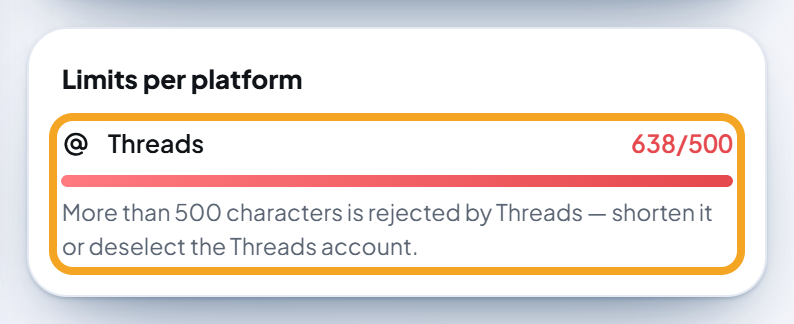
| The text is too long for: Threads. | The Threads count is over 500 (an emoji counts as more than one). Every button is held back, including Save as draft. Shorten the text, use fewer emoji, or deselect your Threads profile under Send to. |
| More than 500 characters is rejected by Threads — shorten it or deselect the Threads account. | The note on the Threads row of the Limits per platform card (the number is red). Same as above. |
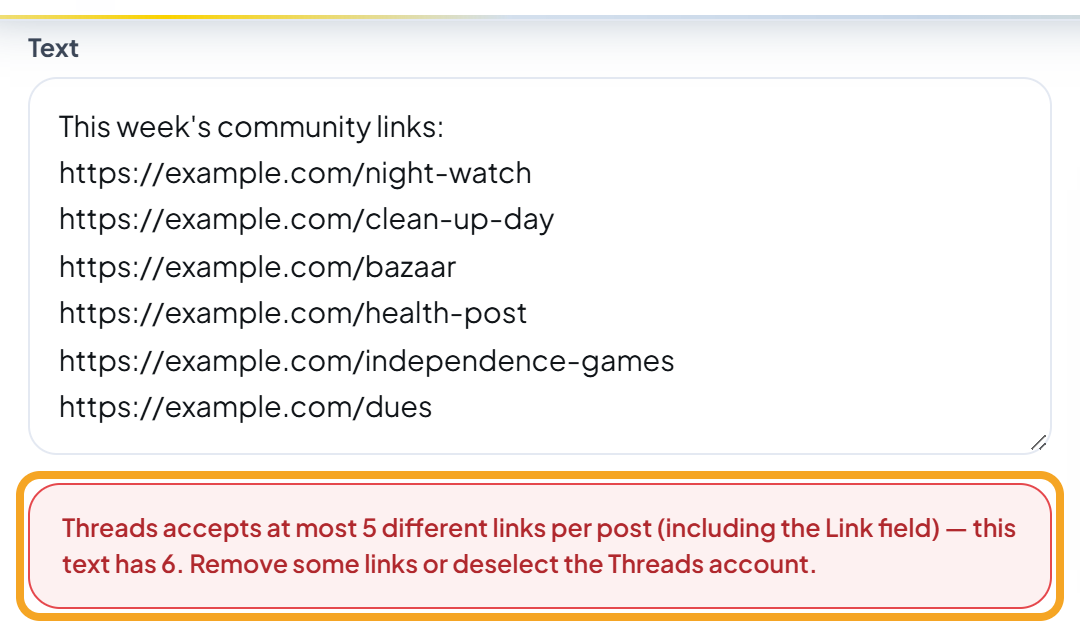
| Threads accepts at most 5 different links per post (including the Link field) — this text has N. Remove some links or deselect the Threads account. | More than 5 different web addresses (links in the text + the Link field). Every button is held back, including drafts. Use fewer links. |
| The text is too long for Threads: N of max. 500 (emoji count as more than one). Shorten the text or remove the Threads account. | The server refuses to save (also for drafts and schedules). If there's an image/video and the Link field, the sentence adds ", the link is counted too". Shorten it. |
| Threads allows at most 5 different links per post (currently N). Remove some links or remove the Threads account. | The server refuses to save. Use fewer links. |
| Threads uses the first hashtag as the topic; other hashtags still appear as text. The first hashtag in this text: #AutoPost. | Just a note; it doesn't hold anything back. Move the most important hashtag to the front (10.5). |
| Threads counts an emoji as more than one character. | A note on the Threads row. See the emoji table in 10.1. |
| There's a photo/video: the Link field is added at the end of the text and counted. / No photo/video: the Link field appears as a link preview and isn't counted. | Explanatory notes only (10.2, 10.3). |
| The alt text for media item N is too long (max. 1000 characters, currently N). / The alt text is longer than 1000 characters — shorten it before saving. | Shorten the alt text. |
| … isn't accepted by Threads (JPEG/PNG only). | A Photo check suggestion; buttons aren't held back. If you send it anyway, the image is skipped (10.3). Save it again as .jpg or .png. |
| …: larger than 50 MB — choose a smaller file. | AutoPost's upload limit. Make the video smaller (for example export it again at a lower bitrate). |
Examples of what the composer holds back (only the Threads profile selected):
12.4 When sending or after a scheduled time
The reason for a failure appears in the Posts menu, in the Details per account section of the post's card. After Send now, a summary also appears in the composer, for example "Sent to 1 account.", "Not sent yet — 1 will be retried automatically.", or "All sends failed — open the Posts page to see why."
Content and media:
| Message | Cause & fix |
|---|---|
| The text is too long for Threads (N of max. 500; emoji count as more than one). Shorten it and resend. | The text (usually from Auto post) is still over 500 even after AutoPost tried to shorten it. If there's media and a link, the sentence adds ", the link counts too". Shorten it, then resend. |
| Threads allows at most 5 different links per post (this has N). Remove some links and resend. / Threads rejected it: more than 5 links. Remove some links and resend. | More than 5 different links. Create a new post with fewer links. |
| A Threads post without an image/video must have text. Add some text and resend. | An empty post. Add some text. |
| Threads only accepts JPEG or PNG images. Save the image again as .jpg/.png and resend. | A WebP/GIF/HEIC image or similar without text. Save it again as .jpg or .png. |
| Threads only accepts MP4 or MOV videos. Convert the format and resend. | A WebM, MKV, AVI video or similar. Export it again as MP4. |
| Threads failed to download the video — make sure the media link is publicly accessible and hasn't expired. / Threads couldn't fetch the media file. Make sure the media address is publicly accessible and its size is reasonable. | Threads couldn't download the file. Upload it through Upload from gallery, or use an address that's publicly accessible. |
| Threads couldn't process the video's audio (use AAC, max. 48 kHz, mono/stereo). / The video's audio must be mono or stereo. / Threads doesn't support the video's audio channel layout. | The video's sound doesn't fit. Export it again with AAC stereo audio. |
| Threads couldn't process the video (use H.264/HEVC in MP4/MOV, moov atom at the front). | Export it again as MP4 H.264 (the "web/fast start" option in video editing apps usually puts the moov atom at the front). |
| The video ratio is outside Threads' limits (0.01:1 to 10:1; 9:16 recommended). / The video bitrate exceeds Threads' limit (100 Mbps). / The video must be longer than 0 seconds and at most 5 minutes. / The video frame rate must be 23–60 fps. | The video is outside the requirements (10.4). Export it again to match them. |
| Threads failed to process the media (unknown cause). Try resending later. / Threads failed to process the video (…). Check the media's format and size. / Threads failed to process the post (…). Check the media's format and size. | Threads received the file but couldn't process it. Check the format and size, then resend. |
| Threads is still processing the video. We'll check again shortly. / Threads is still processing the post. We'll check again shortly. | Normal, especially for videos. AutoPost checks again by itself for up to 60 minutes. Wait; don't resend. |
| The draft on Threads expired before it was published; AutoPost will rebuild it. | Threads discards drafts that aren't published within 24 hours. AutoPost rebuilds it by itself. |
| Threads didn't return a post draft ID. We'll try again later. | A momentary problem. AutoPost tries again by itself. |
| This feature isn't available for your Threads account yet. | Threads refuses that feature for your profile. Send it as a regular text/image post. |
| This post's media file is no longer in storage — upload the media again. / The media link couldn't be created. We'll try again. | The file in AutoPost's storage is gone, or a momentary problem. For the first: create a new post and upload the media again. |
Notes on successful sends (label sent · note):
| Note | What it means |
|---|---|
| The image was skipped because Threads only accepts JPEG/PNG; it was sent as text only. | The post was published without the image (10.3). |
| The text was shortened to 500 characters to fit Threads' limit. | The Auto post text was shortened at a word boundary (10.7). |
| View on Threads: … | A link to the newly published post (written only when there's another note). |
Tokens, permissions, and Threads limits:
| Message | Cause & fix |
|---|---|
| The Threads token has expired. Reconnect this account. | The token passed 60 days. Reconnect (11.2). |
| The Threads token … Reconnect this account. (… = has expired, is no longer valid because the account password was changed, was revoked because the app was removed from the account, or is no longer valid) | The token is dead — for example the permission was revoked on Threads or the password was changed. The account is marked needs reconnecting. Reconnect (11.2). |
| The Threads token doesn't have the permission needed for this action. Create a new token with all permissions, then reconnect. | "Create and share posts" was turned off under Edit access, or threads_content_publish hasn't been added (Step D). Fix it, then reconnect. |
| The Threads token is empty or damaged. Reconnect this account. / This Threads account ID is empty or invalid. Reconnect. | The account data is damaged. Reconnect (11.2). |
| The account token can't be opened — the server encryption key differs from when the token was saved. Disconnect and reconnect this account. | The server encryption key changed. Disconnect, then connect again. |
| The AutoPost server is having trouble opening account tokens. We'll try again later. | A problem on the AutoPost server, not with your account. AutoPost tries again by itself; if it continues, report it to the administrator. |
| The daily Threads API publishing quota (250 per 24 hours) is used up. We'll try again later. | Threads' per-profile limit. AutoPost tries again about an hour later. Send fewer posts per day. |
| Threads is rate-limiting requests. We'll try again later. / Threads is rate-limiting requests for this account. We'll try again later. | Temporary. AutoPost tries again by itself. |
| Threads is temporarily holding posts from this account (flagged as spam or a rule violation). Try again later or check the notifications on your account. | Open Threads and read the notification. Don't resend manually over and over. |
| The exact same post was just sent — Threads rejects duplicates. | Change the text a little before resending. |
| The object wasn't found on Threads, or the token has no access to it. Test this account again; if it still fails, reconnect. | The profile or draft wasn't found with that token. Press Retest (11.1); if it still fails, reconnect (11.2). |
Network and outages:
| Message | Cause & fix |
|---|---|
| Threads …, so the result is uncertain. Check the Threads profile before resending so it isn't posted twice. (… = didn't answer in time, dropped the connection mid-send, answered with a server error (HTTP N), or sent a response that couldn't be read) | The connection dropped right while publishing. Open the Threads profile first: if the post is already there, don't resend. |
| Threads is having a momentary problem. We'll try again shortly. / Threads didn't answer in time. We'll try again later. / Couldn't reach Threads from the server. / Threads's response couldn't be read (HTTP N). | An outage on the Threads side or the network. AutoPost tries again by itself (up to 3 times). |
| Threads rejected the input: … / Threads rejected the request input. / Threads: … / Threads rejected the request (HTTP N). | Threads rejected one of the inputs. Read the rest of the message, fix the post, then resend. |
| This target account has been deleted. / The sender hit an unexpected error. | The account was disconnected before the scheduled time, or an unexpected error in AutoPost. Choose another account; if the error repeats, report it to the administrator. |
| The target account doesn't belong to you. / This post's media file doesn't belong to you. | An AutoPost security check refused that send. Create a new post from your own AutoPost account; if it appears for no clear reason, report it to the administrator. |
12.5 Problems that don't show an AutoPost message
| Symptom | Cause & fix |
|---|---|
| The Meta dashboard says the form couldn't be saved — "Invalid id." — when adding a Threads Tester. | You typed the Instagram name, but the Threads name is different — or the Threads profile hasn't been created yet. Open threads.com → Profile, copy the name there, then add it again (8.1). |
| The invitation isn't under Settings → Website permissions → Invites. | Sign in to threads.com with the invited profile, in a web browser. Check the spelling of the name you invited, then reload the page. |
| After Connect Threads, Threads shows an error page instead of the permission page. | Check two things. (1) Redirect Callback URLs exactly matches the box in AutoPost and has become a label (press Enter), then Save. (2) What you pasted into AutoPost is the Threads app ID, not the Facebook App ID. |
| Threads still refuses to grant permission even though every field is right. | Most likely the profile isn't a Threads Tester yet, or the invitation hasn't been accepted (the status is still pending). Do Step F. |
| Sends fail with a missing-permission message, even though the account was just connected. | On the permission page, Edit access was used to turn off Create and share posts on Threads profile. Reconnect and leave that permission on. |
| Access the Threads API isn't there when you add a use case. | According to Meta, use cases that aren't compatible with the other use cases in your app are hidden (for example an app with a Facebook sign-in use case for users). Create a new app just for Threads. |
| Connecting fails with a "doesn't match" message even though the ID is right. | The secret you pasted is Facebook's, or the Threads app secret was just changed. Press Show in the Settings of the Threads use case, copy it again, then connect again. |
| A send has the status sent but other people can't see it. | See the note Visible to other people? in 10.6. |
13. Security and privacy
13.1 Keeping the Threads app secret safe
The Threads app secret is pasted in only one place: the Threads app secret field in AutoPost.
Never paste it anywhere else: group chats, email, shared notes, screenshots, or other sites that ask for it.
AutoPost never asks for your Threads, Instagram, or Facebook password.
Turn on two-factor authentication for your Instagram/Threads account and your Facebook account.
13.2 What AutoPost stores
Tokens, Threads app IDs, and Threads app secrets are stored encrypted (AES-256-GCM) in the database and are opened only on the AutoPost server: when exchanging and renewing the token, when sending, on Retest, and when verifying revocation or data-deletion notifications from Meta. AutoPost's pages never show your token.
The Threads ID and username, display name, profile photo address, and the list of permissions — to show the account and to choose it as a target.
While connecting, the ID and secret are briefly stored encrypted in a browser cookie for at most 10 minutes, then deleted.
AutoPost asks for only two permissions:
threads_basicandthreads_content_publish. AutoPost doesn't read your other Threads posts, replies, followers, or messages.
The details are in AutoPost's Privacy Policy, section 5a. Threads data.
13.3 If the Threads app secret leaks
In the Meta dashboard, regenerate or change your app's Threads app secret.
Open the Settings of the Access the Threads API use case again, press Show, and make sure the value has changed. Copy the new value.
In AutoPost, reconnect every Threads profile with the new secret (11.2). This matters: AutoPost uses the stored secret to verify notifications from Meta, so the old secret must be replaced in AutoPost too.
Press Retest on every account to make sure they're all healthy.
We haven't captured where the button for changing the Threads-specific secret is, so step 2 matters: make sure the value you paste really is the new one.
13.4 Stopping using AutoPost for this profile
Press Disconnect in AutoPost (11.3). The token and Threads app secret are deleted right away.
Revoke the app's permission on Threads: Settings → Website permissions, then Remove on your app (usually on the Active tab; see 11.6).
If the app isn't used for anything else anymore (including a Facebook Page and Instagram), you may delete the app at developers.facebook.com. Use cases that have been added can't be removed on their own.
To delete your whole AutoPost account, see the Delete account page (/hapus-akun).
14. Checklist
15. Help
The New here? How to use this page box on AutoPost's Threads page summarizes the steps and common problems.
The Help menu in AutoPost has a short guide for every menu and the illustrated Telegram guide.
Other complete guides can be downloaded with the Download guide (PDF) button on their own pages: New post, Facebook Page, and Instagram (web versions:
/panduan/postingan-baru/en,/panduan/facebook/en,/panduan/instagram/en).The Privacy Policy (section 5a. Threads data) and the Delete account page (section Threads data) explain what data is stored and how to delete it.